Plant Maintenance
The Plant Maintenance feature in PrismERP helps businesses efficiently manage all machine and equipment maintenance tasks from a single platform. It enables users to create, schedule, and track maintenance requests, assign jobs to in-house teams, vendors, or third-party service providers, and monitor progress in real time. The system supports recording inspections, repairs, and material consumption to ensure accurate tracking and accountability. With searchable maintenance lists, detailed reports, and automated workflows, PrismERP simplifies task management and improves operational efficiency. Designed for industrial and manufacturing environments, it supports preventive, corrective, and scheduled maintenance to reduce downtime and maximize productivity.
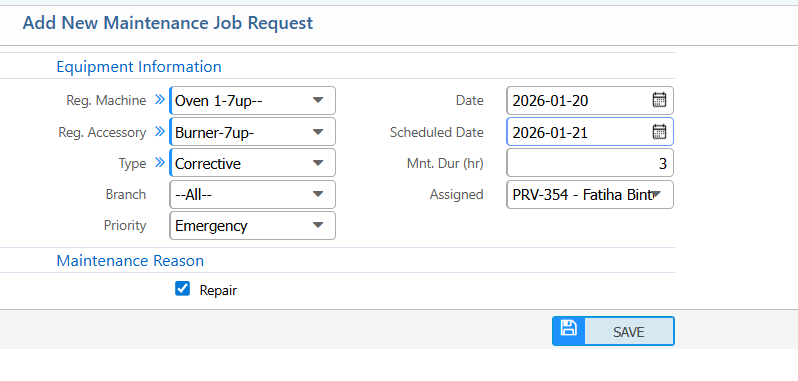
1. Add New Maintenance Job Request
| Field | Action |
|---|---|
| Reg. Machine | Select the registered machine for which the maintenance request is being raised. |
| Reg. Accessory | Select any accessories associated with the machine that require maintenance. |
| Type | Select the type of maintenance task (e.g., preventive, corrective). |
| Branch | Select the branch where the machine or accessory is located. |
| Priority | Select the priority of the maintenance job to assist with scheduling. |
| Date | Enter the date when the maintenance request is created. |
| Scheduled Date | Enter the planned date for executing the maintenance task. |
| Mnt. Dur (hr) | Enter the estimated duration in hours for completing the maintenance. |
| Assigned | Select the maintenance personnel or team to assign the task. |
| Maintenance Reason | Enter the reason or issue that prompted the maintenance request. |
| Repair | Select whether the task involves a repair or replacement action. |
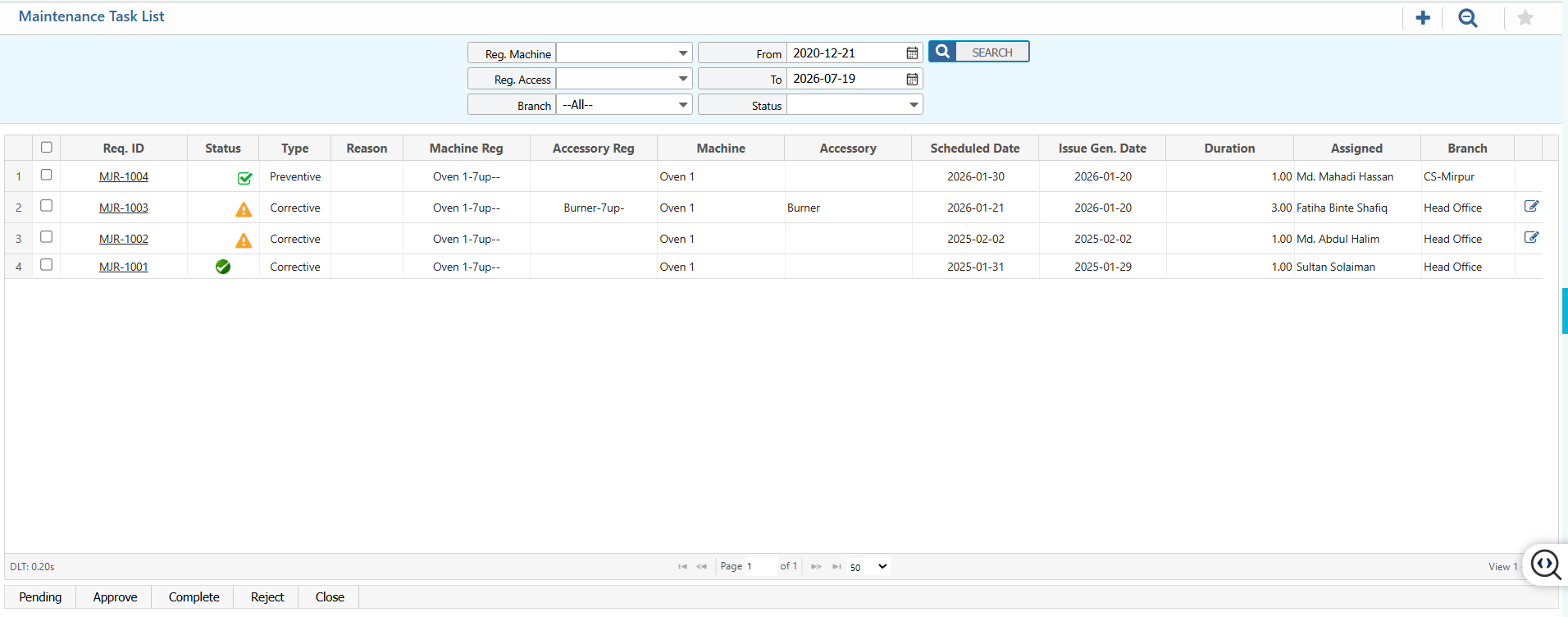
2. Maintenance Job List – Search & Actions
| Field | Action |
|---|---|
| Reg. Machine | Select the registered machine to filter maintenance tasks. |
| Reg. Access | Select the registered accessory to filter tasks related to that accessory. |
| Branch | Select the branch to filter tasks. |
| From | Enter the start date to filter tasks created or scheduled from this date. |
| To | Enter the end date to filter tasks created or scheduled up to this date. |
| Status | Select the task status (e.g., Pending, Completed, In Progress) and update status as needed. |
| Edit | Modify task details such as scheduled date, assigned personnel, or reason. |
| Add | Create a new maintenance task request. |
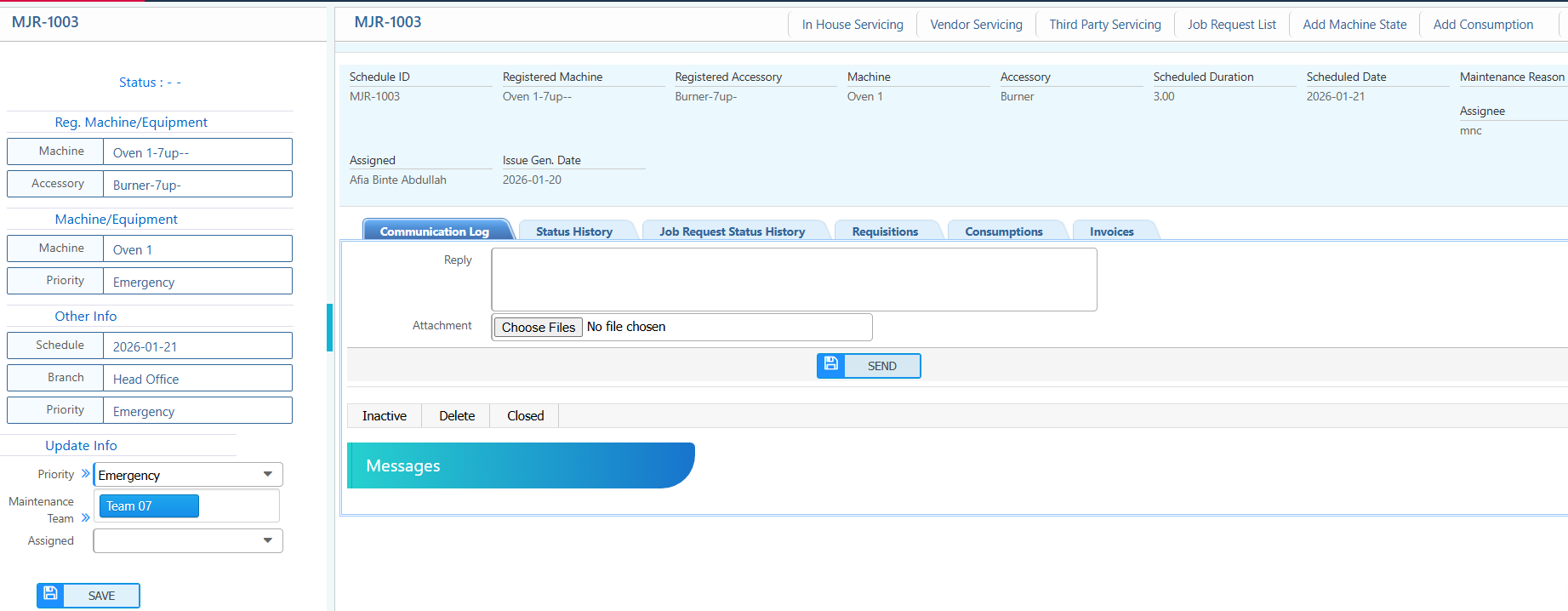
3. Maintenance Request – Details View & Action
| Field | Action |
|---|---|
| In House Servicing | Assign or update tasks handled internally by the company maintenance team. |
| Vendor Servicing | Assign or update tasks handled by external vendors. |
| Third Party Servicing | Assign or update tasks handled by third-party service providers. |
| Job Request List | View all job requests with search and filter options. |
| Add Machine State | Record or update the current operational state of the machine. |
| Add Consumption | Log material or resource consumption related to the maintenance task. |
| Communication Log | Add replies, notes, or attachments to track task-related communication. |
| Status History | View the chronological history of status changes. |
| Job Request Status History | View detailed past actions and updates for the job request. |
| Requisitions | Create or view requisitions for materials required for maintenance. |
| Consumptions | Track material or resource consumption during maintenance. |
| Invoices | Attach or view invoices related to the maintenance task. |
| Reply | Add a reply or note for the maintenance request. |
| Attachment | Upload files, documents, or images related to the task. |
| Maintenance Team | Assign the maintenance team and individual members. |
| Status | View and update the current status of the request. |
4. Maintenance Job Status
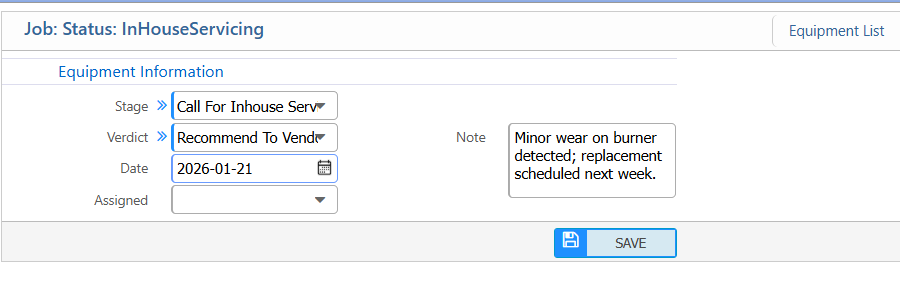
4.1 In House Servicing
| Field | Action |
|---|---|
| Stage | Select the current stage of maintenance (e.g., Inspect, Repair, Test). |
| Inspect | Enter inspection details or observations. |
| Verdict | Enter the inspection result (e.g., Passed, Requires Repair). |
| Date | Enter the date the stage was completed (e.g., 2026-01-20). |
| Assigned | Select the personnel or team responsible for this stage. |
| Note | Add additional remarks or instructions related to this stage. |
4.2 Edit Machine Status
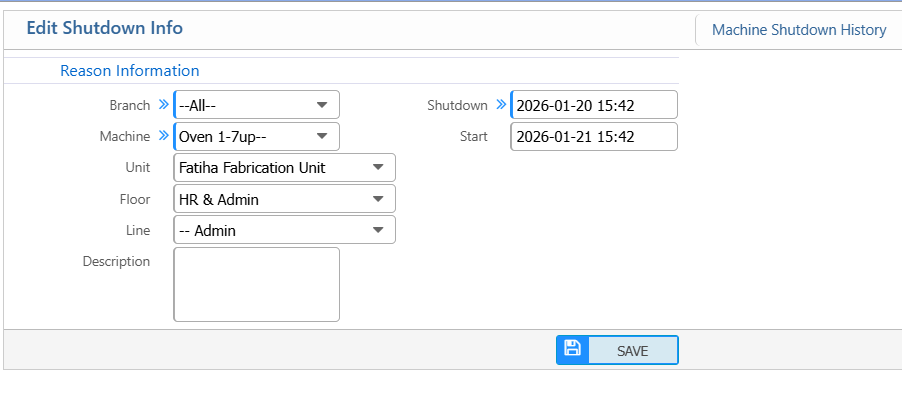
| Field | Action |
|---|---|
| Reason Information | Select the reason for the machine shutdown. |
| Branch | Select the branch where the machine is located. |
| Machine | Select the machine that was shut down. |
| Unit | Select the unit within the branch. |
| Floor | Select the floor where the machine is located. |
| Line | Select the production or administrative line. |
| Shutdown | Enter the date and time when the machine was shut down. |
| Start | Enter the planned restart date and time. |
| Description | Enter additional details or notes about the shutdown. |
5. Add New Maintenance Schedule
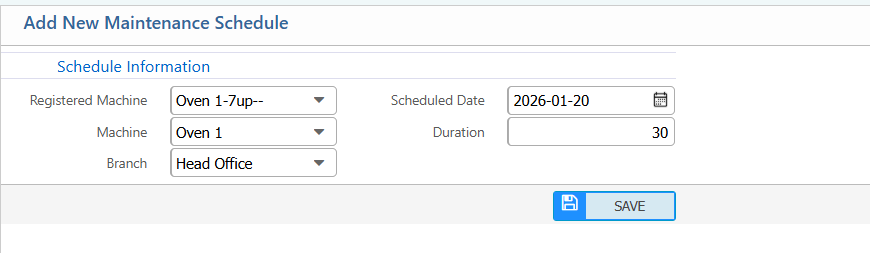
| Field | Action |
|---|---|
| Registered Machine | Select the machine for which the maintenance schedule is being created. |
| Machine | Select the specific machine from the registered list. |
| Branch | Select the branch where the machine is located. |
| Scheduled Date | Enter the planned maintenance date. |
| Duration | Enter the estimated maintenance duration in hours. |
6. Maintenance Schedule List – Search & Action
| Field | Action |
|---|---|
| Job Req | Select the job request to filter schedules. |
| Reg. Machine | Select the registered machine to filter schedules. |
| Branch | Select the branch to filter schedules. |
| Reg. Access | Select the registered accessory to filter schedules. |
| Type | Select the schedule type to filter records. |
| From | Enter the start date to filter schedules. |
| To | Enter the end date to filter schedules. |
| View | View detailed information for the selected schedule. |
| Edit | Modify schedule details such as machine, date, or duration. |
| Add | Create a new maintenance schedule. |
| Delete | Remove a maintenance schedule from the list. |

7. Maintenance Schedules – Detail View & Action
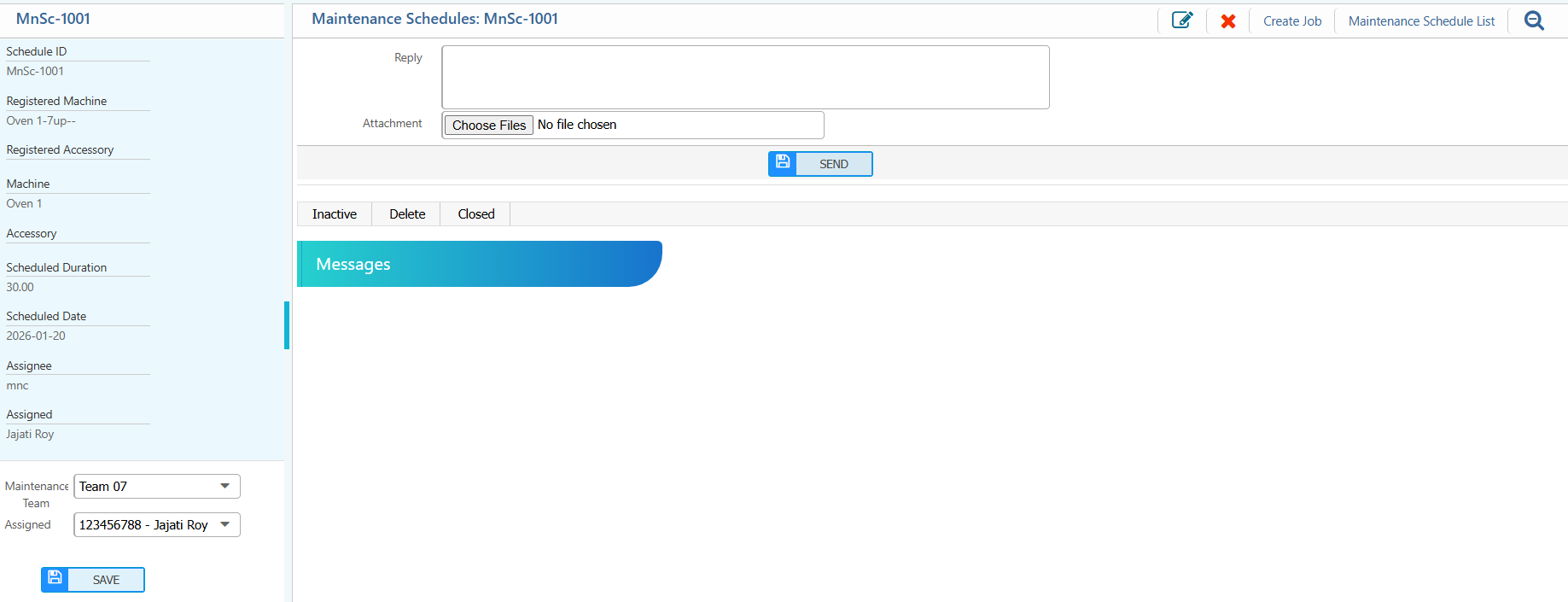
| Field | Action |
|---|---|
| Assign Maintenance Team | Assign or update the maintenance team and members. |
| Edit | Edit schedule details such as machine, date, duration, or assignee. |
| Create Job | Create a maintenance job based on this schedule. |
| Maintenance Schedule List | Navigate back to the full schedule list. |
| Reply | Add a reply or note related to the schedule. |
| Attachment | Upload supporting documents or files. |
| Status | Update the schedule status as required. |
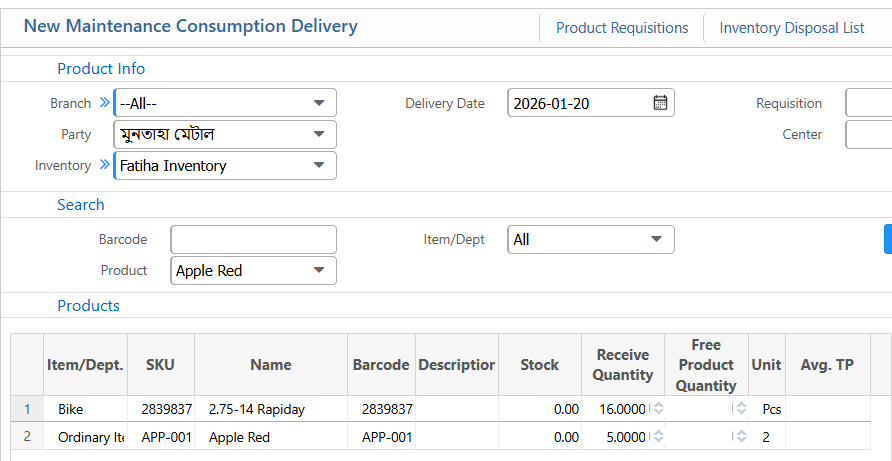
8. Add Material Consumption Delivery
| Field | Action |
|---|---|
| Branch | Select the branch for the consumption delivery. |
| Party | Select the party or vendor associated with the delivery. |
| Inventory | Select the inventory from which items will be consumed. |
| Delivery Date | Enter or select the delivery date. |
| Requisition | Select the relevant requisition center. |
| Search Barcode | Enter the product barcode to locate items quickly. |
| Item/Dept | Select the item category or department. |
| Product | Select the product for delivery. |
| Variant Code | Select the product variant (e.g., size, model). |
| Receive Quantity | Enter the quantity to be delivered or consumed. |
| Free Product Quantity | Enter any free quantity provided. |
| Notes | Enter additional remarks for the delivery. |
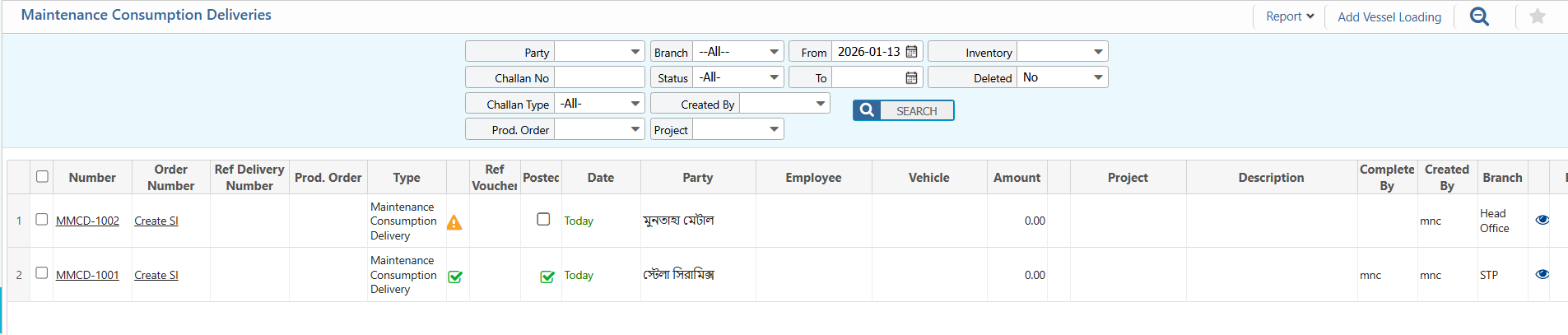
9. Material Consumption Delivery List – Search & Filter
| Field | Action |
|---|---|
| Party | Search deliveries by party or vendor. |
| Challan No | Search by challan number to locate a delivery. |
| Challan Type | Filter by challan type (e.g., Create SI). |
| Prod. Order | Search deliveries by production order number. |
| Branch | Filter deliveries by branch. |
| Status | Filter by delivery status and update as needed. |
| Created By | Search deliveries by the user who created them. |
| Project | Filter deliveries by project. |
| From | Select the start date to filter deliveries. |
| To | Select the end date to filter deliveries. |
| Inventory | Filter deliveries by inventory source. |
| Deleted | Include or exclude deleted records. |
| Create SI | Generate a Sales Invoice from the selected delivery. |
| Edit | Edit delivery details such as quantity or remarks. |
| Report | View or print detailed delivery reports. |