Production Order
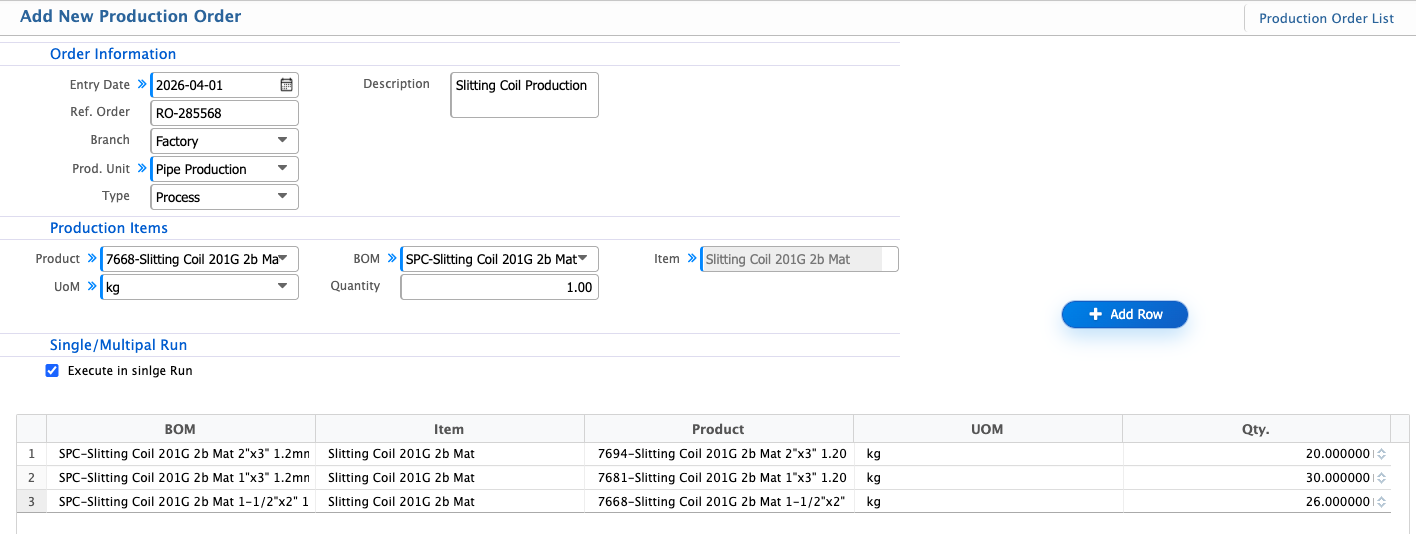
The Production Order module in PrismERP allows users to create and manage production orders efficiently. When adding a new order, users enter key information such as Entry Date, Reference Order, Branch, Production Unit, Type, and Description. Selecting a BoM automatically loads the associated product, items, and quantities. Once created, orders appear in the Production Order List, where users can search and filter to quickly locate specific entries. Production can be scheduled using either forward or backward sequence methods. Each order progresses through statuses like Pending, In Progress, Completed, and Cancelled, reflecting its current stage. Users can add new orders, edit existing ones, or access the advanced view for more details. Clicking on an order opens the Details View, providing full access to Order Items, Production Items, Issue, Consumption, and Production records.
Add Production Order
| Field | Action |
|---|---|
| Entry Date | Enter or select the date when the production order is created. |
| Ref. Order | Select or enter the reference order linked to this production order, if applicable. |
| Branch | Select the branch where the production order will be created. |
| Prod. Unit | Select the production unit responsible for executing the order. |
| Type | Select the type of production process. |
| Description | Enter any additional details or notes related to the production order. |
| BOM | Select the Bill of Materials associated with the product (product, item, and quantity will auto-load). |
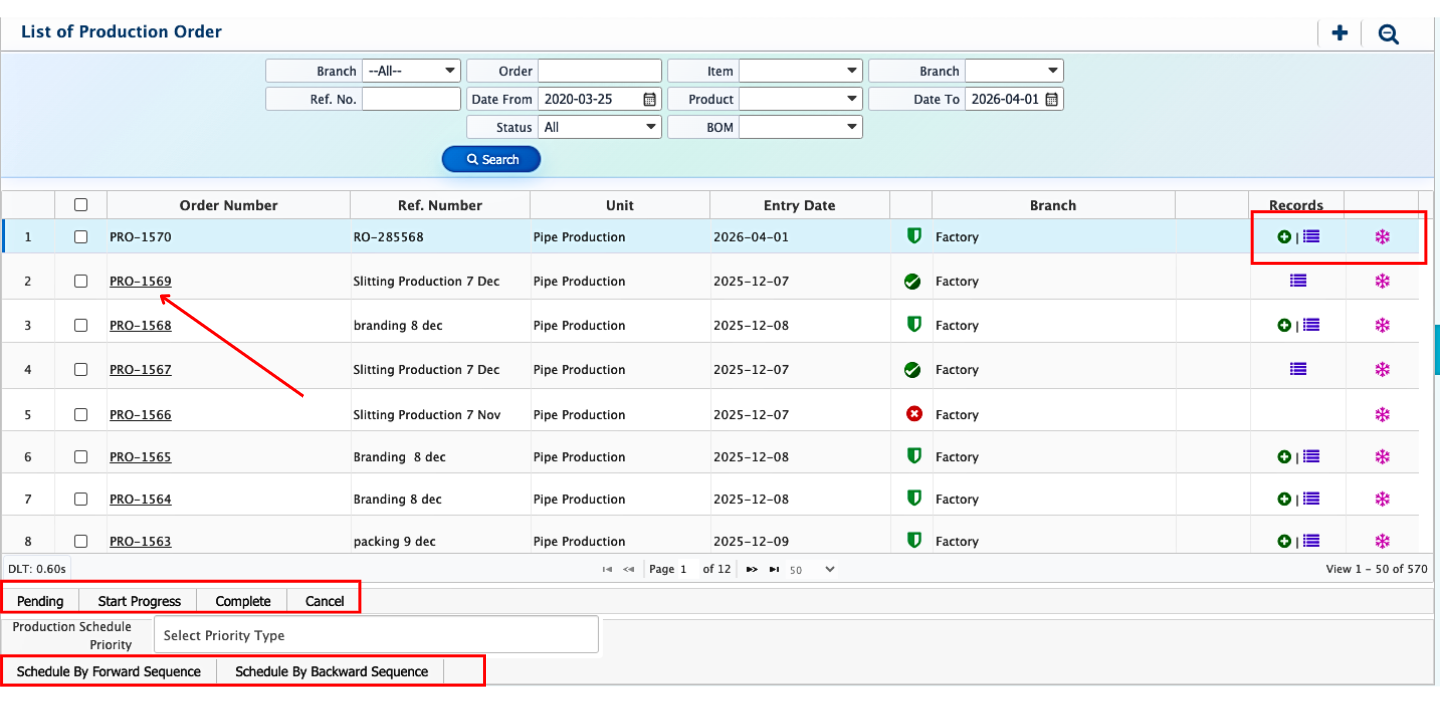
After adding a Production Order, the user can view it in the Production Order List with all relevant details. The search and filter panel allows users to locate specific orders based on different criteria. Users can also schedule production using both forward sequence and backward sequence methods. Each production order is managed through different statuses, including Pending, In Progress, Completed, and Cancelled, reflecting its current stage in the process. From the list, users can add new records, edit existing ones, and access the advanced view to see detailed information about each production order.
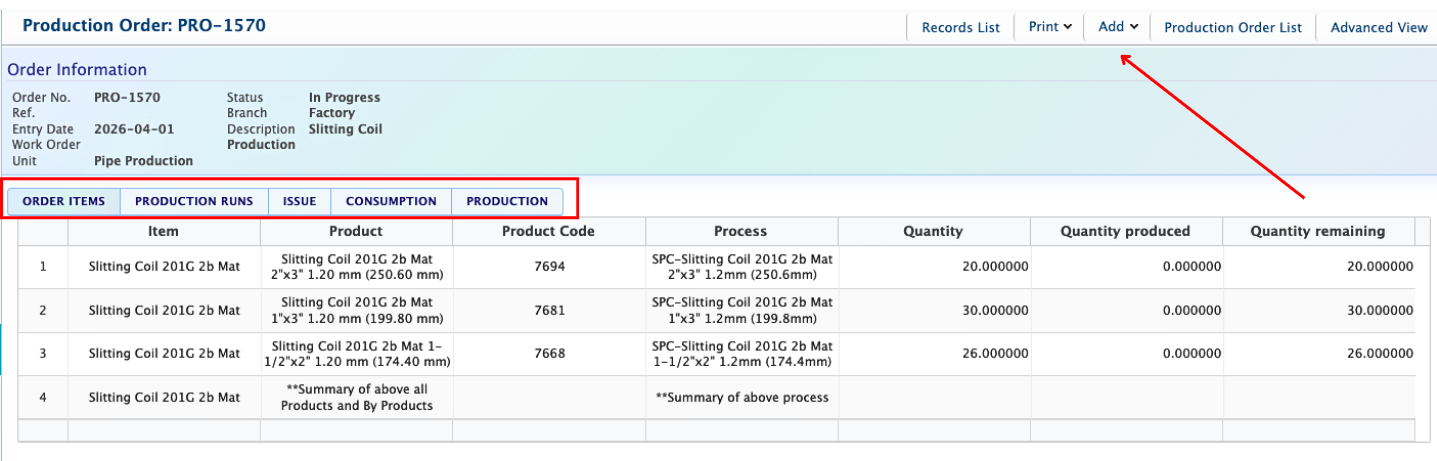
When a user clicks on a Production Order from the list, the details view of that order opens. The user can access Order Items, Production Items, Issue, Consumption, and Production to see all relevant information for the order.