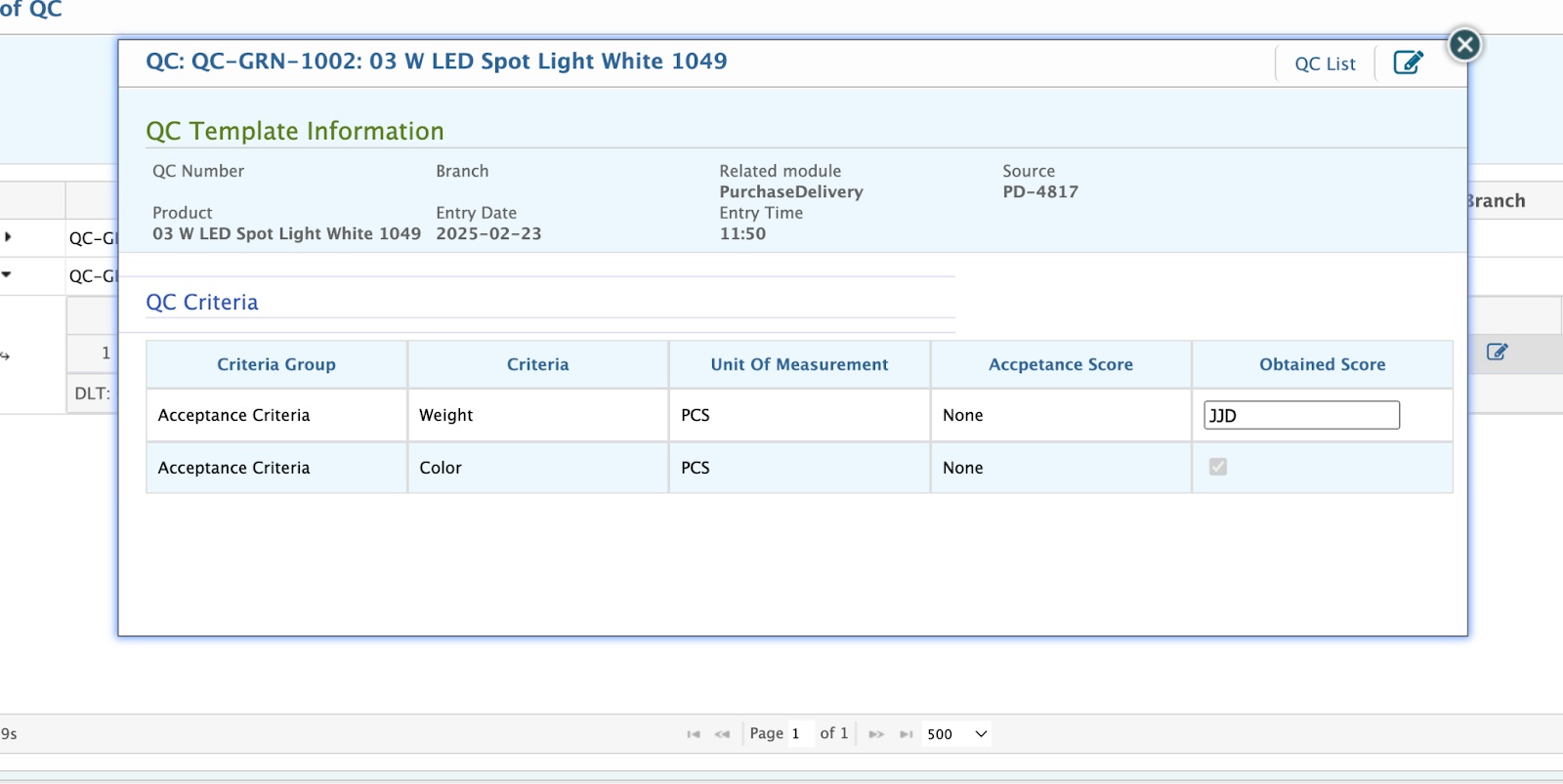
Quality Control
The Quality Control feature in PrismERP is a dynamic and customizable tool designed to seamlessly integrate with Purchase Management, Production Management, and Sales Management. This feature allows businesses to configure quality control processes tailored to their specific needs, ensuring consistent product quality across all operations.
Key Feature of Quality Control
- QC Accept Reject Criteria
- QC Accept Reject Criteria Group
- QC Type
- Set Up QC Type QC Template
- Quality Control
QC Accept Reject Criteria
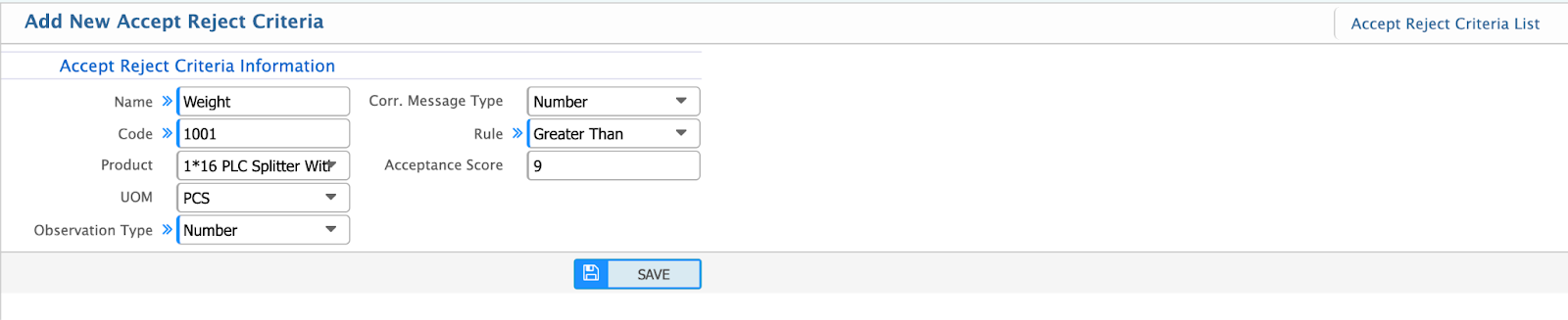
Add New Accept Reject Criteria
To set up Quality Control (QC) acceptance and rejection criteria in PrismERP, you need to define the conditions under which a product is accepted or rejected. The setup process involves completing the following fields:
- Name: Enter the name of the QC acceptance/rejection criteria.
- Code: Assign a unique code for the criteria.
- Product: Select the product for which the QC criteria are being configured.
- UMO: Choose the unit of measurement for the product.
- Observation Type: Specify the type of observation (e.g., Text, Number, or Checkbox) based on your requirements.
- Correct Message Type: Define the correct message type, selecting from Text, Number, or Checkbox as needed.
- Rule: Set the rule for evaluation, such as Greater Than, Less Than, Less Equal, Checkbox, Multiple Option Checkbox, or Text.
- Acceptance Score: Determine the acceptance score for the criteria to meet QC standards.
List of Accept Reject Criteria
List page shows all the accept reject criteria lists that are being created in the application.
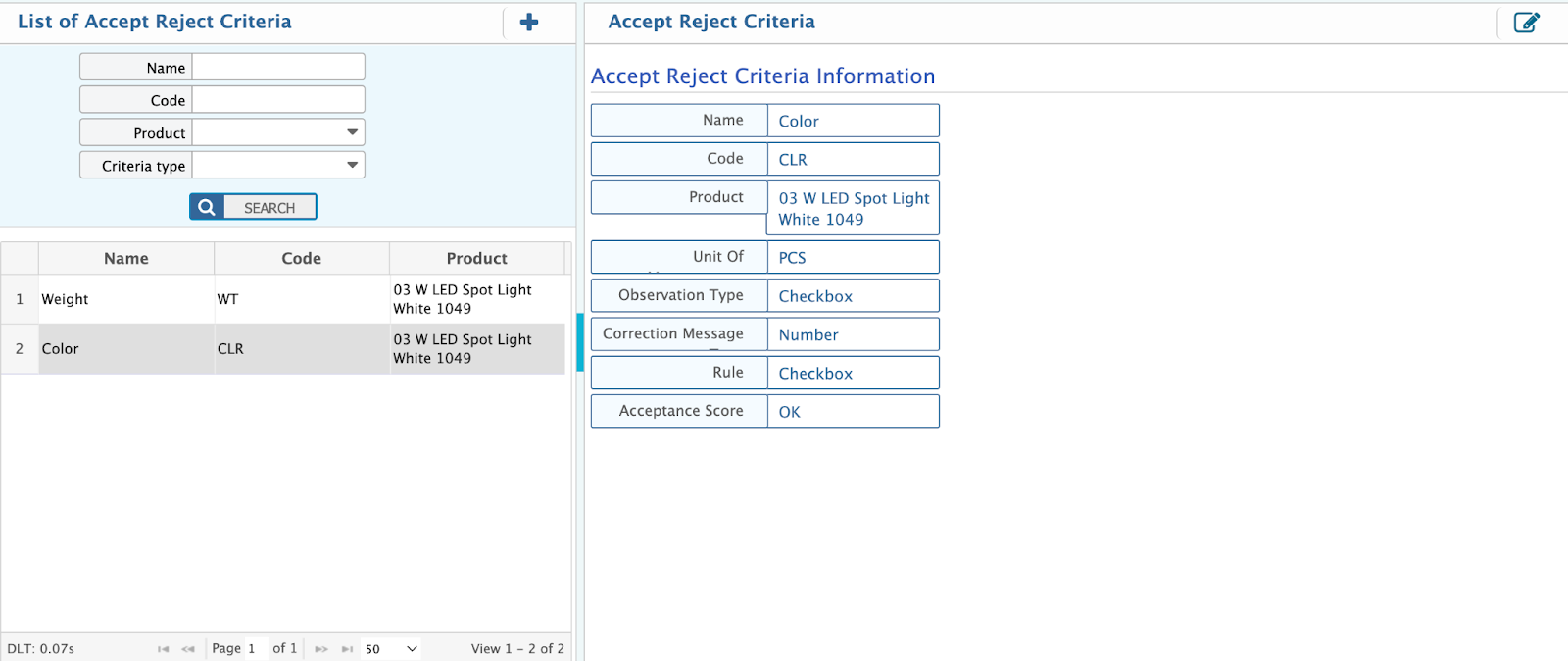
In PrismERP, the QC Acceptance and Rejection Criteria list page allows users to efficiently manage and review the configured criteria. From the list page, you can:
- Search: Filter criteria by name, code, product name, or criteria type for quick access.
- View Details: Select a specific criterion to see its detailed configuration.
- Edit Criteria: Make adjustments to any existing criteria by clicking on the Edit button if updates or modifications are needed.
QC Accept Reject Criteria Group
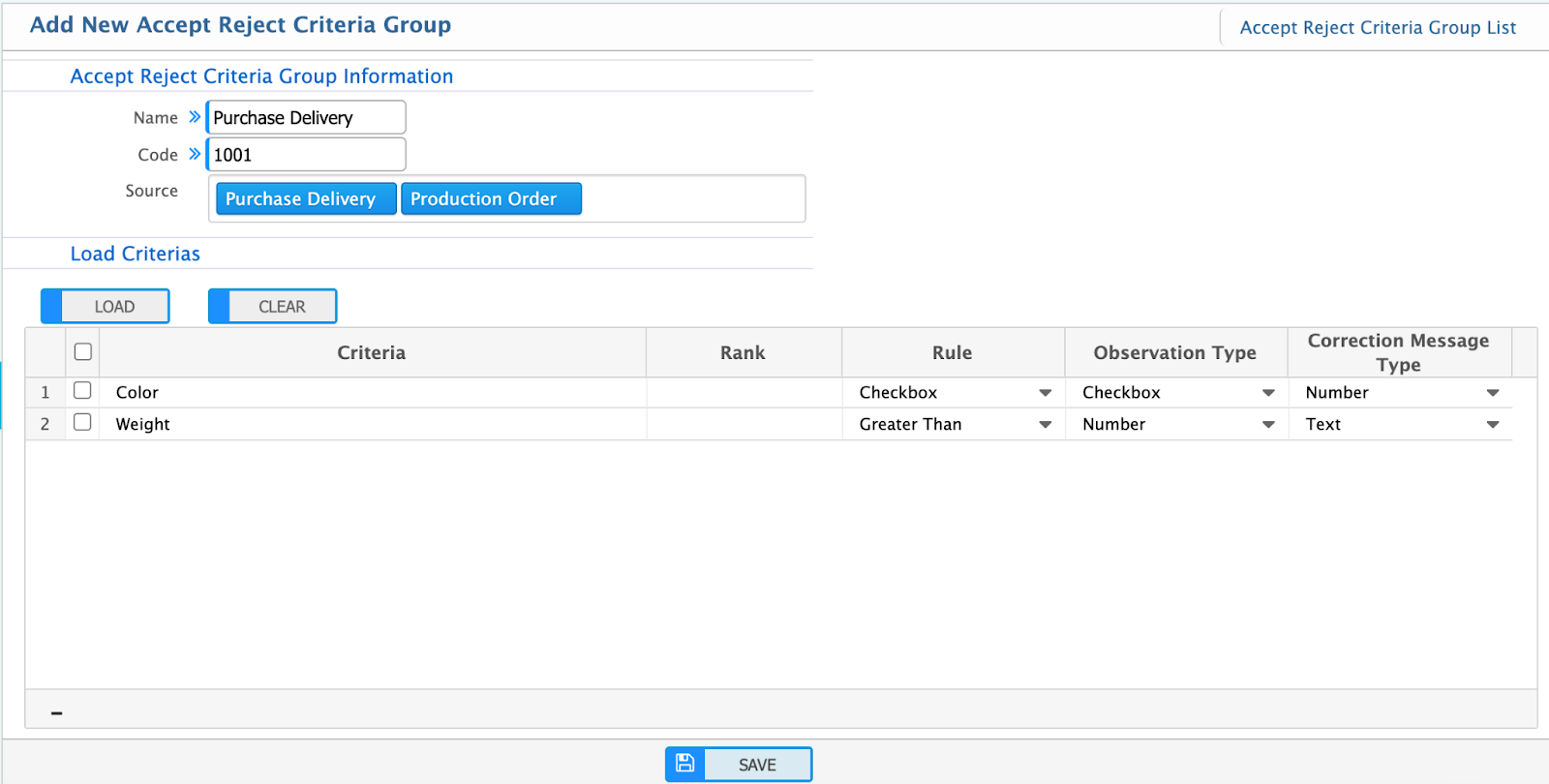
Add Accept Reject Criteria Group
After defining individual QC accept/reject criteria, the next step is to create an Acceptance Criteria Group in PrismERP. This group organizes criteria based on the business source (e.g., purchase, sales, production). To add a new group, follow these steps:
- Fill in the Details:
- Name: Provide a name for the criteria group.
- Code: Assign a unique code for identification.
- Source: Select the relevant source, such as purchase, sales, or production, for which the group is being created.
- Load Criteria: Click on the Load button to display all the existing criteria based on the selected source.
- Select Criteria: Choose the desired criteria from the loaded list to include in the group.
- Save: Save the group configuration to finalize the creation.
This feature enables efficient management and grouping of QC acceptance/rejection criteria for various operational needs.
List of Accept Reject Criteria Group
List page shows all the accept reject criteria group lists that are being created in the application.
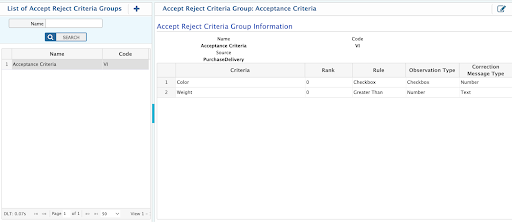
From the Acceptance Criteria Group List Page in PrismERP, you can manage and review existing groups effectively. Key features include:
- Search: Use the search bar to locate a group by its name quickly.
- Details View: Click on the desired group to view its detailed information, including the associated criteria and source.
- Edit: If modifications are required, click on the Edit button to update the group details, such as adding or removing criteria or changing the source.
QC Type
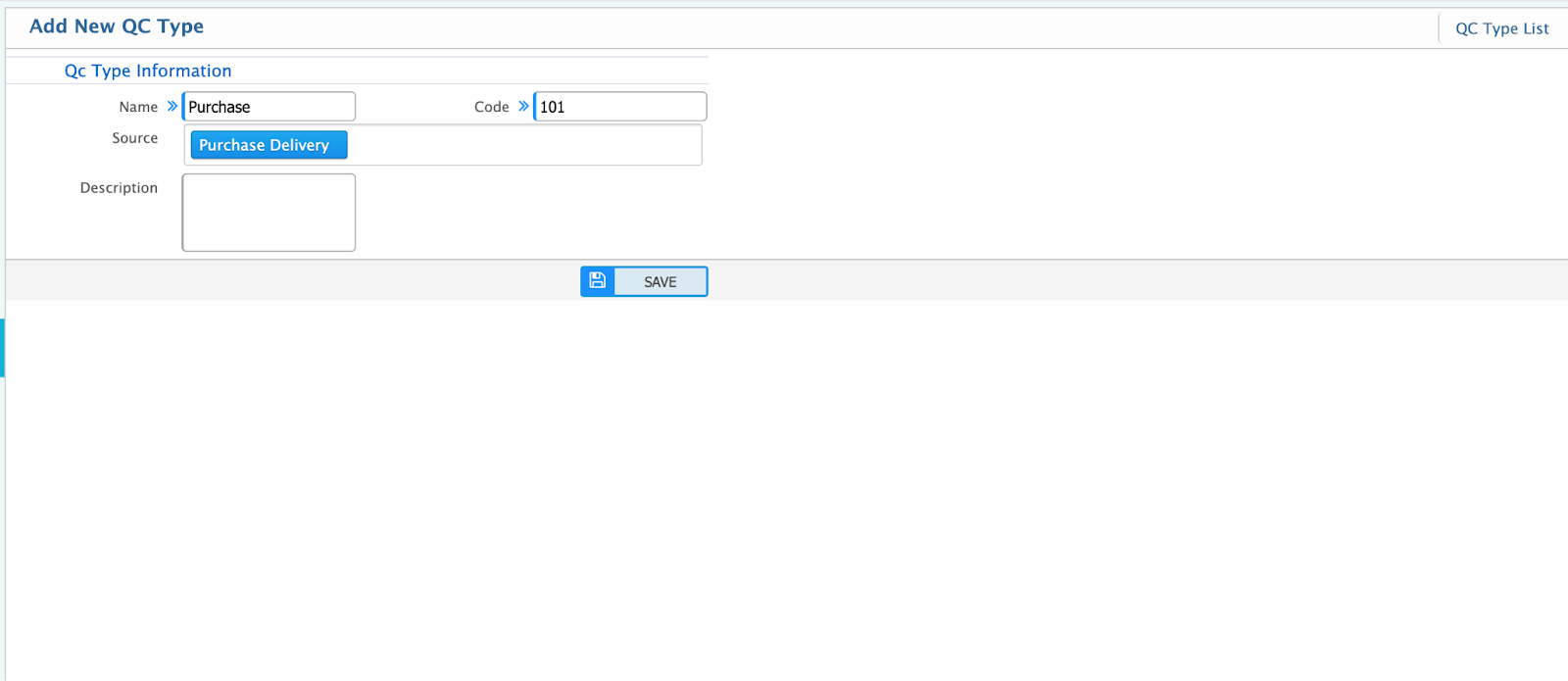
Add QC Type
To add a Quality Control (QC) Type in PrismERP, follow these steps and fill in the required fields:
- Name: Enter the name of the QC type to define its purpose or category (e.g., Purchase QC, Production QC, or Sales QC).
- Code: Provide a unique code to identify the QC type.
- Source: Select the source for which this QC type applies, such as Purchase, Production, or Sales, depending on your business requirements.
After filling out these fields, save the QC type to finalize its creation. This setup ensures proper categorization and application of QC processes in relevant operations.
QC Type List
List page shows all the QC types lists that are being created in the application.
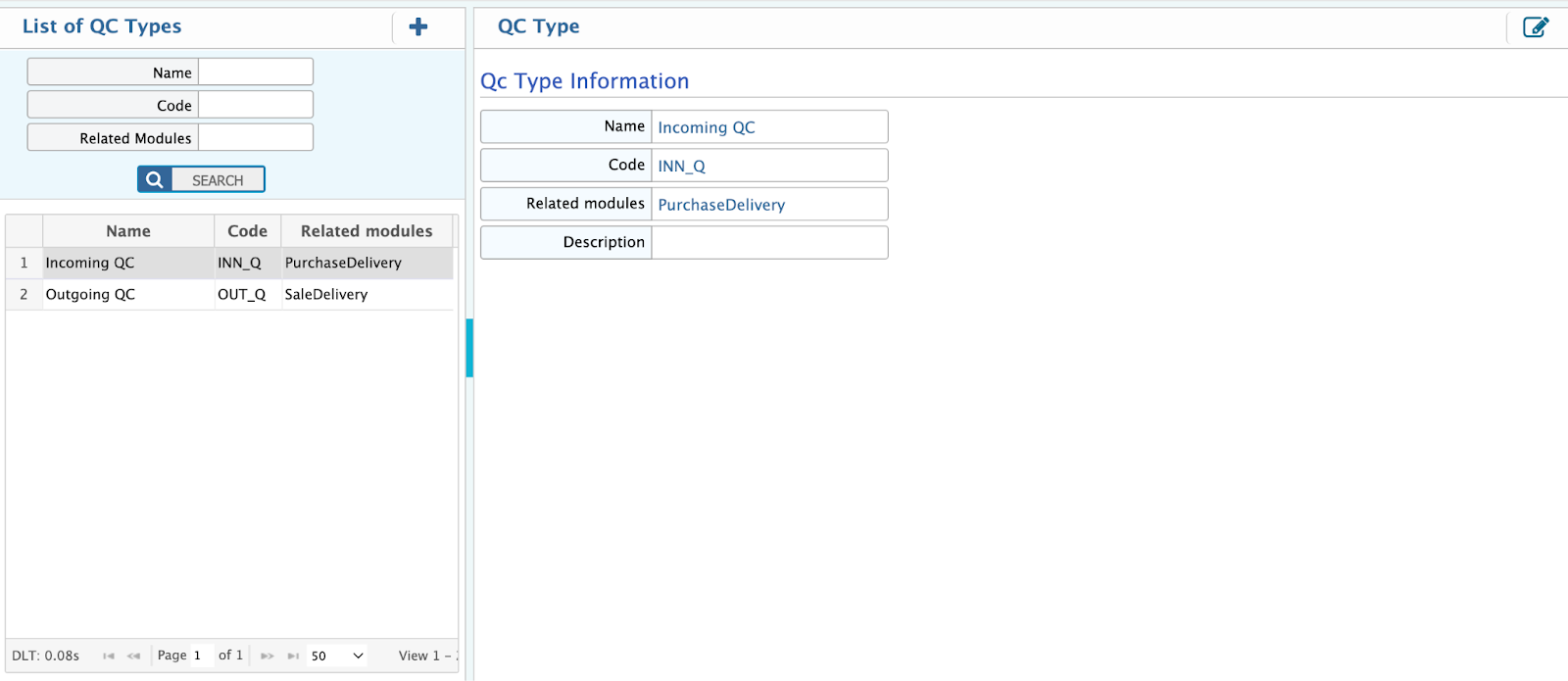
From the QC Type List Page in PrismERP, you can manage and view your configured QC types with the following functionalities:
- Search: Search by Name or Code to quickly locate specific QC types.
- View Details: Click on a specific QC type to see its detailed information, including its name, code, and associated source.
- Edit: If any modifications are needed, click the Edit button to update the details of the selected QC type.
This functionality ensures seamless management of QC types for purchase, production, or sales processes.
QC Templates
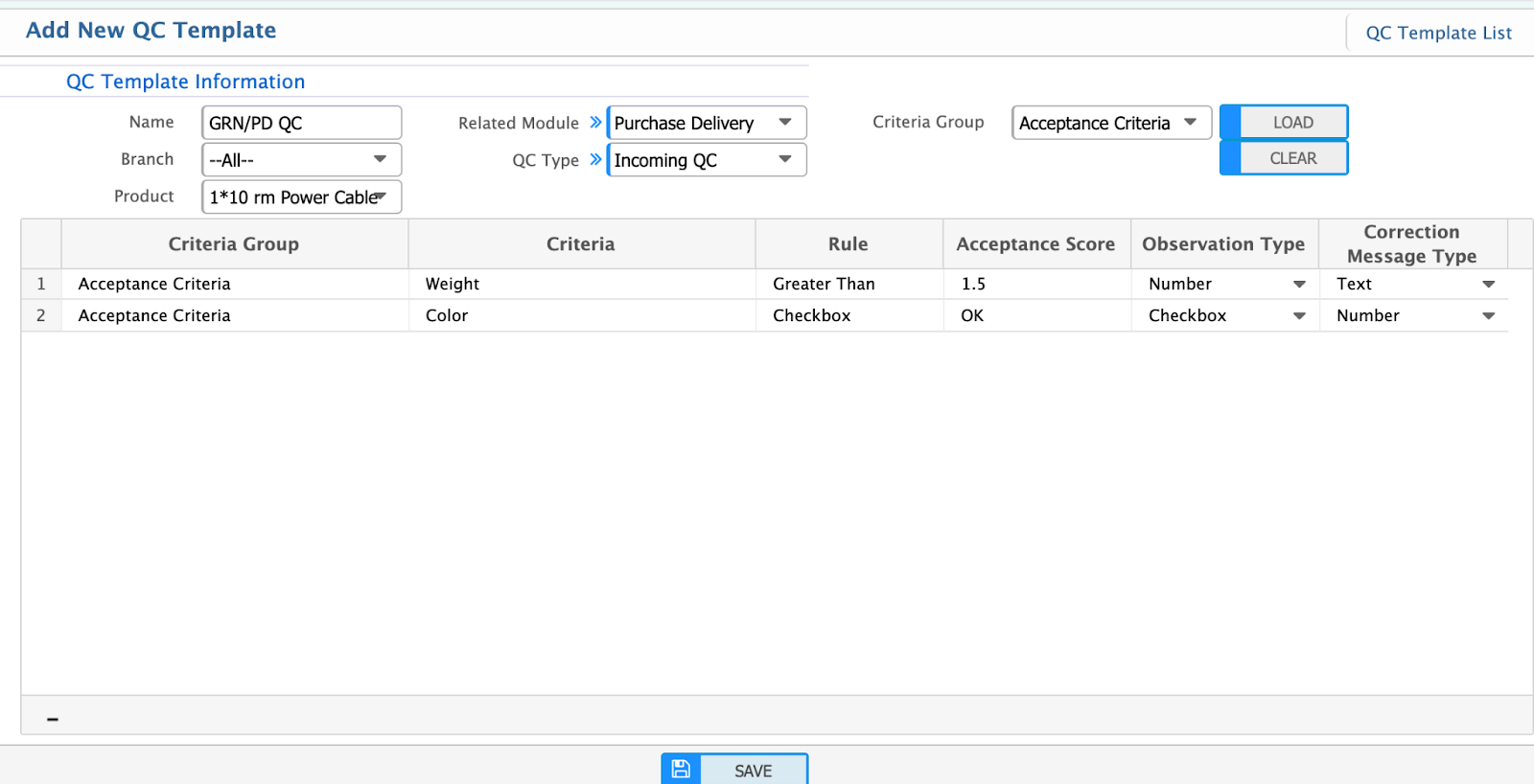
Add New QC Template
To add a QC Template in PrismERP, follow these steps to fill in the required fields:
- Name: Enter the name of the QC template.
- Branch: Select the branch if applicable.
- Product: Choose the product for which you want to create the QC template.
- Related Module: Select the module name for which the template will apply, such as Purchase, Production, or Sales.
- QC Type: Select the QC type that you have already created.
- Criteria Group: Select the criteria group that you have configured.
This setup ensures the template aligns with the necessary quality control parameters for the selected product and module.
QC templates List
List page shows all the QC templates lists that are being created in the application.
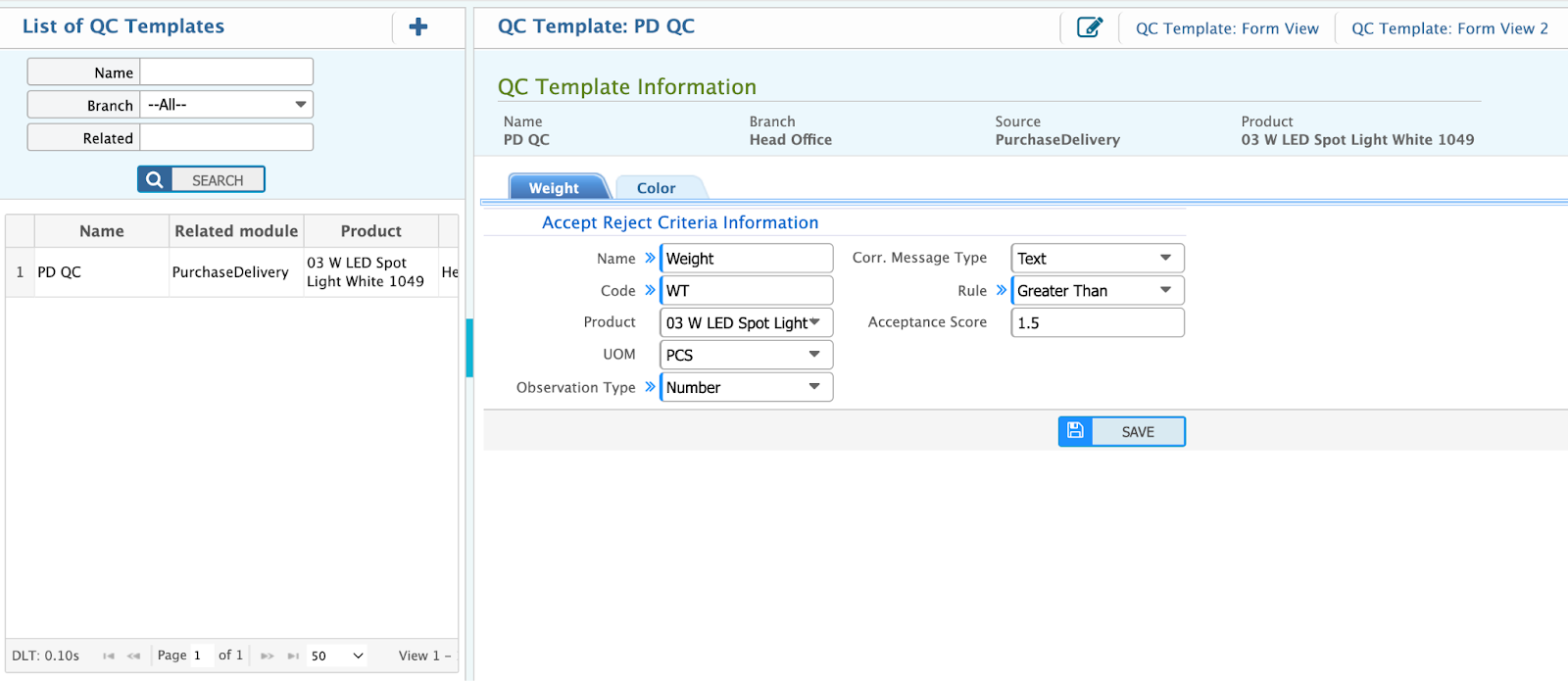
From the QC Templates List page in PrismERP, you can:
- Search: Filter templates by name or branch to find specific ones.
- View Details: Click on a template to view its detailed configuration, including the associated QC type, criteria group, and related module.
- Edit/Modify: If adjustments are needed, click on the Edit button to update the template's details.
Quality Control Process
Add QC
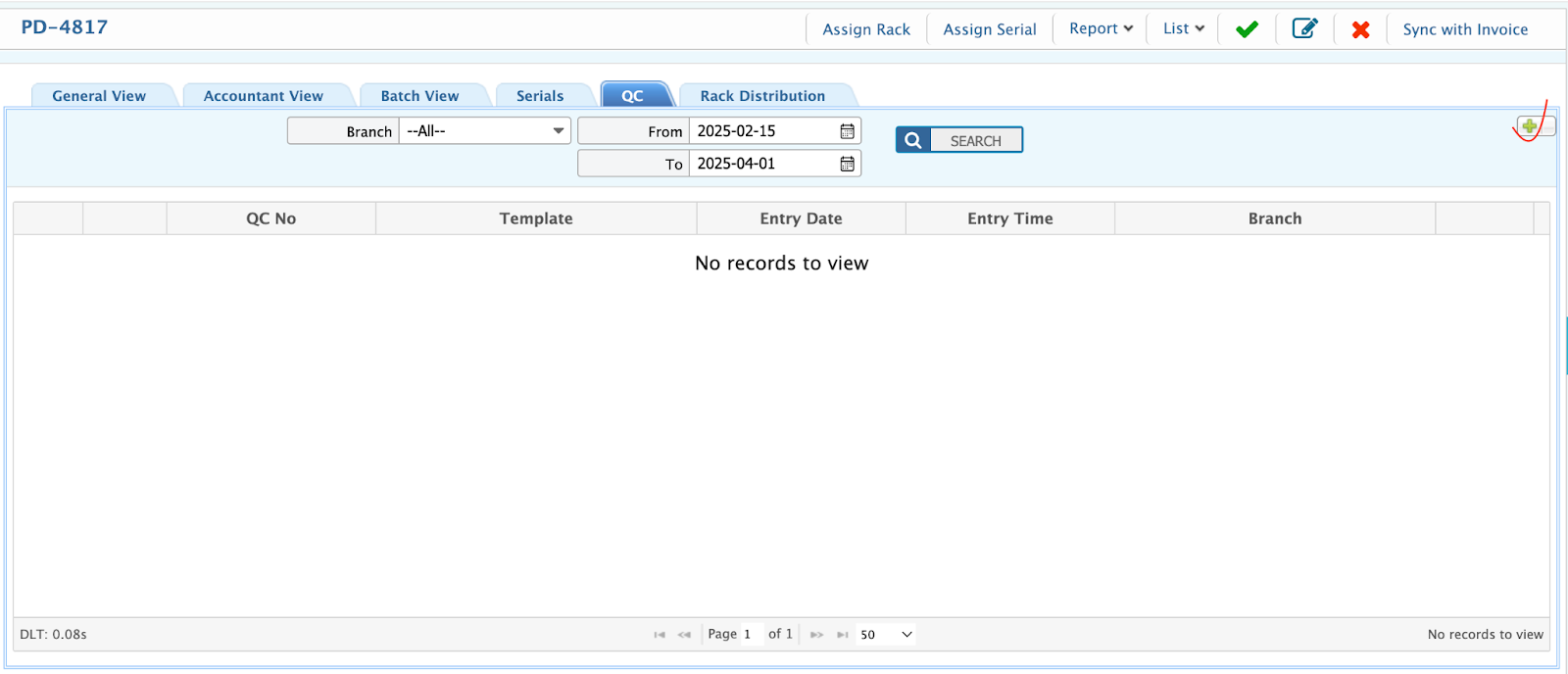
After creating a Goods Receive Note, Production Delivery, or Sale Delivery, follow these steps to perform Quality Control (QC) using the QC tab:
- Navigate to the QC Tab in the respective module.
- Click on the "+" Icon located in the top-right corner.
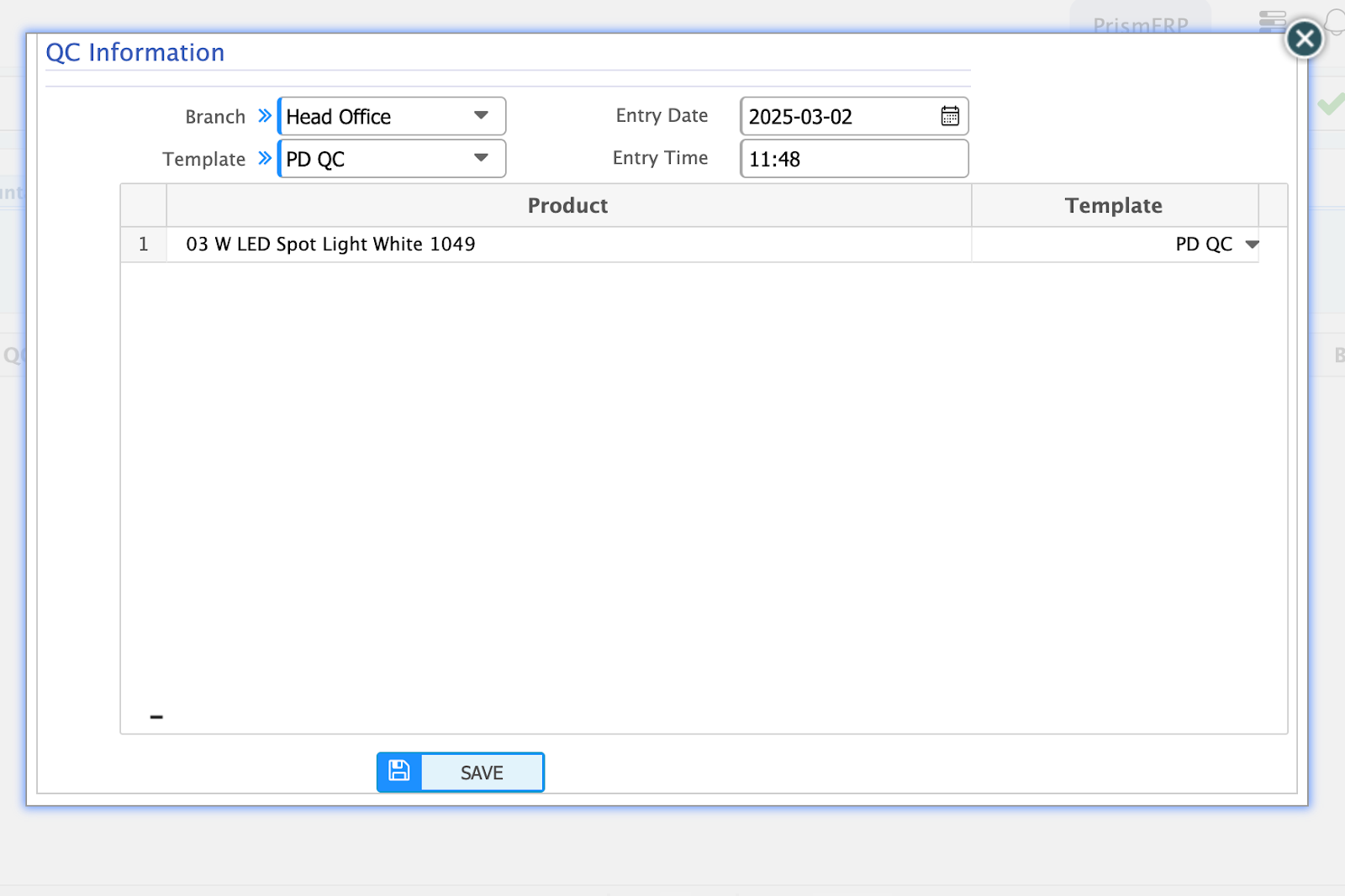
- A new window will appear, prompting you to fill in the following fields:
- Entry Date: Specify the date of the QC entry.
- Entry Time: Specify the time of the QC entry.
- Template: Select the appropriate QC template for the operation.
This process ensures that QC procedures are aligned with the configured templates and acceptance criteria.
QC List
List page shows all the QC lists that are being created in the application.
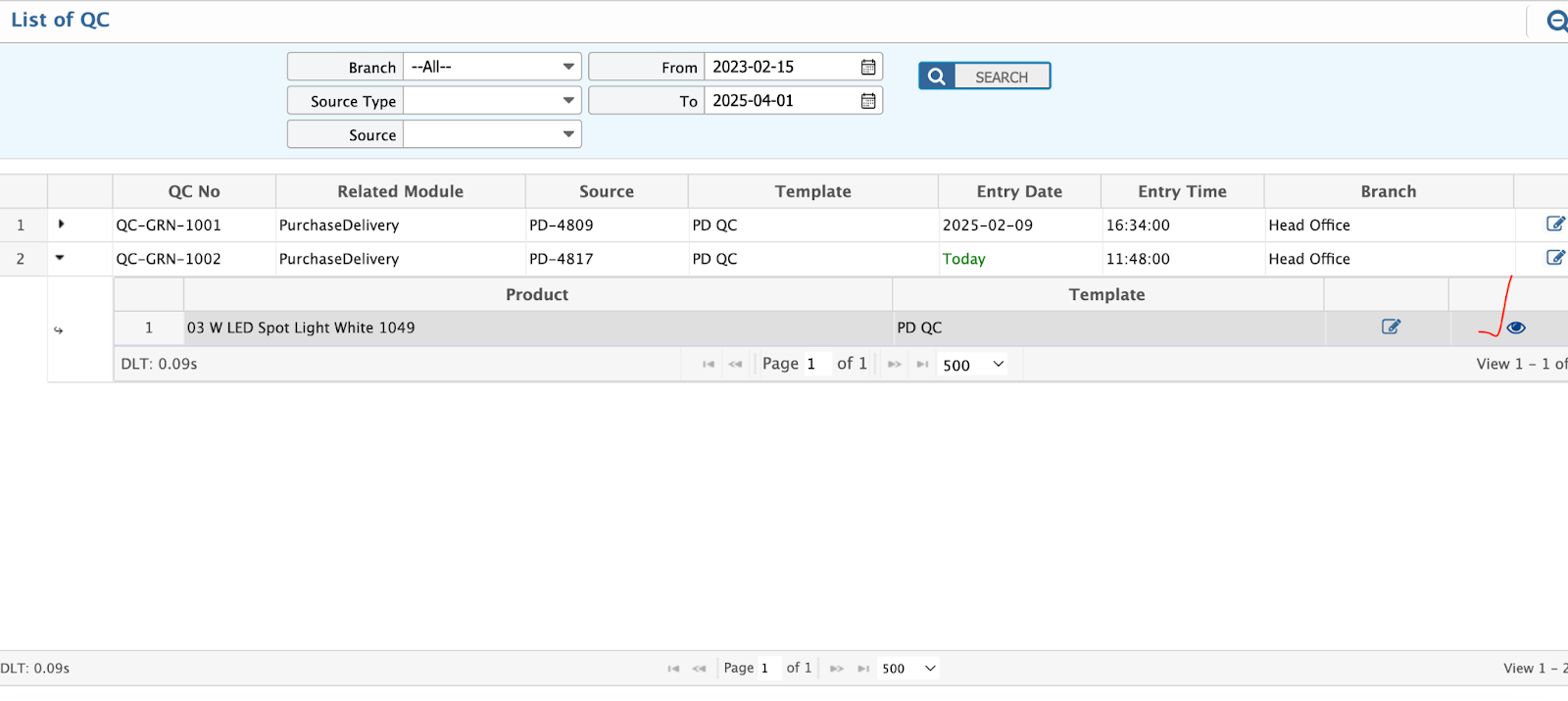
From the list page of the QC module, you can perform the following actions:
- Search Filters: Use the filters to search QC records by:
- Branch
- Source Type (e.g., Purchase, Production, Sales)
- Source (e.g., specific document like GRN, Delivery)
- From Date to To Date
- Edit: If any adjustments are required, click on the Edit button to modify the QC entry as needed.
- View Details: Select a specific QC entry to view its detailed information.