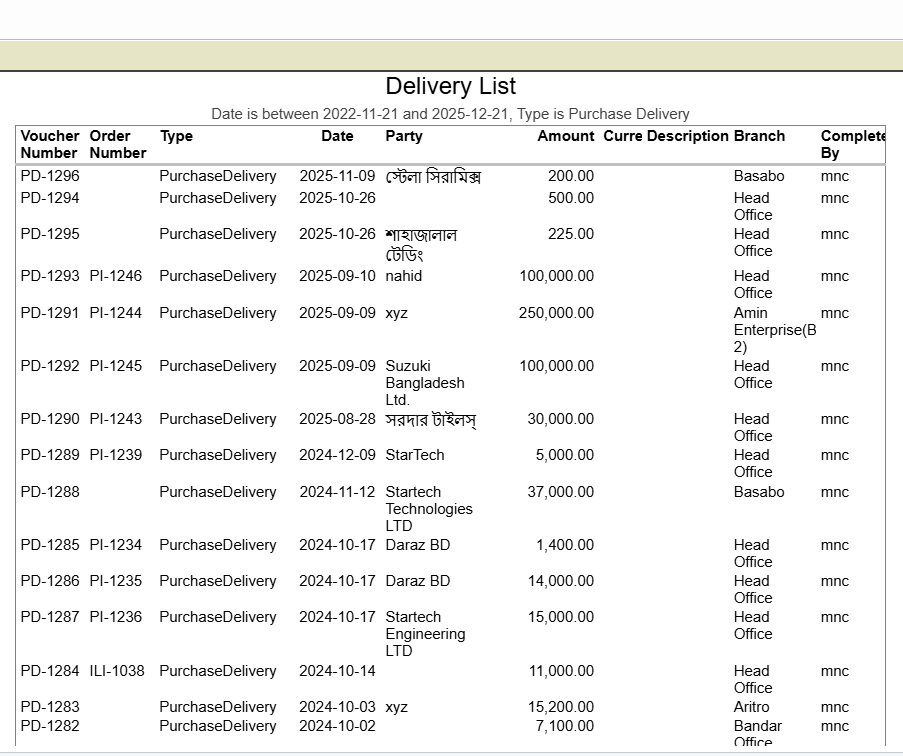
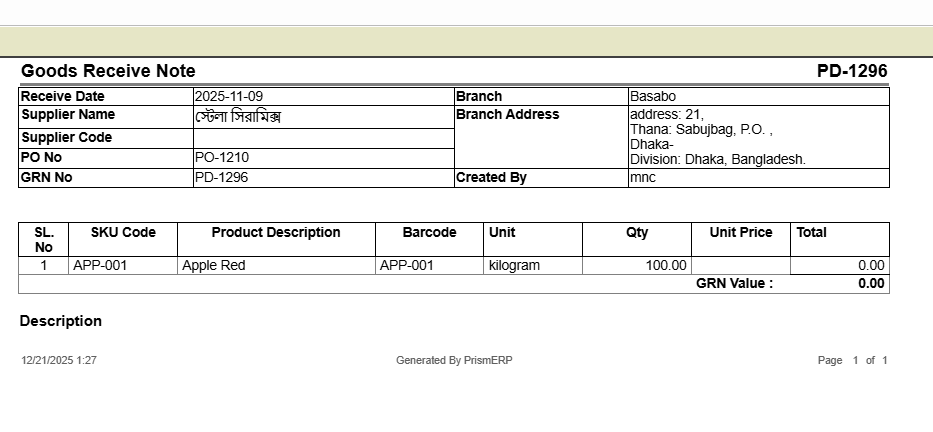
Purchase Delivery (Goods Receive Note)
Purchase Delivery in PrismERP allows users to add, manage, and track purchase deliveries efficiently. Users can record complete product details, including SKU, barcode, quantity, unit, and trade price, along with vendor and party information. The module provides a search and filter system to locate deliveries by party, branch, challan number, status, and date. Through the Details View, users can access batch information, serial numbers, rack distribution, and accounting details. Key action items include generating QR codes for delivered items and assigning products to warehouse racks. Users can also preview and download purchase delivery reports for auditing and record-keeping purposes.
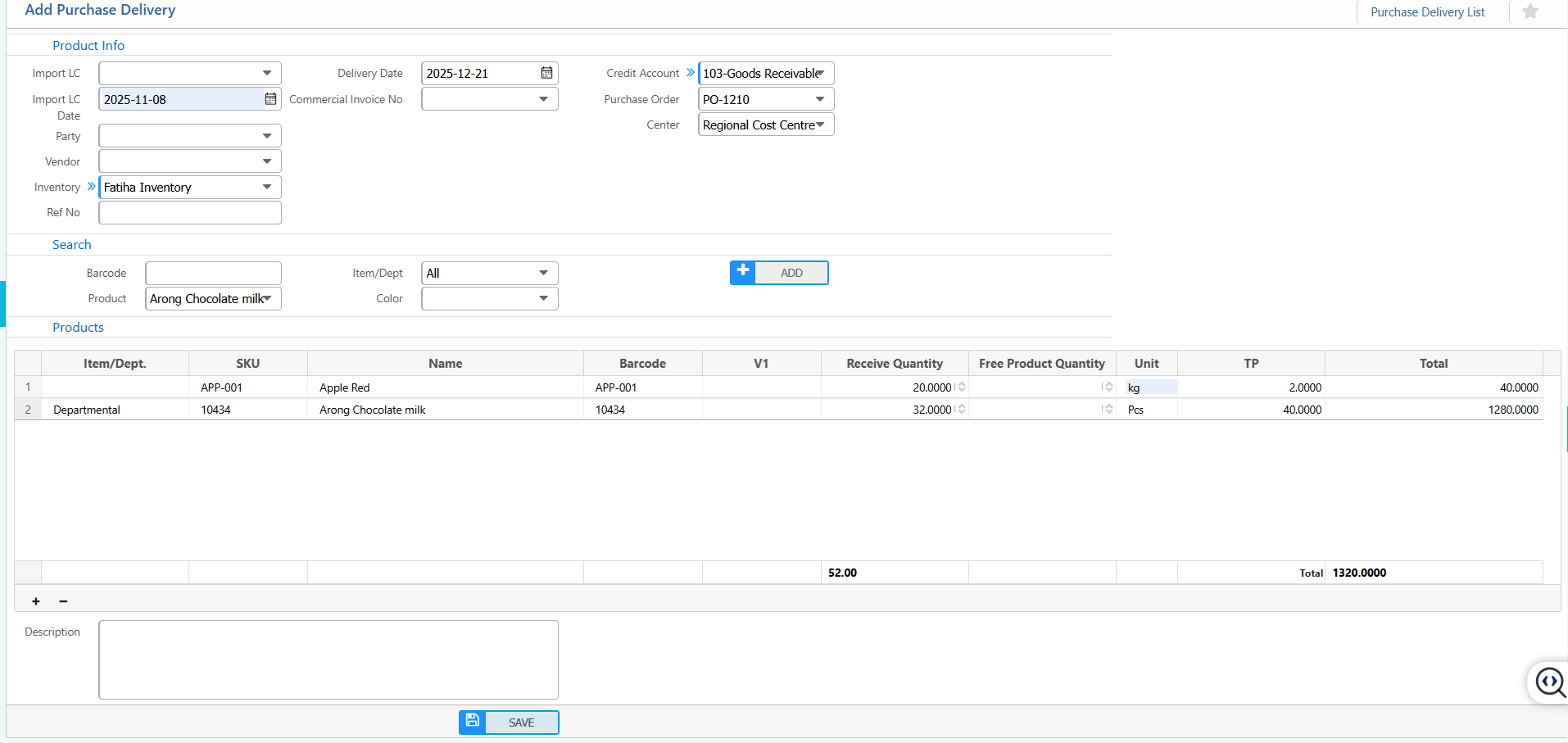
1. New Purchase Delivery
Product Info:
| Field | Action |
|---|---|
| Import LC | Enter the Import Letter of Credit number (if applicable). |
| Import LC Date | Enter the date of the Import LC. |
| Party | Select the party involved in the purchase delivery. |
| Vendor | Select the vendor supplying the products. |
| Inventory | Select the inventory location where the products will be received. |
| Ref No | Enter any reference number related to this delivery. |
| Delivery Date | Enter the date the products are received. |
| Commercial Invoice No | Enter the commercial invoice number associated with the delivery. |
| Credit Account | Select the account to credit (e.g., 103-Goods Receivable). |
| Purchase Order | Enter or select the related purchase order number. |
| Center | Select the relevant center or branch for this delivery. |
| Search Barcode | Search products by their barcode for faster entry. |
| Item / Dept | Select the item or department for the product. |
| Product | Enter or select the product being received. |
Products:
| Field | Action |
|---|---|
| Item / Dept. | Enter or select the item category or department for the product. |
| SKU | Enter the stock keeping unit code of the product. |
| Name | Enter the product name. |
| V1 | Enter the variant or version of the product (if applicable). |
| Receive Quantity | Enter the quantity of the product being received. |
| Free Product Quantity | Enter any free quantity included in the delivery.(if applicable) |
| Unit | Enter the unit of measurement (e.g., pcs, kg, liters). |
| TP | Enter the trade price or unit price of the product. |
| Description | Enter any additional notes or description for the product. |
2. List of Purchase Delivery
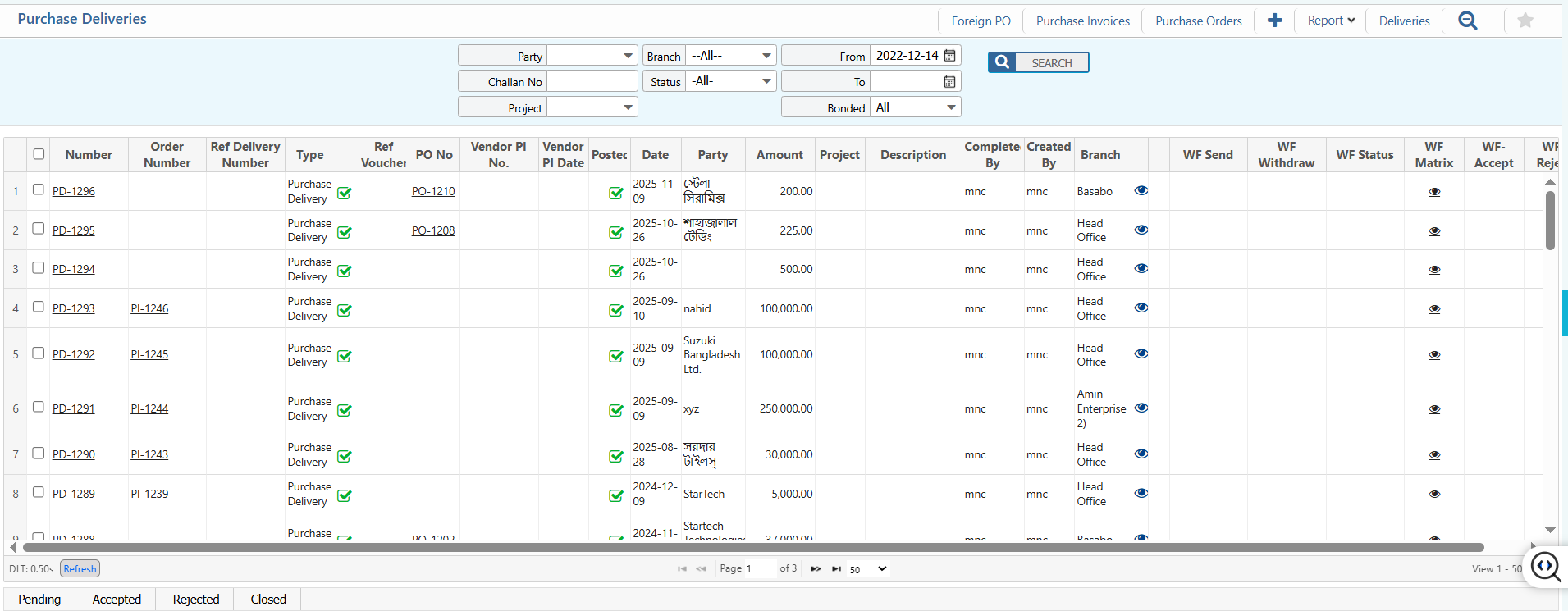
2.1 Search and Actions
| Field | Action |
|---|---|
| Party | Filter purchase deliveries by selecting the party or vendor. |
| Challan No | Enter or select the challan number to locate a specific delivery. |
| Project | Filter deliveries by the associated project. |
| Branch | Select a branch to view deliveries specific to that location. |
| Status | Filter deliveries by status (e.g., All, Completed, Pending). |
| From | Select the start date to display deliveries from a specific date. |
| To | Select the end date to display deliveries up to a specific date. |
| Bonded | Filter deliveries based on bonded status (e.g., All, Yes, No). |
2.2 View Details & Actions
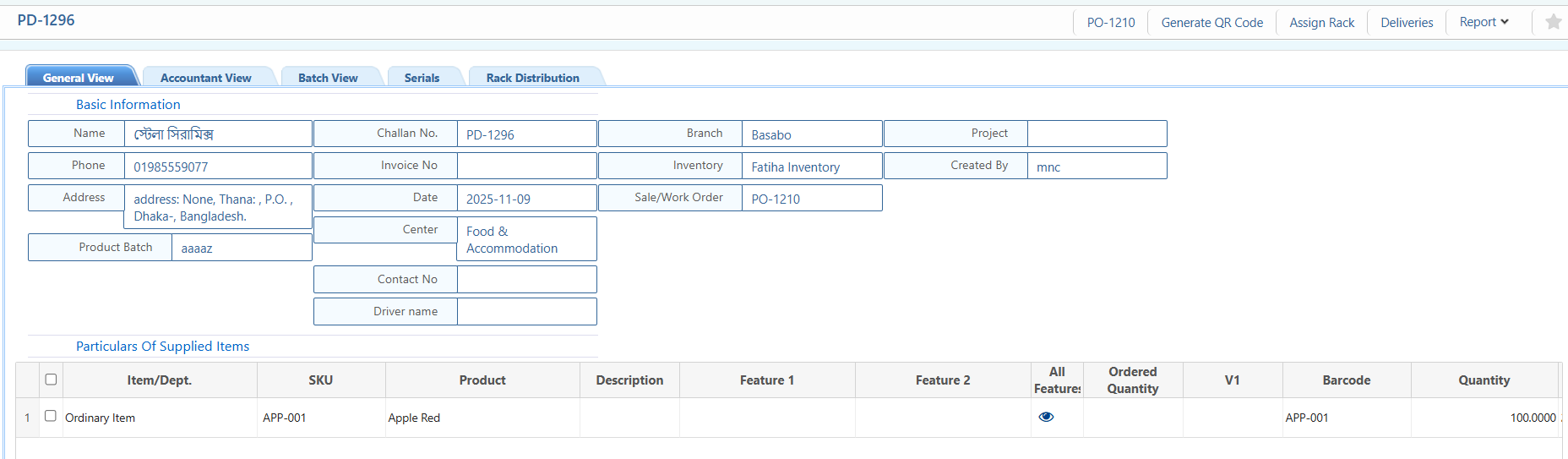
Details View:
| Field | Action |
|---|---|
| Basic Information | View all core details of the delivery, including vendor, contact, address, batch info, dates, inventory, branch, and creator. |
| Accountant View | Examine the delivery in accounting context, including accounting number, reference invoice, debit and credit amounts. |
| Batch View | View batch details of delivered products. |
| Serials | Search by serial numbers and view details of each product serial. |
| Rack Distribution | View the rack distribution of the product in the warehouse. |
Action Items:
| Field | Action |
|---|---|
| Generate QR Code | Generate QR codes for delivered items for scanning and tracking. |
| Assign Rack | Assign delivered items to specific racks in the warehouse. |
| Deliveries | View all deliveries linked to this delivery record. |
2.3 Reports
| Field | Action |
|---|---|
| Report | Preview or download purchase delivery reports in multiple formats for record-keeping or audit purposes. |