Import Invoice
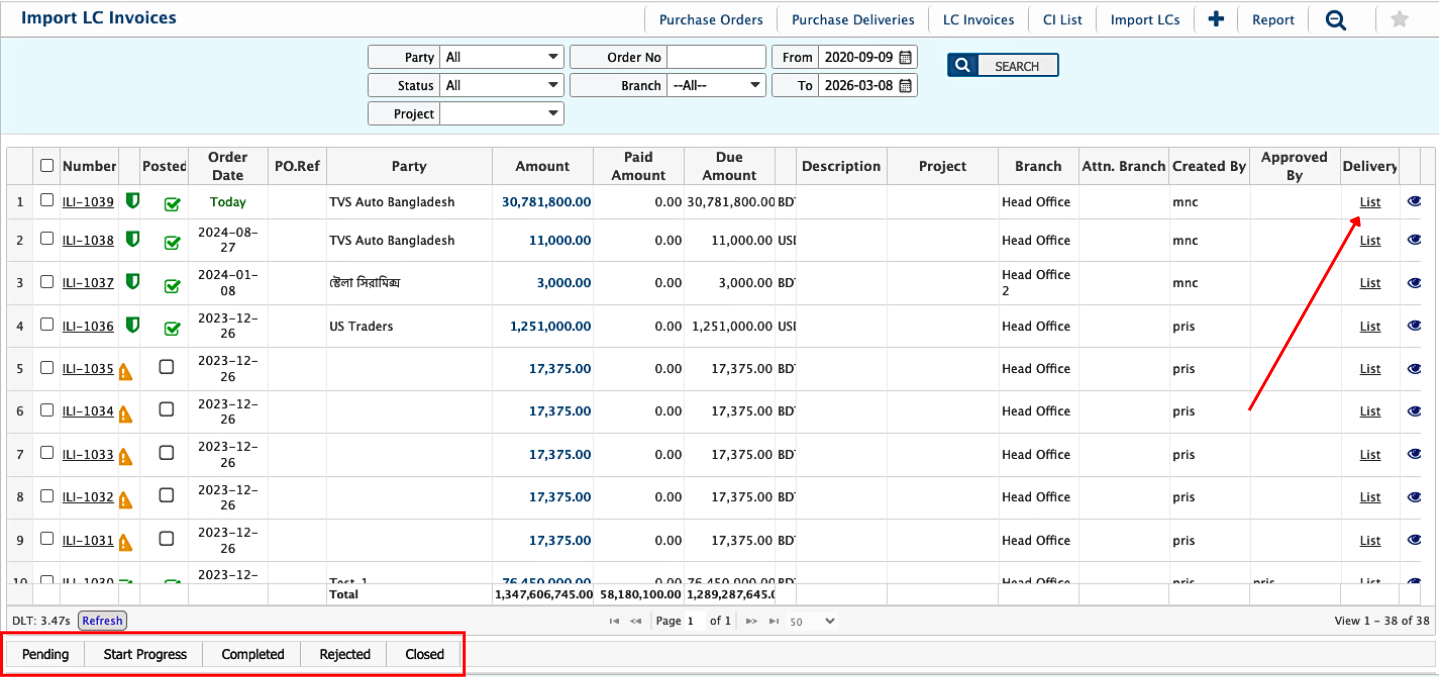
The Import Invoice module in PrismERP allows users to record and manage invoices linked to import LCs. Invoices can be tracked, updated, and searched easily from the LC Invoice List page. Users can manage the status of each invoice from Pending to Start Progress, Completed, Rejected, or Closed and make edits while it remains pending. The Details View provides access to deliveries, vouchers, expense records, attachments, and reports, allowing seamless management of every invoice-related activity.
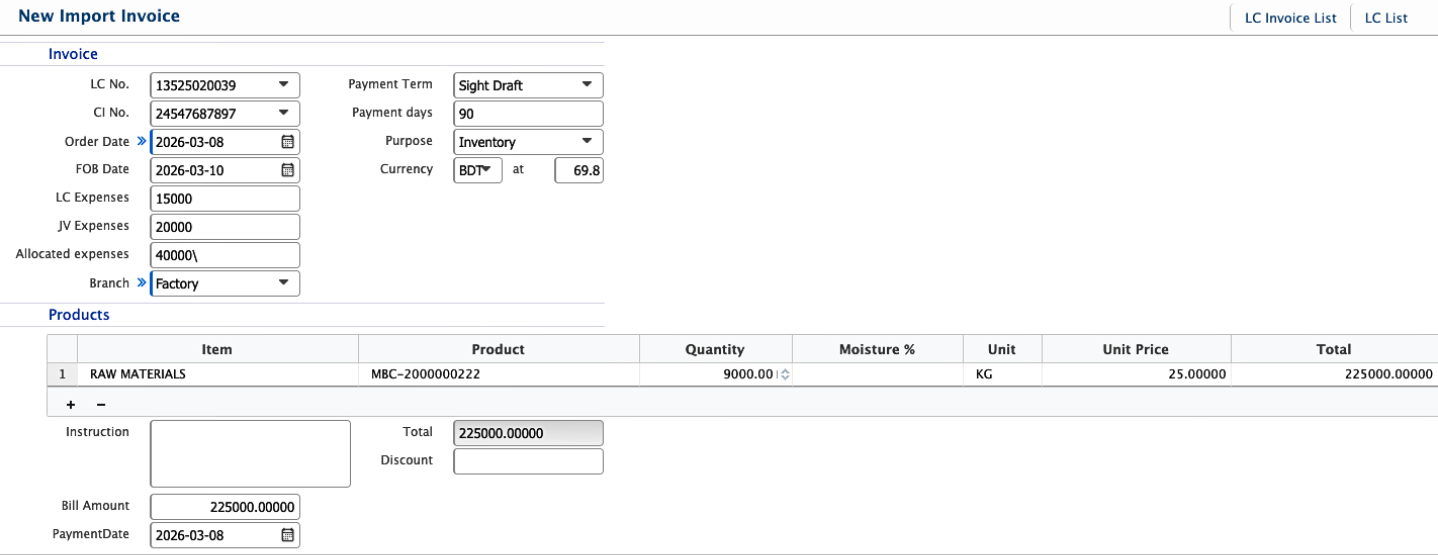
Add Import Invoice
| Field | Action |
|---|---|
| Invoice LC No. | Select the Import LC associated with this invoice. |
| CI No. | Select the related Commercial Invoice number. |
| Order Date | Enter the date when the order was created. |
| FOB Date | Enter the Free on Board (FOB) date for the shipment. |
| LC Expenses | Enter any LC-related expenses to be recorded. |
| JV Expenses | Enter any Journal Voucher expenses related to this invoice. |
| Allocated Expenses | Enter expenses allocated to this invoice. |
| Branch | Select the branch responsible for the invoice. |
| Payment Term | Enter the payment term agreed with the supplier. |
| Payment Days | Enter the number of days allowed for payment. |
| Purpose | Enter the purpose or reason for creating the invoice. |
| Inventory | Select the inventory category or type related to this invoice. |
| Currency | Select the currency used for the invoice (e.g., BDT). |
| Currency at | Enter the exchange rate if the currency differs from base currency. |
| Item | Enter or select the item being invoiced. |
| Product | Select the product associated with the invoice. |
| Quantity | Enter the quantity of the product. |
| Moisture % | Enter the moisture percentage, if applicable. |
| Unit | Select the unit of measurement for the product. |
| Unit Price | Enter the price per unit for the product. |
| Total | Displays the total value for the product line. |
| Instruction | Enter any special instructions related to the invoice. |
| Discount | Enter any discount applied to the invoice. |
| Bill Amount | Enter the total bill amount. |
| Payment Date | Enter the date of payment for the invoice. |
After recording an Import Invoice, users can view it from the LC Invoice List page. The list allows users to search and filter invoices using multiple criteria to quickly locate a specific record. Users can update the status of an Import Invoice as it progresses through the process. An Import Invoice can be edited while it remains in the Pending state.
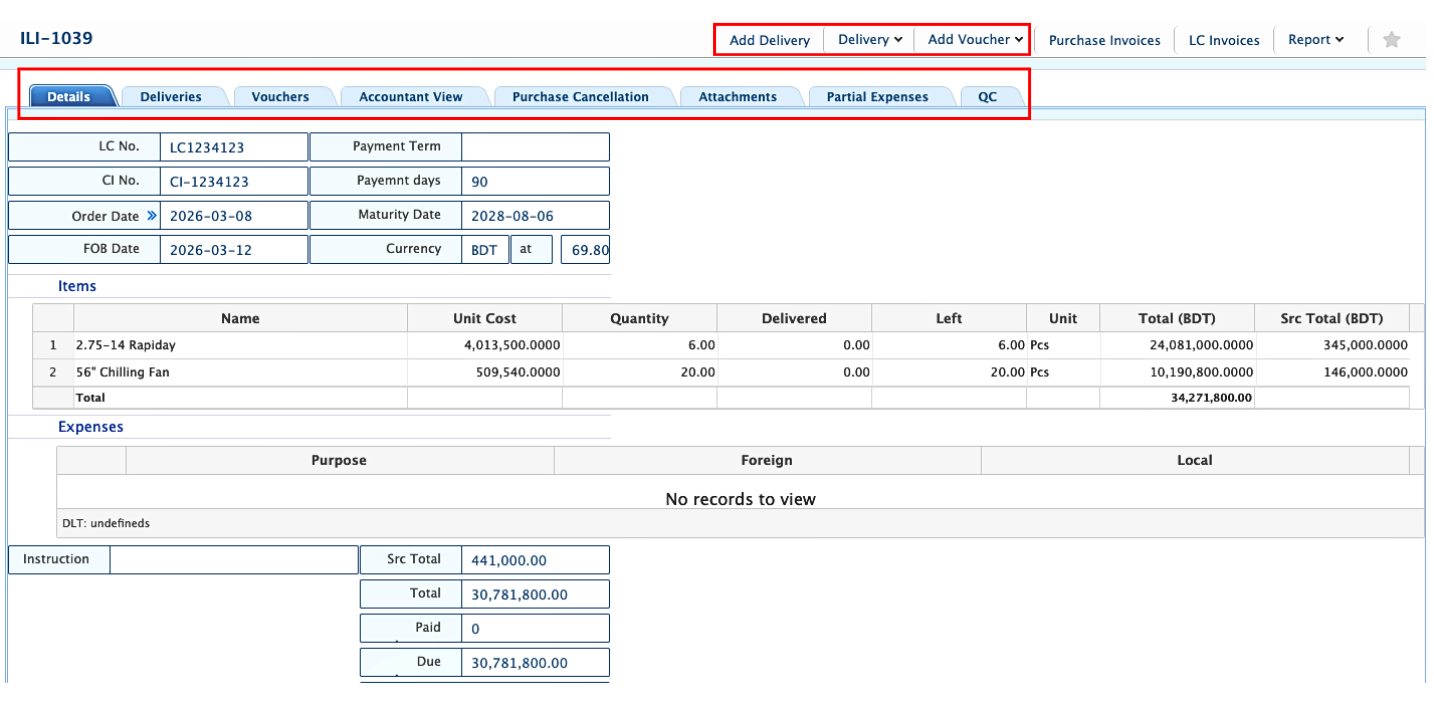
Clicking the Invoice Number from the LC Invoice List opens its Details View, where users can access all related information, including Details, Deliveries, Vouchers, Accountant View, Purchase Cancellation, Attachments, and Partial Expenses. Users can also add deliveries, record delivery returns, create expense vouchers, and generate reports directly from this view.
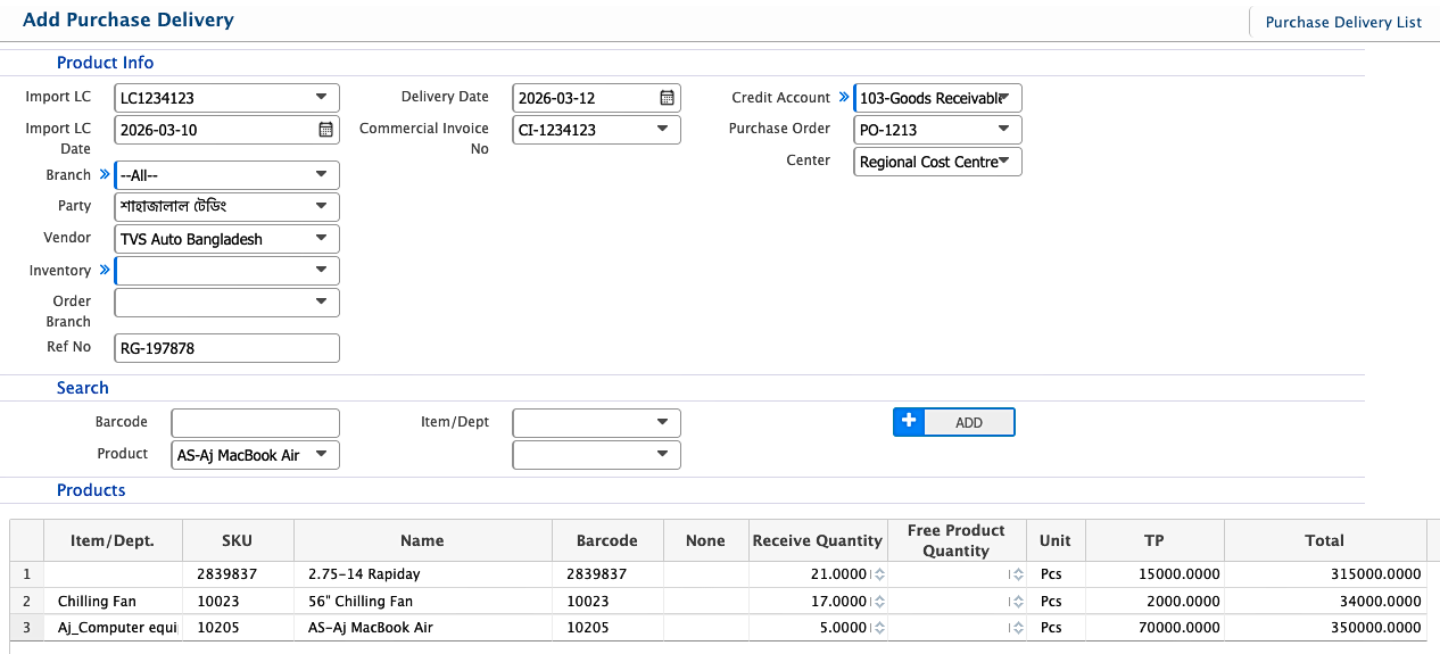
Add LC Purchase Delivery
| Field | Action |
|---|---|
| Import LC | Select the Import LC associated with this delivery. |
| Import LC Date | Enter the date of the Import LC. |
| Branch | Select the branch receiving the delivery (e.g., Head Office). |
| Party | Enter the party or customer name linked to this delivery. |
| Vendor | Enter the vendor or supplier name. |
| Inventory | Select the inventory type or category. |
| Order Branch | Select the branch from which the order was placed. |
| Ref No | Enter the reference number related to the delivery. |
| Delivery Date | Enter the date when the delivery is received. |
| Commercial Invoice No | Enter the Commercial Invoice number linked to this delivery. |
| Credit Account | Select the credit account for the purchase. |
| Purchase Order | Enter or select the related Purchase Order number. |
| Center | Select the operational center responsible for this delivery. |
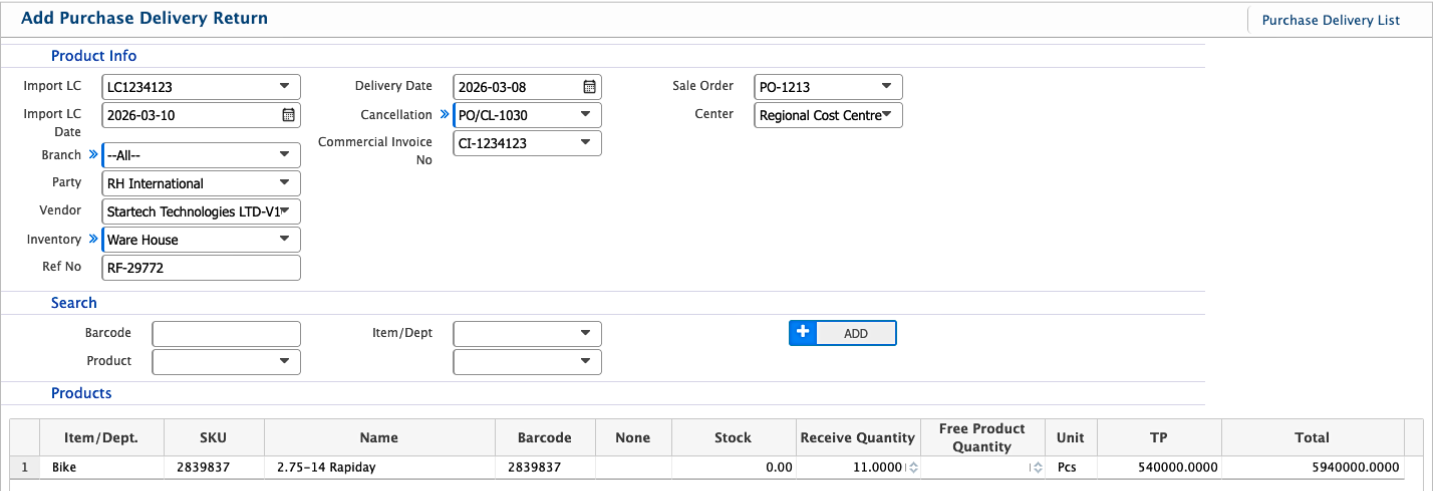
Add LC Purchase Delivery Return
| Field | Action |
|---|---|
| Import LC | Select the Import LC associated with this delivery return. |
| Import LC Date | Enter the date of the Import LC. |
| Branch | Select the branch processing the return (e.g., Head Office). |
| Party | Enter the party or customer name linked to this return. |
| Vendor | Enter the vendor or supplier name. |
| Inventory | Select the inventory type or category. |
| Ref No | Enter the reference number related to the original delivery. |
| Delivery Date | Enter the date when the original delivery was received. |
| Cancellation | Select whether the delivery is being cancelled. |
| Commercial Invoice No | Enter the Commercial Invoice number linked to the returned delivery. |
| Sale Order | Enter or select the related Sale Order number, if applicable. |
| Center | Select the operational center responsible for this return. |
| Search Barcode | Enter or scan the product barcode to search items. |
| Item/Dept | Select the item or department returning the product. |
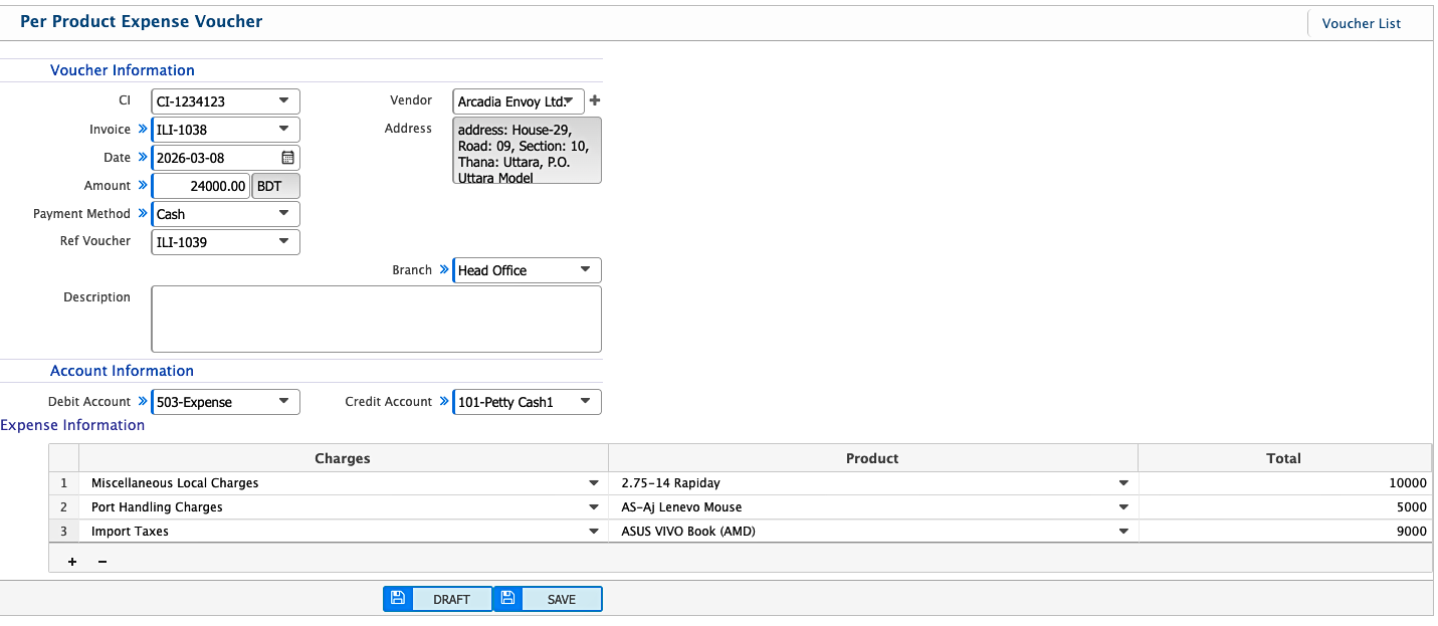
Add Per Product Expense Voucher
| Field | Action |
|---|---|
| CI | Select the Commercial Invoice (CI) associated with this expense voucher. |
| Invoice | Enter the invoice number linked to this expense. |
| Date | Enter the date when the voucher is created. |
| Payment Method | Select the payment method used for this expense. |
| Ref Voucher | Enter any reference voucher number, if applicable. |
| Vendor | Enter the vendor or supplier associated with this expense. |
| Address | Enter the address of the vendor. |
| Branch | Select the branch responsible for recording this expense. |
| Description | Enter any notes or remarks related to this expense. |
| Debit Account | Select the debit account for posting the expense. |
| Credit Account | Select the credit account for posting the payment. |
| Charges | Enter individual charges included in this voucher. |
| Product | Enter or select the product associated with each charge. |
| Total | Displays the total expense amount for the product line. |