Import LC
The Import LC module in PrismERP streamlines the management of import Letters of Credit from start to finish. Users can create LCs, enter all key details like buyer, banks, dates, currency, and payment terms, and link them to related Indents or Proforma Invoices. Shipment schedules, partial or transshipments, and LC expiry dates can be tracked easily.
Amendments, payments, margins, and courier details are all recorded within the system, providing a clear view of each LC. The LC Details View brings together everything related to the LC—deliveries, vouchers, invoices, attachments, undelivered items, exchange purposes, and QC information—so users can access all important information in one place.
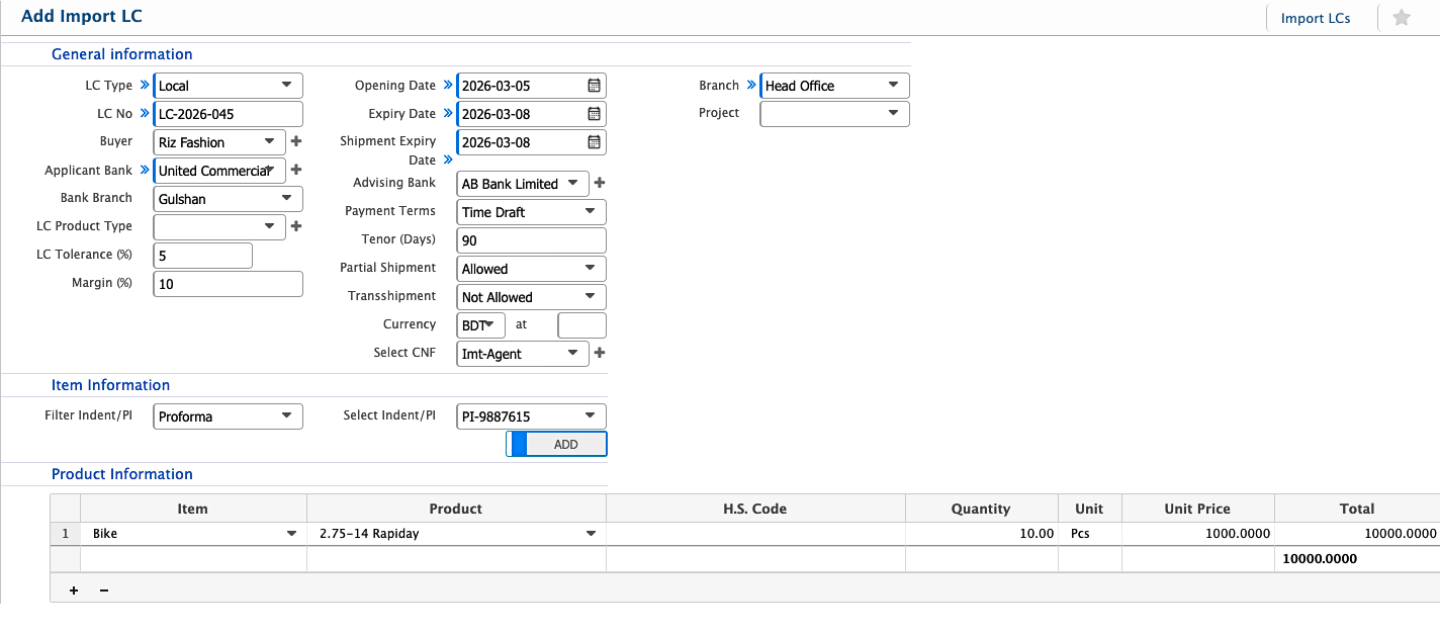
Add Import LC
| Field | Action |
|---|---|
| LC Type | Select the type of Import LC (e.g., local, foreign). |
| LC No | Enter the LC number. |
| Buyer | Enter the name of the buyer associated with the LC. |
| Applicant Bank | Select the bank issuing the LC. |
| Bank Branch | Enter the branch of the applicant bank. |
| LC Product Type | Select the type of product covered under the LC. |
| LC Tolerance (%) | Enter the allowable percentage tolerance for the LC quantity. |
| Margin (%) | Enter the margin percentage applicable to the LC. |
| Opening Date | Enter the date when the LC is opened. |
| Expiry Date | Enter the expiry date of the LC. |
| Shipment Expiry Date | Enter the last date for shipment under the LC. |
| Advising Bank | Select the advising bank handling the LC. |
| Payment Terms | Select the payment terms agreed for the LC. |
| Tenor (Days) | Enter the tenor period in days for LC maturity. |
| Partial Shipment | Select whether partial shipment is allowed. |
| Transshipment | Select whether transshipment is allowed. |
| Currency | Select the currency used for the LC (e.g., BDT). |
| Exchange Rate | Enter the exchange rate applicable for the LC currency. |
| Select CNF | Select the CNF (Cost & Freight) option if applicable. |
| Branch | Select the branch responsible for the LC. |
| Project | Select the project associated with the LC if applicable. |
| Select Indent/PI | Select the related Indent or Proforma Invoice. |
After completing the Import LC, users can view it from the Import LC List page. The list allows users to search and filter LCs using multiple criteria to quickly locate a specific record.
Users can change the status of an LC as it progresses through the process. The available statuses include Pending, Completed, Rejected, and Closed. An LC can be edited while it remains in the Pending state.

Clicking the LC Number from the Import LC List opens its Details View, giving users a complete look at the LC and everything related to it. Users can see general information like LC type, number, buyer, banks, dates, currency, and payment terms. The Order Info and Indent/PI sections show the products linked to the LC, including quantities, unit prices, and totals.
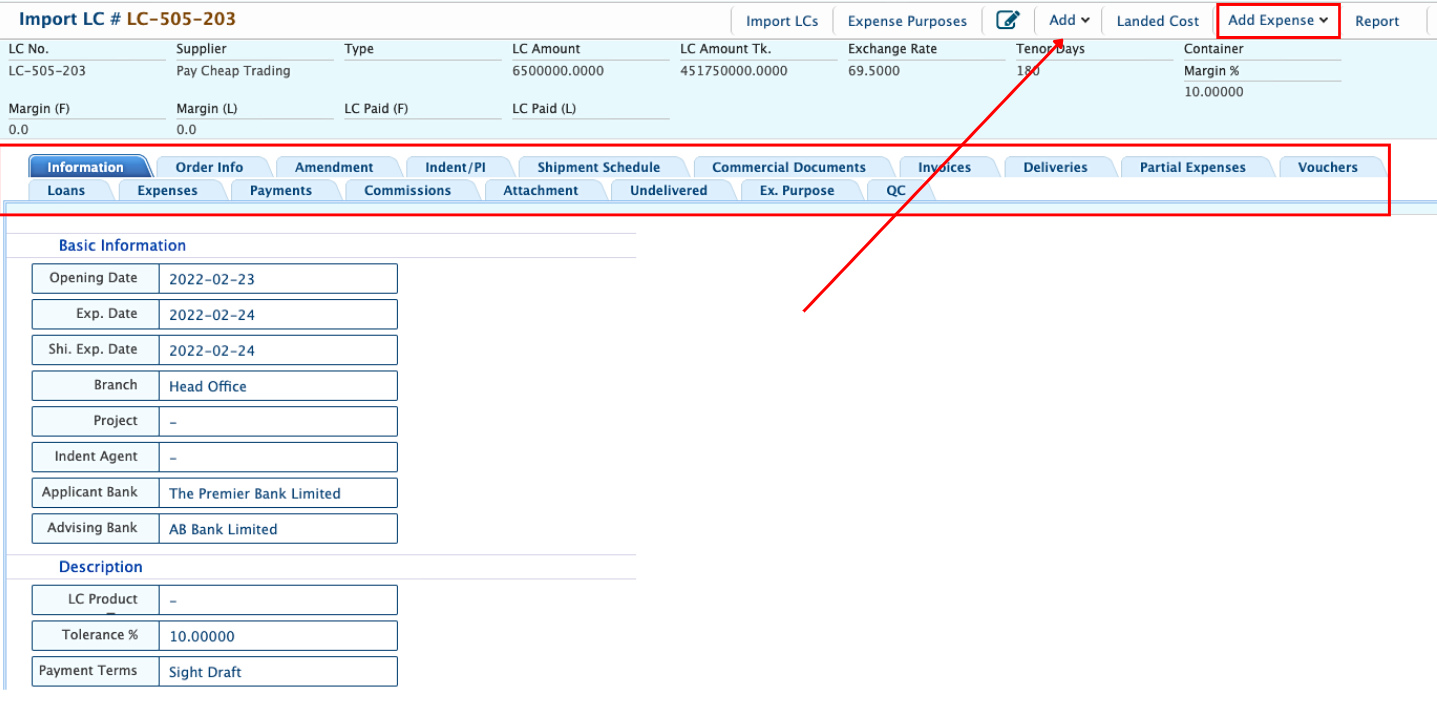
Users can track amendments, shipment schedules, and commercial documents to stay updated on the process. All related invoices, deliveries, expenses, vouchers, loans, payments, and commissions are available in one place. Additional sections for attachments, undelivered items, exchange purposes, and QC provide a complete view of the import LC.
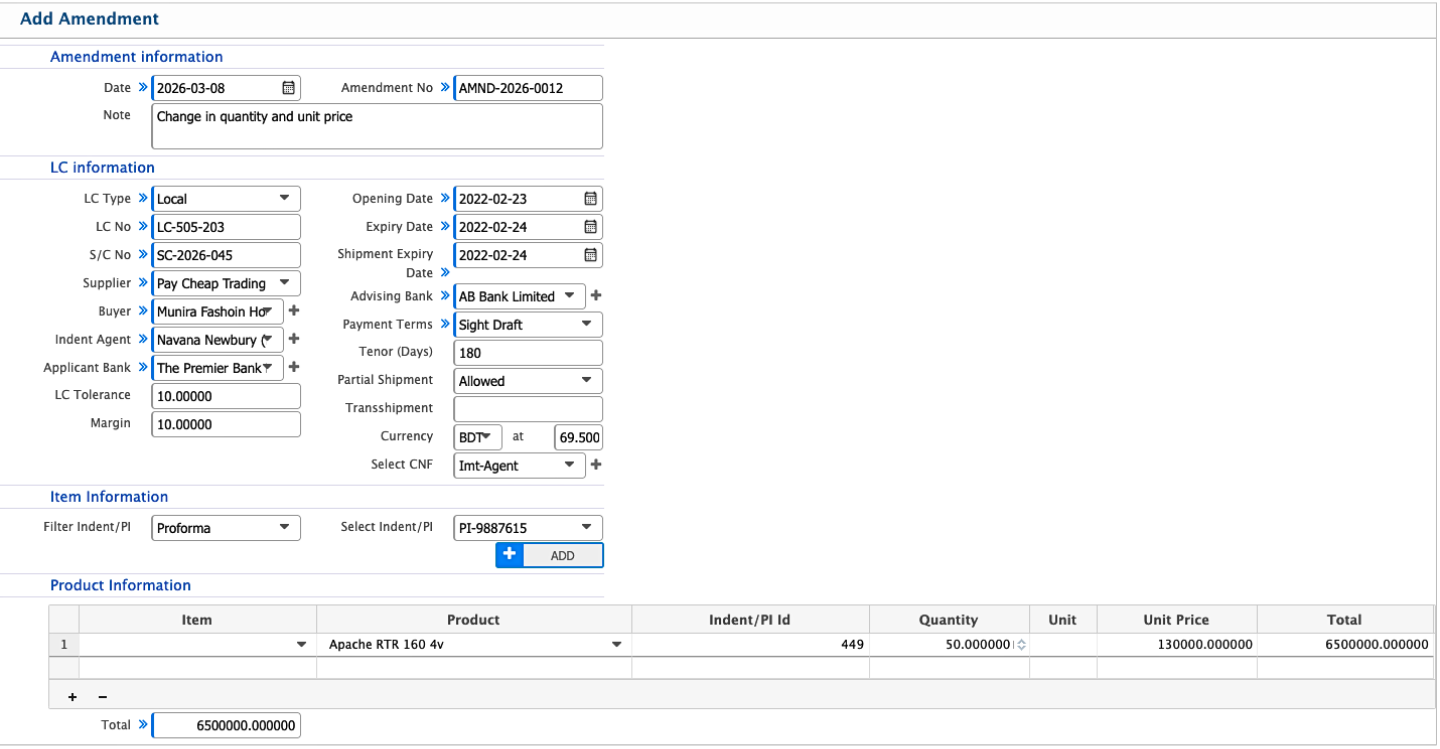
Add LC Amendment
| Field | Action |
|---|---|
| Date | Enter the date when the amendment is created. |
| Amendment No | Enter the unique amendment number. |
| Note | Enter any notes or remarks related to the amendment. |
| LC Type | Select the type of LC (e.g., Local, Import). |
| LC No | Enter the LC number associated with the amendment. |
| S/C No | Enter the Sales Contract number if applicable. |
| Supplier | Enter the name of the supplier. |
| Buyer | Enter the name of the buyer. |
| Indent Agent | Enter the name of the indent agent if applicable. |
| Applicant Bank | Select the applicant bank handling the LC. |
| LC Tolerance | Enter the LC tolerance percentage. |
| Margin | Enter the margin percentage. |
| Opening Date | Enter the opening date of the LC. |
| Expiry Date | Enter the expiry date of the LC. |
| Shipment Expiry Date | Enter the last shipment date under the LC. |
| Advising Bank | Select the advising bank handling the LC. |
| Payment Terms | Select the payment terms (e.g., Sight Draft). |
| Tenor (Days) | Enter the tenor period in days. |
| Partial Shipment | Select whether partial shipment is allowed. |
| Transshipment | Select whether transshipment is allowed. |
| Currency | Select the currency used for the LC (e.g., BDT). |
| Exchange Rate | Enter the exchange rate for the LC currency. |
| Select CNF | Select the CNF (Cost & Freight) option if applicable. |
| Select Indent/PI | Select the related Indent or Proforma Invoice. |
| Item | Select the item associated with the amendment. |
| Product | Enter or select the product covered under the amendment. |
| Indent/PI Id | Enter the associated Indent or PI ID. |
| Quantity | Enter the quantity of the product under the amendment. |
| Unit Price | Enter the unit price for the product if required amendment. |
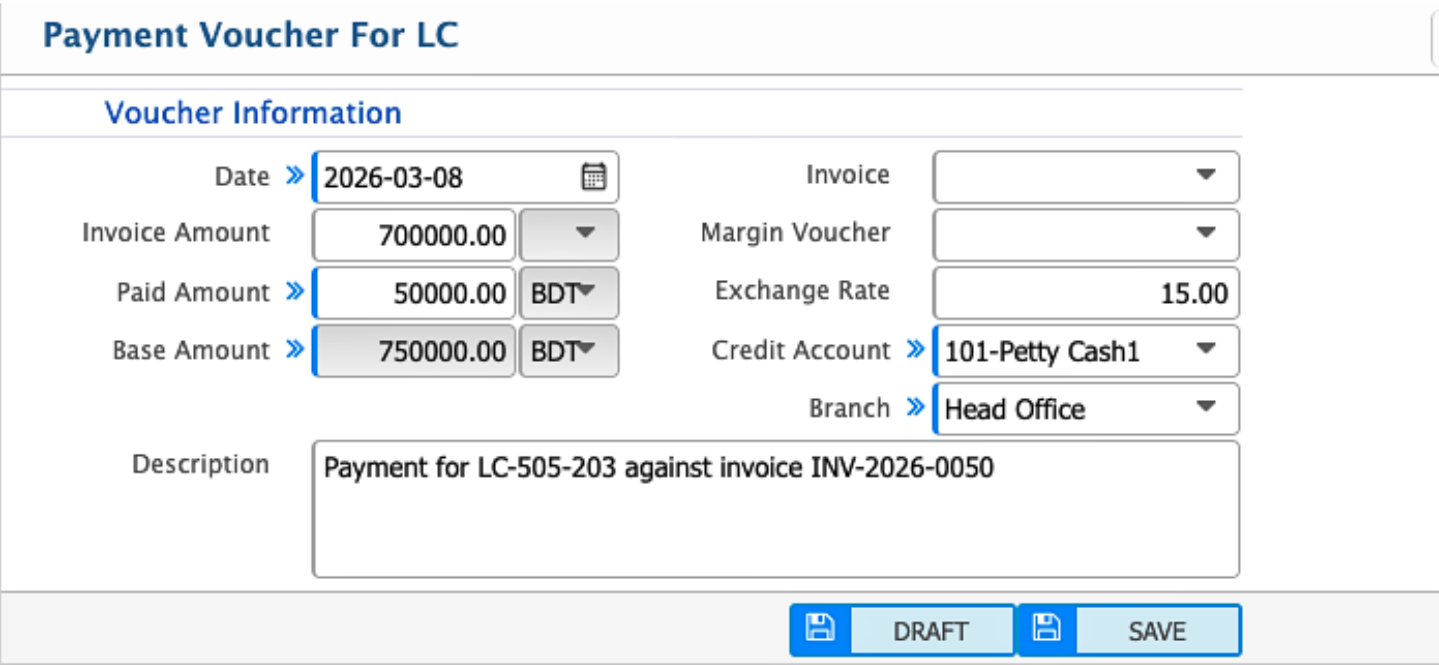
Add Payment Voucher
| Field | Action |
|---|---|
| Date | Enter the date when the payment voucher is created. |
| Invoice Amount | Enter the total invoice amount related to the LC. |
| Paid Amount | Enter the amount being paid in the selected currency (e.g., BDT). |
| Base Amount | Enter the base currency amount if the payment is in a foreign currency. |
| Invoice | Select the invoice associated with this payment. |
| Margin Voucher | Enter or select the margin voucher if applicable. |
| Exchange Rate | Enter the exchange rate if payment currency differs from the base currency. |
| Credit Account | Select the credit account for posting the payment (e.g., 101-Petty Cash1). |
| Branch | Select the branch responsible for this payment. |
| Description | Enter any additional notes or remarks related to the payment voucher. |
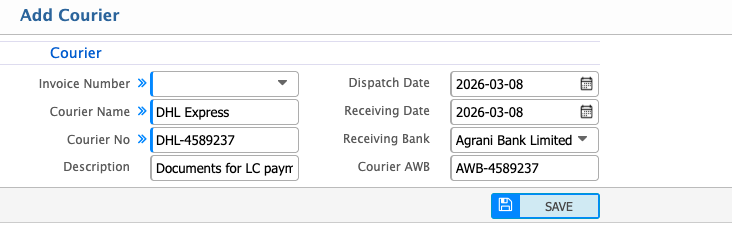
Add LC Courier
| Field | Action |
|---|---|
| Courier Invoice Number | Enter the invoice number provided by the courier service. |
| Courier Name | Enter the name of the courier company. |
| Courier No | Enter the courier tracking number or reference number. |
| Description | Enter any notes or remarks related to the courier shipment. |
| Dispatch Date | Enter the date when the items were dispatched. |
| Receiving Date | Enter the date when the items were received. |
| Receiving Bank | Enter the bank or location receiving the courier, if applicable. |
| Courier AWB | Enter the Air Waybill (AWB) number provided by the courier. |
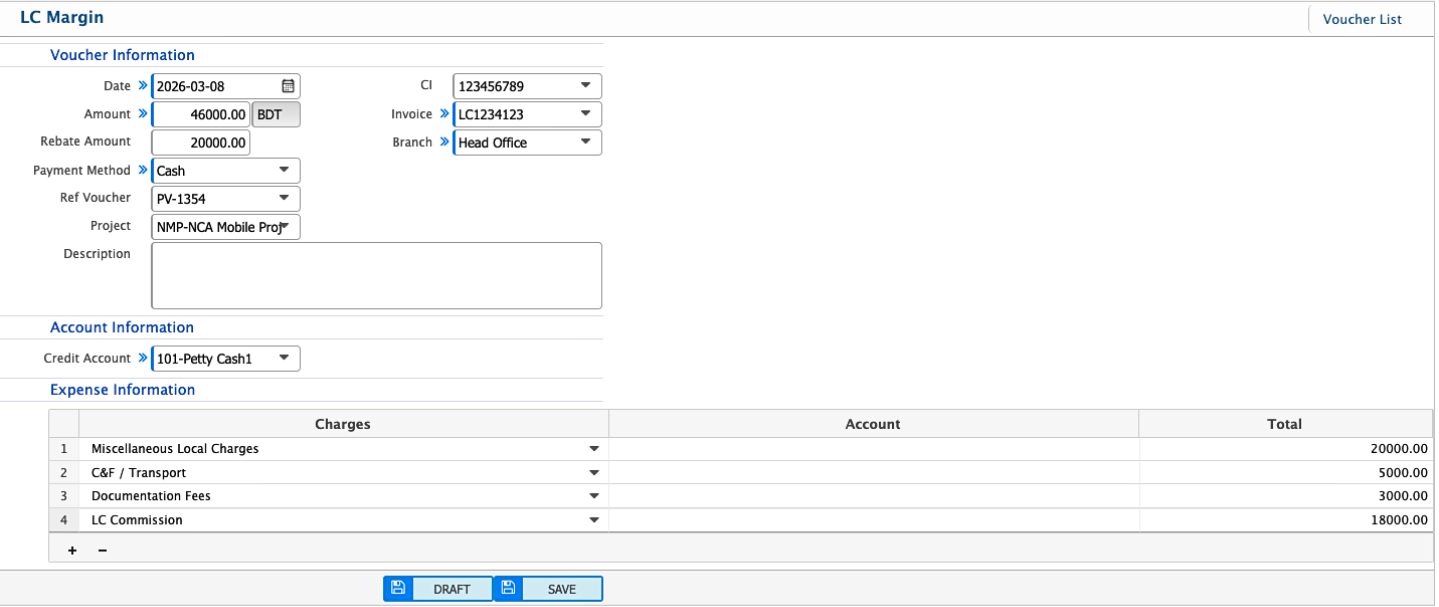
Add LC Margin
| Field | Action |
|---|---|
| Date | Enter the date when the LC Margin Voucher is created. |
| Amount | Enter the total margin amount in the selected currency (e.g., BDT). |
| Rebate Amount | Enter any rebate amount applicable to the voucher. |
| Payment Method | Select the payment method used (e.g., Cash, Bank Transfer). |
| Ref Voucher | Select the reference voucher related to this transaction. |
| Project | Select the project associated with the LC margin voucher, if applicable. |
| CI | Select the related Commercial Invoice. |
| Invoice | Select the invoice associated with this margin voucher. |
| Branch | Select the branch responsible for recording the LC margin voucher. |
| Description | Enter notes or remarks describing the purpose of the LC margin voucher. |
| Credit Account | Select the credit account where the payment will be posted. |
| Charges | Enter the individual charges included in the LC margin voucher. |
| Account | Select the expense account for each charge. |
| Total | Enter the total amount for each charge line. |
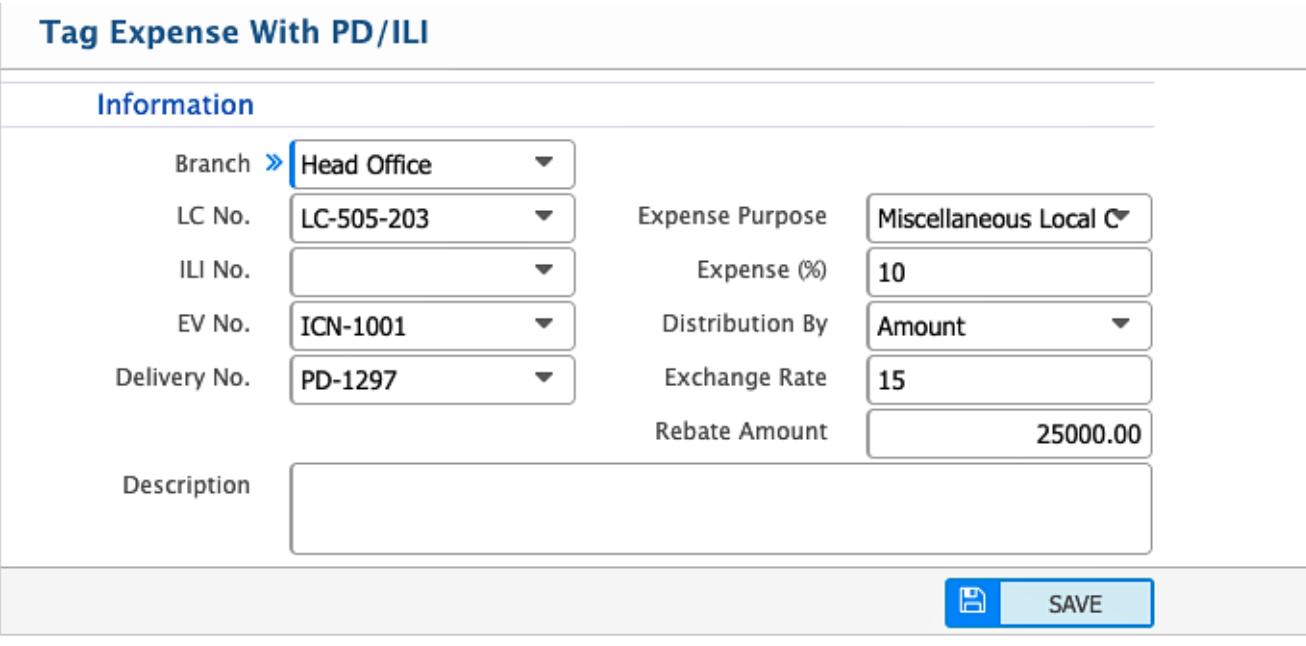
Tag Expense With PD/ILI
| Field | Action |
|---|---|
| Branch | Select the branch associated with this expense. |
| LC No. | Select the Import LC number linked to the expense. |
| ILI No. | Enter the ILI number associated with the expense, if applicable. |
| EV No. | Enter the Expense Voucher (EV) number to tag with this expense. |
| Delivery No. | Enter the delivery number related to the expense, if applicable. |
| Expense Purpose | Enter the purpose of the expense. |
| Expense (%) | Enter the percentage of the expense to be allocated. |
| Distribution By | Select the method or user responsible for expense distribution. |
| Amount | Enter the amount of the expense to be tagged. |
| Exchange Rate | Enter the exchange rate if the expense is in a foreign currency. |
| Rebate Amount | Enter any rebate amount applicable. |
| Description | Enter additional notes or remarks related to the expense tagging. |