LC Expenditure Voucher
The LC Voucher module in PrismERP is used to record expenses related to Import Letters of Credit. It includes different types of vouchers such as Multi Expense Vouchers, CNF Bills, and Commission Vouchers, allowing users to track various costs connected to an LC. These vouchers help record financial transactions, allocate charges to the correct accounts, and link expenses to the relevant LC, Commercial Invoice, or project.
After a voucher is created, it appears in the LC Expense Voucher List, where users can search and filter records to find specific vouchers. Each voucher moves through statuses such as Pending, Approved, Completed, Rejected, and Closed, and it can be edited while it remains in the Pending state. Selecting a voucher number from the list opens its Details View, where users can review voucher details, account charges, and any attached documents.
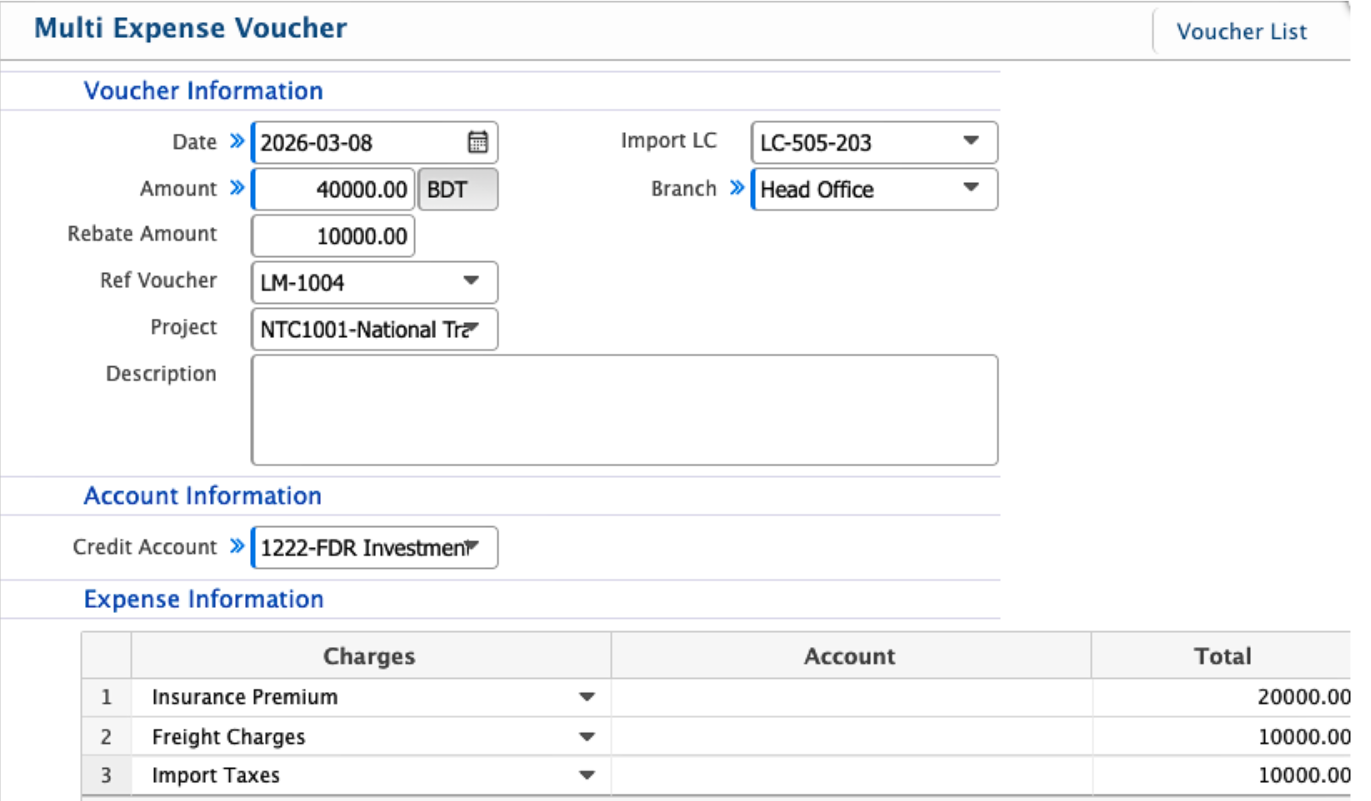
Multi Expense Voucher
| Field | Action |
|---|---|
| Date | Enter the date when the multi expense voucher is created. |
| Amount | Enter the total amount of the voucher in the selected currency (e.g., BDT). |
| Rebate Amount | Enter any rebate amount applicable to the voucher. |
| Ref Voucher | Select the reference voucher related to this transaction. |
| Project | Select the project associated with the expenses, if applicable. |
| Import LC | Select the Import LC associated with this expense voucher. |
| Branch | Select the branch where the expense is recorded. |
| Description | Enter notes or remarks describing the purpose of the expenses. |
| Credit Account | Select the credit account for posting the voucher. |
| Charges | Enter the individual charges included in the expense voucher. |
| Account | Select the expense account for each charge. |
| Total | Enter the total amount for each charge line. |
After recording an LC Expense Voucher, users can view it from the LC Expense Voucher List page. The list allows users to search and filter vouchers using multiple criteria to quickly locate a specific record.
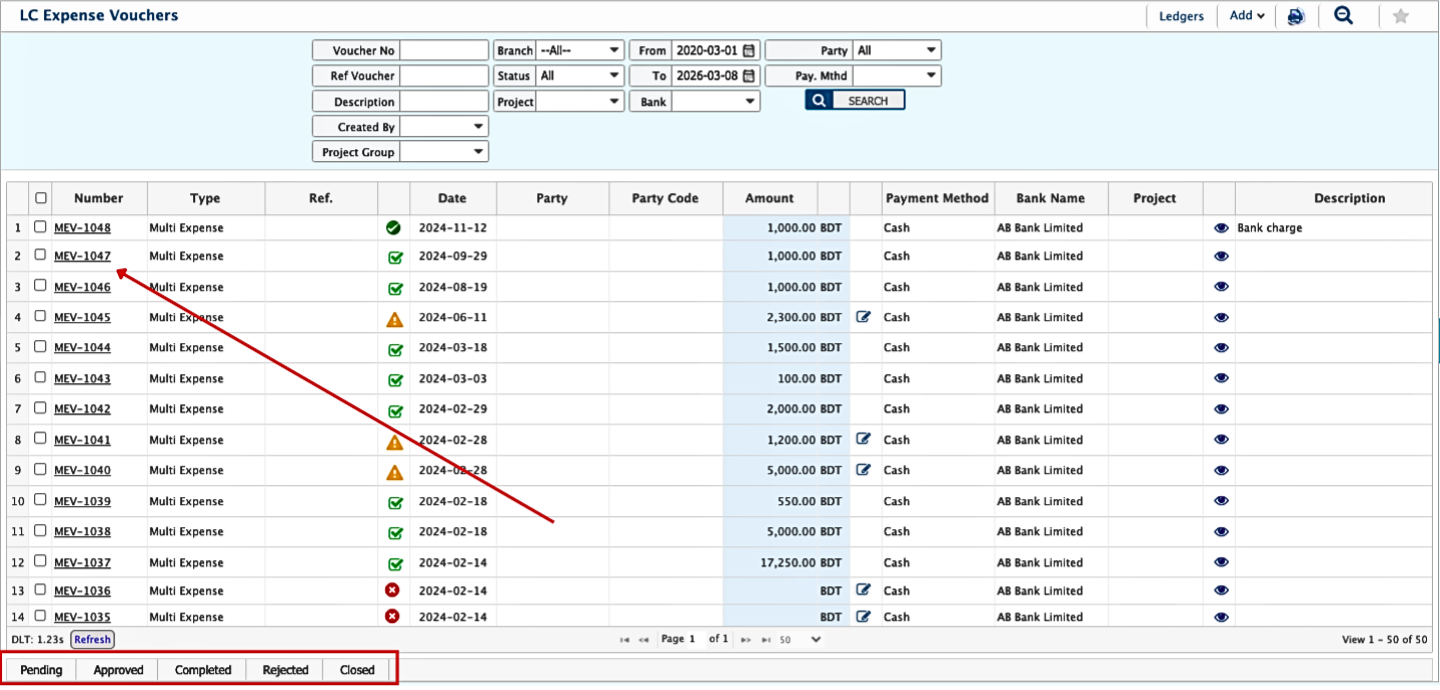
Users can update the status of an LC Expense Voucher as it moves through the process. A voucher can be edited while it remains in the Pending state. Clicking the Voucher Number from the list will open its Details View, where users can access all information including voucher details, account charges, and attachments.
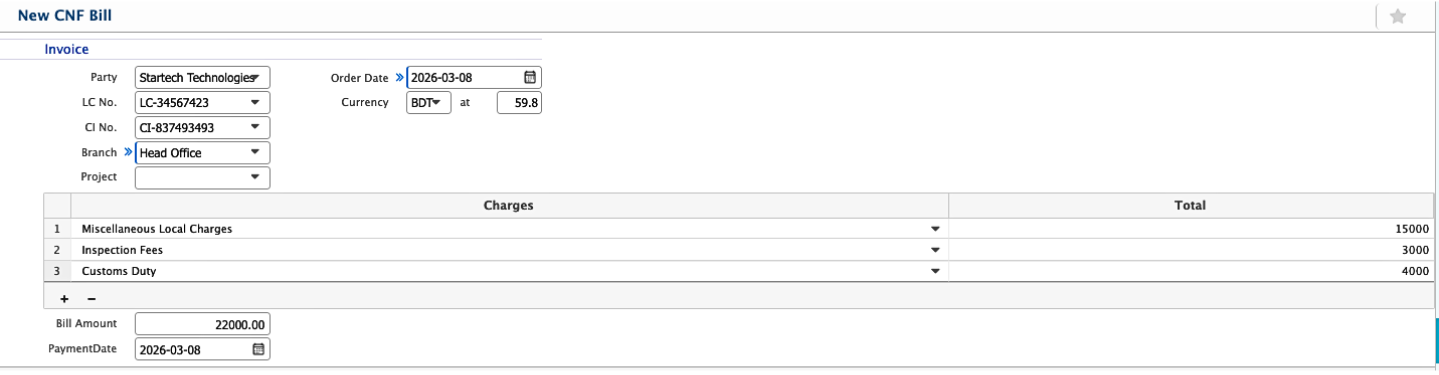
Add New CNF Bill
| Field | Action |
|---|---|
| Invoice Party | Select the party or entity for whom the CNF bill is created. |
| LC No. | Select the Import LC number associated with this bill. |
| CI No. | Select the related Commercial Invoice number. |
| Branch | Select the branch responsible for recording the CNF bill. |
| Project | Select the project associated with the bill, if applicable. |
| Order Date | Enter the date when the order was created. |
| Currency | Select the currency used for the bill (e.g., BDT). |
| Charges | Enter individual charges included in the CNF bill. |
| Bill Amount | Enter the total bill amount to be paid. |
| Payment Date | Enter the date when the payment for this CNF bill is made. |
Add Commission Voucher
| Field | Action |
|---|---|
| LC | Select the Import LC associated with this commission voucher. |
| Indent | Select the related Indent number. |
| CI | Select the related Commercial Invoice number. |
| Indentor | Enter the name of the person or department requesting the commission. |
| Date | Enter the date when the commission voucher is created. |
| Center | Select the center or operational unit responsible for the voucher. |
| Total Value | Enter the total value of the LC or invoice linked to the commission. |
| Total Unit | Enter the total number of units associated with the commission calculation. |
| Commission/Unit | Enter the commission amount per unit. |
| Commission (%) | Enter the commission percentage applicable. |
| Exchange Rate | Enter the exchange rate if the commission is calculated in a foreign currency. |
| Commission Amount | Enter the total commission amount in BDT. |
| Base Amount | Enter the base currency equivalent of the commission amount. |
| Branch | Select the branch responsible for the commission voucher. |
| Project | Select the project associated with the commission, if applicable. |
| Description | Enter any additional notes or remarks regarding the commission voucher. |
| Debit Account | Select the debit account for posting the commission expense (e.g., 503-Expense). |
| Credit Account | Select the credit account for posting the commission amount. |