Receive Commercial Invoice
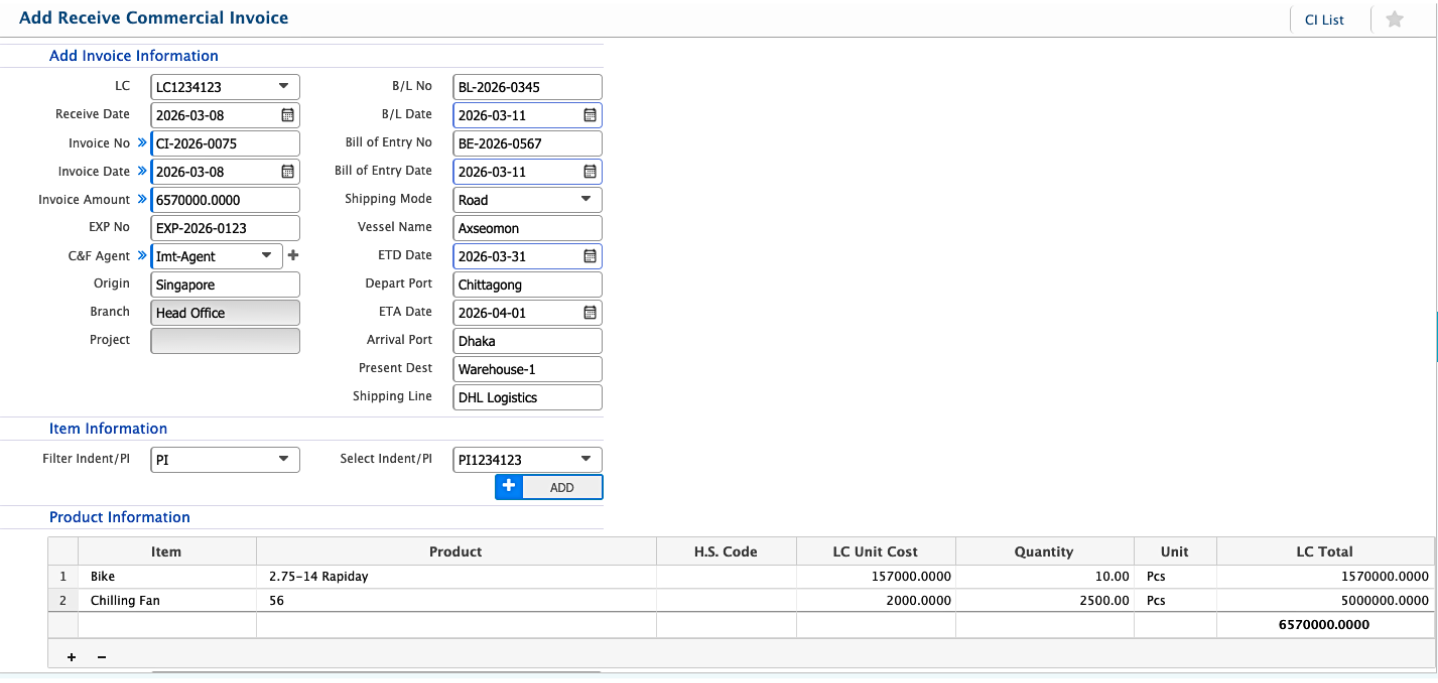
The Receive Commercial Invoice (CI) feature in PrismERP lets users record all details of imported invoices in one place. Users can capture LC info, invoice numbers, shipment details, and link the invoice to the related Indent or Proforma Invoice. Product details like quantity, unit, LC cost, and H.S. code can also be added for full visibility.
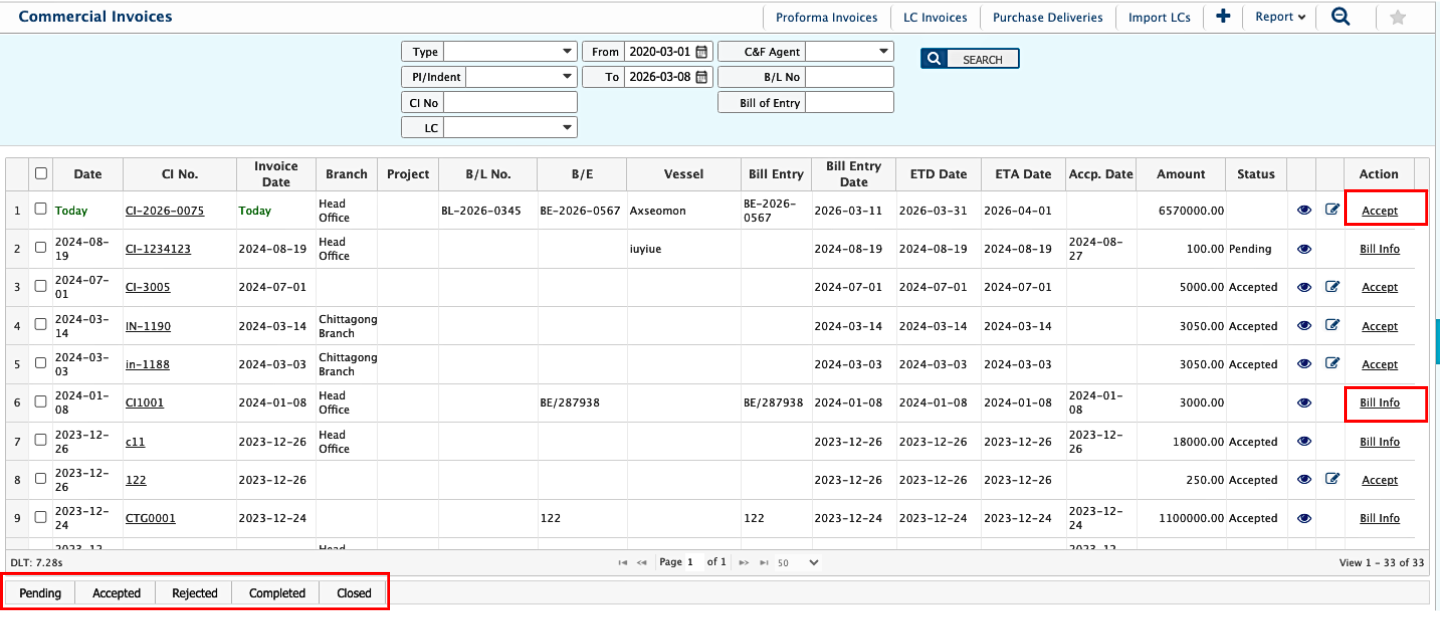
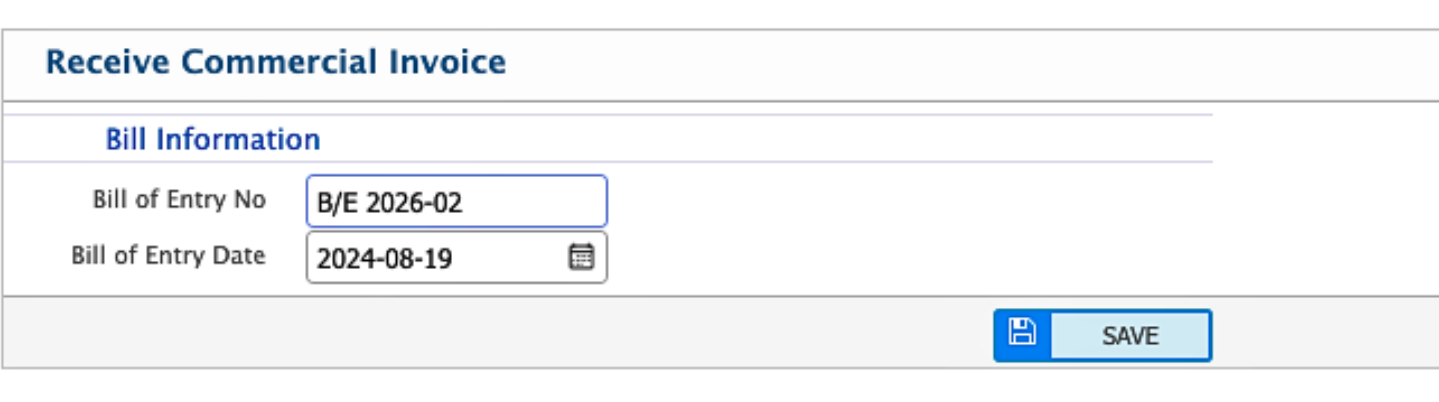
After receiving a CI, users can track its status—Pending, Accepted, Completed, Rejected, or Closed—edit it while pending, import the invoice by clicking Accept, and add the Bill of Entry using Bill Info to manage customs and related documents.
Add Receive Commercial Invoice
| Field | Action |
|---|---|
| LC | Select the Import LC associated with this Commercial Invoice (CI). |
| Receive Date | Enter the date when the CI is received. |
| Invoice No | Enter the invoice number provided by the supplier. |
| Invoice Date | Enter the date of the invoice. |
| Invoice Amount | Enter the total invoice amount. |
| EXP No | Enter the export number if applicable. |
| C&F Agent | Enter the name of the C&F (Clearing & Forwarding) agent handling the shipment. |
| Origin | Enter the country or location from where the goods are shipped. |
| Branch | Select the branch responsible for receiving the CI. |
| Project | Select the project associated with the CI, if applicable. |
| B/L No | Enter the Bill of Lading number. |
| B/L Date | Enter the date of the Bill of Lading. |
| Bill of Entry No | Enter the Bill of Entry number. |
| Bill of Entry Date | Enter the date of the Bill of Entry. |
| Shipping Mode | Select the mode of shipment (e.g., Road, Sea, Air). |
| Vessel Name | Enter the name of the vessel carrying the goods, if applicable. |
| ETD Date | Enter the estimated time of departure. |
| Depart Port | Enter the port of departure. |
| ETA Date | Enter the estimated time of arrival. |
| Arrival Port | Enter the port where the goods are expected to arrive. |
| Present Dest | Enter the present destination of the goods. |
| Shipping Line | Enter the name of the shipping line or company handling the shipment. |
| Select Indent/PI | Select the related Indent or Proforma Invoice linked to the CI. |
| Item | Enter or select the item being invoiced. |
| Product | Select the product associated with the invoice. |
| H.S. Code | Enter the H.S. code for customs classification. |
| LC Unit Cost | Enter the unit cost under the LC. |
| Quantity | Enter the quantity of the product received. |
| Unit | Select the unit of measurement for the product. |
| LC Total | Displays the total LC value for the product line. |
| Instruction | Enter any special instructions related to the Commercial Invoice. |
After completing the Receive Commercial Invoice (CI), users can view it from the CI List page. The list allows users to search and filter CIs using multiple criteria to quickly locate a specific record.
Users can change the status of a CI as it progresses through the process. A CI can be edited while it remains in the Pending state.
Under Action Items, users can import the invoice by clicking Accept. Once the invoice is imported, users can add the Bill of Entry by clicking Bill Info, allowing them to record customs clearance and related details.