Receive Indent
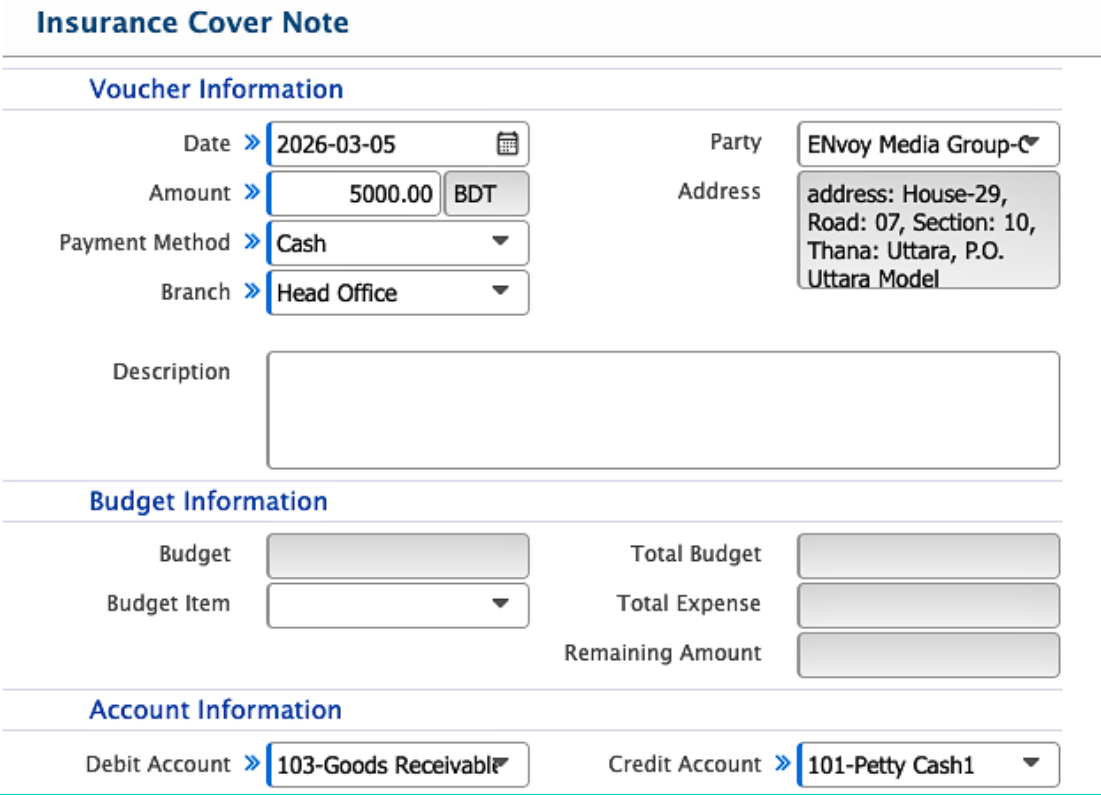
In PrismERP, users can create a Receive Indent to record and manage goods or items received from suppliers. The system allows entering supplier details, product information, shipment instructions, and financial data for accurate tracking. Users can search and filter indents from the Indent List and update their status as they progress. Each indent can be edited while pending, and clicking the Indent Number opens a detailed view with all related information. Users can also add an Insurance Cover Note to ensure proper documentation and coverage for received items.
Add Receive Indent
| Field | Action |
|---|---|
| Indent Number | Enter or review the automatically generated indent number. |
| Indent Date | Enter the date when the indent is created. |
| Sales Contact No | Enter the contact number of the sales representative or contact person. |
| Supplier | Select the supplier from whom the indent is received. |
| Address | Enter the supplier’s address. |
| Indentor | Enter the name of the person or department requesting the indent. |
| Commission Rate | Enter the commission rate if applicable. |
| Per Unit Applicant Bank | Enter the applicant bank for LC processing per unit. |
| Advising Bank | Enter the advising bank for the LC. |
| Exp. LC Open Date | Enter the expected date for the LC to be opened. |
| Currency | Select the currency used for the indent. |
| Payment Terms | Select the payment terms agreed with the supplier. |
| Partial Shipment Allowed | Select whether partial shipment is allowed. |
| Shipment/Container | Enter shipment or container details. |
| Port of Shipment | Enter the port from which the goods will be shipped. |
| Destination Port | Enter the port of destination for the shipment. |
| Branch | Select the branch that initiated the indent. |
| Order Style | Enter the style or category of the order. |
| Order No. | Enter the order number associated with the indent. |
| Style No. | Enter the style number if applicable. |
| Item | Select or enter the item being requested. |
| Product | Select the product associated with the indent. |
| H.S. Code | Enter the H.S. code for customs or classification purposes. |
| Description | Enter the description of the product. |
| Booking Unit Cost | Enter the cost per unit for booking purposes. |
| LC Unit Cost | Enter the unit cost under LC. |
| Quantity | Enter the requested quantity. |
| Unit | Select the unit of measurement for the product. |
| Booking Total | Displays the total booking cost for the quantity. |
| LC Total | Displays the total LC cost for the quantity. |
| Difference | Displays the difference between booking and LC totals. |
| Instruction | Enter any special instructions related to the indent. |
| Terms & Condition | Enter the terms and conditions applicable to the indent. |
| Additional Clause | Enter any additional clause required for the indent. |
| Description | Enter additional notes or explanations related to the indent. |
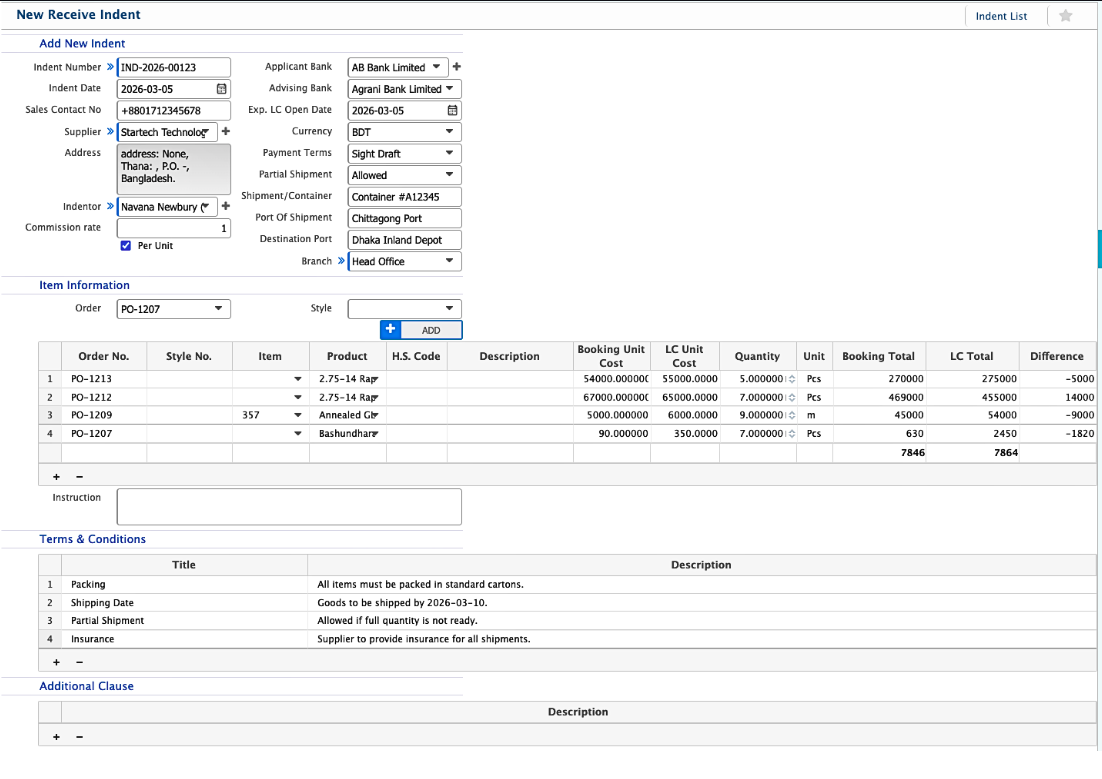
After completing the Receive Indent, users can view it from the Indent List page. The list allows users to search and filter indents using multiple criteria to quickly locate a specific record.
Users can change the status of an indent as it progresses through the process. The available statuses include Pending, Completed, Rejected, and Closed. An indent can be edited while it remains in the Pending state.
Clicking the Indent Number from the list will open its Details View, where users can access all information related to the indent, including indent details, item information, terms and conditions, attachments, and related documents.
Add Insurance Cover Note
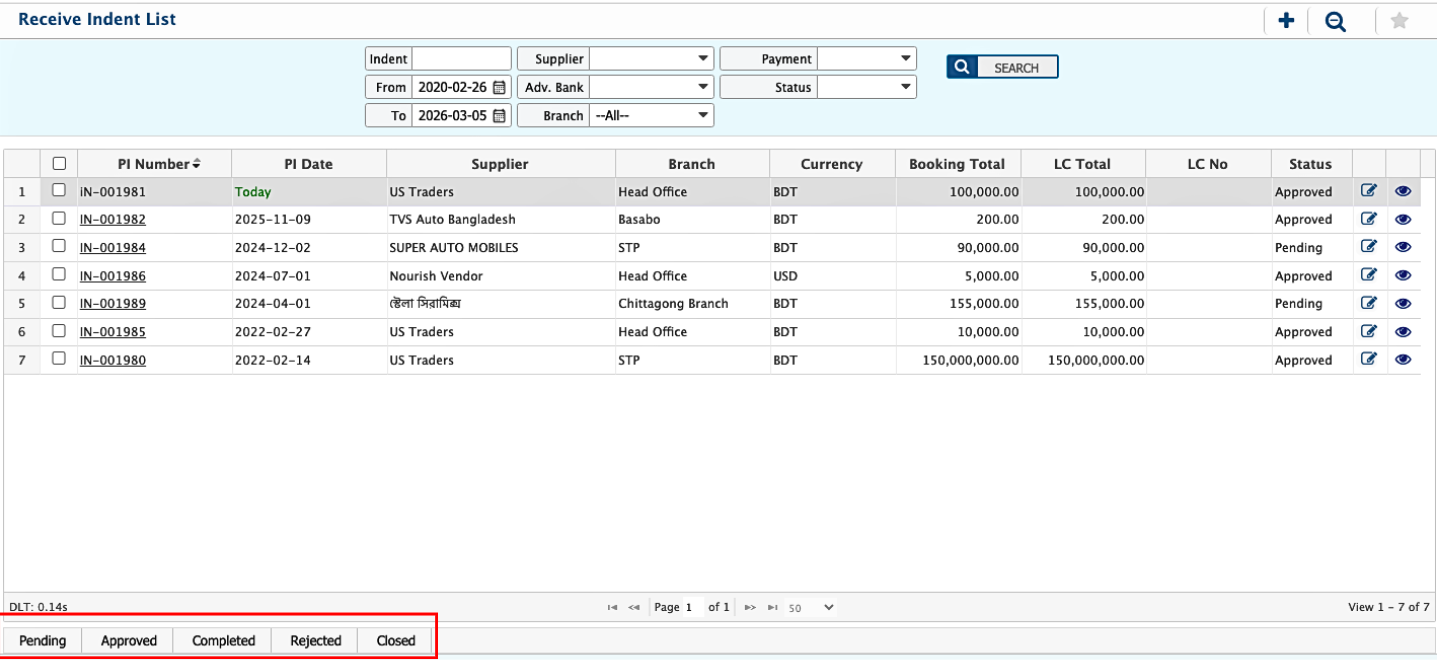
Users can create an Insurance Cover Note to record and track insurance details for payments or transactions. The cover note allows entering party information, amounts, budget allocation, and account details for proper financial management.
| Field | Action |
|---|---|
| Date | Enter the date when the insurance cover note is created. |
| Amount | Enter the total amount covered by the insurance note in the selected currency. |
| Payment Method | Select the payment method used for the transaction (e.g., Cash, Bank Transfer). |
| Branch | Select the branch where the cover note is issued. |
| Party | Enter the name of the party or entity covered by the insurance. |
| Address | Enter the address of the party. |
| Description | Enter any additional information or remarks related to the cover note. |
| Budget Item | Select the specific budget item linked to this cover note. |
| Debit Account | Select the debit account for posting the insurance cover note (e.g., 103-Goods Receivable). |
| Credit Account | Select the credit account for posting the insurance cover note (e.g., 101-Petty Cash1). |