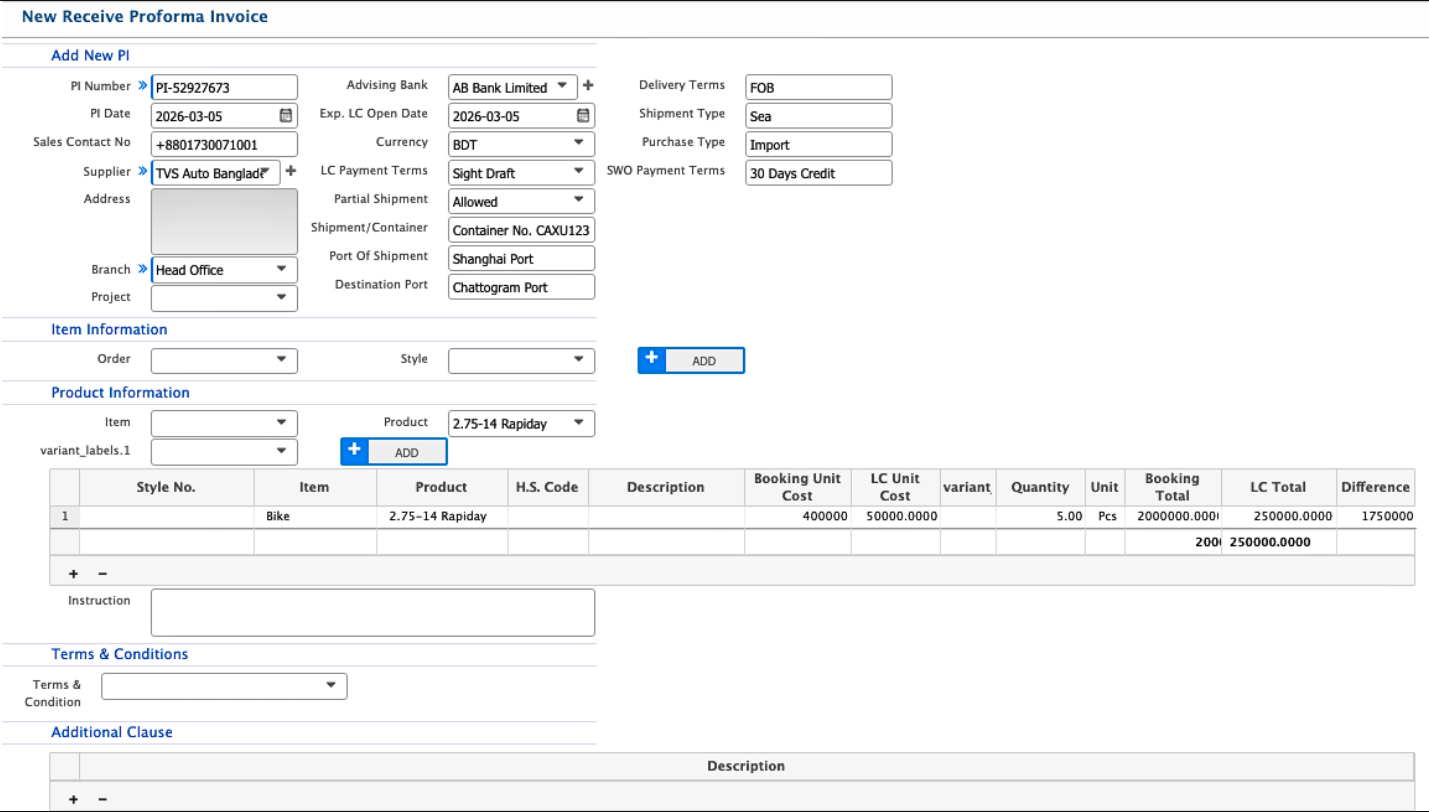
Receive Proforma Invoice
In PrismERP, users can record a Receive Proforma Invoice (PI) to keep track of invoices received from suppliers. The system lets users enter supplier details, product information, shipment instructions, and payment terms. PIs can be searched and filtered from the PI List, and their status updated as needed. While a PI is pending, it can be edited, and clicking the PI Number opens a detailed view showing all related information, including terms, conditions, and vouchers.
Add Receive Proforma
| Field | Action |
|---|---|
| PI Number | Enter the Proforma Invoice number. |
| PI Date | Enter the date when the Proforma Invoice is created. |
| Sales Contact No | Enter the contact number of the sales representative or contact person. |
| Supplier | Select the supplier who issued the Proforma Invoice. |
| Branch | Select the branch associated with the Proforma Invoice. |
| Project | Select the related project if the purchase is project-based. |
| Advising Bank | Select the advising bank for the LC. |
| Exp. LC Open Date | Enter the expected date for opening the LC. |
| Currency | Select the currency used for the Proforma Invoice. |
| LC Payment Terms | Select the LC payment terms agreed with the supplier. |
| Partial Shipment | Select whether partial shipment is allowed. |
| Shipment/Container | Enter shipment or container details. |
| Port Of Shipment | Enter the port from which the goods will be shipped. |
| Destination Port | Enter the destination port where the goods will arrive. |
| Delivery Terms | Select the delivery terms agreed with the supplier. |
| Shipment Type | Select the shipment type for the order. |
| Purchase Type | Select the purchase type such as Local or Import. |
| SWO Payment Terms | Select the payment terms related to the Send Work Order. |
| Order | Select the related order for the proforma invoice. |
| Style | Enter the order style if applicable. |
| Item | Select the item related to the order. |
| Product | Select the product included in the Proforma Invoice. |
| Variant Labels | Enter product variant labels if applicable. |
| Description | Enter the description of the product. |
| Booking Unit Cost | Enter the booking cost per unit. |
| LC Unit Cost | Enter the LC cost per unit. |
| Quantity | Enter the quantity of the product. |
| Instruction | Enter any specific instructions related to the Proforma Invoice. |
| Terms & Condition | Select predefined terms and conditions for the Proforma Invoice. |
| Additional Clause | Enter any additional clause related to the invoice. |
| Description | Enter additional notes or explanations related to the Proforma Invoice. |
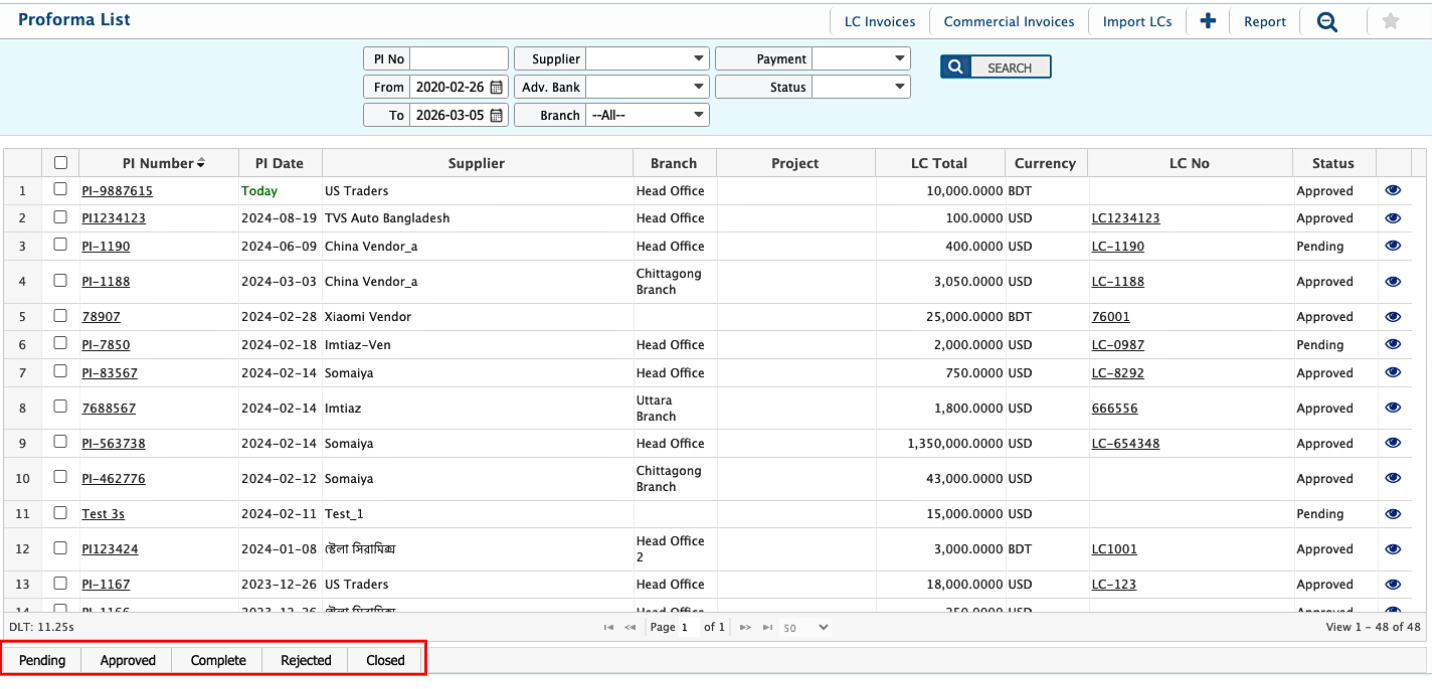
After completing the Receive Proforma Invoice, users can view it from the PI List page. The list allows users to search and filter Proforma Invoices using multiple criteria to quickly locate a specific record.
Users can change the status of a Proforma Invoice as it progresses through the process. The available statuses include Pending, Completed, Rejected, and Closed. A Proforma Invoice can be edited while it remains in the Pending state.
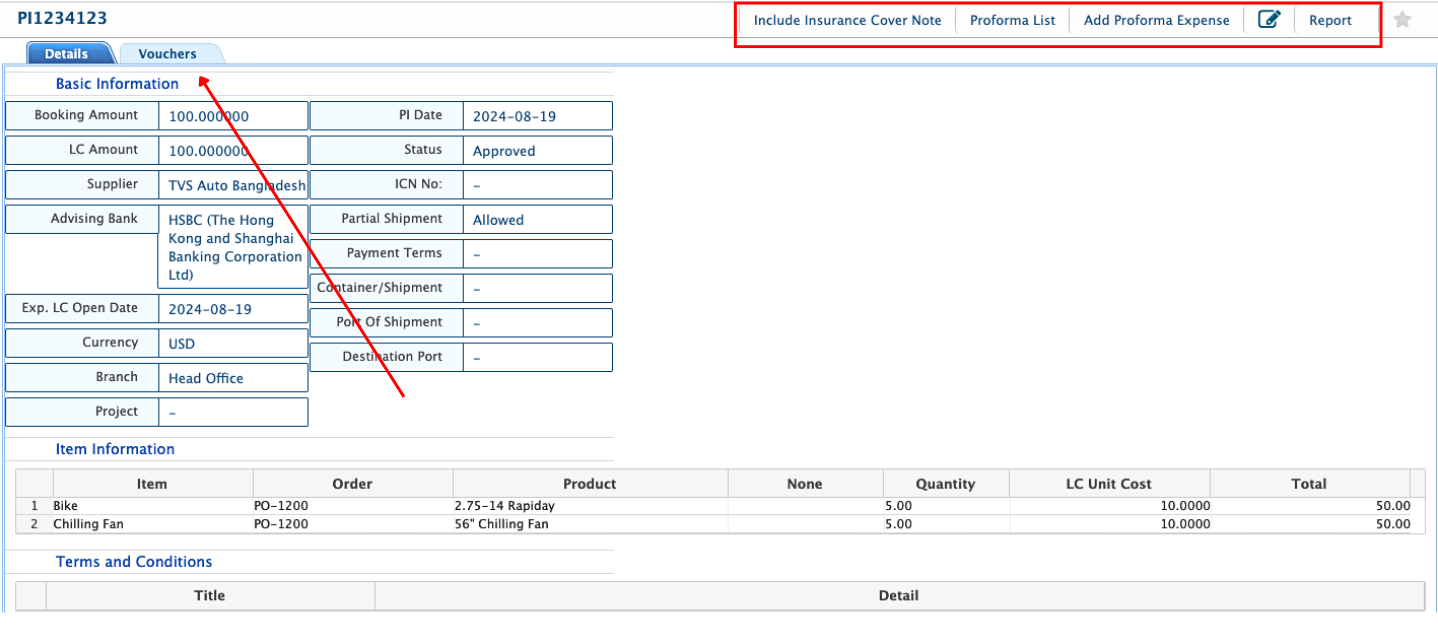
Clicking the PI Number from the list will open its Details View, where users can access all information related to the Proforma Invoice, including PI details, product information, vouchers, etc.
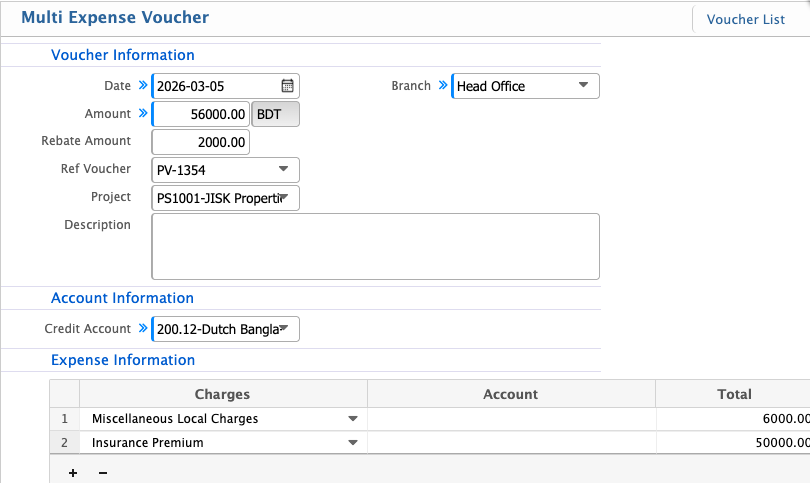
Add Proforma Expense
Beside adding an Insurance Cover Note, users can add a Proforma Expense from the list.
| Field | Action |
|---|---|
| Date | Enter the date when the multi expense voucher is created. |
| Amount | Enter the total amount for the voucher. |
| Currency | Select the currency used for the voucher (e.g., BDT). |
| Rebate Amount | Enter any rebate amount applicable to the voucher. |
| Ref Voucher | Enter or select the reference voucher related to this transaction. |
| Project | Select the project associated with the expense if applicable. |
| Branch | Select the branch where the expense is recorded. |
| Description | Enter notes or details describing the purpose of the expense. |
| Credit Account | Select the account from which the expense amount will be credited. |
| Charges | Enter the name or type of charge included in the expense. |
| Account | Select the expense account where the charge will be recorded. |
| Total | Enter the total amount for the specific charge line. |