Shipment Schedule & Tracking
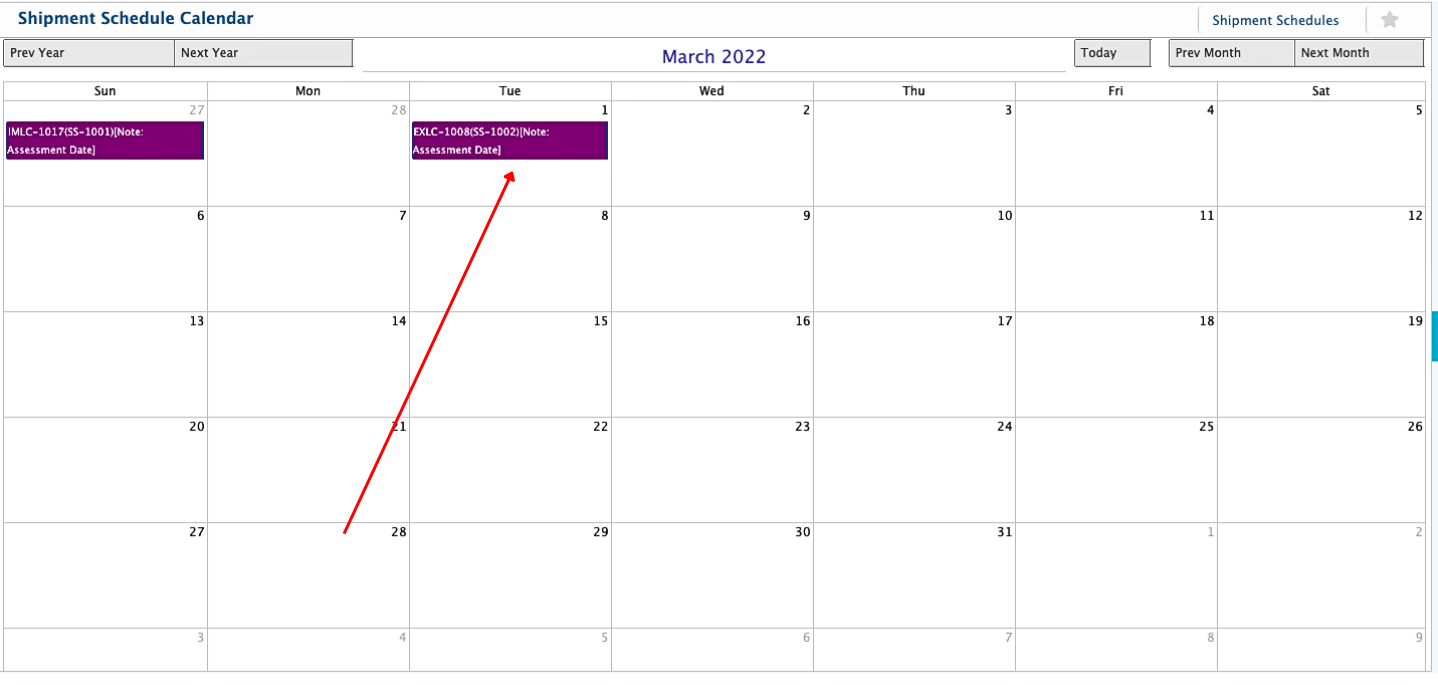
The Shipment Schedule Management module in PrismERP simplifies the process of tracking and managing shipment schedules. Users can seamlessly add Tentative Shipment Schedules directly from the LC view, including key dates such as the Tentative Shipping Date, Port Arrival Date, and Warehouse Arrival Date. An automated History of Tentative Schedules is maintained to capture all changes for audit and compliance purposes.
Once a Tentative Schedule is confirmed, final schedule data can be added, locking further edits to tentative details but allowing modifications to final schedule information. The Shipment Schedule Flat List Page provides a comprehensive overview of both tentative and final schedule data, enabling users to identify discrepancies and perform detailed analysis.
Key Features
- Tentative Shipment Schedule with Tent. Shipping Date, Port Arrival Date, Warehouse Arrival Date etc.
- Tentative Shipment Schedule History
- Final Shipment Schedule Data
- Shipment Schedule Flat List Page
- Shipment Status
Add Shipment Schedule
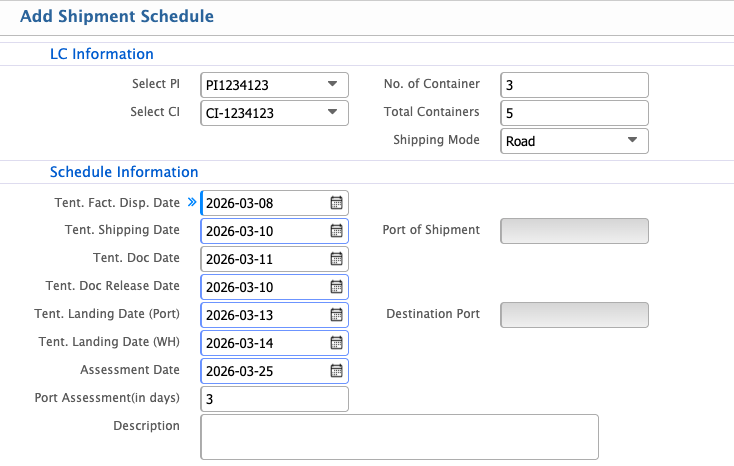
Add Tentative Shipment Schedule from LC view page.

To add a shipment schedule in the system, you would need to fill out the following fields:
- Select PI: Choose the desired proforma invoice (PI) from the available options.
- Select CI: Choose the desired commercial invoice (CI).
- No of Container: Specify the number of shipment containers.
- Total Container: Indicate the total number of containers in the shipment.
- Tent. Fact. Disp. Date: Enter the tentative factory dispatch date.
- Tent. Shipping Date: Provide the tentative date for shipment departure.
- Tent. Doc Date: Enter the tentative date for the documentation.
- Tent. Doc Release Date: Specify the tentative date for document release.
- Tent. Landing Date (Port): Enter the estimated landing date at the port.
- Tent. Landing Date (WH): Provide the estimated landing date at the warehouse (WH).
- Assessment Date: Enter the date for the assessment of the shipment.
- Port of Shipment: Specify the port from which the shipment will be dispatched.
- Destination Port: Indicate the destination port for the shipment.

History View
Whenever you edit the tentative shipment schedule, a history is generated automatically. You can see the change history from the view page of the shipment schedule.

Change History Section:
- Details of Changes: It lists the fields that were edited, the old and new values, and possibly who made the changes.
- Timestamp: Each change will likely be timestamped, so you can track when each edit was made.
Add Final Schedule
To add the final shipment schedule data for SS-1001, you can fill out the fields with the information provided. Here's how you would complete the form based on your details:
Schedule Information
- Fact. Disp. Date: Enter the factory dispatch date.
- Shipping Date: Provide the date for shipment departure.
- Document Date: Enter the date for the documentation.
- Doc Release Date: Specify the date for document release.
- Landing Date (Port): Enter the landing date at the port.
- Landing Date (WH): Provide the landing date at the warehouse.
- Assessment Date: Enter the date for the assessment of the shipment.
- Port Assmt (in days): 3 days.
Container Information
- Total Containers: 5.
- Containers: You may need to specify additional details (like container numbers or other specifics) if applicable.

Shipment Schedule List Page
The Shipment Schedule List Page will display both the initial tentative schedule and the final schedule side by side, allowing you to compare any differences between the two.
Possible Differences
- Date Changes: The tentative dates (e.g., Factory Dispatch Date, Shipping Date, etc.) may be updated in the final schedule.
- Container Information: The number of containers or container details might be adjusted in the final schedule.
- Assessment or Port Information: If there were any updates to the assessment dates or port details, they would appear as differences.

Filter Options for Better Tracking and Comparison
Here's how you can use those filters for better tracking and comparison:
- LC Type: Filter based on the type of Letter of Credit (LC) associated with the shipment. This could help you track shipments under specific LC types.
- LC Opening Date Range: Filter the shipment schedules based on when the LC was opened, which helps in understanding the time frame of the transactions.
- CI (Commercial Invoice): Filter by specific Commercial Invoice numbers to view schedules related to particular invoices.
- PI (Proforma Invoice): You can filter by Proforma Invoice to see schedules related to certain initial agreements.
- Shipment Arrival Date: Filter by the expected or actual arrival date of shipments, which is useful for tracking the status of arrivals.
- LC Branch: Filter by the branch associated with the LC, which could help if there are multiple branches involved in different locations.