Work Order
Work Order feature in PrismERP allows users to create and manage work orders with all relevant details, including branch, vendor, products, instructions, and delivery information. Work orders can go through approval workflows, have their status tracked, and be edited while pending. Users can view complete order information, attachments, and delivery plans directly from the list or details view.
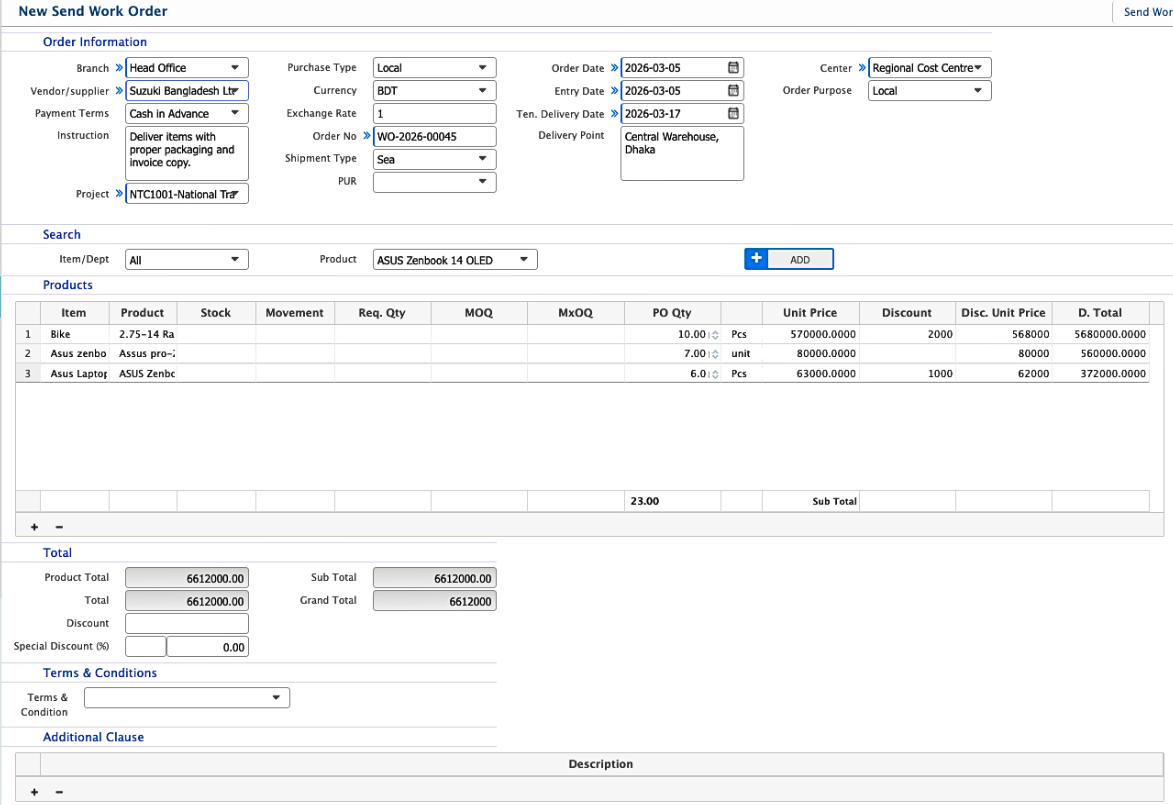
Add Send Work Order
| Field | Action |
|---|---|
| Branch | Select the branch from which the work order is being issued. |
| Vendor/Supplier | Select the vendor or supplier to whom the work order will be sent. |
| Payment Terms | Select the payment terms that define how and when the payment will be made to the vendor. |
| Instruction | Enter any specific instructions related to the order. |
| Project | Select the project associated with the work order if the purchase is project-based. |
| Purchase Type | Select the purchase type such as Local or other available options. |
| Currency | Select the currency used for the order. |
| Exchange Rate | Enter the exchange rate if the order currency differs from the base currency. |
| Order No | Enter the automatically generated order number. |
| Shipment Type | Select the shipment type. |
| PUR | Select related purchase request if applicable. |
| Order Date | Enter the date when the work order is created. |
| Entry Date | Enter the system entry date for the order. |
| Ten. Delivery Date | Enter the tentative delivery date expected from the vendor. |
| Delivery Point | Enter the location where the products will be delivered. |
| Center | Select the center or operational unit responsible for the order. |
| Order Purpose | Enter the purpose or reason for creating the work order. |
| Product | Select the product that will be ordered from the supplier. |
| PO Qty | Enter the purchase order quantity that will be sent to the vendor. |
| Unit Price | Enter the price per unit for the selected product. |
| Discount | Enter any discount applied to the product. |
| Discount | Enter the total discount applied to the order. |
| Special Discount (%) | Enter an additional discount percentage applied to the total order value. |
| Terms & Condition | Select predefined terms and conditions applicable to the order. |
| Additional Clause | Enter any additional clause required for the order agreement. |
| Description | Enter additional notes or explanations related to the order. |
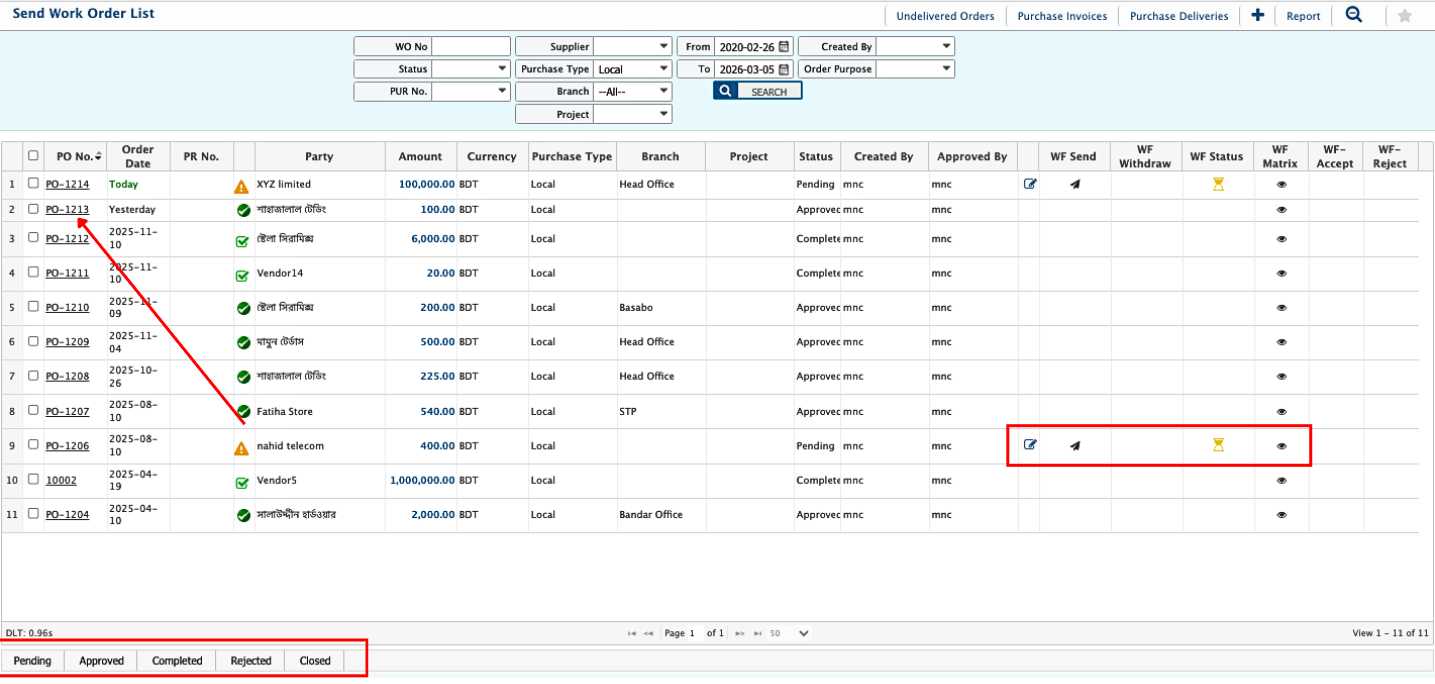
After completing the Send Work Order, users can view it from the Send Work Order List page. The list allows users to search and filter work orders using multiple criteria, to locate a specific order among many records.
A work order can be sent to an approval workflow, where it moves through multiple approval levels according to the configured approval hierarchy. Users can open the Workflow Matrix to see the defined approval structure and check the Workflow Status to track the current stage of the approval process.
Users can also change the status of the work order depending on its progress. The available statuses include Pending, Approved, Completed, Rejected, and Closed.
A work order can be edited while it remains in the Pending state. Once the status changes to the next stage in the process, editing may no longer be allowed based on the workflow configuration.
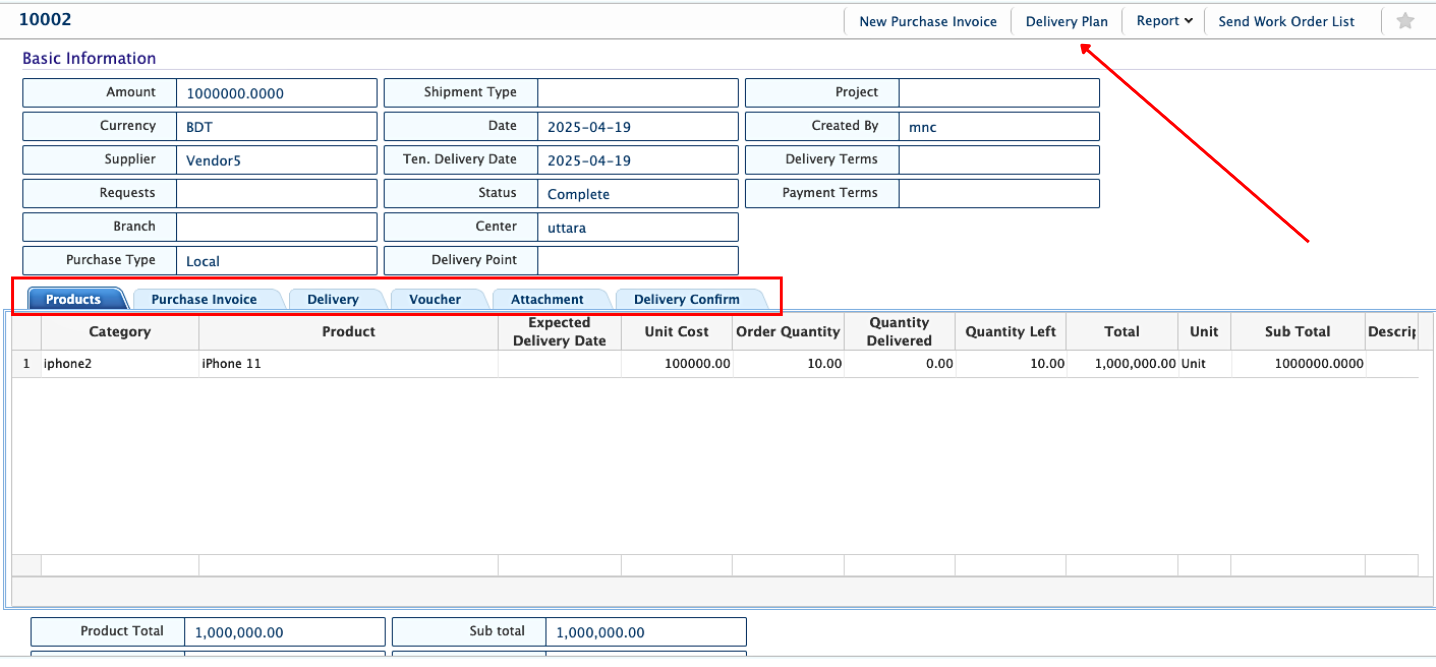
Clicking the Work Order Name from the list will open its Details View, where users can access all information related to the order, including order details, product information, vouchers, attachments, delivery plans, and purchase invoices. Users can also add a delivery plan for the work order.