Inventory Transfer
- Inventory Transfer Request
- Transfer Order
- Transfer Order (Inventory to Inventory)
- Inter Branch Store Transfer
-
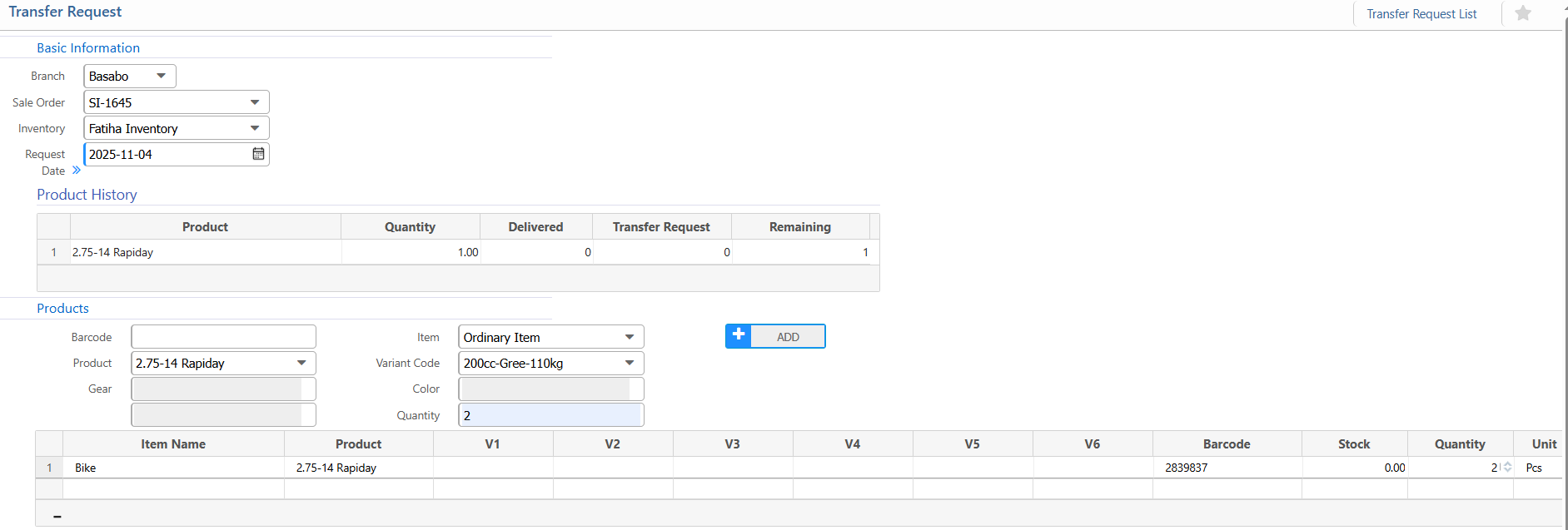
Branch: Select the branch
-
Sale Order: Choose the related sales order.
-
Inventory: Select the inventory
-
Request Date: Enter the date
-
Item: Select the item type
-
Product: Select the product name to transfer.
-
Quantity: Enter the number of items to transfer.
-
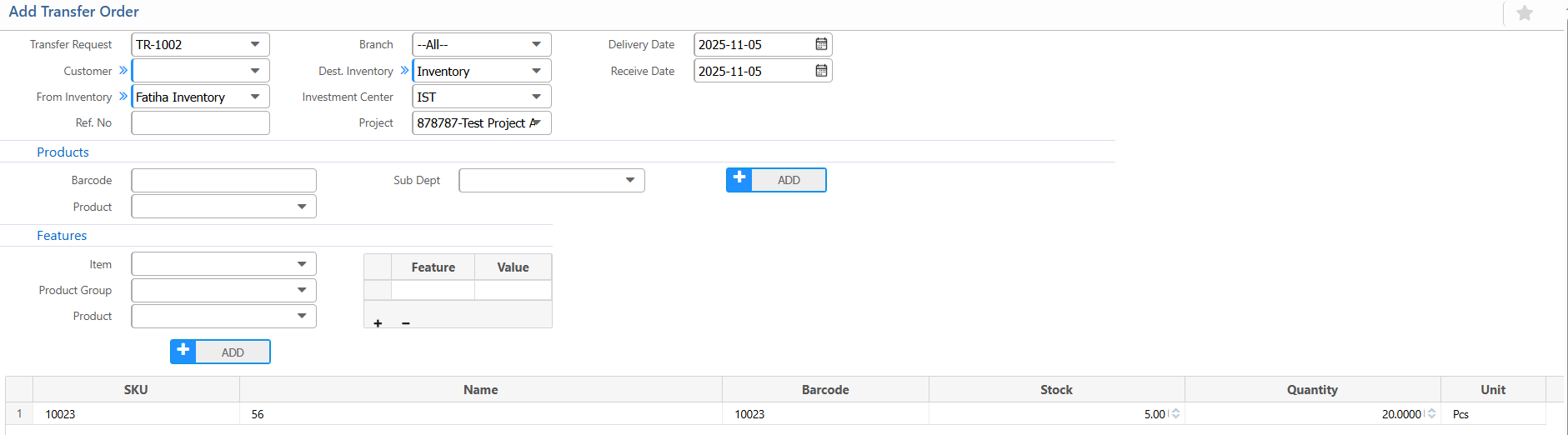
Transfer Request Number: Select an existing transfer request.(When you choose the transfer request number, all products from that request will automatically appear.)
-
From Inventory: Select the source inventory.
-
To Inventory: Select the destination inventory.
-
Delivery Date: Set the delivery date
-
Receive Date: Set the expected date.
-
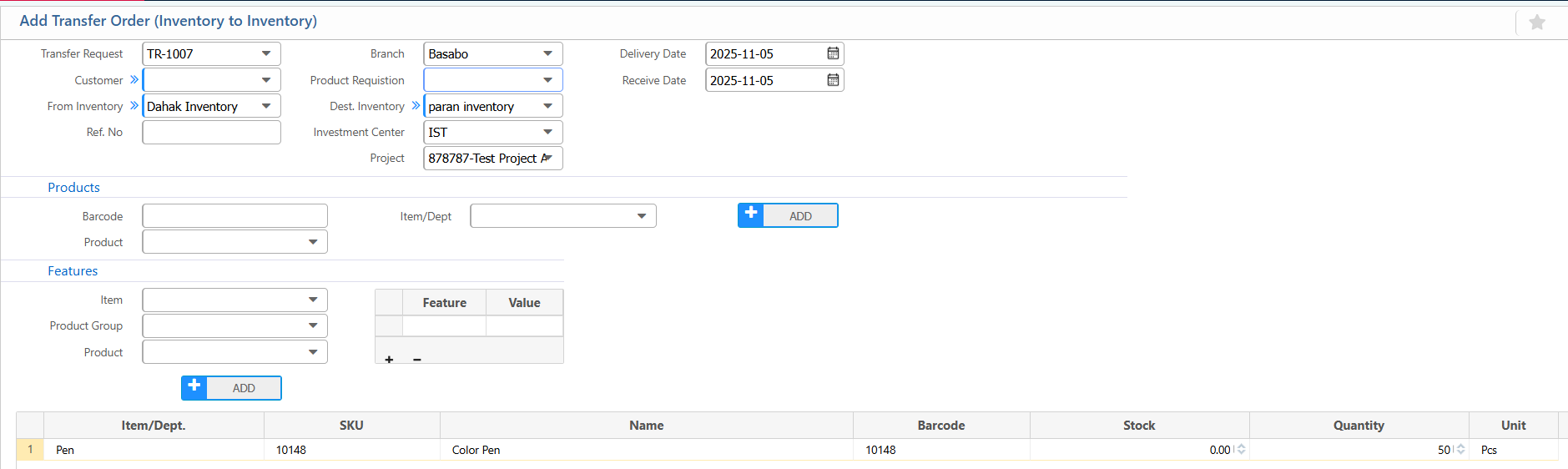
Transfer Request Number: Select transfer request.
-
From Inventory: Select the source inventory.
-
To Inventory: Select the destination inventory.
-
Delivery Date: Set the delivery date.
-
Receive Date: Set the expected date.
-
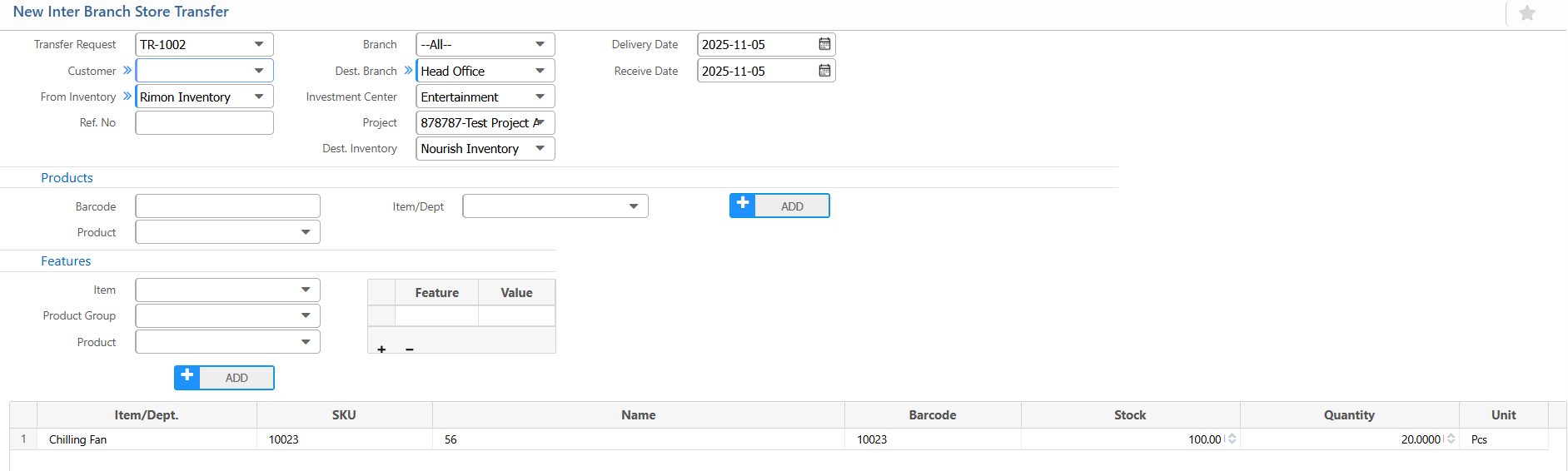
Transfer Request: Select the request number
-
From Inventory: Select the source inventory
-
Branch: Select the source branch
-
Dest. Branch: Select the destination branch
-
Dest. Inventory: Select the destination inventory
-
Delivery Date: Enter the delivery date.
-
Receive Date: Enter the expected date