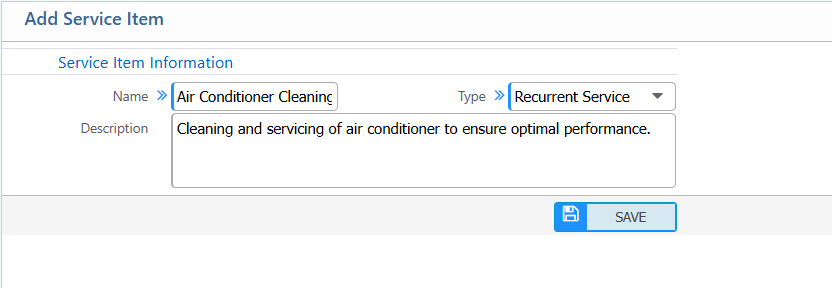
New Service Item
- Name: Enter the name of the service item
- Type: Select the type of service
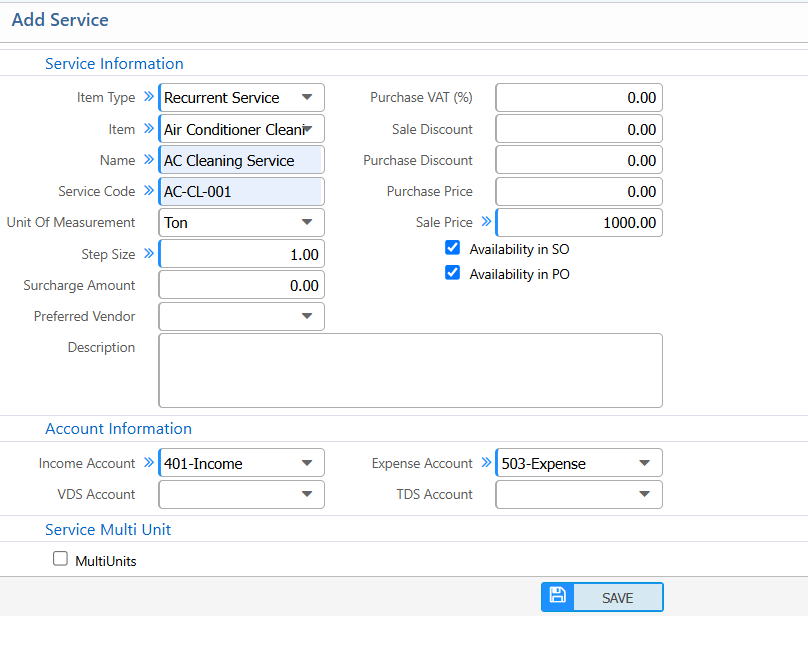
New Service
- Item Type: Select the type of service
- Item: Enter the related service item
- Name: Enter the service name
- Service Code: Enter a unique code for the service .
- Unit Of Measurement: Select the unit for the service .
- Step Size: Enter the step size for quantity
- Preferred Vendor: Enter the vendor if needed.
- Purchase VAT (%): Enter the VAT applicable on purchase
- Sale Discount / Purchase Discount: Enter discounts if applicable.
- Purchase Price: Enter the cost price for internal accounting
- Sale Price: Enter the selling price for the service
- Availability in SO / PO: Mark if this service is available in sales orders or purchase orders.
- Income Account: Select the income account
- Expense Account: Select the expense account
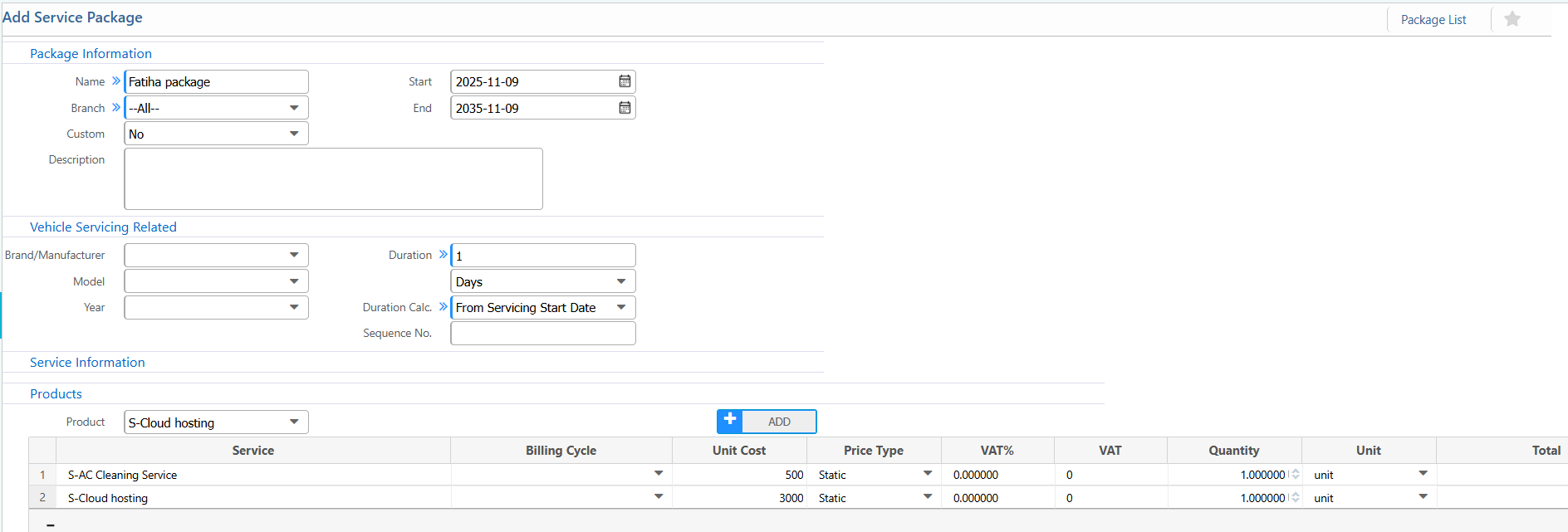
New Service Package
- Name: Enter a unique package name
- Branch: Select the branch
- Start / End Date: Define the package validity period
- Brand/Manufacturer / Model / Year: Specify if the package applies to a specific brand, model, or year.
- Duration: Enter duration of service
- Duration Calculation: Choose how duration is calculated (e.g., From Servicing Start Date).
- Sequence No.: Define the order of services in the package.
- Products / Service: Add service items included in the package
- Billing Cycle: Enter billing cycle type
- Unit Cost / Price Type: Enter unit cost and whether price is static or dynamic
- VAT% / VAT: Enter applicable VAT percentage and amount
- Quantity / Unit: Specify the number of units and measurement
- Total / Description (Tk): System calculates total cost for each service
- Discount (%): Enter any discount for each service item.
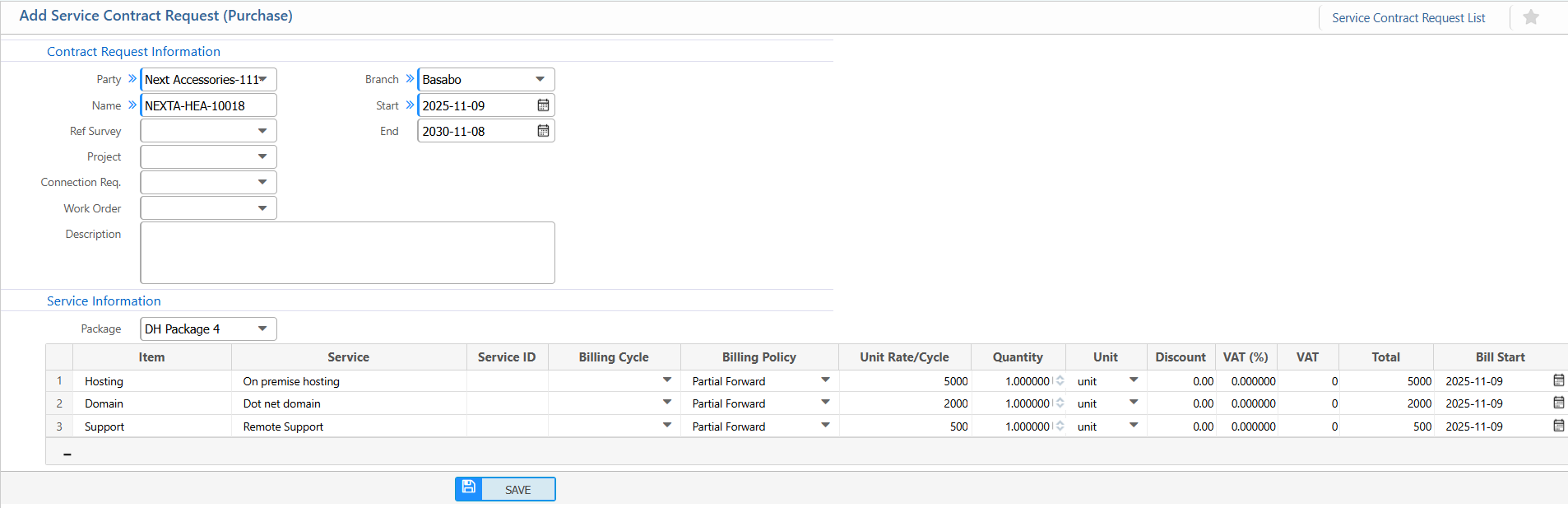
Purchase Service Contract Request
- Party: Select the party
- Name: Enter a unique request name
- Project: Enter the related project
- Work Order: Enter the work order associated with this contract.(if applicable)
- Branch: Select the branch
- Start / End Date: Enter the service contract duration
- Package: Select the package
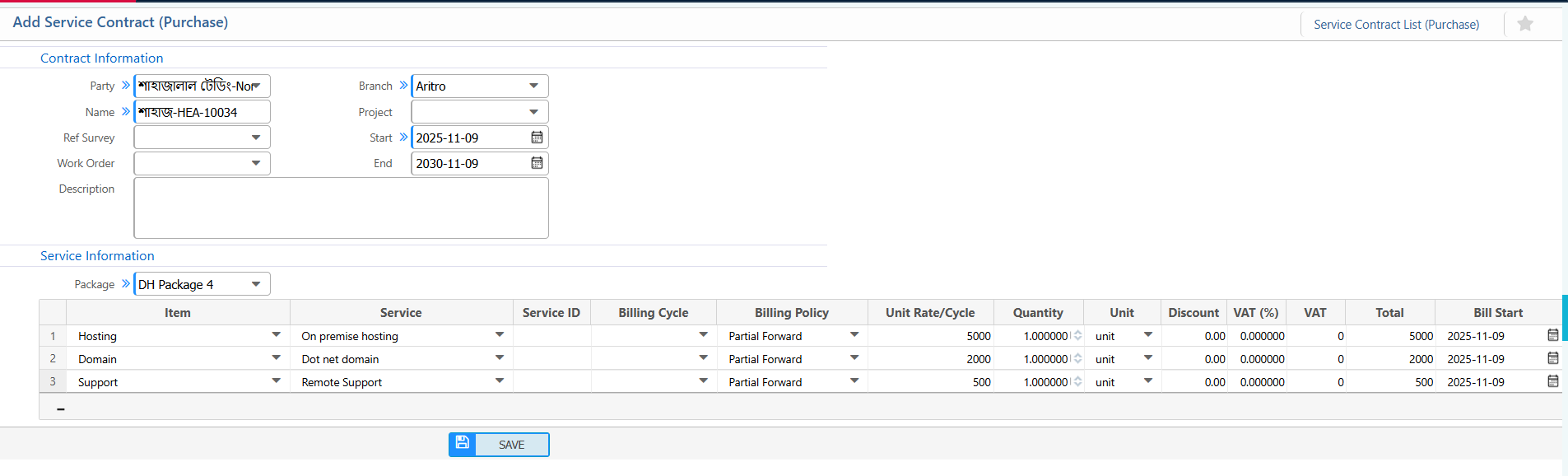
Purchase Service Contract
- Party: Select the party
- Name: Enter a unique contract name
- Ref Survey : Select the survey if applicable.
- Work Order: Select the work order if applicable.
- Branch: Select the branch
- Project: Select the related project if required.
- Start / End Date: Define the duration of the service contract
- Package: Select the package item
- Service ID: Enter unique service ID
- Billing Cycle: Select the billing cycle
- Billing Policy: Select the billing policy
- Unit Rate/Cycle: Enter the rate per billing cycle
- Quantity: Enter the quantity
- Discount: Enter any applicable discount
- VAT (%): Enter any applicable tax
- Bill Start Date: Enter the start date for billing
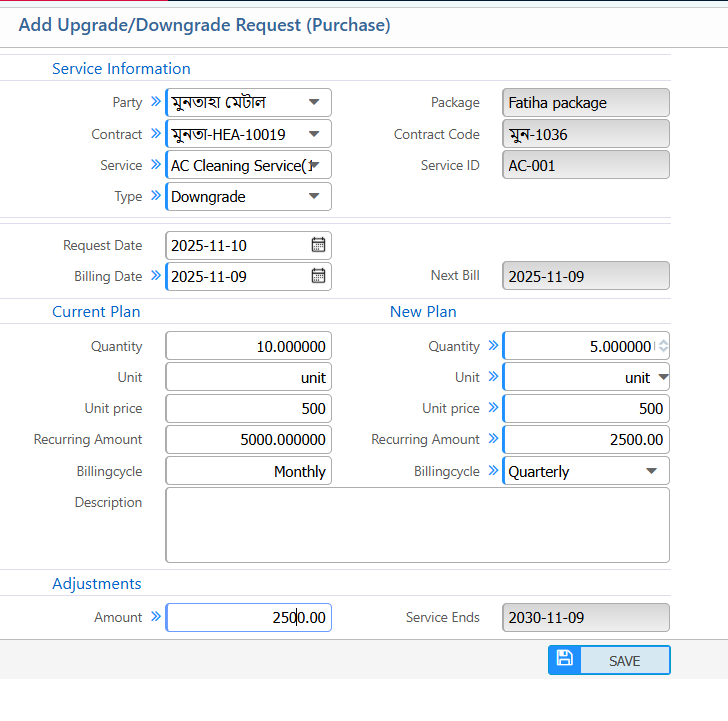
Purchase Service Upgrade/Downgrade Request (Purchase)
- Party: Select the party
- Contract: Select the contract
- Service: Select the service
- Type: Choose whether this is an upgrade or downgrade
- Request Date: Enter the date when the upgrade/downgrade request is made
- Billing Date: Enter the billing date..
- Quantity: Enter quantity for new plan
- Unit Price: Enter new unit price
- Recurring Amount: Enter the new recurring amount
- Billing Cycle: Select the billing cycle
- Description: Any notes or explanation regarding the upgrade/downgrade.
- Adjustments Amount: Enter the adjustment amount
Service Purchase Invoice
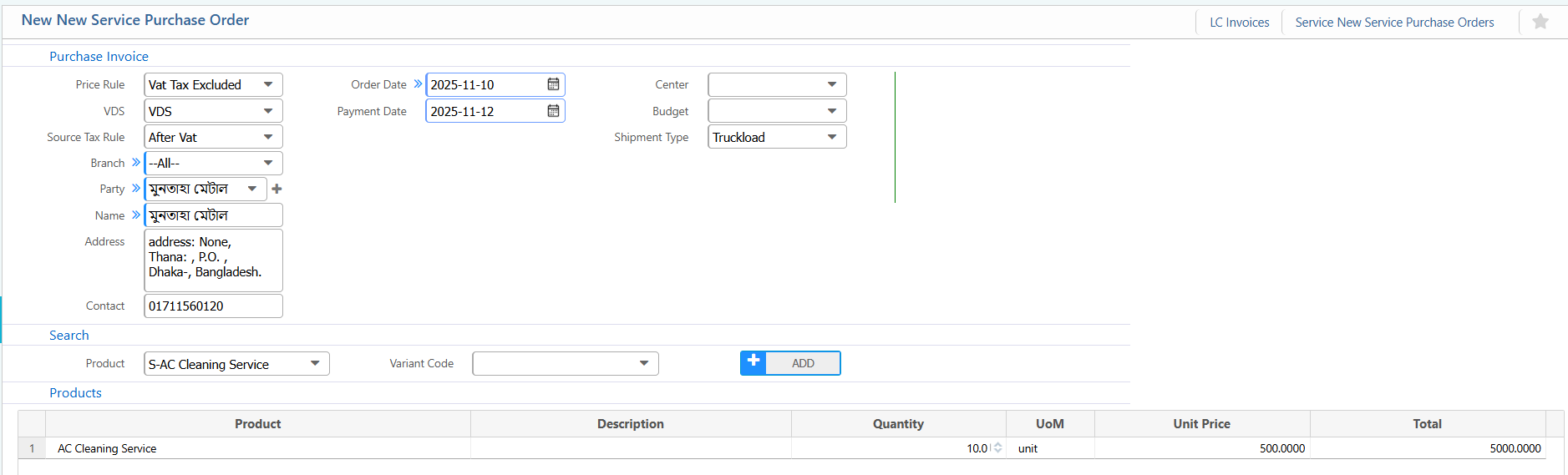
Service Purchase Order
- Price Rule: Enter the applicable price rule.
- VDS: Enter the VDS type.
- Source Tax Rule: Select the source tax rule.
- Branch: Select the branch.
- Party: Enter the party
- Order Date: Enter the purchase order date.
- Payment Date: Enter the payment date.
- Product: Select the service/product.
- Quantity: Enter the quantity.
- UoM: Enter the unit of measurement.
- Unit Price: Enter the price
- A/P Account: Enter the accounts payable account.
- VAT Account: Enter the VAT account.
- AIT Account: Enter the Advance Income Tax account.