Quotation Comparison
Quotation comparison is the process of reviewing multiple supplier quotes to choose the best option based on price, quality, delivery time, and other factors. It ensures informed and fair purchasing decisions.
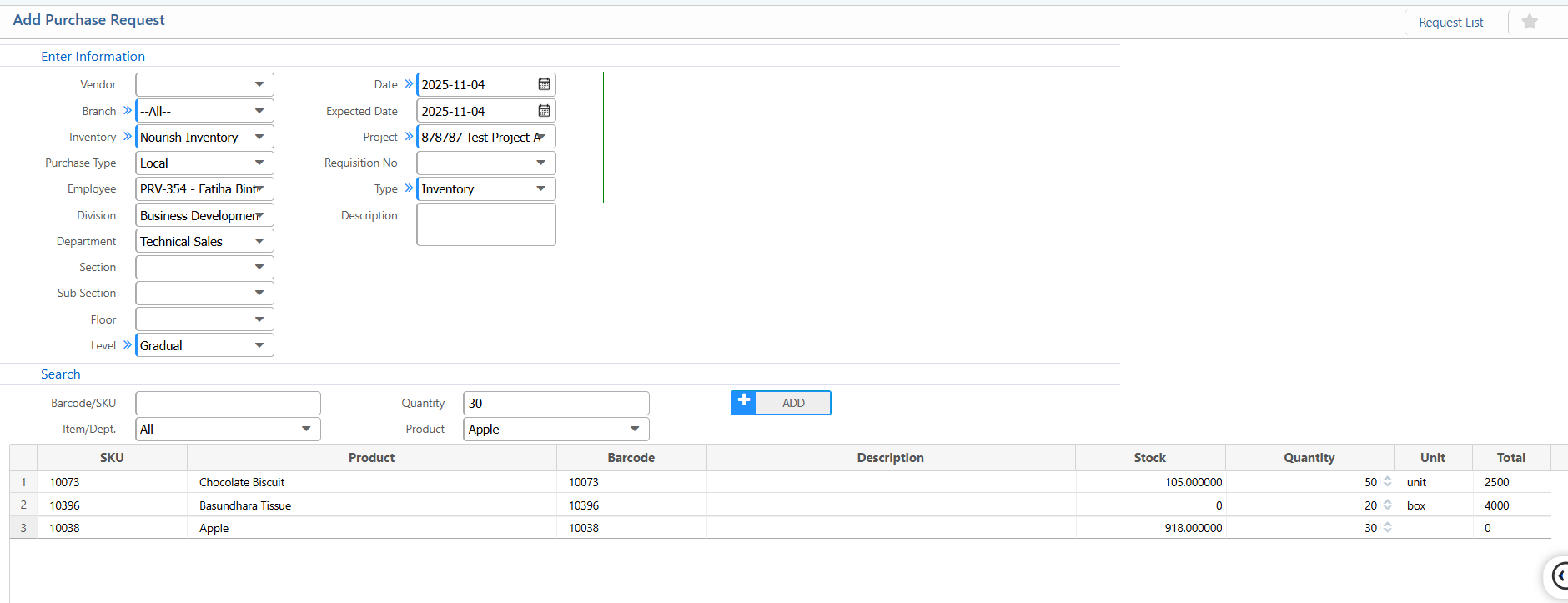
Purchase Request
Create a purchase request by selecting the vendor, branch, inventory, and product details, along with quantity and expected dates. This request serves as the starting point for receiving quotations and comparing vendor offers.
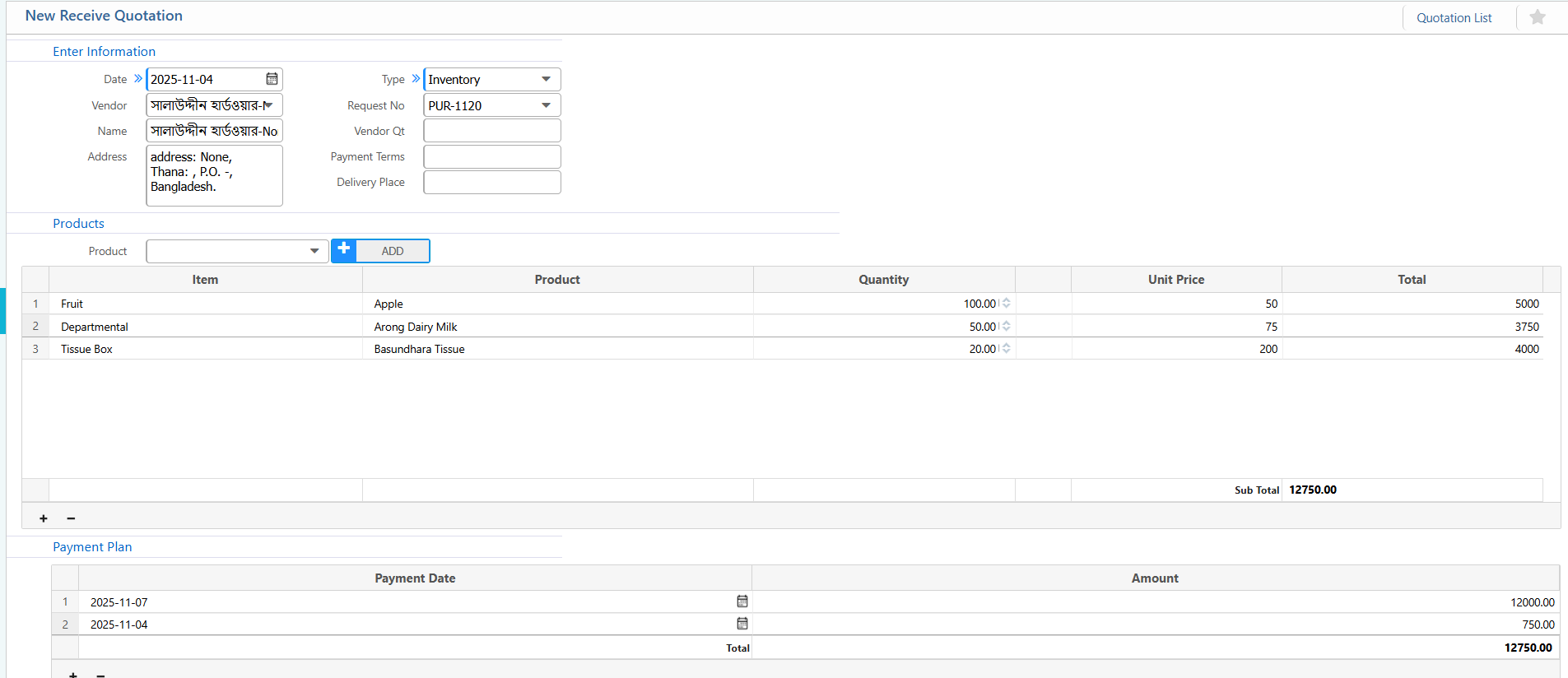
Receive Quotation
- Date: Enter the date
- Vendor / Name / Address: Enter vendor details
- Type: Select the type of purchase (e.g., Inventory).
- Request No: Reference the related purchase request.
- Vendor Qt: Quotation number or reference.
- Payment Terms / Delivery Place: Enter payment and delivery details.
- Item / Product: Select the item and product name.
- Quantity: Enter the quantity quoted.
- Unit Price: Enter the price per unit.
- Payment Date / Amount: Enter scheduled payment dates and amounts.
Selection Criteria Setup
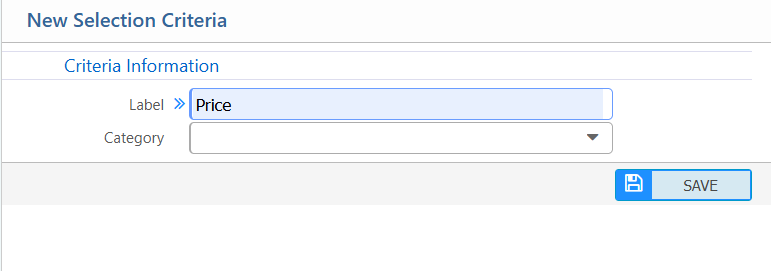
Individual Selection Criteria
- Label: Enter the criterion name
- Category: Select the relevant category if applicable.
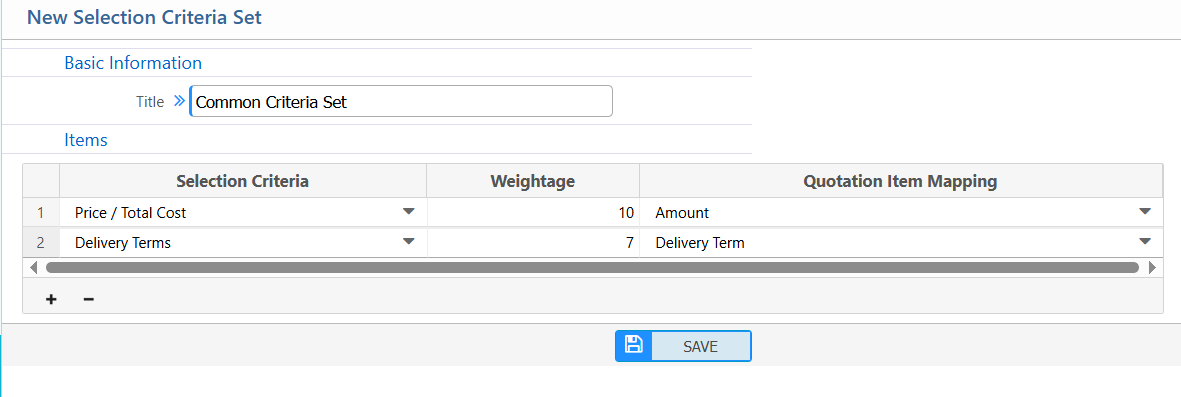
Selection Criteria Set
- Title: Enter the name of the criteria set
- Items/ Selection Criteria: Add individual criteria to this set.
- Weightage: Assign a weight to each criterion to indicate its importance.
- Quotation Item Mapping: Specify which quotation field this criterion corresponds to
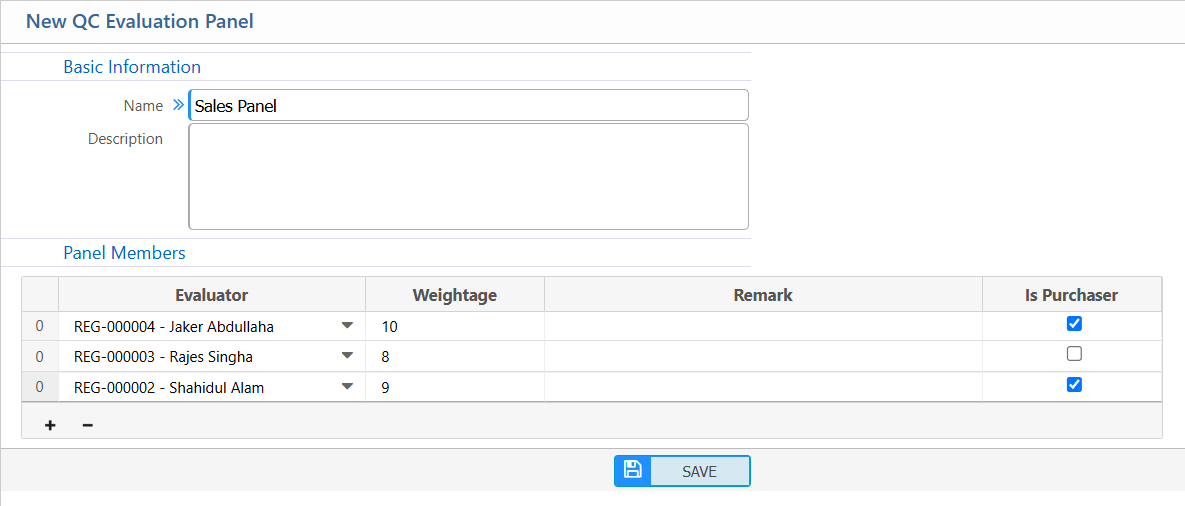
Evaluation Panel
- Name: Enter the name of the panel
- Description: Add a brief description of the panel’s purpose
- Evaluator: Select the employee or user
- Weightage: Assign a score weight to indicate the importance of their evaluation
- Remark: Optionally add notes about the evaluator
- Is Purchaser: Specify if the evaluator is also the purchaser
Quotation Price Comparison
- Select Purchase Request: Choose the relevant purchase request to view all received quotations.
- Add Criteria : Apply any selection criteria if needed to filter or prioritize quotations.
- Compare Quotations: Users can see all received quotations side by side for easy comparison.
- Approve Quotations: Individual quotations can be approved or rejected.

Comparative Statement
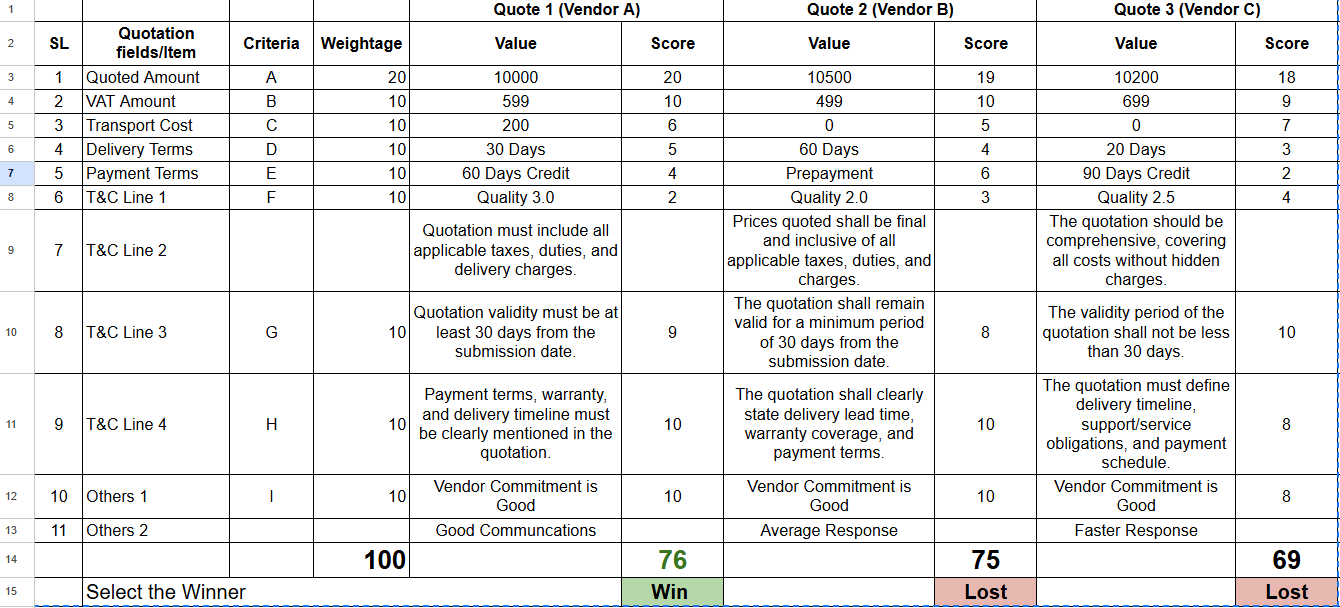
Example Table of Comparative Statement
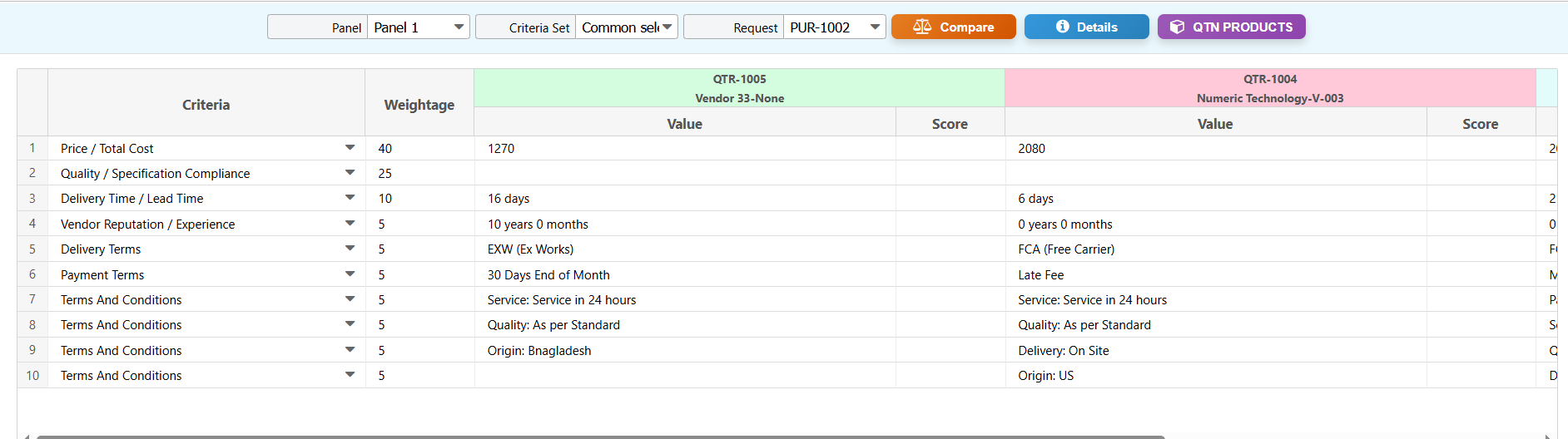
- Select Panel: Choose the evaluation panel whose members will score the quotations
- Select Criteria Set: Apply a criteria set
- Select Purchase Request: Choose the relevant purchase request
- View Criteria and Vendor Values: The system displays all criteria and the values provided by each vendor.
- Score Criterion: Panel members score each vendor for every criterion.

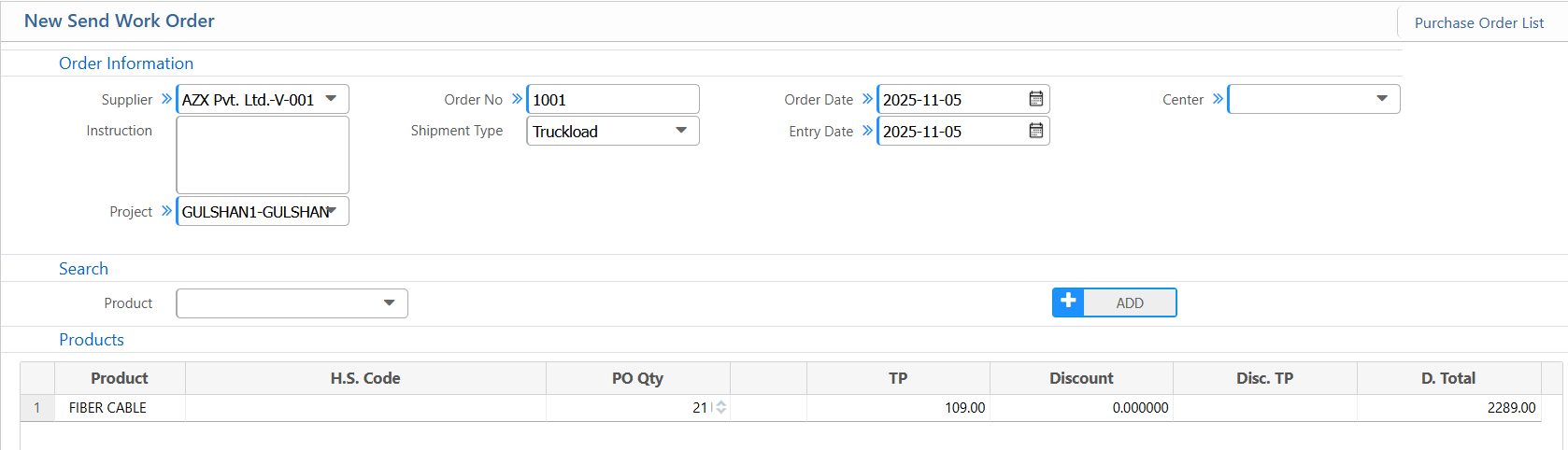
Send Work Order
After the final evaluation of quotations, users can send a Work Order directly to the selected vendor.
- Select Supplier: Choose the vendor who was selected after the final evaluation
- Order No: Enter order number.
- Shipment Type: Specify the shipment method.
- Order Date & Entry Date: Enter or confirm the dates for the order.
- Center / Branch: Select the relevant center or branch/
- Products: Select Product
- Quantity: Enter Quantity