Product Consumption
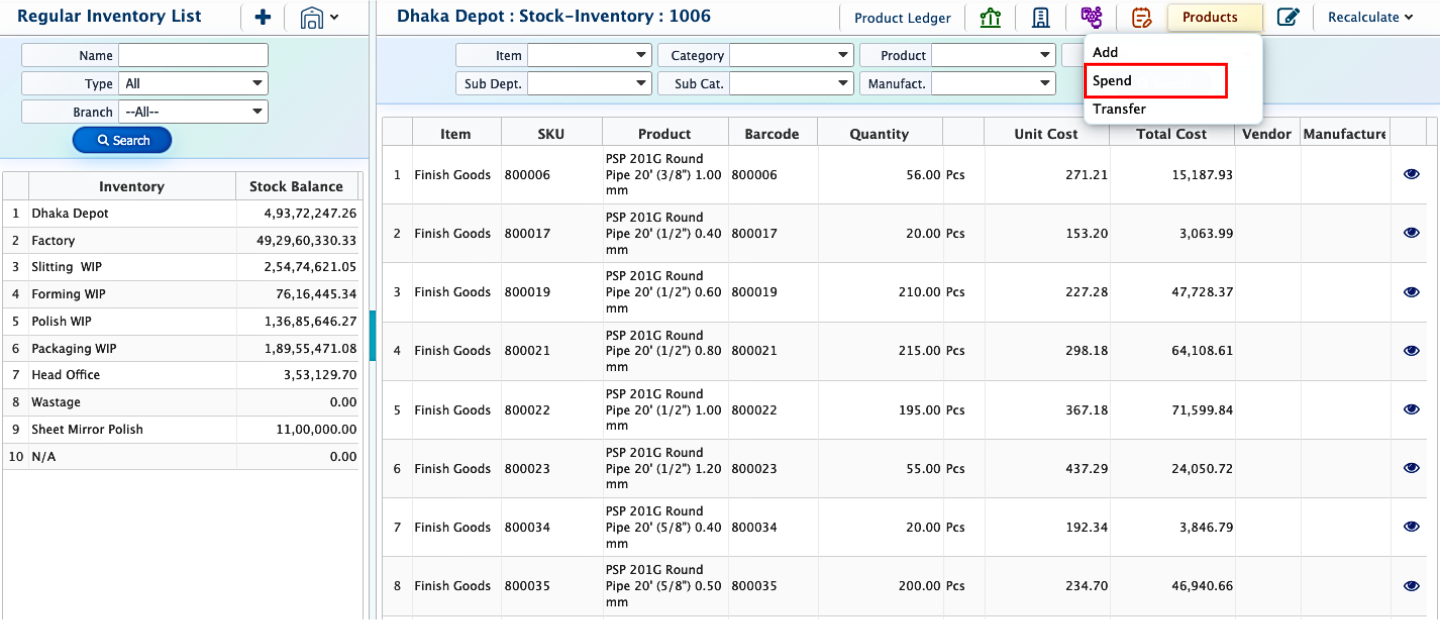
In PrismERP, Product Consumption (PCM) records products as they are used or issued from stock for production, internal requisitions, or damaged/broken items, updating inventory levels for the selected branch and location. Each entry captures delivery dates, debit accounts, and product details. PCM entries appear in the Material Consumption List, where they can be searched, filtered, and tracked by status: Pending, Completed, Rejected, Closed, or Reactive. Entries can be edited even after closure, and completed consumptions can be marked as Closed. Clicking a PCM entry opens the Details Page, showing operational and accounting information, with reports available for viewing or download. Users can navigate to the inventory list in PrismERP, select the desired branch and inventory location, and spend products from the stock by entering relevant details.
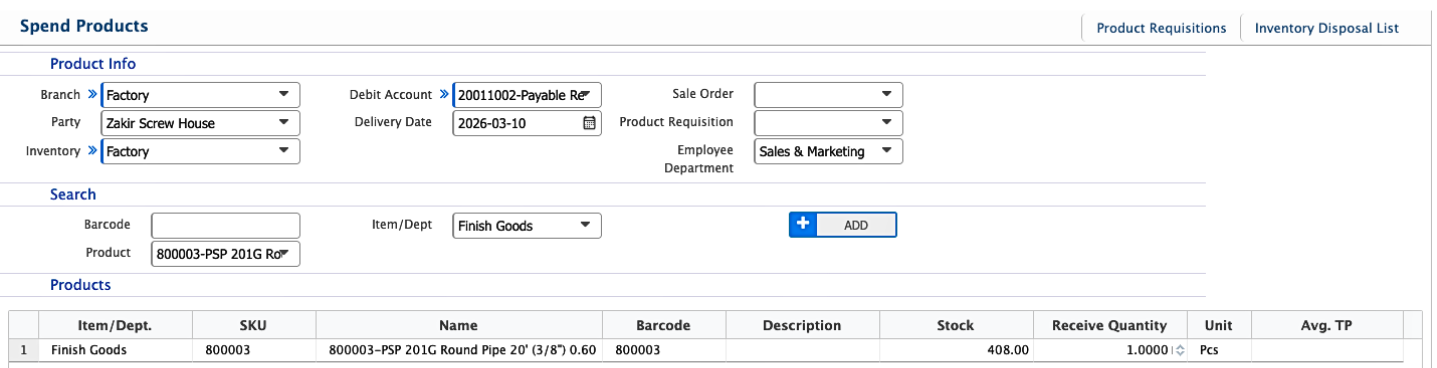
Add Product Consumption
| Field | Action |
|---|---|
| Product Info | Enter the product details including name, code, and category. |
| Branch | Select the branch related to the product requisition or disposal. Options include specific branches. |
| Party | Select the party involved in the transaction, if applicable. |
| Inventory | Select the inventory location from which the product is issued or disposed of. |
| Debit Account | Choose the accounting ledger for the debit entry. |
| Delivery Date | Enter or select the date when the product is delivered, issued, or disposed. |
| Sale Order | Select the linked Sale Order, if applicable. |
| Product Requisition | Select the related product requisition, if any. |
| Employee Department | Select the department of the employee requesting or handling the product. |
| Search Barcode | Enter the product barcode to search and select the product. |
| Item/Dept | Select the relevant item or department associated with the product. |
| Product | Choose the product from the system’s product list for requisition, spending, or disposal. |
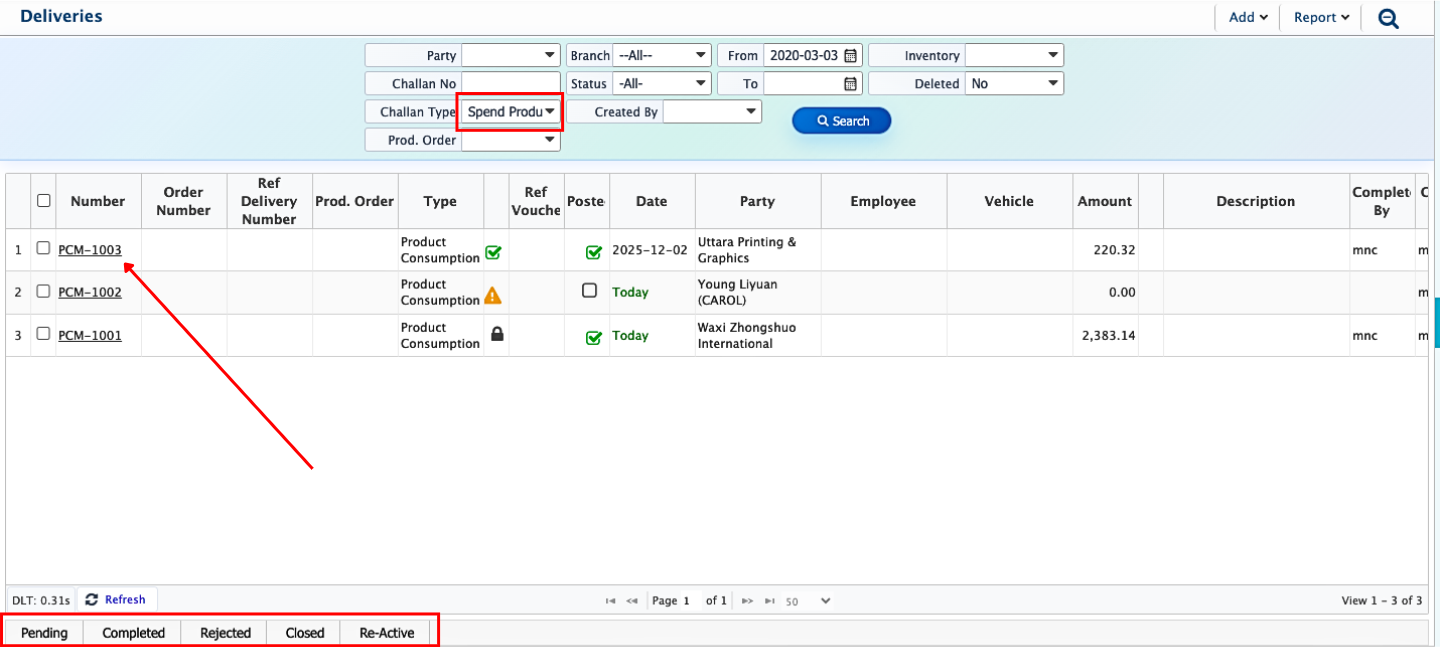
After a product is added through Product Consumption (PCM), it immediately appears in the Material Consumption List. Users can use the search panel to filter and find a specific PCM. Each PCM has a status that reflects its current stage: Pending, Completed, Rejected, Closed, or Reactive. Users can update the status at any point, and even edit a PCM after it has been closed if adjustments are needed. Once the consumption process is fully completed, the PCM can be marked as Closed to finalize it in the system.
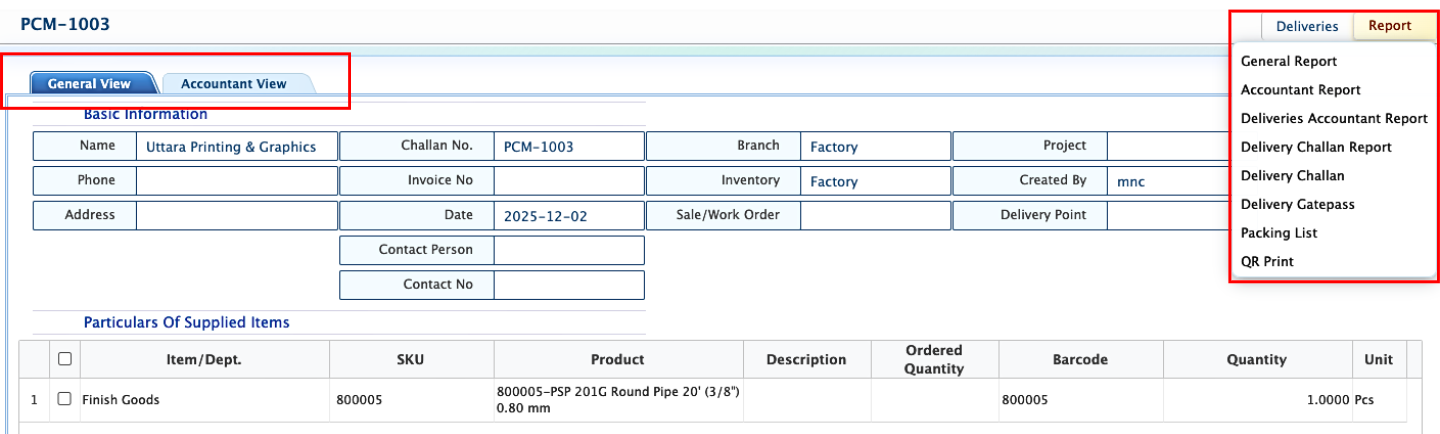
Clicking on a PCM opens its Details Page, where information is organized in two views: General View for operational details such as delivery dates, quantities, and branch information, and Accountant View for ledger entries and financial tracking. From this page, users can generate reports for consumed products, which can be viewed or downloaded in multiple formats, supporting both operational follow-up and accounting documentation.