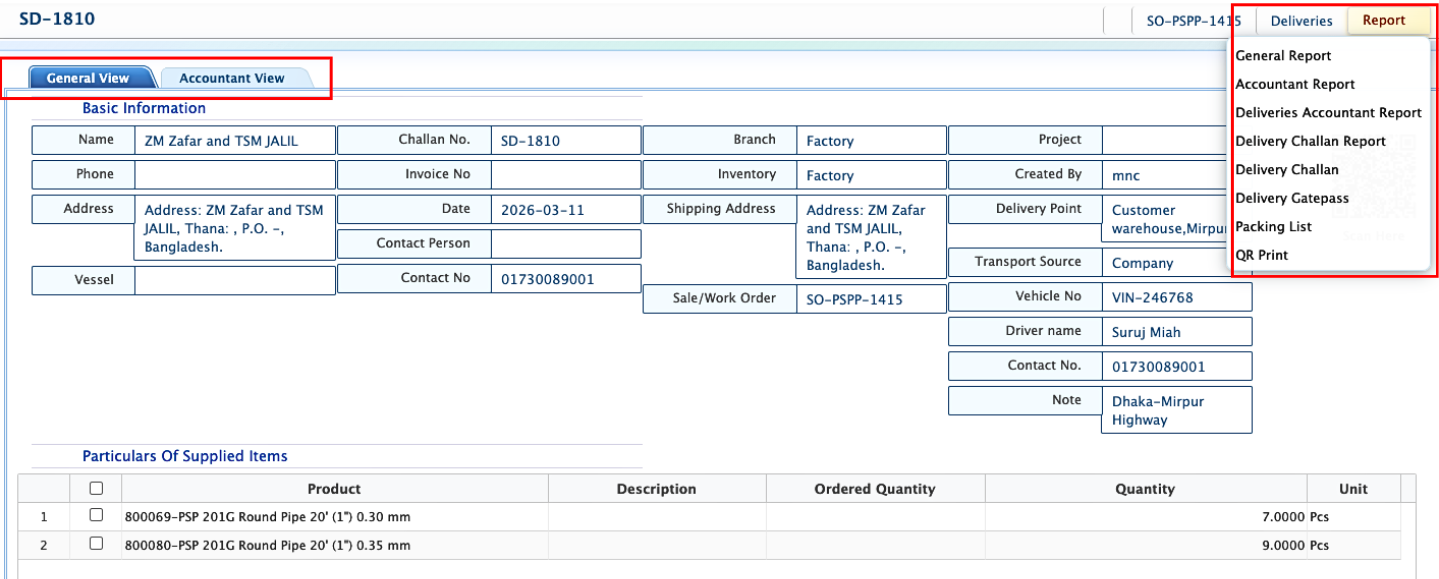
Sale Delivery
In PrismERP, Sale Delivery (SD) tracks products moving out of stock to customers or parties, directly reflecting changes in inventory levels for the selected branch and location. Each delivery records essential details like delivery date, debit account, transport information, and product quantities. Once added, deliveries appear in the Sale Delivery List, where they can be searched, filtered, and tracked by status: Pending, Completed, Rejected, or Closed. Deliveries can be edited if needed, and once fully processed, they can be marked as Closed to finalize the stock transaction. Clicking a Sale Delivery opens the Details Page, showing operational and accounting information, with reports such as Delivery Challans available for viewing or download.
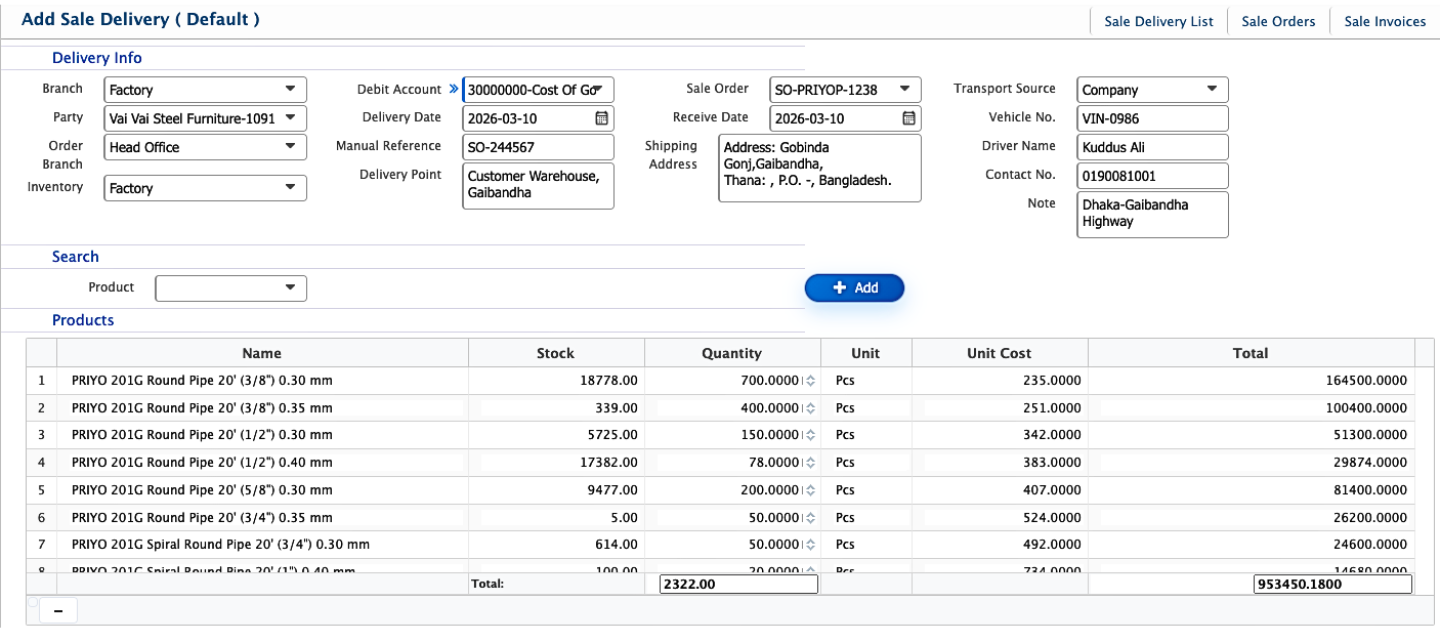
Add Sale Delivery
| Field | Action |
|---|---|
| Branch | Select the branch from which the sale delivery is made. |
| Party | Select the customer or party for this sale delivery. |
| Order Branch | Select the branch associated with the linked sale order. |
| Inventory | Select the inventory location from which the products will be delivered. |
| Debit Account | Choose the accounting ledger for the debit entry. |
| Delivery Date | Enter or select the date when the products are delivered. |
| Manual Reference | Enter any manual reference for the delivery, if applicable. |
| Delivery Point | Select the point or location where the products will be delivered. |
| Sale Order | Select the linked sale order associated with this delivery. |
| Receive Date | Enter or select the date when the customer is expected to receive the products. |
| Shipping Address | Enter the shipping address for the delivery. |
| Transport Source | Select the mode or source of transport for the delivery. |
| Company | Enter the transport company handling the delivery. |
| Vehicle No. | Enter the vehicle number used for the delivery. |
| Driver Name | Enter the name of the driver responsible for the delivery. |
| Contact No. | Enter the contact number for the driver or transport company. |
| Note | Enter any additional notes related to the delivery. |
| Product | Select the product name for delivery. |
| Quantity | Enter the quantity of the product to deliver. |
| Description | Enter any additional description if required. |
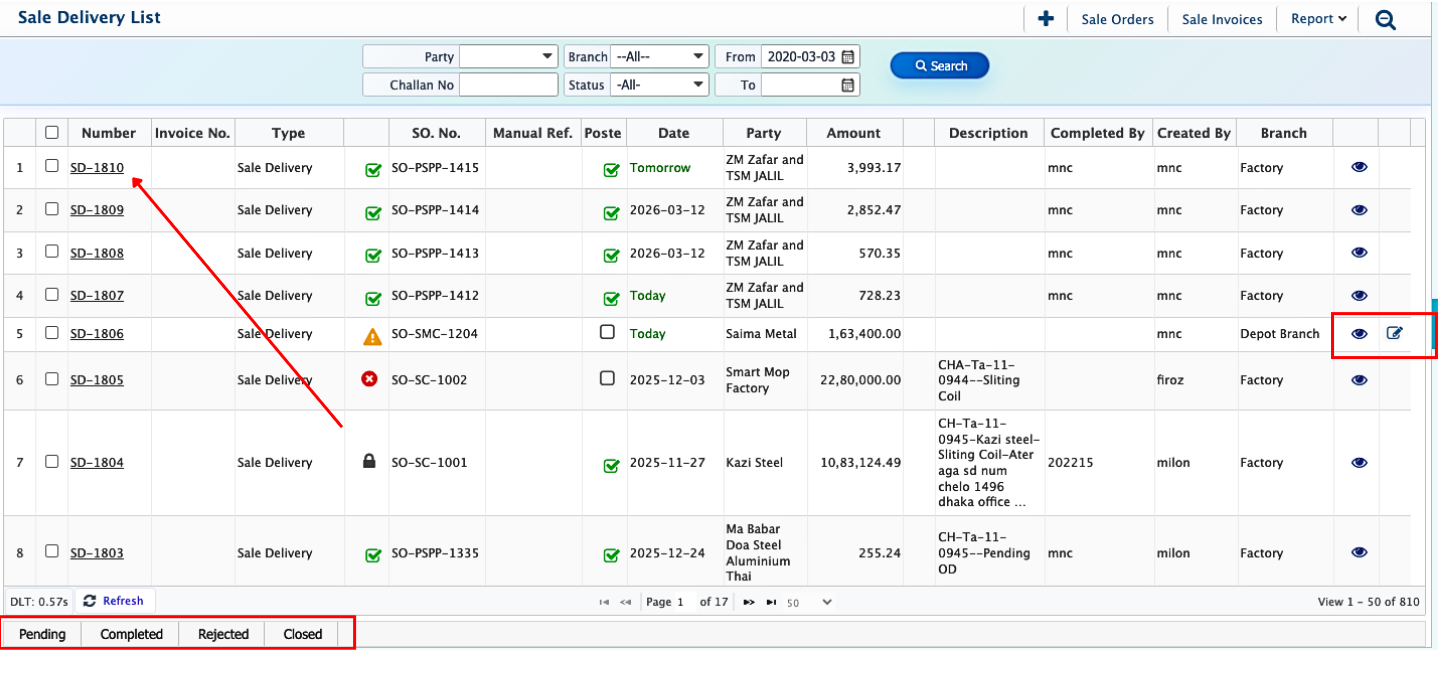
After a Sale Delivery (SD) is added, it immediately appears in the Sale Delivery List. Users can use the search panel to filter and locate a specific SD. Each SD has a status that reflects its current stage: Pending, Completed, Rejected, or Closed. Users can update the status at any point, and even edit an SD after it has been closed if adjustments are needed. Once the delivery process is fully completed, the SD can be marked as Closed to finalize it in the system.
Clicking on an SD opens its Details Page, where information is organized in two views: General View for operational details such as delivery dates, quantities, branch, and party information, and Accountant View for ledger entries and financial tracking. From this page, users can generate reports like Delivery Challans and other delivery documents, which can be viewed or downloaded in multiple formats.