Stock Reconciliation (Inventory Reconciliation)
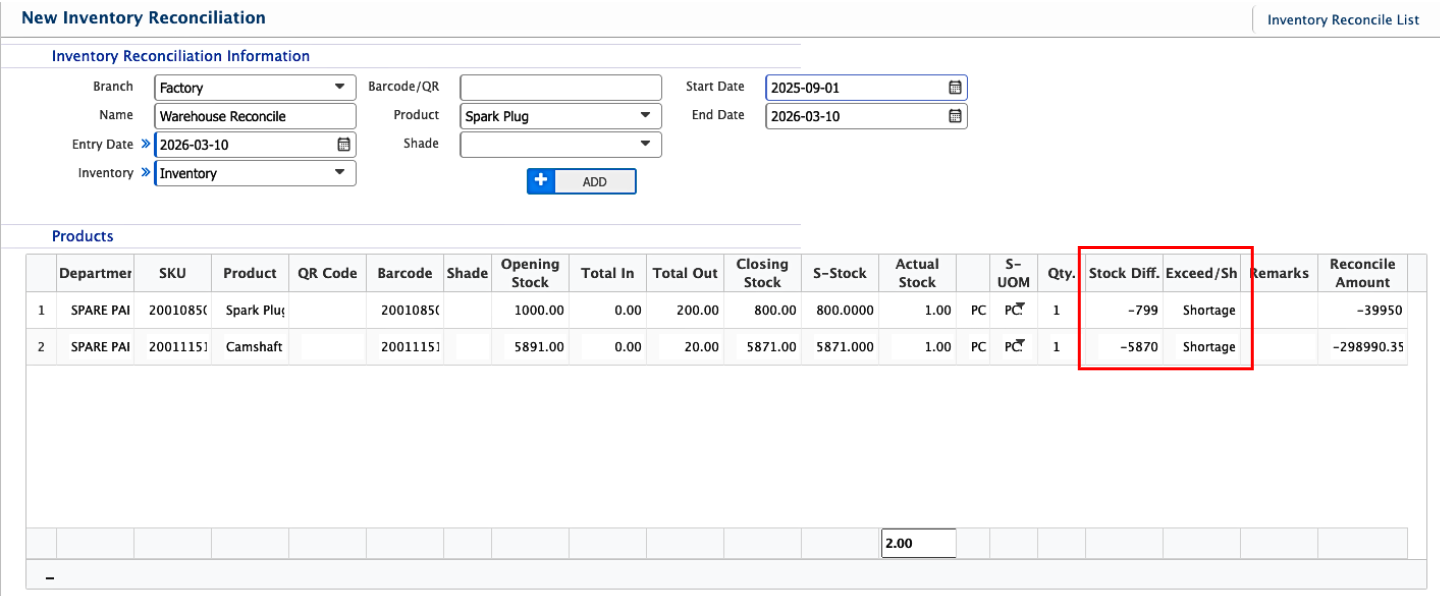
In PrismERP, Inventory Reconciliation allows users to verify and adjust stock levels by comparing the system records with the physical inventory. Each reconciliation entry captures details such as branch, inventory location, product, barcode/QR, and the reconciliation period. Added entries can be tracked, reviewed, and finalized, and their Details Page provides operational and accounting information, with reports available for viewing or download.
Add Inventory Reconciliation
| Field | Action |
|---|---|
| Branch | Select the branch where the inventory reconciliation is being performed. |
| Name | Enter a name or reference for the reconciliation entry. |
| Entry Date | Enter or select the date when the reconciliation is recorded. |
| Inventory | Select the inventory location where the reconciliation is conducted. |
| Barcode/QR | Enter the product barcode or QR code to search and verify the product. |
| Product | Choose the product from the system’s product list to reconcile. |
| Start Date | Enter or select the start date for the reconciliation period. |
| End Date | Enter or select the end date for the reconciliation period. |
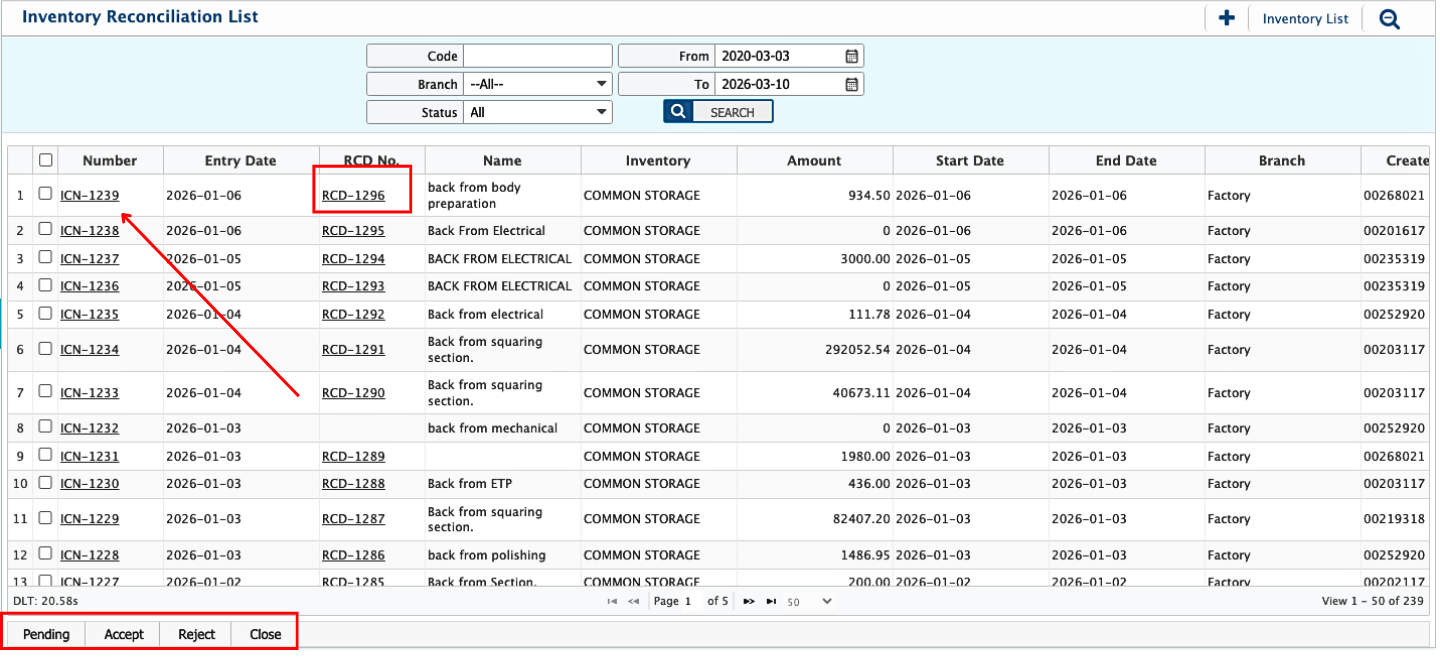
After an Inventory Reconciliation entry is added, it immediately appears in the Inventory Reconcile List. Users can use the search panel to filter and locate a specific reconciliation entry. Each entry has a status reflecting its current stage: Pending, Completed, Rejected, or Closed. Users can update the status at any point, and even edit an entry after it has been closed if adjustments are needed. Once the reconciliation is fully reviewed, it can be marked as Closed to finalize the stock adjustment.
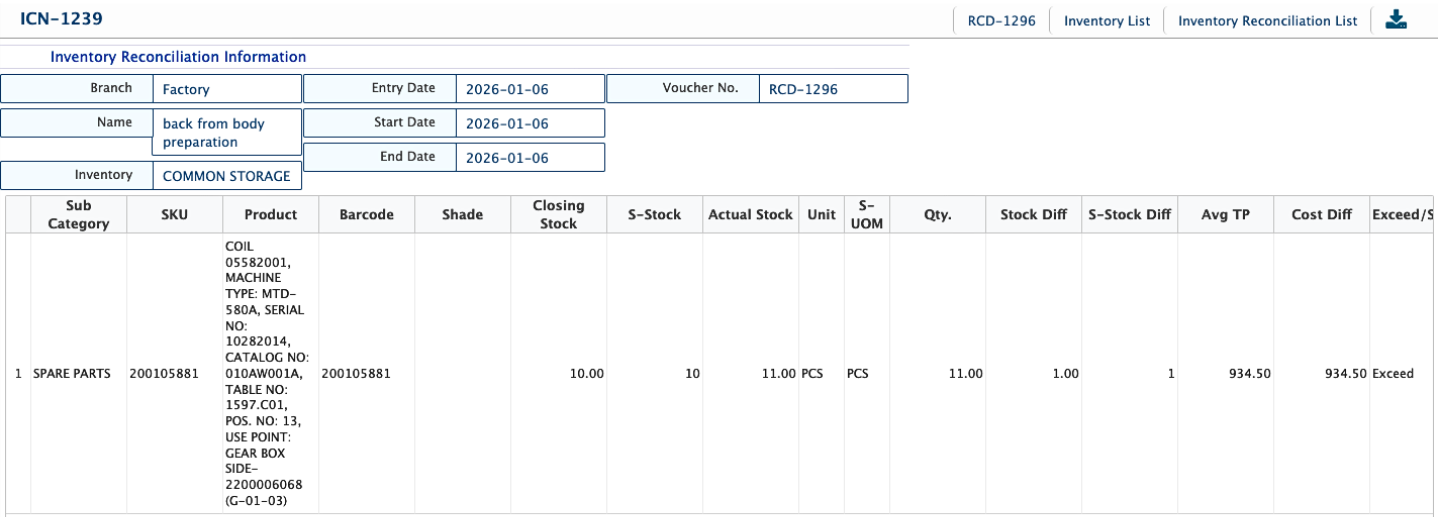
Clicking on a reconciliation entry opens its Details Page. From this page, users can generate reports such as reconciliation list or adjustment reports, which can be viewed or downloaded in multiple formats.