Pre-Costing
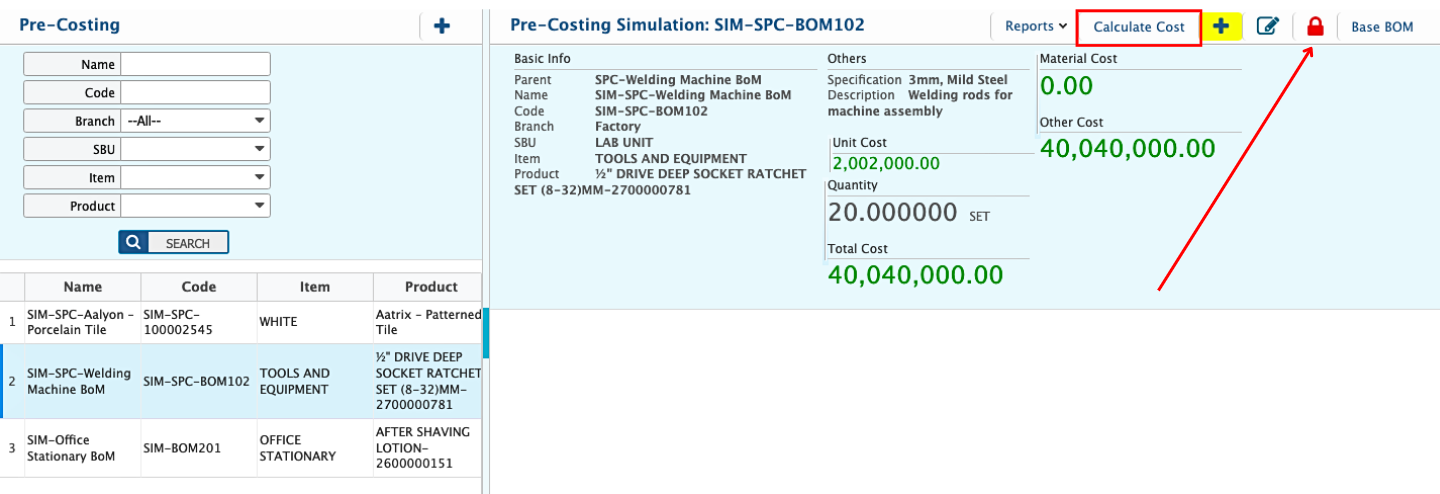
The Pre-Costing Simulation in PrismERP allows users to calculate and record expected production costs before manufacturing begins. By selecting a BoM, most fields such as item details, quantities, specifications, and overheads are automatically populated. Users can assign manufacturing cost heads, choose costing types, and enter additional costs to create a complete cost overview. Once created, simulations appear in the Pre-Costing Simulation List, where they can be searched, reviewed, and edited. Finalized simulations can be locked to prevent further changes, while unlocked simulations remain editable.
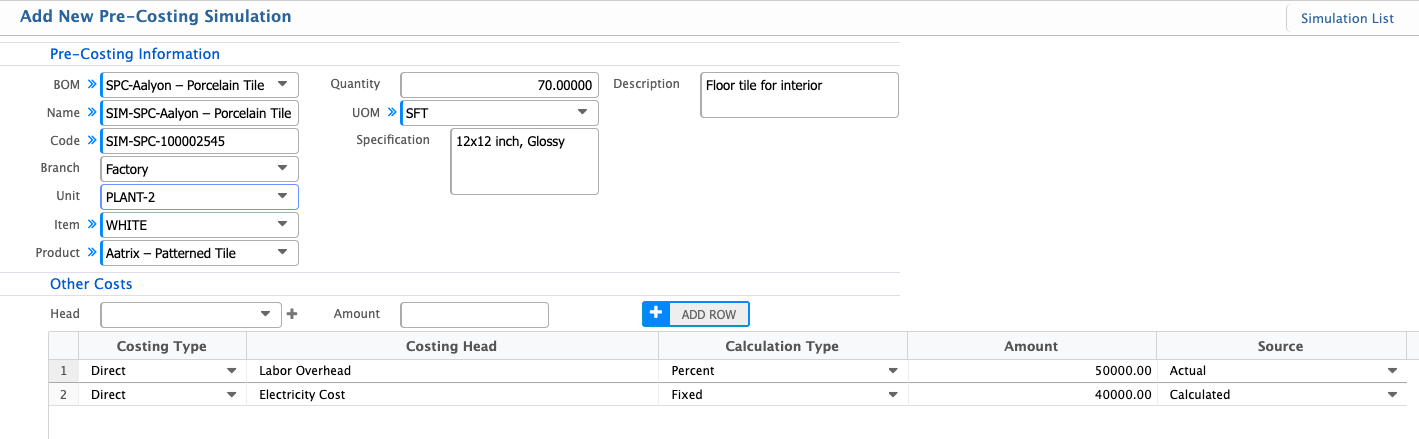
Add Pre-Costing Simulation
| Field | Action |
|---|---|
| BOM | Select an existing BoM. Upon selection, most fields will auto-populate based on the BoM. |
| Name | Enter the descriptive name for the pre-costing simulation or auto-loaded from the BoM. |
| Branch | Select the branch for which this simulation is being created. |
| Unit | Select the production unit associated with this simulation. |
| Product | Select the finished product for which this simulation is being created or auto-loaded from the BoM. |
| Quantity | Enter the required quantity of each item or auto-loaded from the BoM. |
| UOM | Select the unit of measure for each item or auto-loaded from the BoM. |
| Specification | Enter technical specifications for each item or auto-loaded from the BoM. |
| Description | Enter any additional details or notes for each item or auto-loaded from the BoM. |
| Other Costs Head | Select the overhead or additional cost head associated with the item or auto-loaded from the BoM. |
| Costing Type | Select the type of costing (e.g., Standard, Actual, or Estimated). |
| Costing Head | Select the manufacturing cost head for the costing calculation. |
| Calculation Type | Choose the method to calculate cost (e.g., Fixed, Percentage, Per Unit). |
| Amount | Enter the calculated or assigned cost amount. |
| Source | Indicate the source of the cost if it’s actual or calculated. |
Once a pre-costing simulation is created, users can see it in the Pre-Costing Simulation List along with all key details, including BoM information, item quantities, other costs, and overheads. The search panel makes it easy to find a specific simulation by Name, Branch, Code, BoM, or Items. Users can lock a simulation when it is finalized, preventing any further edits and keeping the data secure. Simulations can only be edited while they are unlocked, and any changes made will be reflected immediately in the list.