Task Management
PrismERP task management system helps to run your business smoothly and seamlessly. It plans your projects by understanding your business priorities. It will keep track of every project's headaches and fix those in time without letting you know. This collaborative system will increase manpower efficiency by creating competitive office environment amongst staffs and personnels. It’s analytical reports will help better management of projects and plan your business. And you don’t need to worry about the integration with core systems and data.
Task Management Integration Flow Diagram:
Activity
Activity relates to all the tasks under a particular source (for example Source type is the project management and selecting a project under a source and then creating an activity of that specific source)
1) Add activity:

Choose the source type: whether project management, campaign, ticketing system etc.
Source: Choosing the individual source of that source type. For example: source type project management and name of the source is the name of the project where you will create the activity
Title: Name of the activity
After completing the information, click on the save to finish creating new activity
2) Activity List:
Showing the list of all the activities that are being created under task management solution. It also shows the detail information under a specific activity. Also in the activity list you can create new activity by clicking on the "+" icon as well as edit any activity. The screenshot is provided below for better understanding.
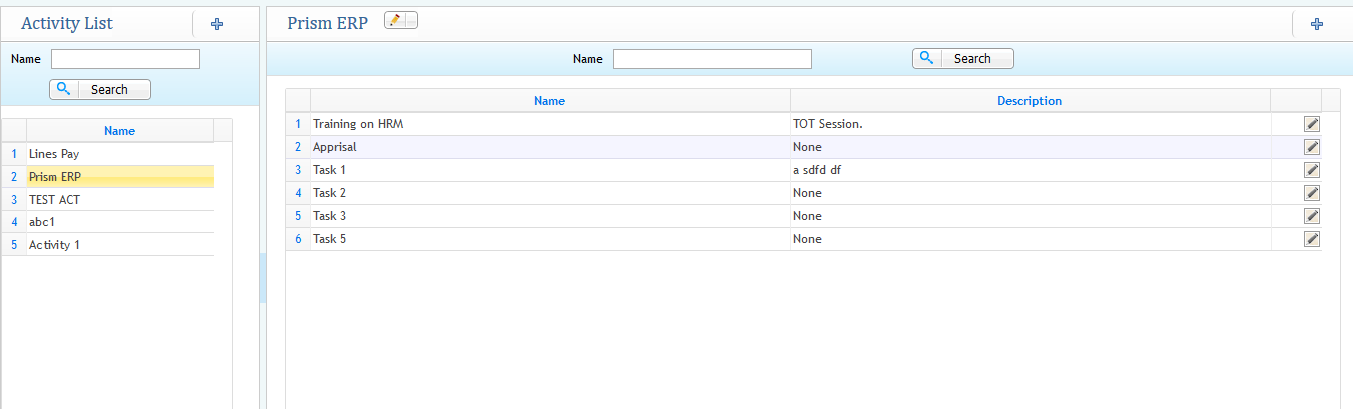
Tasks Under Activity
1) Add new Task
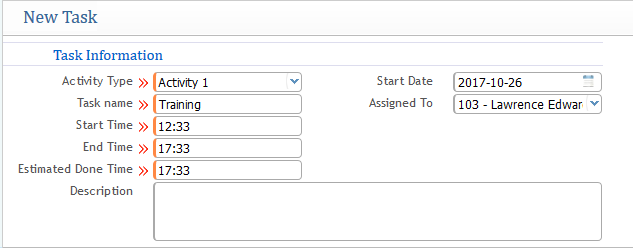
Task relates to the all the assignment or work under a specific activity. After visiting to the window of creating new task, Following info fields needs to be completed
- Activity Type: Choosing the activity under which this new task will be created
- Task Name: Name of the Task
- Start, End & Estimated Time of the task
- Start Date: Date of starting the Task
- Assigned To (Optional): While creating new task you can also assigned to a specific employee in that task directly
After finishing up the information, click on save for creating new task.
2) Task List

Shows the list of all task with detail informations
In the task list you can see the name of all the activities with their task name and start, end time information along with the name of employee assigned in the task practically. From the list you can also make modification changes or edit a particular task as well as adding a new task. From the list you can also jump into Assign Task feature which is basically explained in the next section of Assign Task Feature
Assigned Task Monitoring
Assign Task monitoring refers to the Assign Task feature under Task module. This is basically an option for monitoring specific task from the application. So this helps to track the tasks under activities whether properly performed or not giving the approval. Note that this is basically a great feature for tracking and monitoring the task performance
1) Assign Task
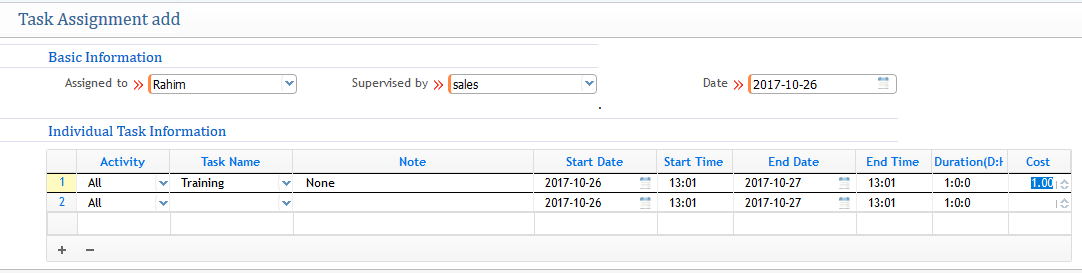
In the assign task list:
- First choose the user whom you are assigning to for monitoring and Choose Supervised by: i.e. which user will supervised or monitor the assigned user
- Individual Task information relates to choosing the activity, task name, start, end date & time, Duration, Cost( Here cost refers to as weightage not the pricing, i.e. how much weight does the task cost)
2) Task Assignment List:
Shows the list of all the assigned tasks
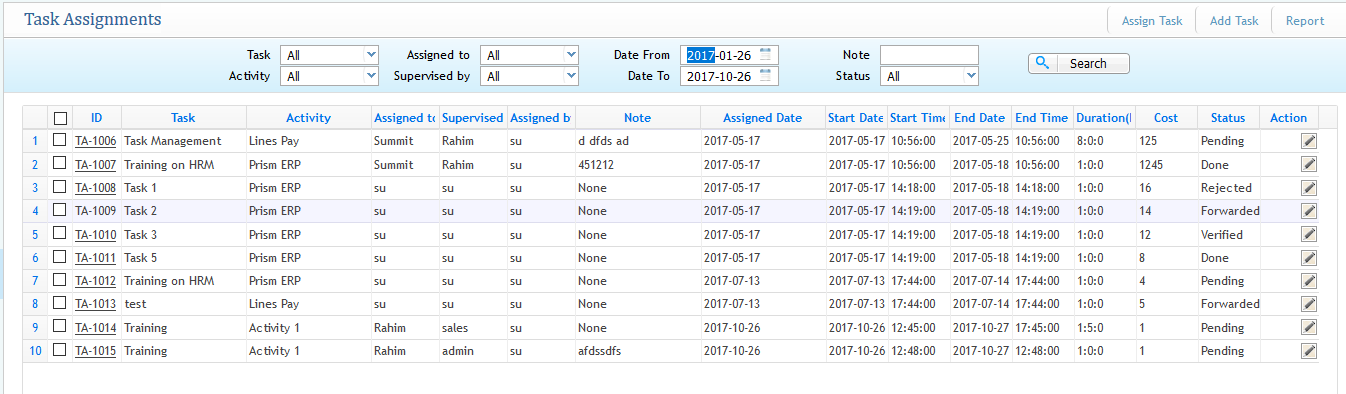
From the task assignment list you can see the full details and proper idea about the information relates to specific assigned task as well as the tasks that are created. From the list you can also take specific action such as edit or modifying specific assign task
From the list you can also add task, as well as go through for the task assignment report, assign task as well.
3) Task Assignment Report:
Smart report analysis which will give you detailed records including pie-chart of performance and status of an activity and task.
Self Task Analysis
Self Task analysis refers to show all the list of task which were assigned to you. There is also a feature of "My Task" which is basically relates to all the taks that were assigned to you.
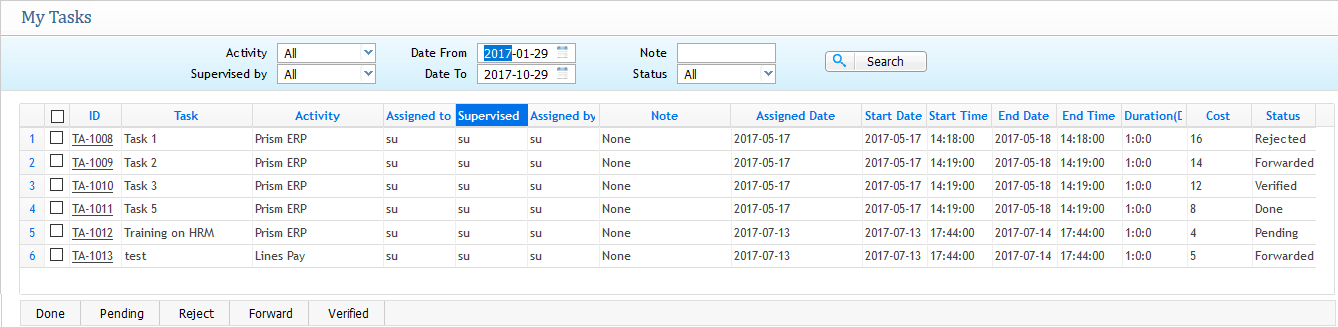
From the list page you can check the status as well as changing the status into done, pending, reject, forward to someone else. verified. The list all shows detail information about the activity tasks, assigned & supervised person, with the ID as TA-xxxx of the task etc.