Configuring BoQ Settings
BOQ To Product Requisition QTY Validate:
In the top right corner of the page BOQ> Click on New Requisition It will redirect to New Requisition Page (If you try to put more quantity than BOQ and save) It will show a notification that you can't add more than BOQ quantity.
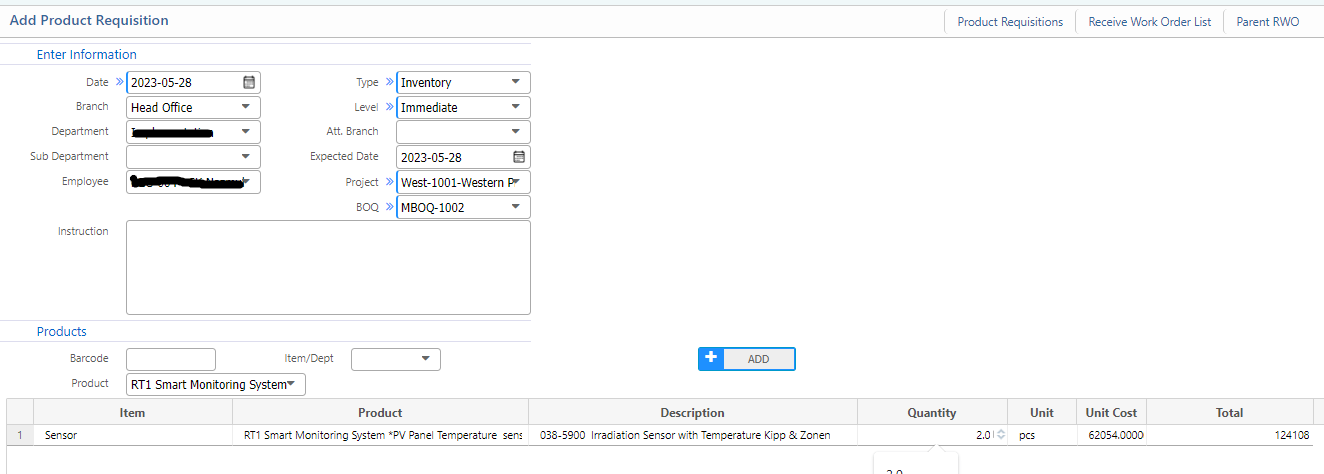
If you try to put more quantity and save It will show a notification that you can't add more than BOQ quantity.
Product Requisition To Purchase Request QTY Validate against BOQ:
If you are tagging Product requisition and try to put more quantity and save It will show an Error notification.
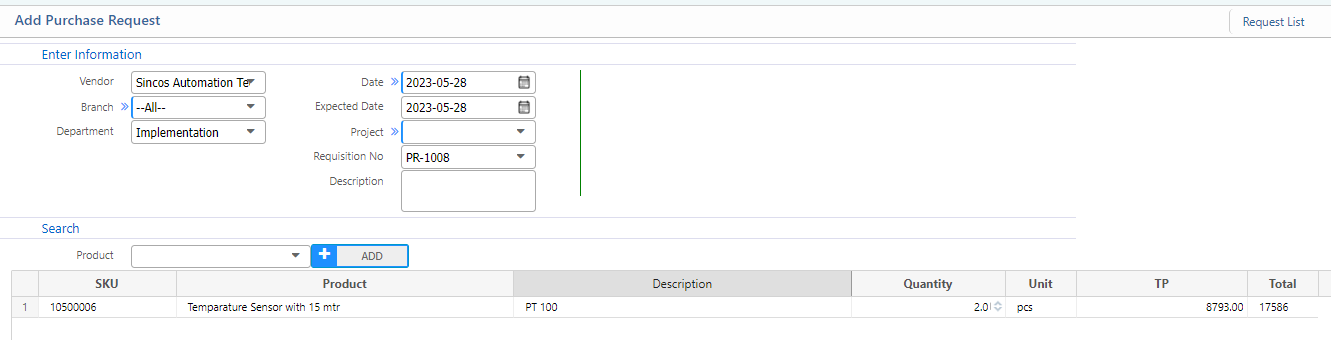
Purchase Request To Purchase Order QTY Validate against BOQ:
Purchase Invoice Add If you are tagging Purchase Request and try to put more quantity and save It will show an Error notification.
Purchase Order To Purchase Invoice QTY Validate against BOQ:
Purchase Invoice Add If you are tagging Purchase Order and try to put more quantity and saveIt will show an Error notification.`
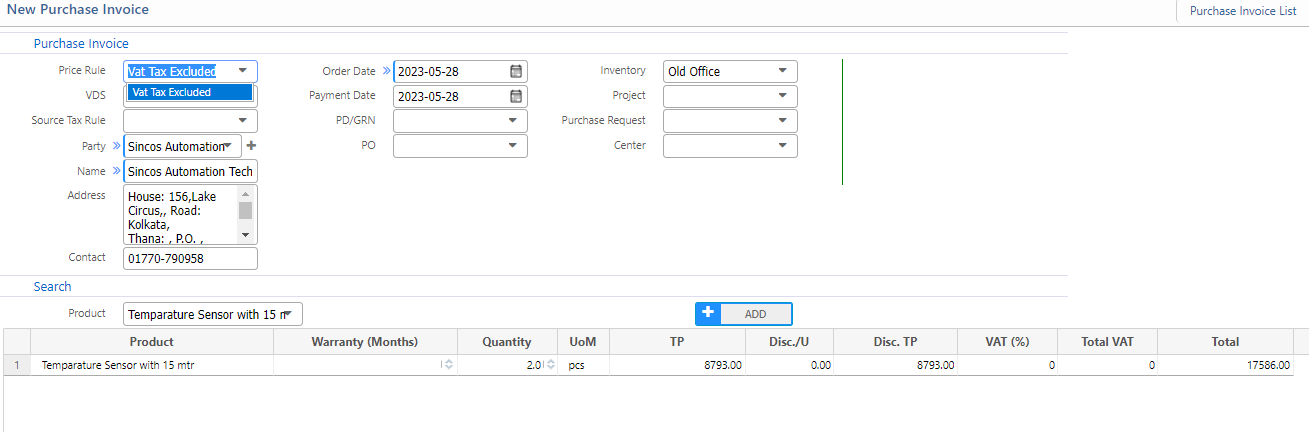
Purchase Invoice To Purchase Delivery Product QTY Validate against BOQ:
After approving purchase invoice, from the invoice details view you can create purchase delivery If you try to put more quantity than purchase invoice and save It will show an Error notification.
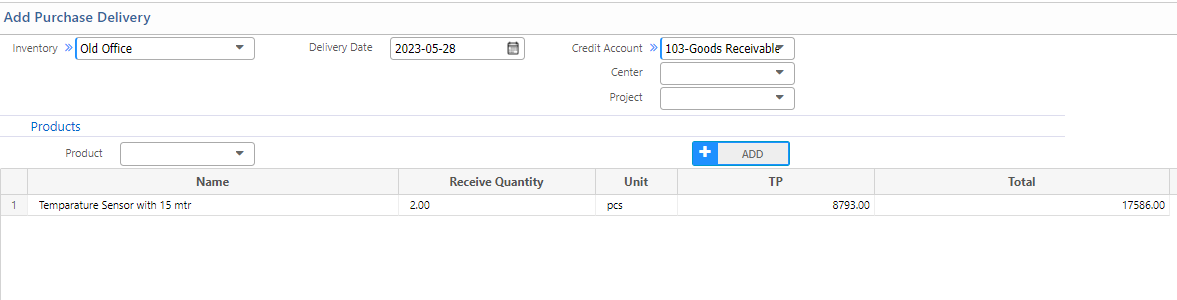
Project Wise Stock Validation On Sale Delivery against BOQ
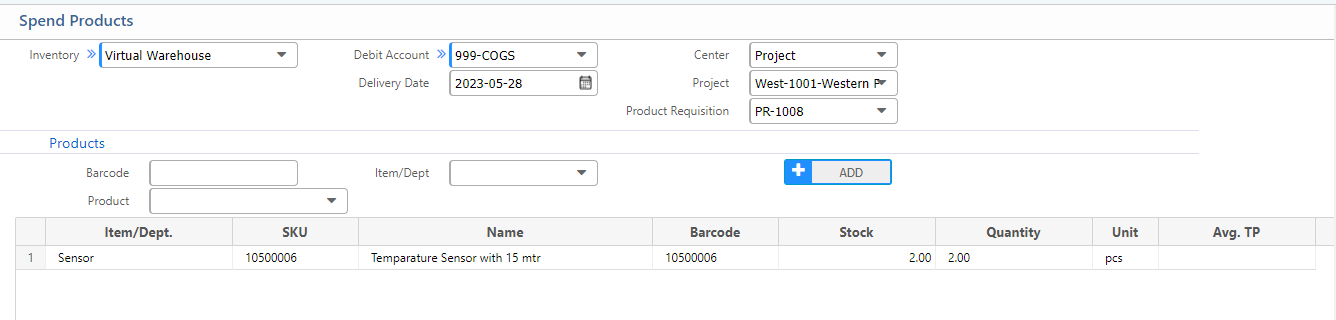
Project Wise Stock Validation On Spend Product against BOQ:
Spend Product If you try to put more quantity than Project Stock and save It will show an Error notification.
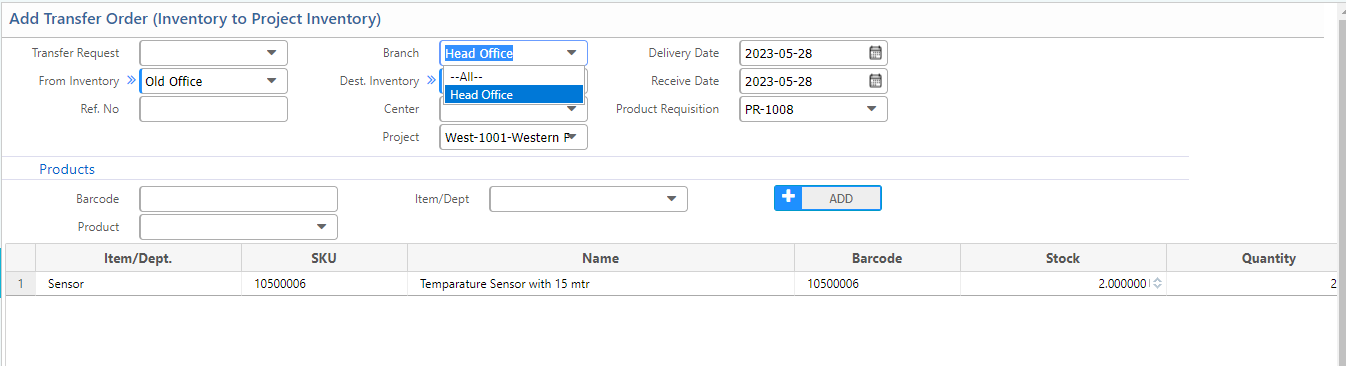
BoQ Validation On Inventory to Project Transfer against BOQ:
Inventory to Project Transfer If you try to transfer more quantity than project BOQ and save It will show an Error notification.
BoQ Validation on DeliveryIn/ProductAdd To inventory against BOQ
Creating BOQ Master Items and Association
Add New Category
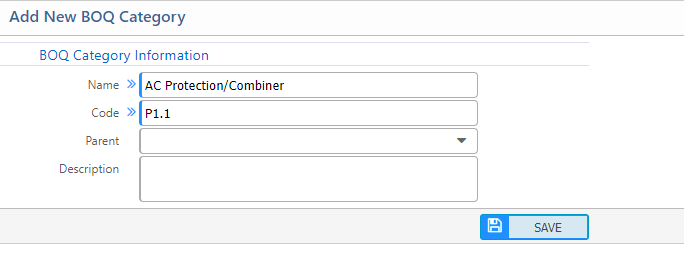
To keep category-wise products on the BoQ, users need to create BoQ categories.
After putting Name, Code, and Description and saving, it will redirect to the category list page.
Category List
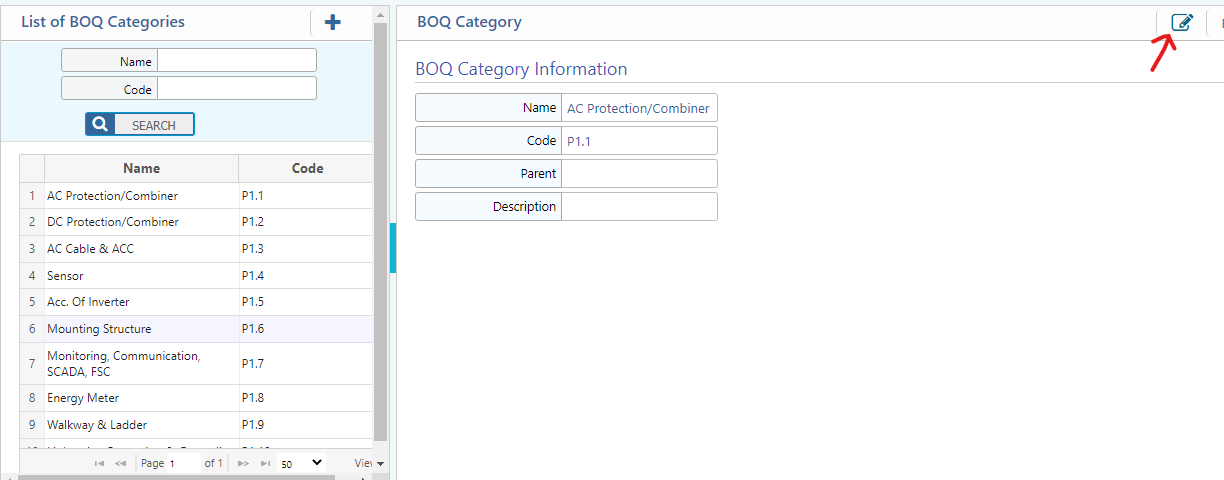
All the BoQ category and code are visible on the left side of the page and details on the right. On the top right corner, clicking the edit button allows the user to edit the project category.
Add New Template
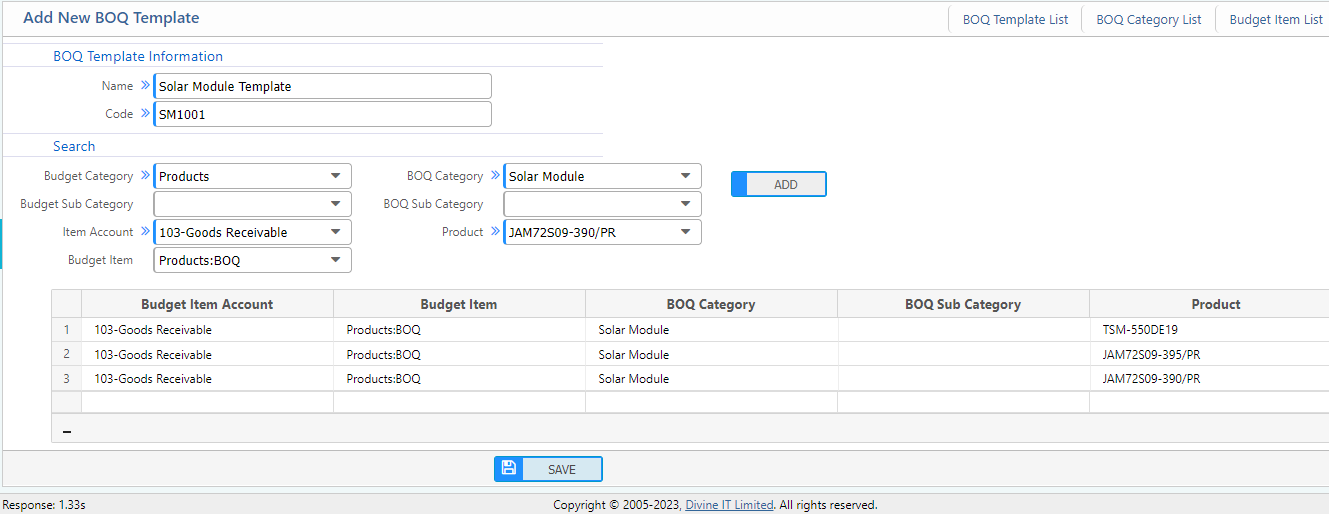
The above window will appear after selecting the add new template:
- BOQ Name: Name of the BoQ
- Code: Code of the BoQ
- Budget Category: Budget category in which this BoQ item falls
- Item Account: Budget item account associated with the item
- Budget Item: Budget item from which the expense will occur
- BoQ Category: Category of the BoQ product
- Product: Select product from the dropdown
Clicking the add button will add all the information to the grid. In this way, users can add multiple products in the grid and create a BoQ template.
Template List
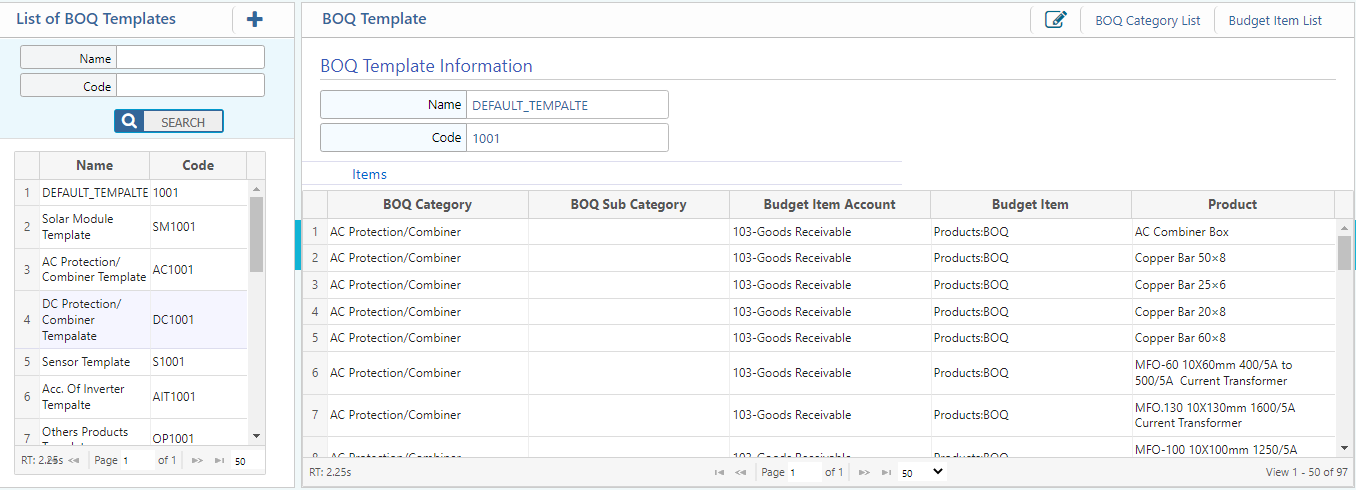
Path to BOQ Template List