Project Information Management
This guide explains how to manage Project Information through the Project Add functionality in the PrismERP Project Management module. This feature allows organizations to create and track projects effectively by capturing all key project data. The system supports structured project entry, grouping, budget allocation, scheduling, and assignment to branches and customers.
Using this feature ensures consistency, visibility, and control over all ongoing and planned projects within the enterprise.
Key Features
- Project Group Assignment – Categorize projects into groups for better reporting and control.
- Customer Linking – Associate each project with a specific customer.
- Timeline Definition – Capture clear start and end dates.
- Project Budgeting – Define the financial scope of each project.
- Branch Allocation – Tag projects under specific company branches.
- Location Tagging – Input physical address for execution location.
- Search & Filter Support – Quickly retrieve projects by group, customer, or branch.
- Dashboards & Reporting – Real-time project status overview.
How This Helps You
-
Better Visibility through Categorization: Projects can be grouped based on department, location, or client, which improves navigation, tracking, and planning.
-
Group-wise Project Analysis: Users can analyze which group has more or fewer projects, compare budgets and timelines, and identify areas needing attention.
-
Monitor Group-wise Project Status: Get real-time updates on whether projects in a group are on track, delayed, or completed.
-
Simplified Project Setup: Centralizes all necessary project information in one place, ensuring standardization and accuracy.
Steps to Utilize this Feature in PrismERP
Creation and Setup
In this section, you will find instructions on how to install and set up the Project module within your PrismERP system. It covers prerequisites, installation procedures, and any additional configurations required to enable the module.

New Project
The Add New Project page in PrismERP is user-friendly and designed to streamline the project creation process. It allows users to input all necessary information related to a project in a structured and efficient manner. From specifying the project name, group, and customer to defining the start and end dates, budget amount, branch, and project location—every essential detail can be easily captured, ensuring accurate project setup and effective management within the system.


A window will appear as shown below:
- Project Name: Name of the project.
- Project Group: In which group the project will be tagged.
- Customer: Customer of the project.
- Start Date: Start date of the project.
- End Date: End date of the project.
- Amount: Project amount of the project.
- Branch: Under which branch the project will be tagged.
- Primary Address: Address of the project.
After filling up all the requirements and going for further proceedings, a project will be created and will be visible in the project list page.
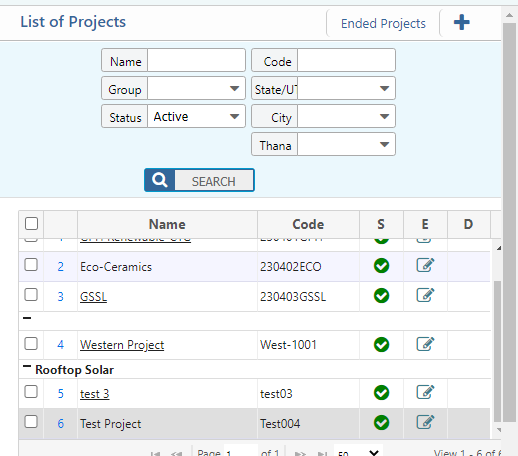
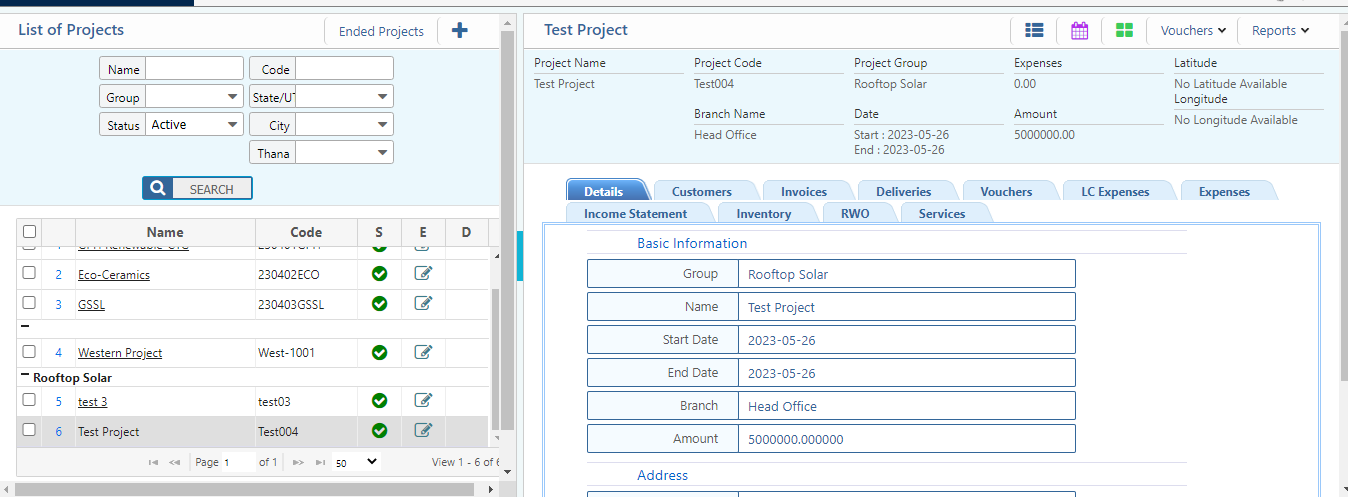
Project List
The Project List page in PrismERP provides a comprehensive view of all existing projects, organized with clear project grouping, filter options, and status indicators.