Dispatch
The Dispatch Module in PrismERP makes managing files and letters simple and organized. You can easily add new files, track where they move within or outside the organization, and assign them to the right department or person. Letters can be added, linked to files, and monitored whether incoming or outgoing. With clear search, view, and action options, everything stays in one place, making it easy to keep track of your documents and their status.
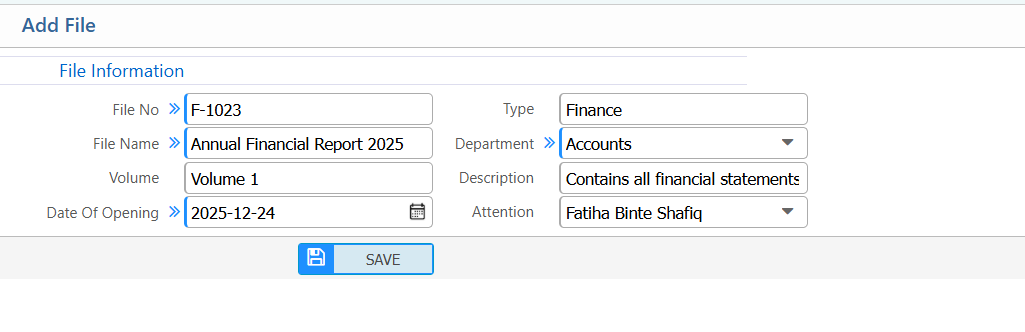
1. New File
| Field | Action |
|---|---|
| File No | Enter the unique identification number for the file. |
| File Name | Enter the name of the file for easy identification. |
| Volume | Specify the volume or size of the file. |
| Date of Opening | Select the date when the file was opened or created. Example: 2025-12-24 |
| Type | Select the type or category of the file. |
| Department | Assign the file to a department or section for reference. |
| Description | Enter additional details or notes about the file. |
| Attention | Specify the person or team who should pay attention to this file. |
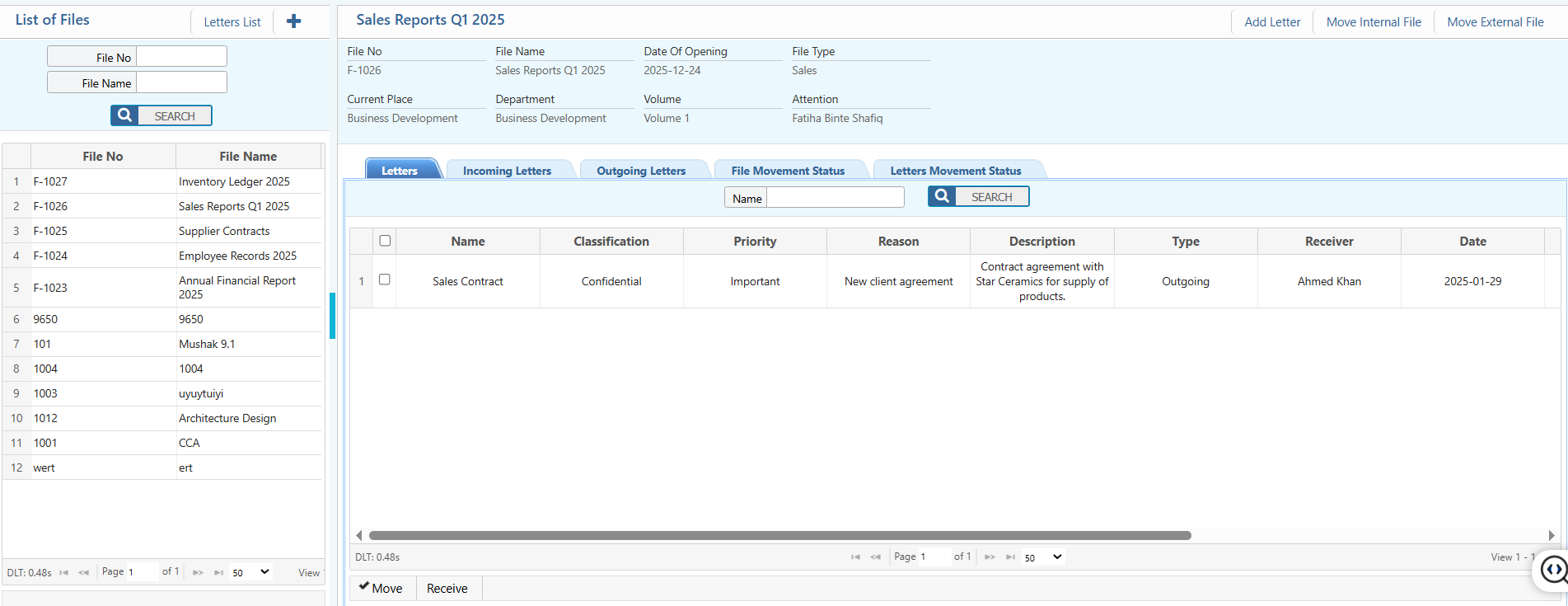
2. Search, View Details & Actions
Search:
| Field | Action |
|---|---|
| File No | Search files by their unique number. Example: F-1026 |
| File Name | Search files by their name. Example: Sales Reports Q1 2025 |
Details View:
| Field | Action |
|---|---|
| Basic Information | View key details of the file, including File No, File Name, Department, Date of Opening, Volume, File Type, and Attention. |
| Letters | Access all letters associated with the file. |
| Incoming Letters | View all incoming letters linked to this file. |
| Outgoing Letters | View all outgoing letters linked to this file. |
| File Movement Status | Track internal or external movements of the file. |
| Letter Movement Status | Track the movement of letters associated with this file. |
Action:
| Field | Action |
|---|---|
| Add Letter | Attach or add a new letter to the file. |
| Move Internal File | Move the file to another department or internal location. |
| Move External File | Send the file to an external party or organization. |
| Edit | Update the current status of the file and edit associated letter information if needed. |
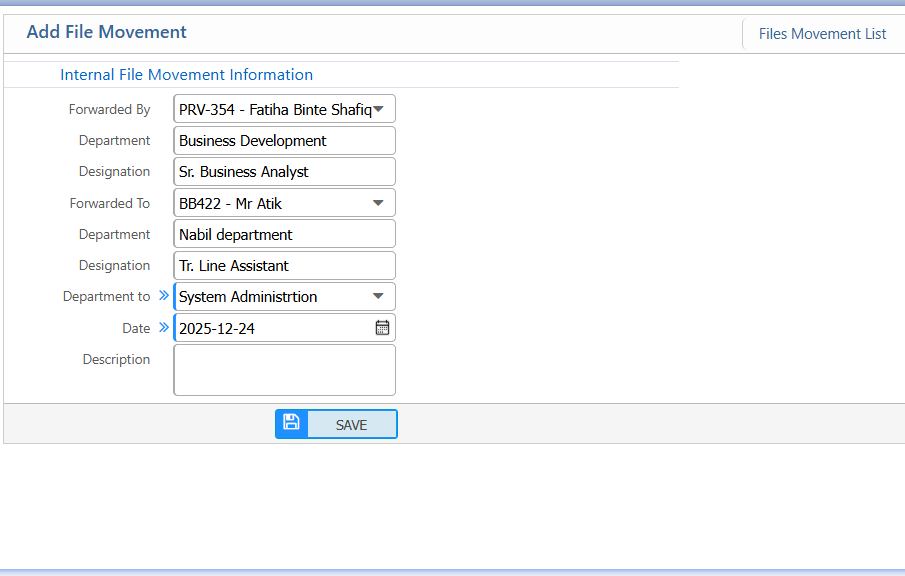
3. Add File Movement
| Field | Action |
|---|---|
| Forwarded By | Enter the name of the user who forwarded the file internally. Example: mnc |
| Forwarded To | Enter the person or team who is receiving the file internally. |
| Department To | Select the department where the file is being moved. |
| Date | Select the date of the internal file movement. |
| Description | Enter any additional notes or remarks about the file movement. |
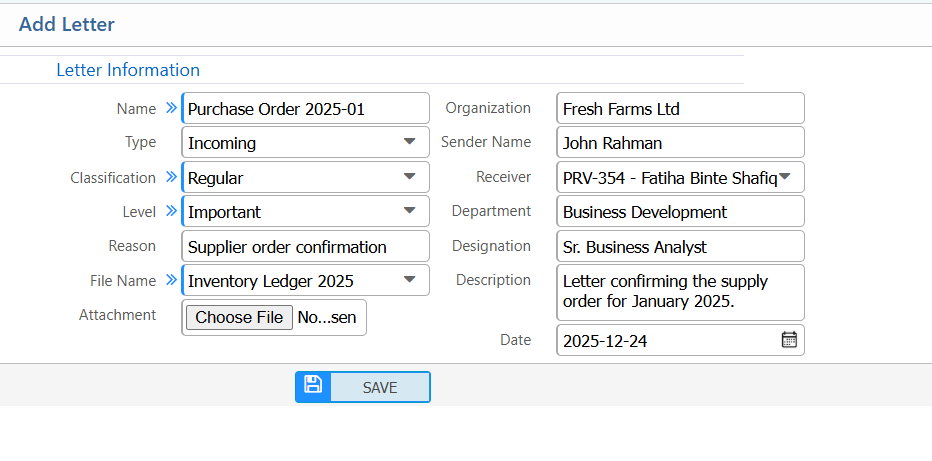
4. New Letter
| Field | Action |
|---|---|
| Name | Enter the name or title of the letter for identification. |
| Type | Select the type of letter. |
| Classification | Specify the classification or category of the letter. |
| Level | Define the level or priority of the letter. |
| Reason | Enter the reason or purpose for the letter. |
| File Name | Attach the related file or document. |
| Attachment | Upload an attachment if applicable. |
| Organization | Select or enter the organization associated with the letter. |
| Sender Name | Enter the name of the sender. |
| Receiver | Enter the name of the receiver. |
| Description | Add additional notes or details about the letter. |
| Date | Select the date of the letter. |
5. Search & Actions
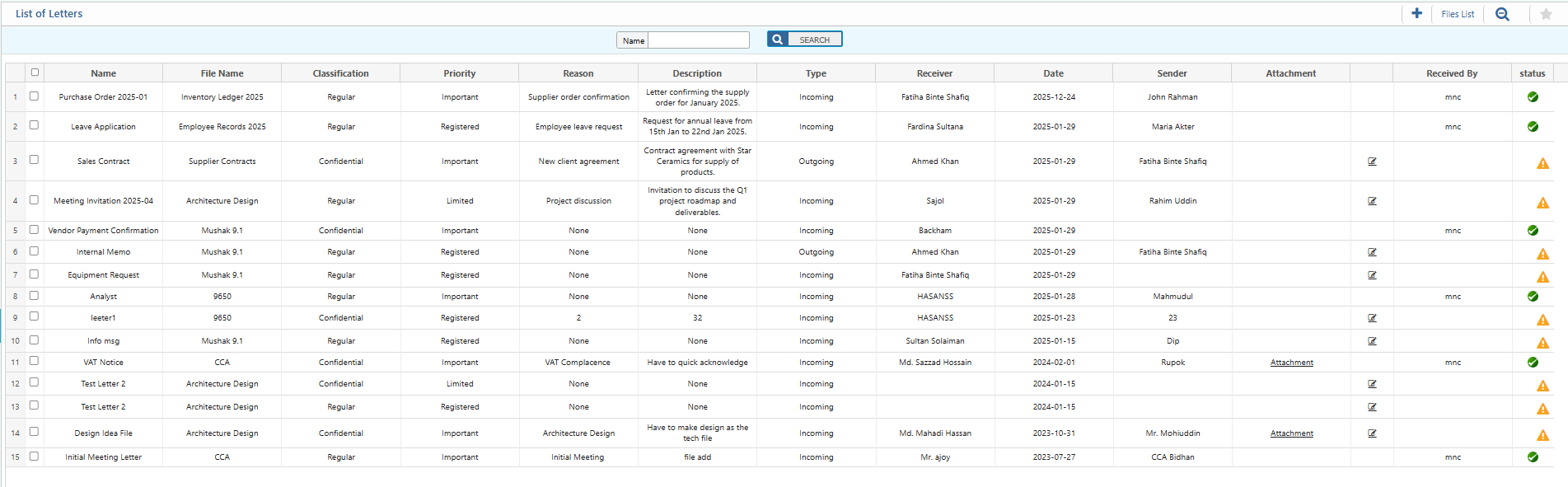
| Field | Action |
|---|---|
| Name | Search letters or files by their name or title. |
| Attachment | View and manage attached files. |
| Status | View or update the current status of the letter/file. |
| Edit | Edit letter/file details and update information directly from the list. |
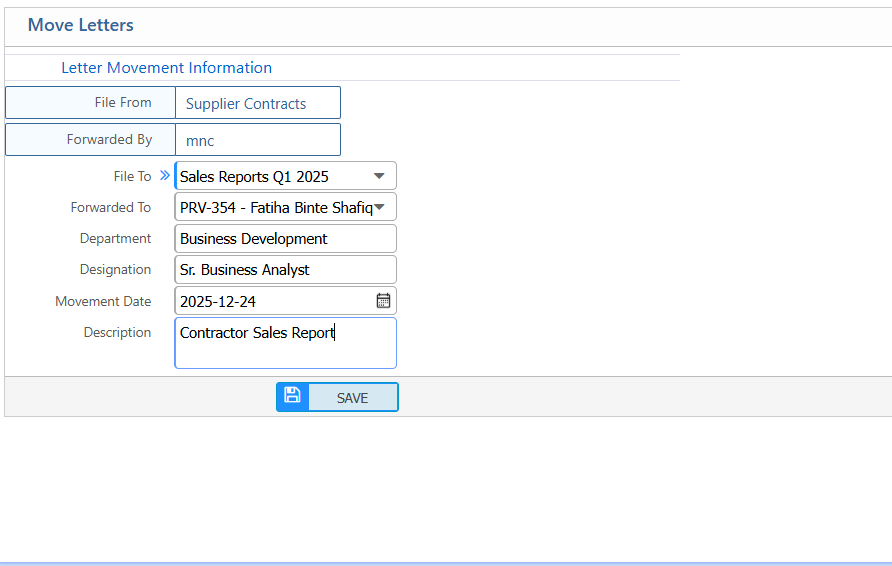
6. Move Letters
| Field | Action |
|---|---|
| File To | Select the destination file where the letter will be moved. |
| Forwarded To | Select the person or department receiving the letter. |
| Movement Date | Select the date when the letter was moved. |
| Description | Enter additional notes or remarks about the movement of the letter. |