Fleet Management
Fleet Management in PrismERP is used to manage an organization’s vehicles, drivers, trips, and service-related activities. It starts with registering fleet information and drivers, including their license details, experience, and current status. The module also includes driver-related operations such as paying advances and maintaining records of driver payments. Trip management allows users to record trip details, including the assigned fleet, driver, route, weight, and mileage. Fleet service management is used to define different types of services and set their recurring intervals. Service schedules can then be created for individual fleets with entry dates, due dates, and notification settings. When a service is performed, users can update the service status and record details such as the service date, advance, service charge paid, and service provider. These features provide a structured way to manage fleet operations, driver activities, trips, and vehicle servicing from one place.
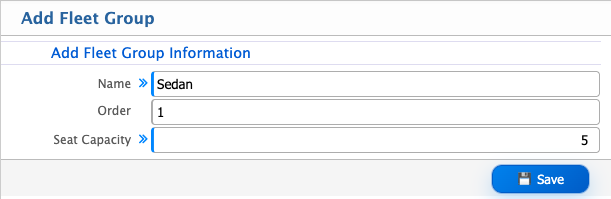
Add Fleet Group
| Field | Action |
|---|---|
| Name | Enter the name of the fleet group. |
| Order | Enter the display order for the fleet group. |
| Seat Capacity | Enter the total number of seats available in the fleet group. |
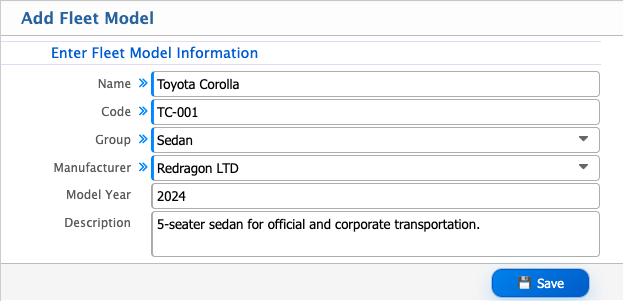
Add Fleet Model
| Field | Action |
|---|---|
| Name | Enter the name of the fleet model. |
| Code | Enter a unique code for the fleet model. |
| Group | Select the fleet group to which the model belongs. |
| Manufacturer | Select the manufacturer of the fleet model. |
| Model Year | Enter the model year. |
| Description | Enter a description of the fleet model. |
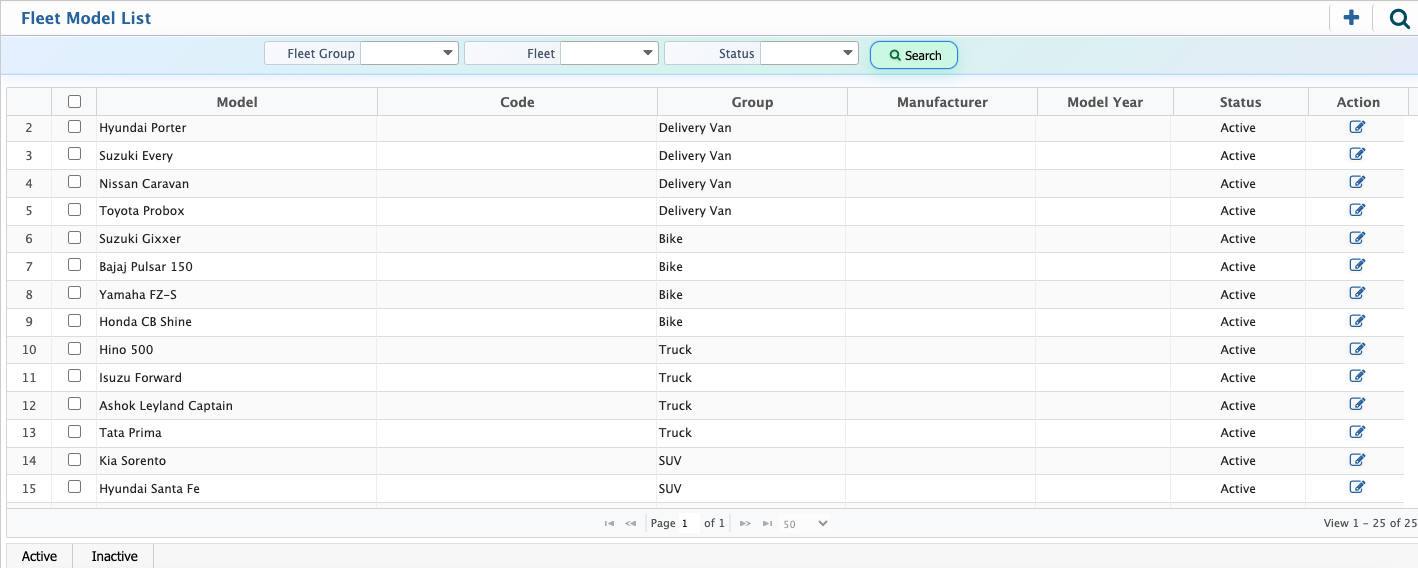
After adding the Fleet Model, it will appear in the Fleet Model List. Users can use the Search Panel to find a specific fleet model. Users can also edit a fleet model to update or change its information. Additionally, users can activate or inactivate a fleet model as required.
Add Route Type
In PrismERP, users can add Fleet Route Types for different transportation purposes, such as daily employee transportation, pickup and drop-off, office shuttle services, or delivery. The appropriate route type can then be selected when creating a route.
| Field | Action |
|---|---|
| Name | Enter the name of the route type. |
| Description | Enter a brief description of the route type. |
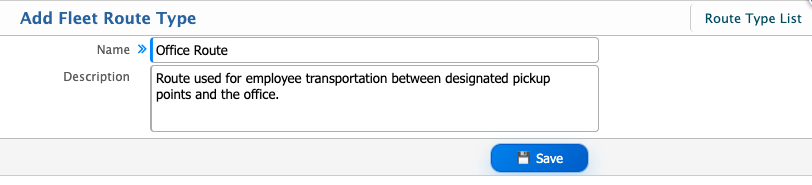
After adding route types, they will appear in the Route Type List. Users can use the search field to search for a specific route type and edit the route type to update its information when needed.

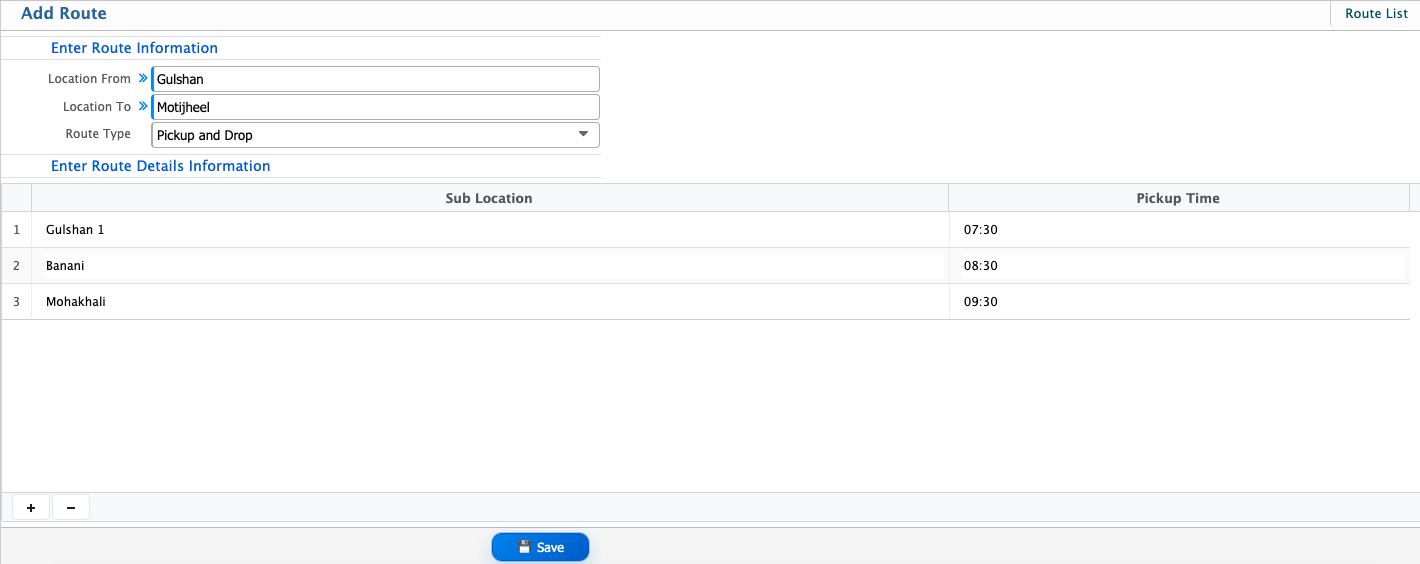
Add Route
| Field | Action |
|---|---|
| Location From | Select the starting location of the route. |
| Location To | Select the destination location of the route. |
| Route Type | Select the type of route. |
| Sub Location | Select or enter the pickup sub-location along the route. |
| Pickup Time | Enter the pickup time for the selected sub-location. |
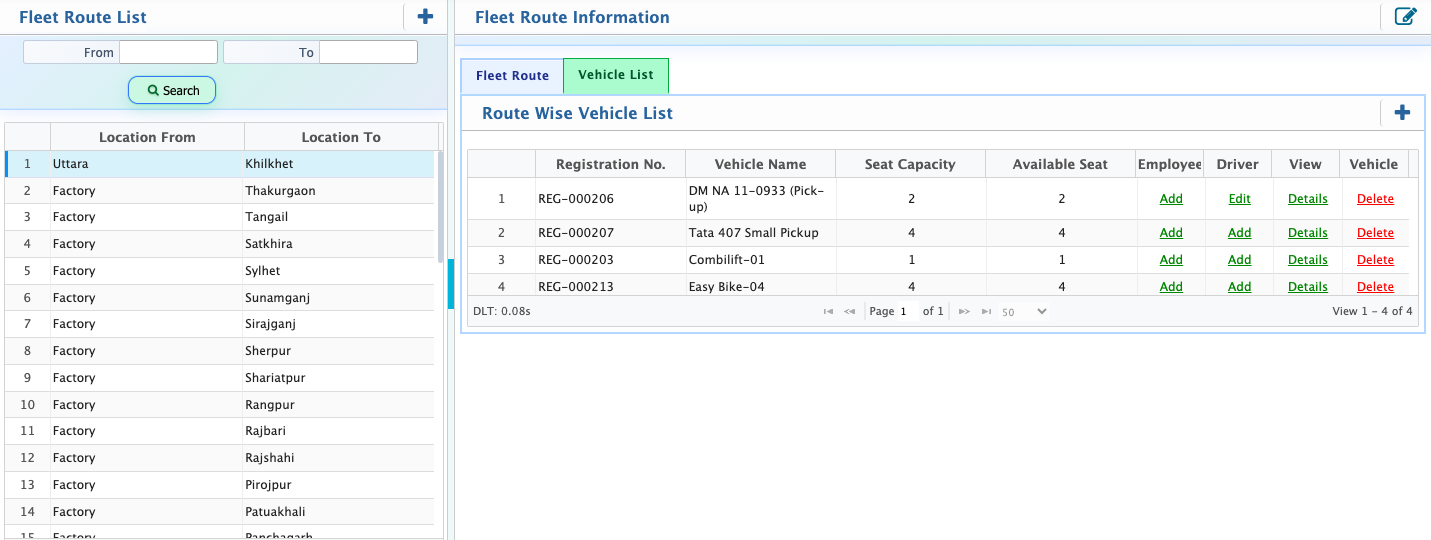
After adding a Route, it will appear in the Route List. From the Details page, users can view the route information and its details. In the Route Wise Vehicle tab, users can see the vehicles assigned to the route along with their registration number, vehicle name, seat capacity, and available seats. Users can add employees to a vehicle, assign or update the driver, view vehicle-wise details, and remove a vehicle from the route when needed.
Add Fleet Purpose
| Field | Action |
|---|---|
| Name | Enter the name of the fleet purpose. |
| Description | Enter a brief description of the purpose. |
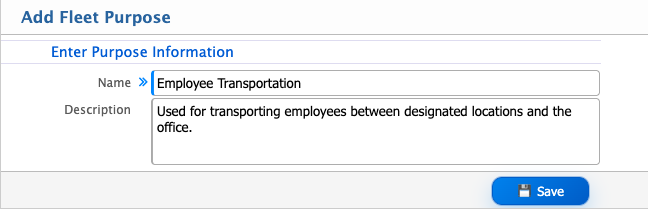
After adding fleet purposes, they will appear in the Fleet Purpose List. Users can use the search field to find a specific fleet purpose and edit the fleet purpose to update its information when needed.
