General Configuration
Create User
How to Create a New User in PrismERP?
In order to create a user in the application go to Settings--> User--> New User
A following page will appear as given below:
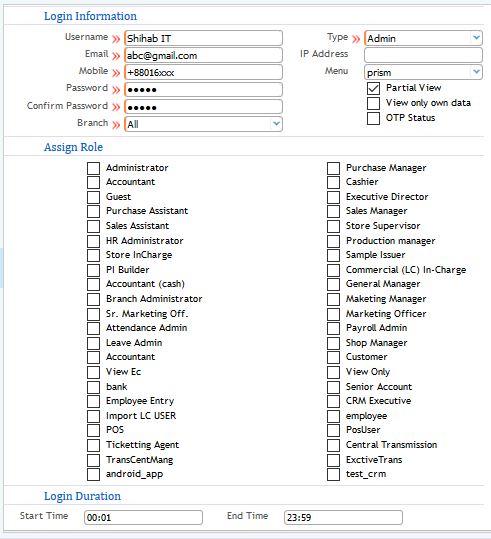
Username: Name of the new user
email: email address
mobile: number of contact
password & confirming password
Branch: Number of branch which he can see and manage from the application
Type: type of user whether admin or general
Assign Role: Assigning the specific role to the new user by ticking out the specific role which you want to assign the new user for managing and controlling
Login Duration : Start time and End time ensures the time of getting log in to the user. if you assign from 00:00 to 23.59 that means all time he can assign in the software,but you can also give specific time for him to get log in
After doing of all of those and click on save to complete the process and a new user will be created
Checking the List of User:
Navigate to List of User
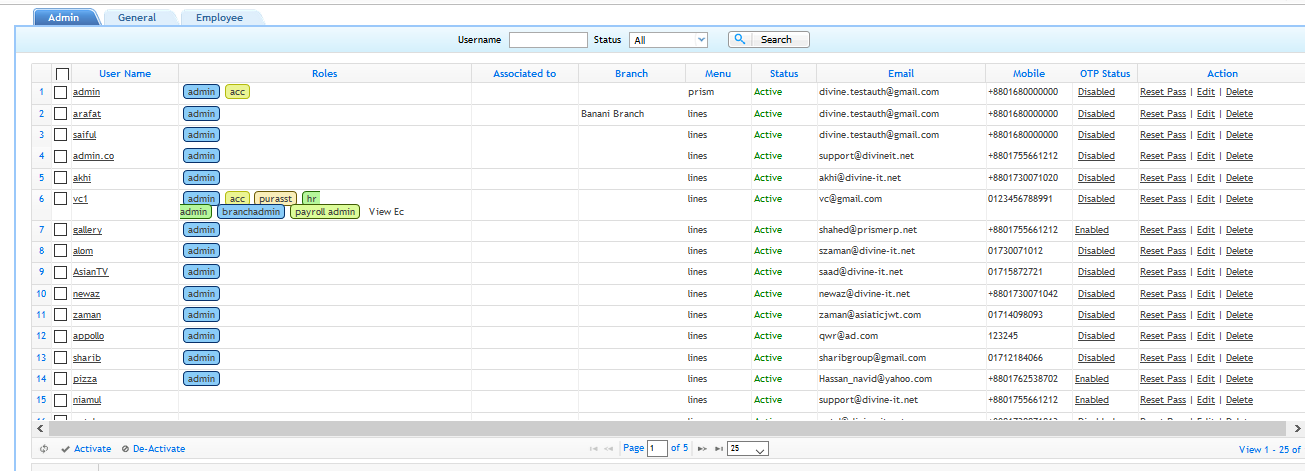
From the list of user you can check out all the users with their status. from the list you can also activate or deactivate the user , you can also enable or disable OTP status (One Time Password) , From the list you can also reset password, edit user or delete the user as well.
User Access Control
User Access control function allows the admin user to define the role based on other typical users of the application. The admin user will be able to defined the role as well accesibility to the other specific users from the application.For better understanding please checkout the flowchart of the overall user access control function provided below:
Navigate to User Roles
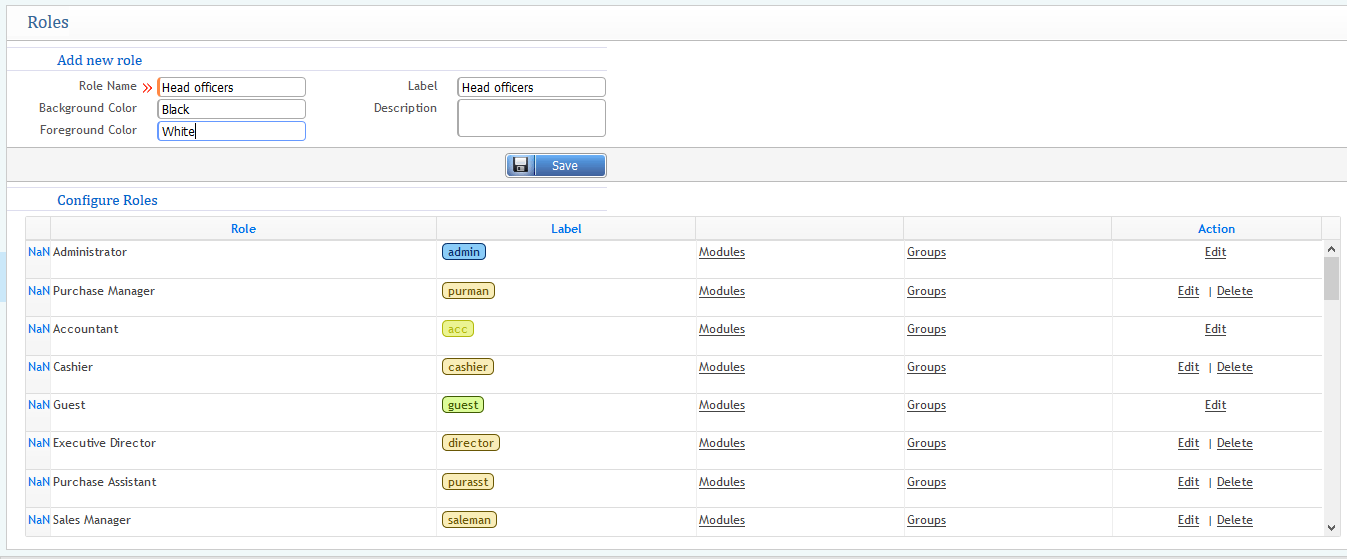
From here you can give the role name and label the users on that particular role along with the module access. Also from the user role list you can do edit or make modification in access priority. You can define the group role as well.
Dashboard Card & Portlet Management
Dashboard card management refers to the top cards interface of the main home page of the application. In the application when a customer gets a copy there are some defaults header cards that are already being created in the application for showing in the front home page as a card. The dashboard card screenshot is showing below with green colour labelled.

This is the view of all the dashboards at the top of the home page window. From that page you can manage the cards from the system. Clicking on the manage cards will appear a window showin in screenshot below:
The left side headers are set as default and cannot be changed. These are the cards which can be visible on the home page dashboard. you can customize or pick up to show the desire of your cards by selecting from the status. Even you can check out the action whether active or inactive.
Adding Portlet to the Dashboards:
Portlet in the dashboard defines the graphical representation of overall business status or overall intelligence report of your company.
Screenshot is given below:
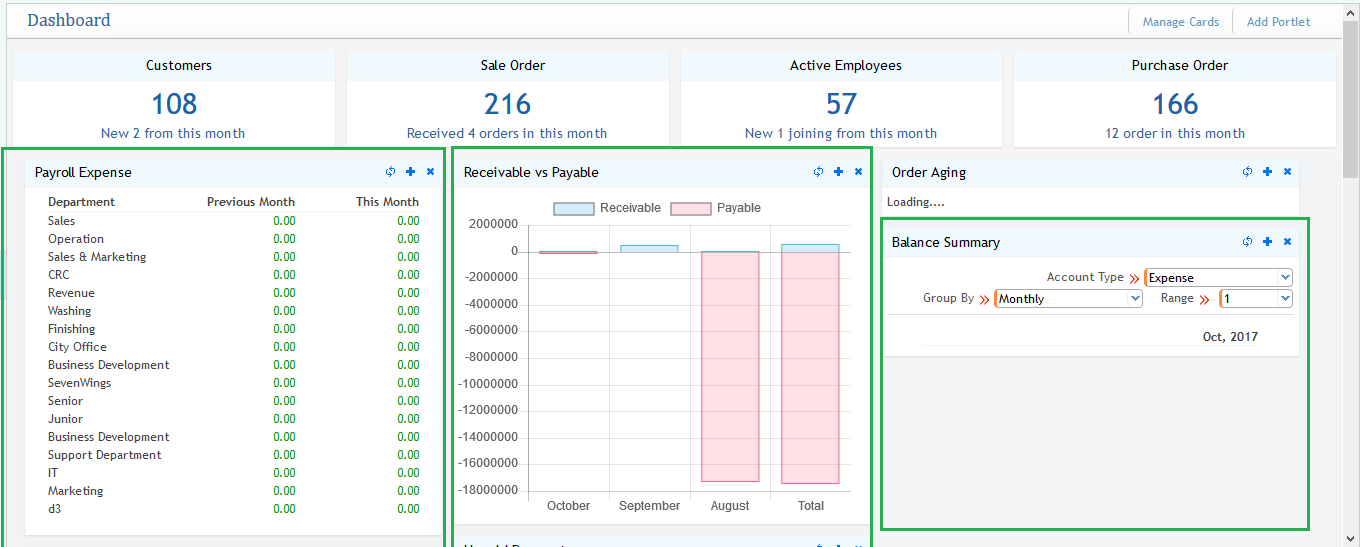
Portlet are labelled as green on the top of the screenshot. All of these portels can be added and removed from the application by clicking on the add porlet on the top right corner of the screenshot. The following window will appear as shown:
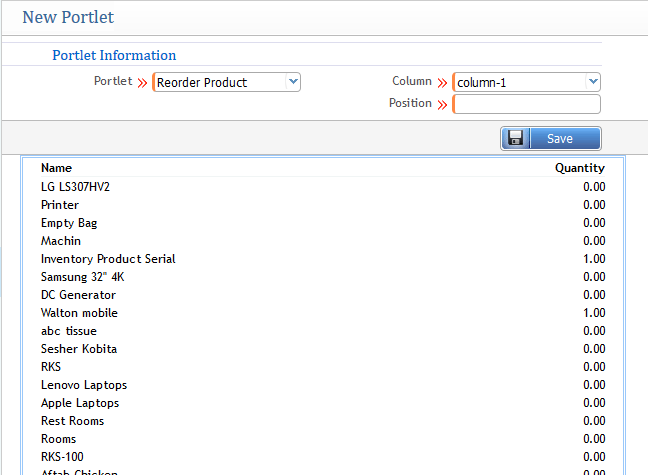
From the above screenshot that you select the desired portlet which you want to see in the dashboard (Note that all the portlets are created already as default, you cannot create by your own, you just give the requirements of porlets and the developer will develop it) . Select the column and position i.e. at what side of the dashboard will you place the specific porlet.
How to reset password of a User & Verification Authenticator
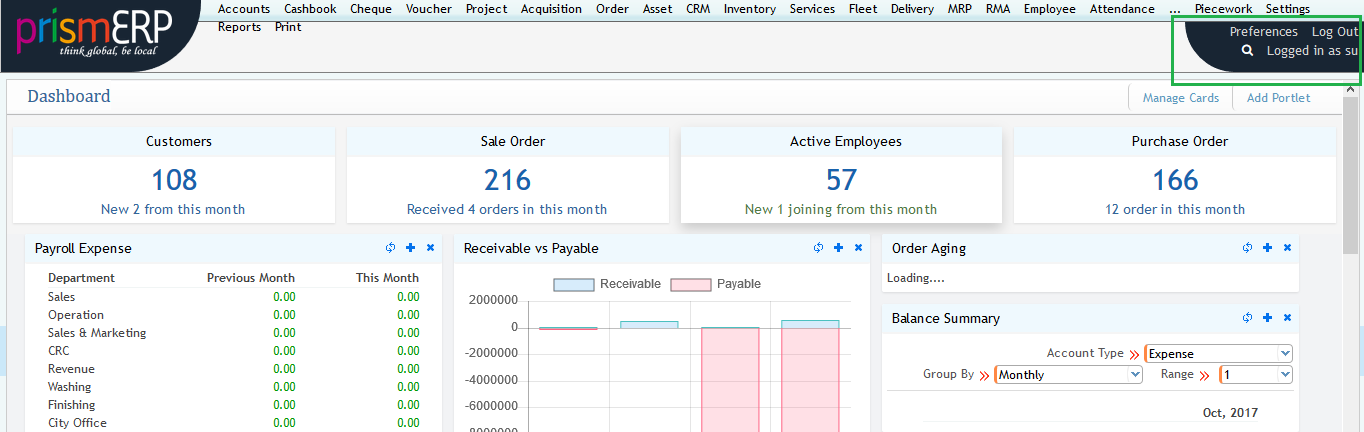
In order to reset the password on the top right corner of the application window you can see black colour where there are three options provided
- Preference
- Log out
- Logged in as (name of the user)
In order to reset the password click on the logged in as button. then a window will appear . The two screenshots are shown below for understanding
The second screenshot shows the configuration of reseting the password. Set your current password and then assign the new password field as well as confirming and then click on the save to reset and changing the password.

User verification or using authenticator for Security purpose:
After clicking on the preference button on top of that right corner of the first screenshot then a window will appear as shown below:
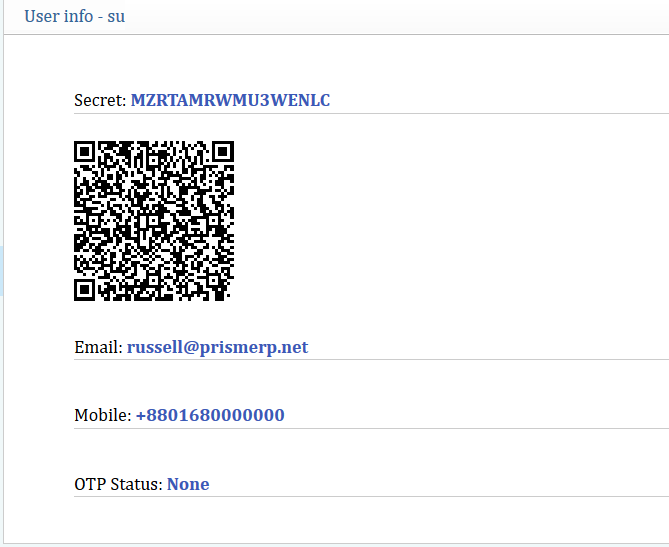
Here using the barcode scanner of the google authenticator application from the mobile. This is done mainly for the security purpose of user verification. Next while logging from any device or windows. After giving the user id and password then they will ask for the QR code and you can get the code from authenticator apps and assign the code into the box for logging. This is mainly done for the security purpose of user log