Organization
PrismERP’s Organization module allows users to efficiently manage all organizational information, including contacts, locations, company details, and related activities. It enables adding new organizations, tracking opportunities and campaigns, and accessing detailed views for streamlined decision-making. Users can search, filter, and register organizations as customers, ensuring organized business management.
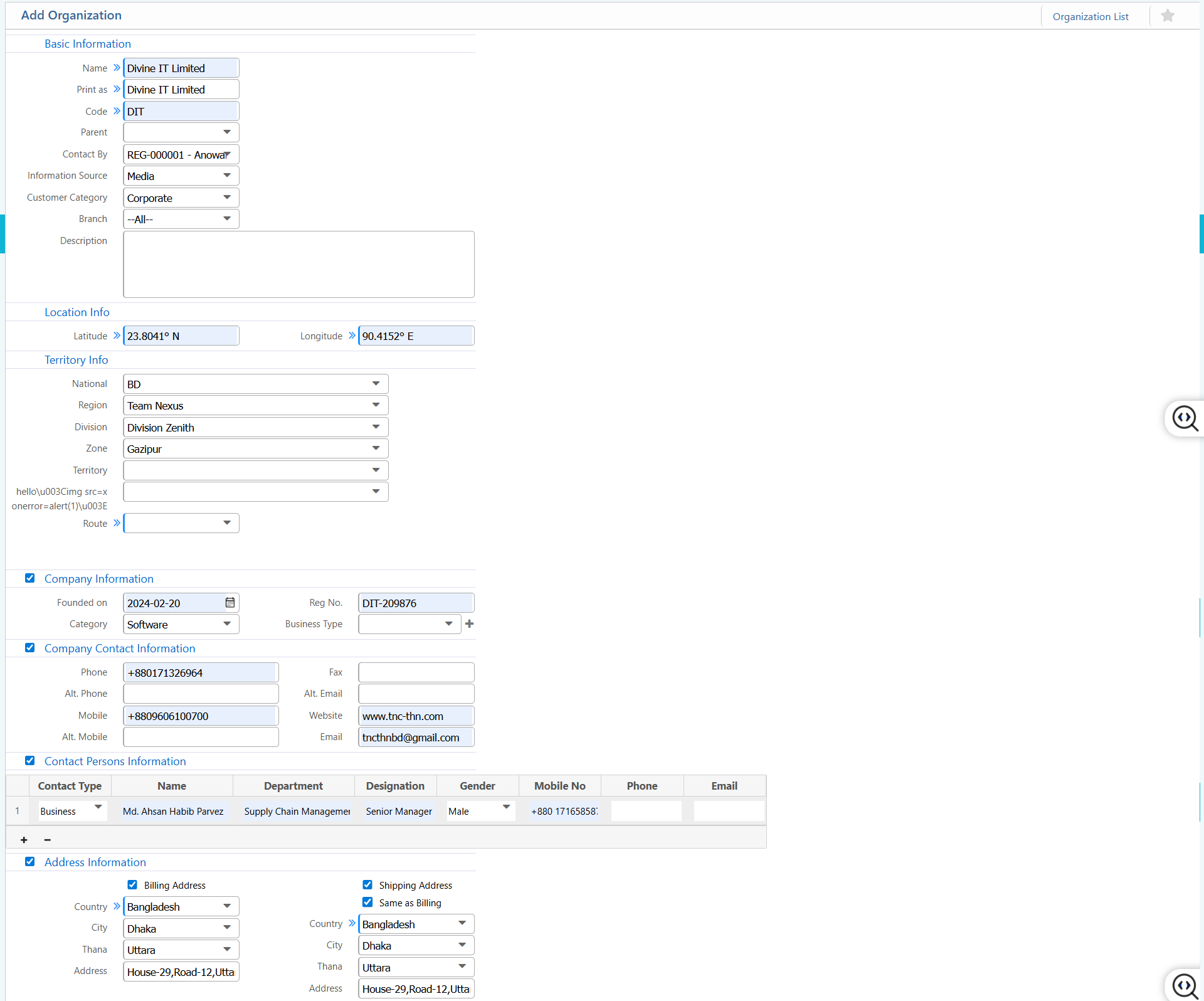
1. New Organization
Basic Information:
| Field | Action |
|---|---|
| Name | Enter the official name of the organization. |
| Print As | Enter the name to be used on printed documents and reports. |
| Code | Enter a unique organization code. |
| Parent | Select the parent organization, if applicable. |
| Contact By | Select the primary contact person or reference. |
| Information Source | Select the source from which the organization information was obtained. |
| Customer Category | Select the customer category for classification. |
| Branch | Select the branch associated with the organization. |
| Description | Enter a brief description of the organization. |
Location Information:
| Field | Action |
|---|---|
| Latitude | Enter the latitude coordinate of the organization location. |
| Longitude | Enter the longitude coordinate of the organization location. |
Territory Information:
| Field | Action |
|---|---|
| National | Select the national territory or country. |
| Region | Select the region. |
| Division | Select the division under the region. |
| Zone | Select the zone for operational or sales purposes. |
| Territory | Select the specific territory. |
| Route | Select the route assigned to the organization. |
Company Information:
| Field | Action |
|---|---|
| Founded On | Enter the organization’s founding date. |
| Reg No. | Enter the business registration number. |
| Category | Select the business category. |
| Business Type | Select the type of business. |
Company Contact Information:
| Field | Action |
|---|---|
| Phone | Enter the primary phone number. |
| Alt. Phone | Enter an alternative phone number. |
| Mobile | Enter the primary mobile number. |
| Alt. Mobile | Enter an alternative mobile number. |
| Fax | Enter the fax number, if applicable. |
| Alt. Email | Enter an alternative email address. |
| Website | Enter the official website address. |
| Enter the primary email address. |
Contact Persons Information:
| Field | Action |
|---|---|
| Contact Type | Select the type of contact person. |
| Name | Enter the contact person’s name. |
| Department | Enter the department name. |
| Designation | Enter the designation or job title. |
| Gender | Select the gender of the contact person. |
| Mobile No | Enter the mobile number of the contact person. |
| Phone | Enter the phone number of the contact person. |
| Enter the email address of the contact person. |
Address Information – Billing Address:
| Field | Action |
|---|---|
| Country | Select the billing country. |
| City | Select the billing city. |
| Thana | Select the billing thana or area. |
| Address | Enter the complete billing address. |
Address Information – Shipping Address:
| Field | Action |
|---|---|
| Same as Billing | Enable if the shipping address is the same as the billing address. |
| Country | Select the shipping country. |
| City | Select the shipping city. |
| Thana | Select the shipping thana or area. |
| Address | Enter the complete shipping address. |
2. List Of Organizations
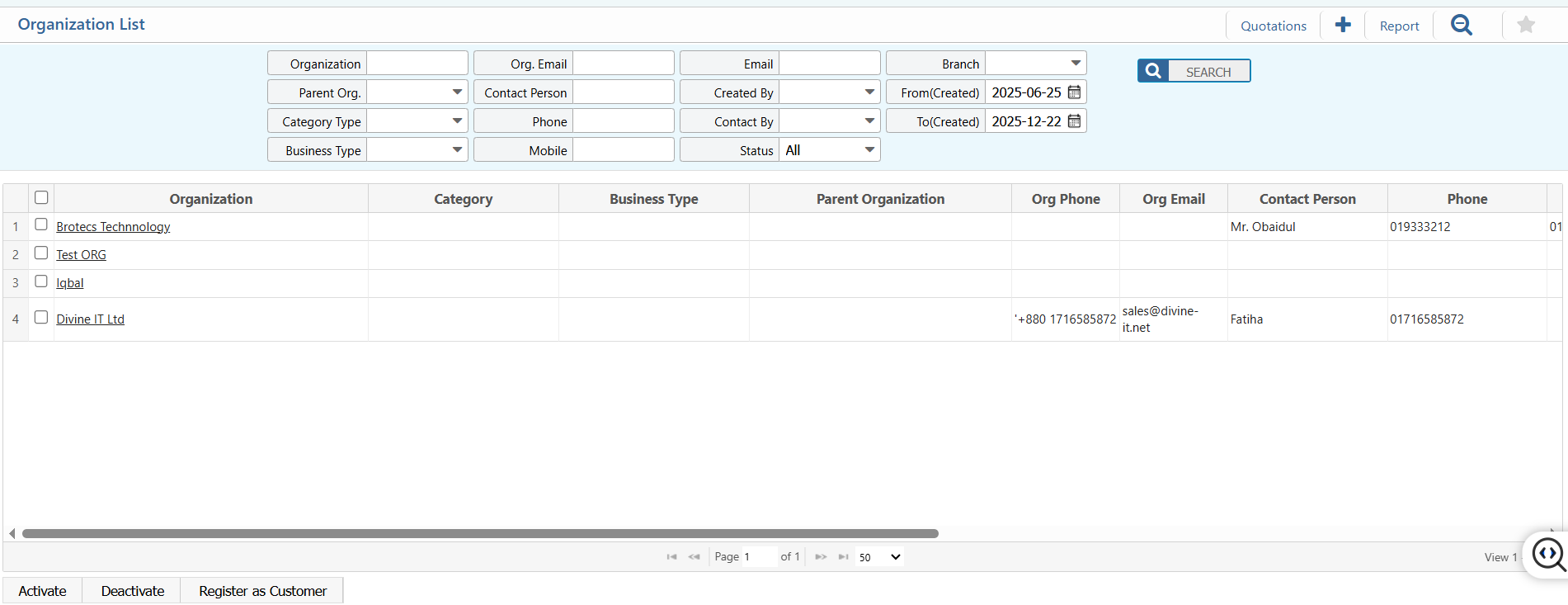
2.1 Search, Filter & Actions
| Field | Action |
|---|---|
| Organization | Search by organization name to locate a specific organization. |
| Parent Org. | Filter organizations based on their parent organization. |
| Category Type | Filter organizations by customer or business category. |
| Business Type | Filter organizations by business type. |
| Org. Email | Search organizations using the organization’s email address. |
| Contact Person | Search by the contact person’s name linked to the organization. |
| Phone | Search organizations using phone number. |
| Mobile | Search organizations using mobile number. |
| Search by contact person’s email address. | |
| Created By | Filter organizations by the user who created the record. |
| Contact By | Filter organizations by assigned contact reference. |
| Branch | Filter organizations by branch or office location. |
| From – To | Select a date range to view organizations created within a specific period. |
| Status | View the current status of the organization and update their status (e.g., Active, Inactive). |
| Register as Customer | Register the organization as a customer for sales, invoicing, and transaction purposes. |
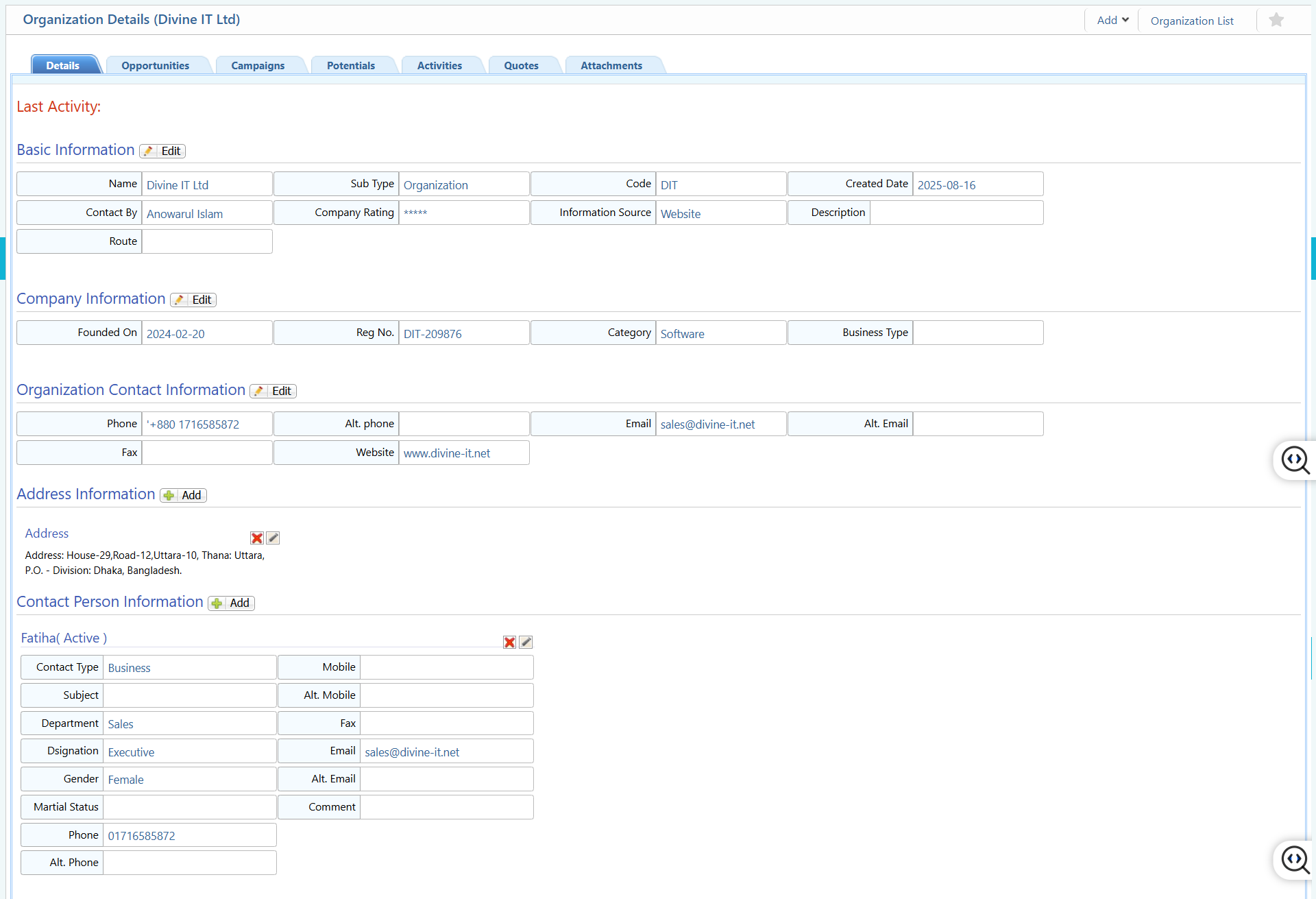
2.2 View Details & Action
| Field | Action |
|---|---|
| Basic Information | View and edit core organization details such as Name, Sub Type, Code, Created Date, Contact By, Company Rating, Information Source, Description, and Route. |
| Opportunities | View, search, and manage sales opportunities linked to this organization. |
| Campaigns | View and manage campaigns associated with the organization. |
| Potentials | Track and manage potential deals or leads related to the organization. |
| Activities | Track, view, and manage activities scheduled or performed for the organization. |
| Quotes | View, create, or edit quotes generated for the organization. |
| Attachments | Upload, view, or download documents attached to the organization record. |
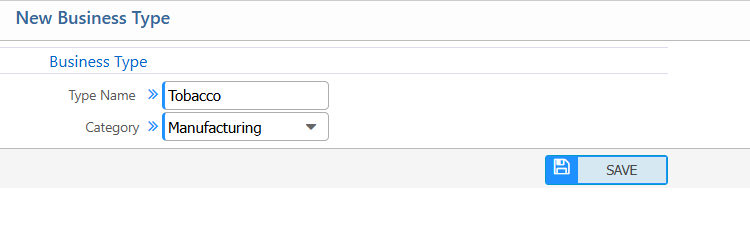
3. Add Business Type
| Field | Action |
|---|---|
| Type Name | Enter the name of the business type |
| Category | Select the category under which this business type falls |
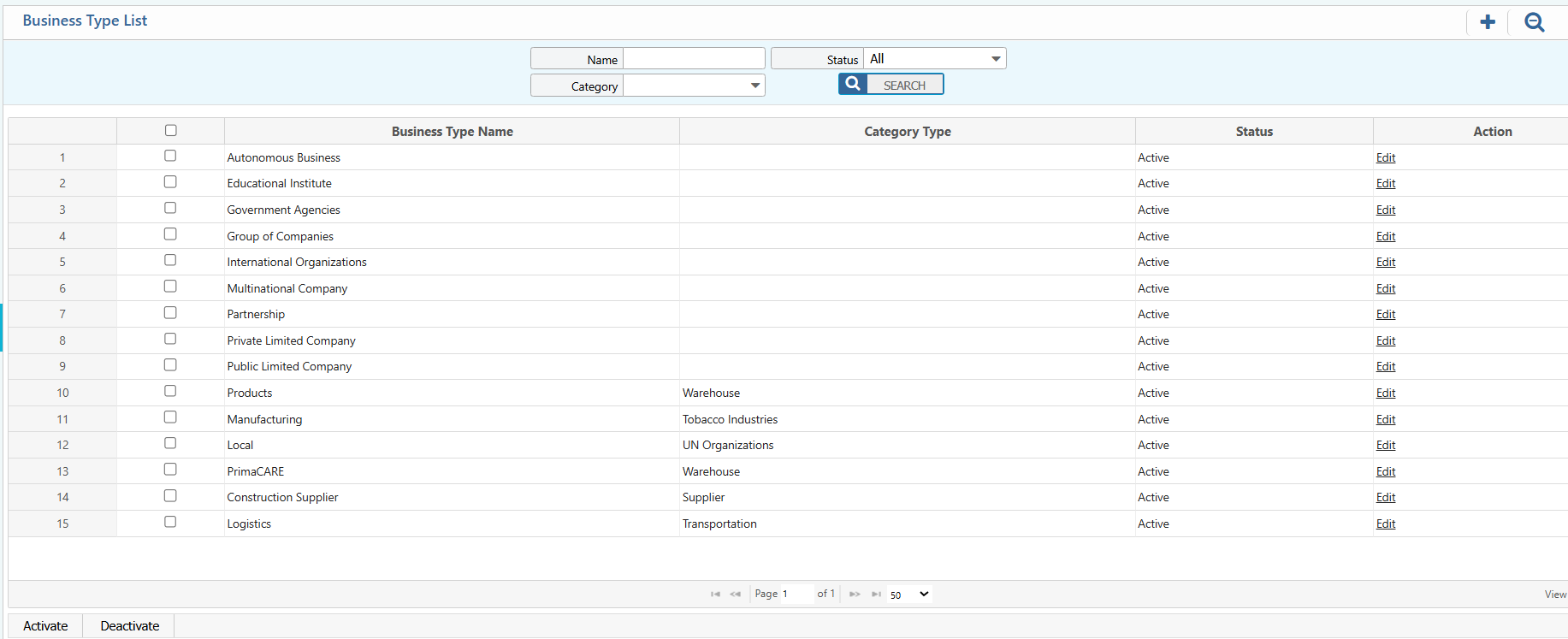
4. Business Type List
| Field | Action |
|---|---|
| Name | Search business types by their name. |
| Category | Filter business types based on category |
| Status | View or filter business types by their status (e.g., Active, Inactive) and update if needed. |
| Edit | Edit and update business type information directly from the list view. |
5. Add Organization Category
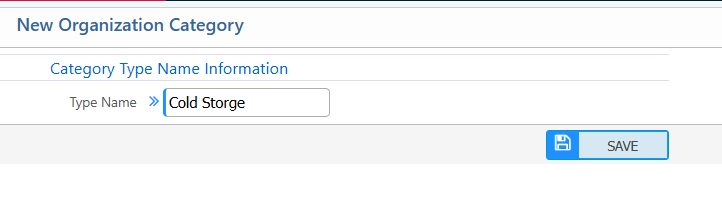
| Field | Action |
|---|---|
| Category Type Name | Enter the name of the category type. Example: Cold Storage. |
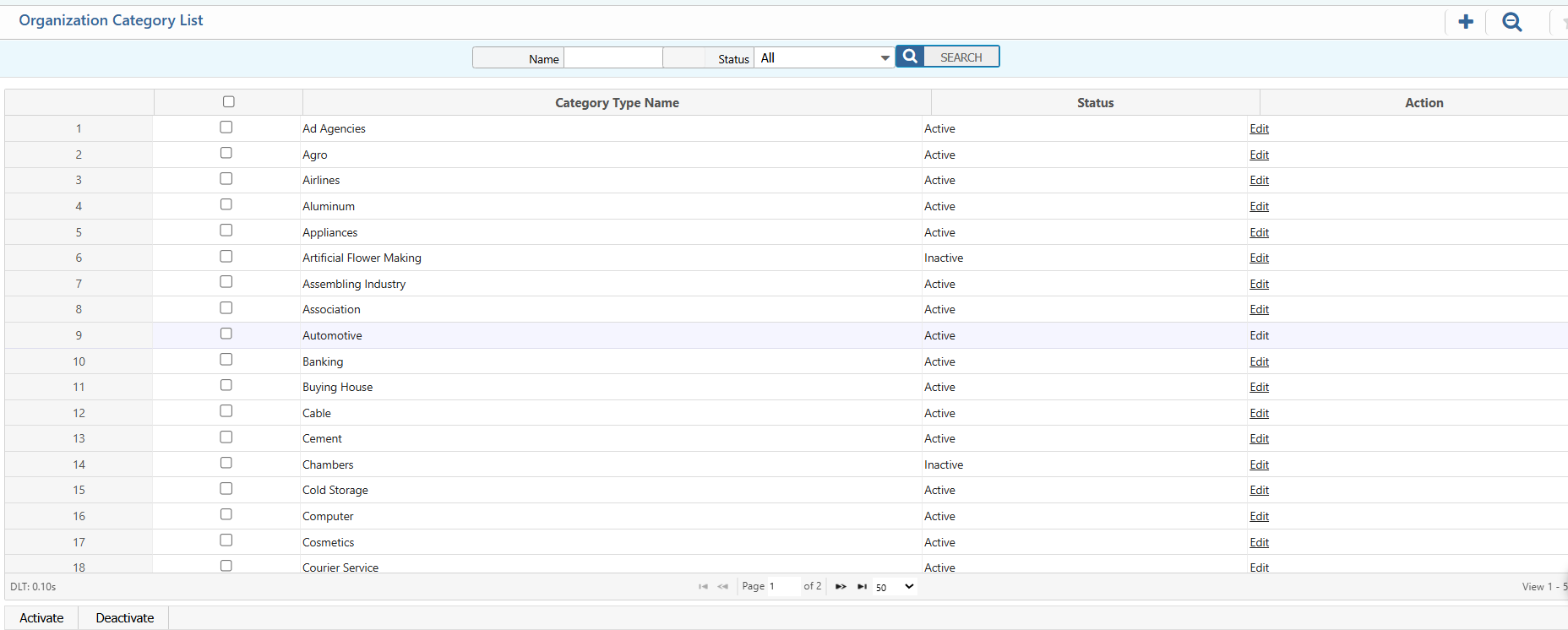
6. Organization Category List
| Field | Action |
|---|---|
| Name | Search organization categories by their name. |
| Status | Filter categories by status (Active/Inactive) and update if needed. |
| Edit | Edit or update category details directly from the list. |
7. Organization List Report
| Field | Action |
|---|---|
| Report | Preview , generate and download reports in multiple formats. |