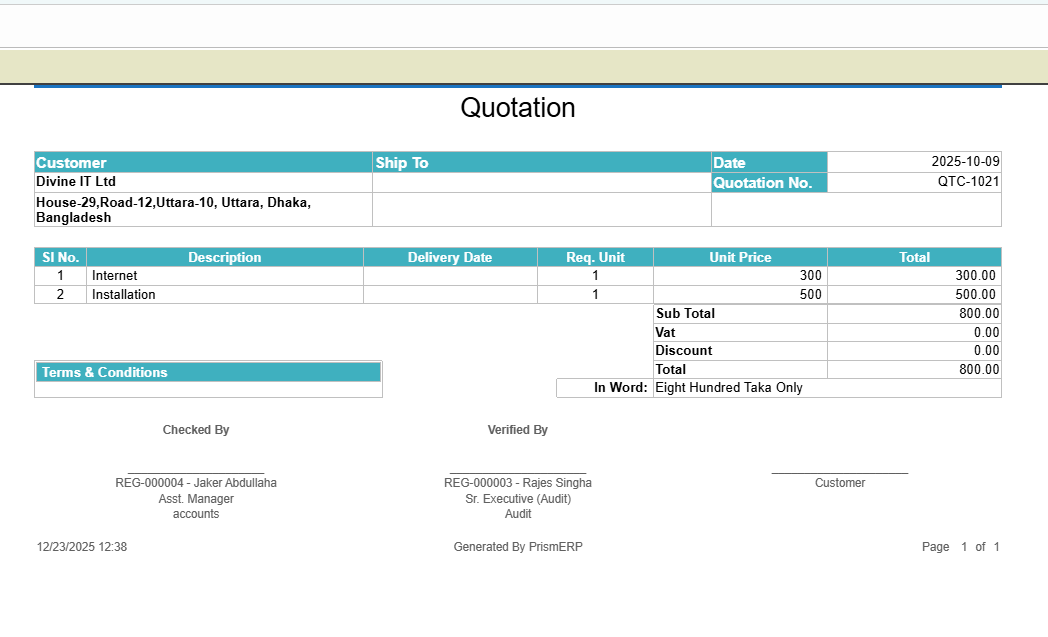
Quote
The Quote feature in PrismERP helps users create, manage, and track quotations efficiently. Users can add new quotes with detailed information such as customer, branch, products, pricing, discounts, and terms and conditions. It provides a searchable and filterable list of all quotations, with options to create re-quotes or reject quotes when necessary. Comprehensive quotation reports—including price quotations, sales offers, financial offers (currency-wise), brand-specific quotations, and full summaries—can also be generated for tracking and analysis.
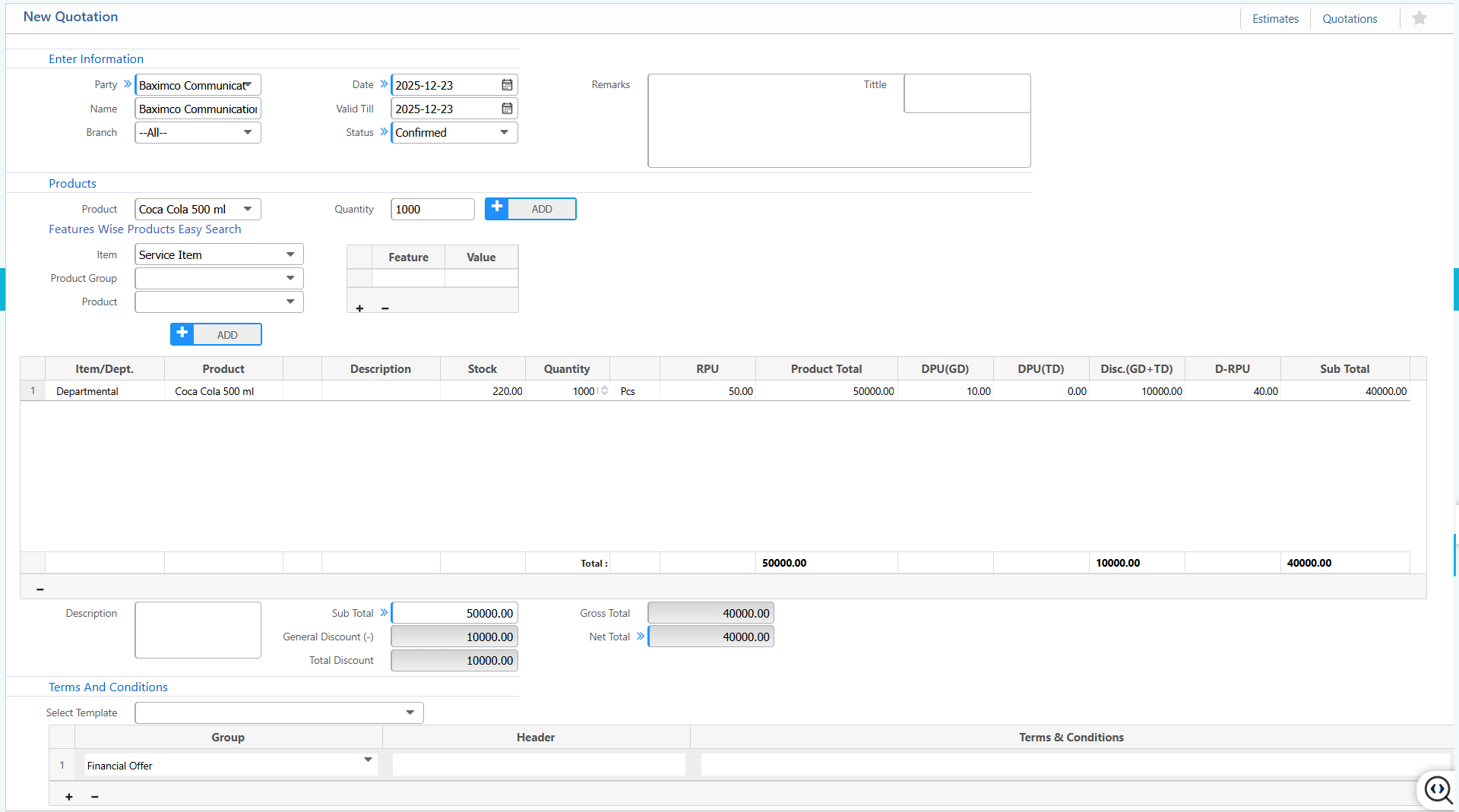
1. New Quote
Enter Information:
| Field | Action |
|---|---|
| Party | Select the organization or customer for whom the quotation is created. |
| Branch | Select the branch issuing the quotation. |
| Date | Select the quotation creation date. |
| Valid Till | Select the validity end date of the quotation. |
| Status | Select the current status of the quotation (e.g., Draft, Approved). |
| Remarks | Enter additional remarks or notes for the quotation. |
| Title | Enter the title to be shown on the quotation document. |
Products:
| Field | Action |
|---|---|
| Product | Select the product to be added to the quotation. |
| Quantity | Enter the quantity of the selected product. |
Item / Department Details:
| Field | Action |
|---|---|
| RPU | Enter the rate per unit. |
| DPU (GD) | Enter the amount of general discount per unit.(if applicable) |
| DPU (TD) | Enter the amount of trade discount per unit.(if applicable) |
Terms and Conditions:
| Field | Action |
|---|---|
| Select Template | Select a predefined terms and conditions template. |
| Group | Select the terms and conditions group. |
| Header | Enter the header of the selected template. |
| Terms & Conditions | Enter or edit the detailed terms and conditions text. |
2. List of Quotes
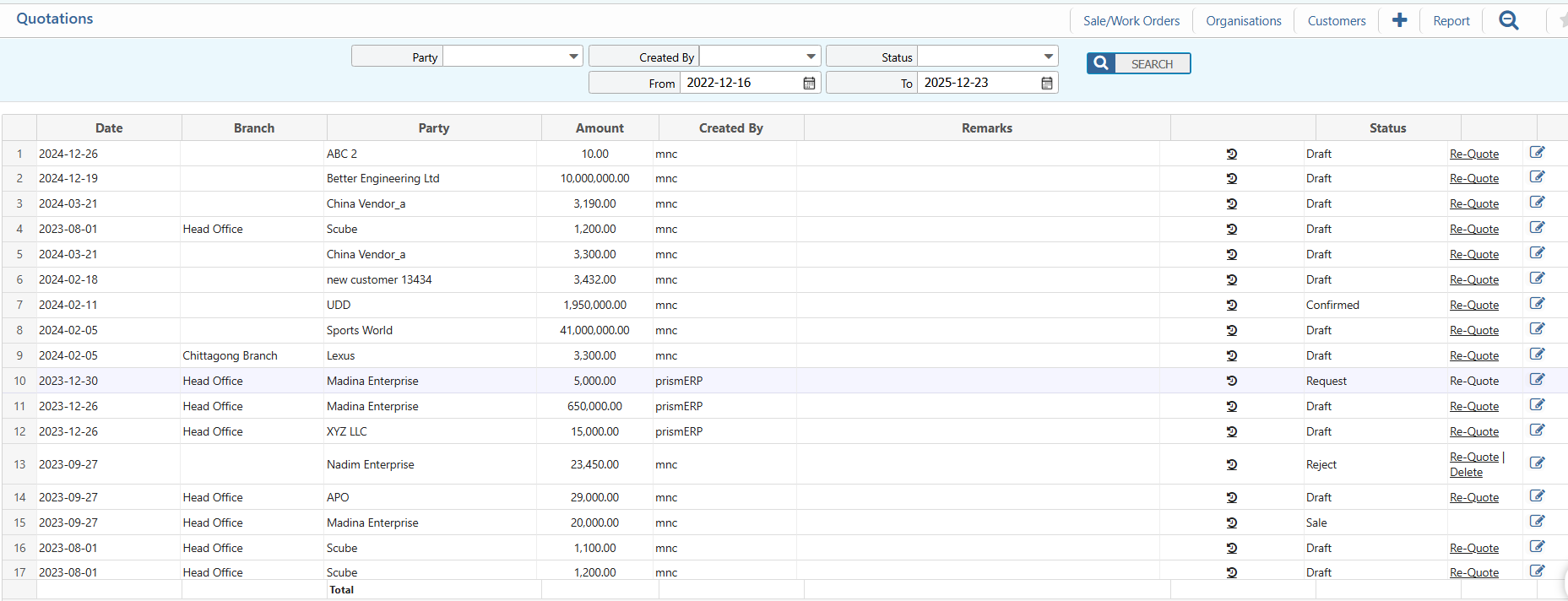
2.1 Search, Filter & Actions
| Field | Action |
|---|---|
| Party | Filter quotations by the organization or customer name. |
| Created By | Filter quotations based on the user who created the record. |
| From | Select the start date to filter quotations created from a specific date. |
| To | Select the end date to filter quotations created up to a specific date. |
| Status | Filter quotations based on the current status and edit status if needed. |
| Date | View or filter quotations by their creation date. |
| Re-Quote | Create a re-quote directly from the list of quotes. |
2.2 View Details & Actions
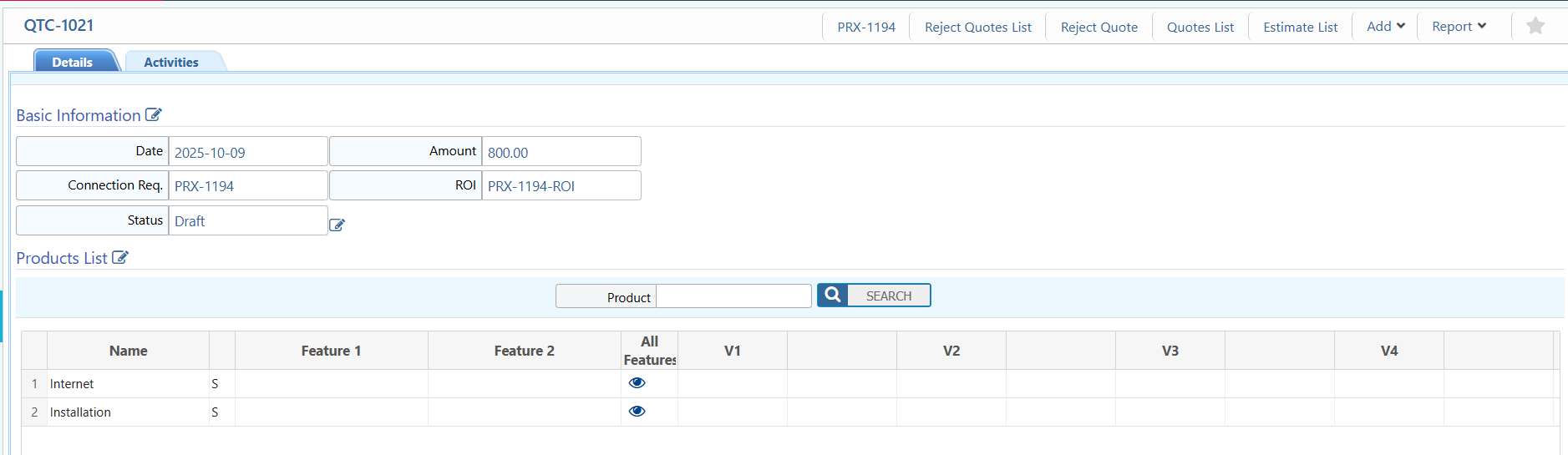
Details Information:
| Field | Action |
|---|---|
| Basic Information | View and edit basic information of the quotation, including party, products, quantities, prices, discounts, totals, and terms. |
| Quotes / Products | View and manage products or items added to the quotation, including quantities, rates, discounts, and subtotals. |
| Activities | Track and manage activities related to this quotation. |
| Reject Quotes | Mark the quotation as rejected if it is no longer valid or accepted. |
2.3 Add Terms & Condition
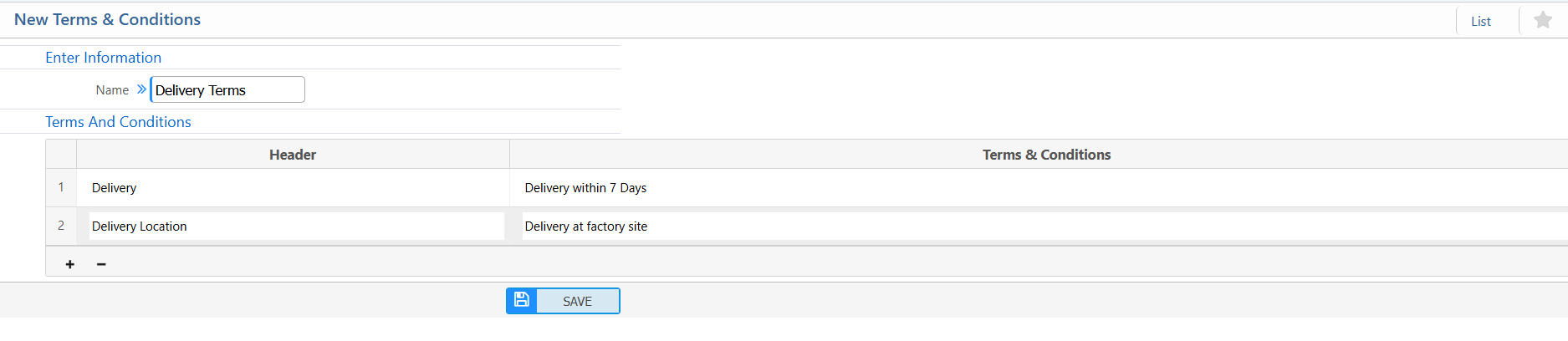
| Field | Action |
|---|---|
| Name | Enter the name or title of the terms and conditions template. |
| Header | Enter the header text to be displayed on the document or template. |
| Terms & Conditions | Enter the detailed terms and conditions text. |
3. Quote Reports
| Field | Action |
|---|---|
| Price Quotation | Generate reports of all price quotations with products, quantities, and totals. |
| Sales Offer | Generate reports of sales offers with linked opportunities and details. |
| Financial Offer | Generate reports of financial offers, including pricing, discounts, and terms. |
| Financial Offer (Currency Wise) | Generate financial offer reports in multiple currencies. |
| Brand Quotation | Generate reports filtered by brand, showing products and totals. |
| Quotation Report | Generate a complete summary of all quotations with detailed and high-level information. |