Employee Transfer
The Employee Transfer feature in PrismERP streamlines the process of managing employee movements across branches, departments, and designations. It allows for the creation of new transfer entries, assignment of target roles, and updating of employment and attendance details. Relevant employees are automatically notified at each stage—creation, approval, and verification. The transfer list provides easy search and filter options, and the status of applications can be updated directly, ensuring efficient tracking and management of employee transfers.
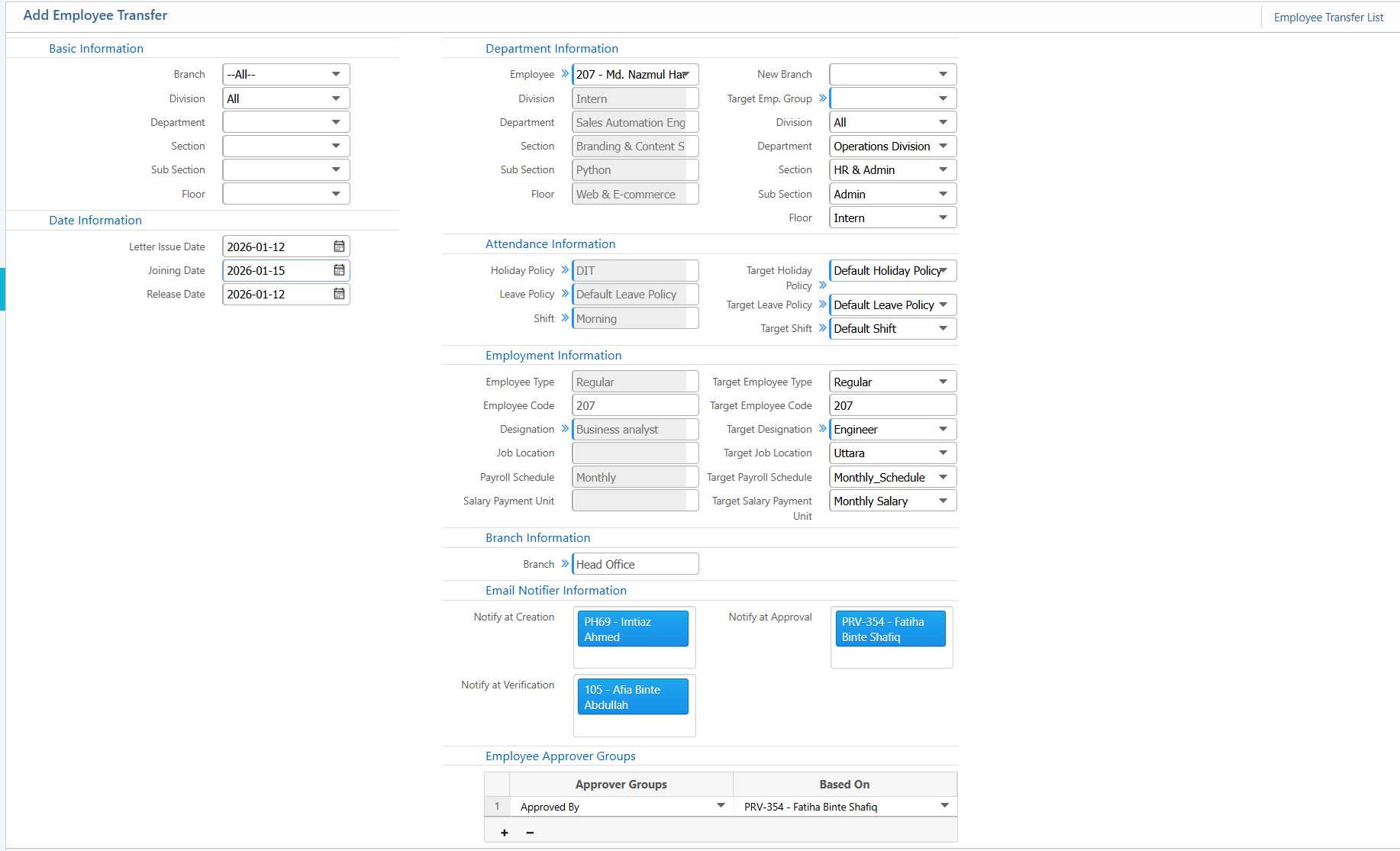
Add Employee Transfer
| Field | Action |
|---|---|
| Basic Information | |
| Branch | Select the branch of the employee. |
| Division | Select the division of the employee. |
| Department | Select the employee’s department. |
| Section | Select the section under the department. |
| Sub Section | Select the sub-section under the section, if applicable. |
| Floor | Select the floor where the employee is currently assigned. |
| Date Information | |
| Letter Issue Date | Enter the date when the transfer letter is issued. |
| Joining Date | Enter the joining date for the new branch or department. |
| Release Date | Enter the release date from the current department/branch. |
| Department Information | |
| Employee | Select the employee to be transferred. |
| Division | Select the employee’s current division. |
| Department | Select the current department. |
| Section | Select the current section. |
| Sub Section | Select the current sub-section. |
| Floor | Select the current floor or team location. |
| New Branch | Select the branch where the employee will be transferred. |
| Target Emp. Group | Define the target group for the transfer. |
| Target Division | Select the new division. |
| Target Department | Select the new department. |
| Target Section | Select the new section. |
| Target Sub Section | Select the new sub-section. |
| Target Floor | Select the new floor or team. |
| Attendance Information | |
| Target Holiday Policy | Select the holiday policy at the new branch or department. |
| Target Leave Policy | Select the leave policy at the new location. |
| Target Shift | Select the shift at the new location. |
| Employment Information | |
| Employee Code | Shows the employee code. |
| Target Employee Type | Set the employee type for the new location. |
| Target Employee Code | Shows the employee code in the new location. |
| Target Designation | Enter the new designation. |
| Target Job Location | Select the new job location. |
| Target Payroll Schedule | Select the payroll schedule for the new location. |
| Target Salary Payment Unit | Select the salary payment unit at the new location. |
| Email Notifier Information | |
| Notify at Creation | Select the employee to be notified when the transfer is created. |
| Notify at Approval | Select the employee to be notified when the transfer is approved. |
| Notify at Verification | Select the employee to be notified when the transfer is verified. |
| Employee Approver Groups | |
| Based On | Select the approval hierarchy. |
| Approved By | Select the employee who approved the transfer. |
Employee Transfer List – Search & Actions
| Field | Action |
|---|---|
| Branch | Filter transfers by selecting a branch. Use “--All--” to view all branches. |
| Division | Filter transfers by selecting a division. |
| Department | Filter transfers by department. |
| Section | Filter transfers by section. |
| Sub Section | Filter transfers by sub-section. |
| Floor | Filter transfers by floor. |
| Employee | Filter transfers by selecting an employee. |
| From | Select a start date to view transfers from a specific date. |
| To | Select an end date to view transfers up to a specific date. |
| Status | View and update the status of the transfer application. |
| Add | Add a new employee transfer directly from the list. |
