Employee Separation
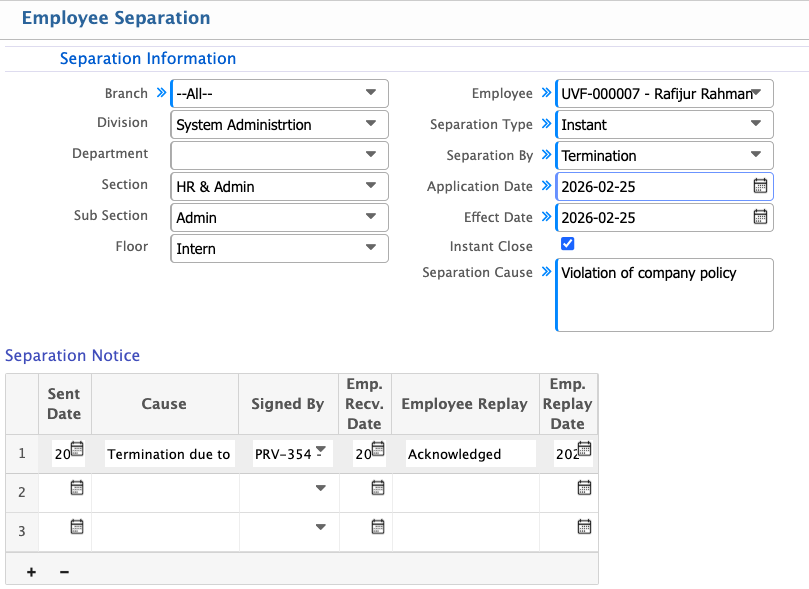
In PrismERP, Employee Separation allows users to manage all types of employee exits, including resignation, termination, retirement, or layoff. Users can enter details such as branch, department, employee, separation type, application and effect dates, and the reason for separation. Submitted applications can be recommended, canceled, or rejected using a pop-up window for each action. Once recommended and approved, the final settlement can be processed, with all payables and deductions automatically calculated and recorded.
| Field | Action |
|---|---|
| Branch | Select the branch of the employee. |
| Department | Select the department of the employee. |
| Sub Department | Select the sub-department of the employee. |
| Section | Select the section where the employee works. |
| Floor | Select the floor where the employee is assigned. |
| Employee | Select the employee whose separation is being processed. |
| Separation Type | Select the type of separation (e.g., resignation, termination, retirement, layoff). |
| Separation By | Enter who initiated the separation (employee or employer). |
| Application Date | Enter the date when the separation application was submitted. |
| Effect Date | Enter the date when the separation will take effect. |
| Instant Close | Select if the separation should be processed immediately. |
| Separation Cause | Enter the reason for the separation. |
| Separation Notice – Sent Date | Enter the date when the separation notice was sent to the employee. |
| Separation Notice – Cause | Enter the reason mentioned in the separation notice. |
| Separation Notice – Signed By | Enter the name of the person who signed the separation notice. |
| Separation Notice – Employee Received Date | Enter the date when the employee received the separation notice. |
| Separation Notice – Employee Reply | Enter any response provided by the employee. |
| Separation Notice – Employee Reply Date | Enter the date when the employee submitted their reply. |
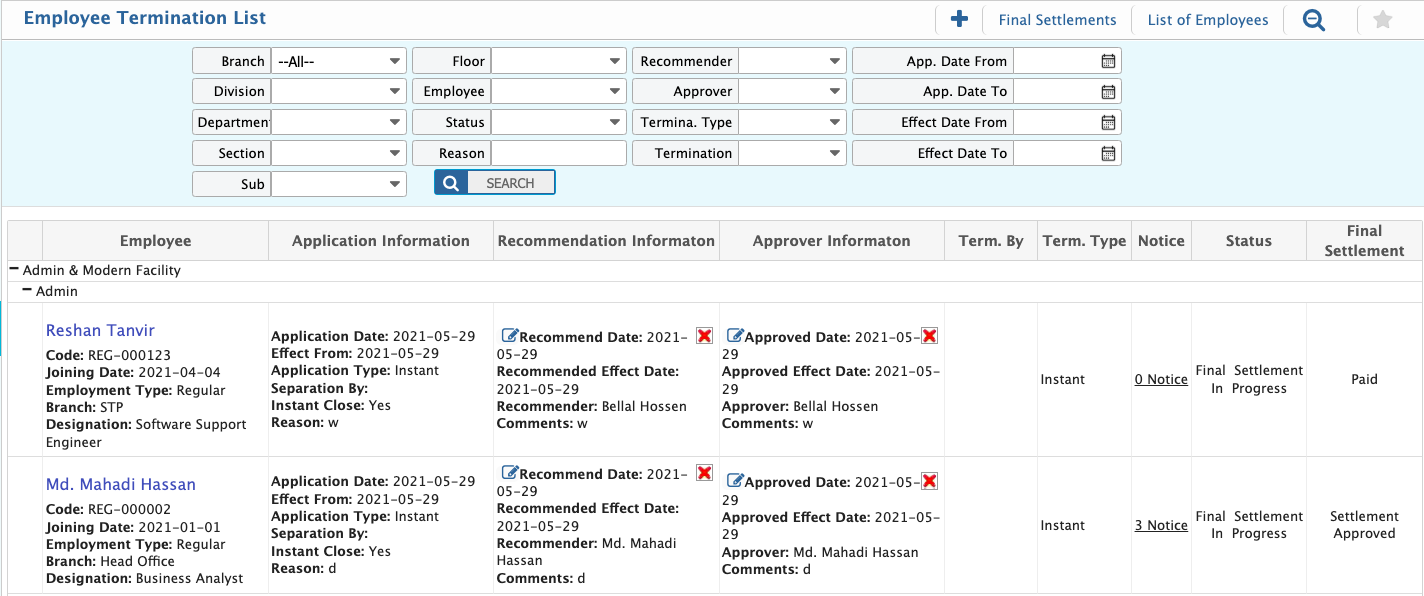
After a termination application is submitted, users can recommend it if it is valid, cancel it if it was created by mistake, or reject it if the termination is not approved. Clicking any of these options opens a pop-up window to complete the action. Once the termination is recommended and approved, the final settlement can be processed, with all payables and deductions automatically calculated and recorded.