Exit Clearance
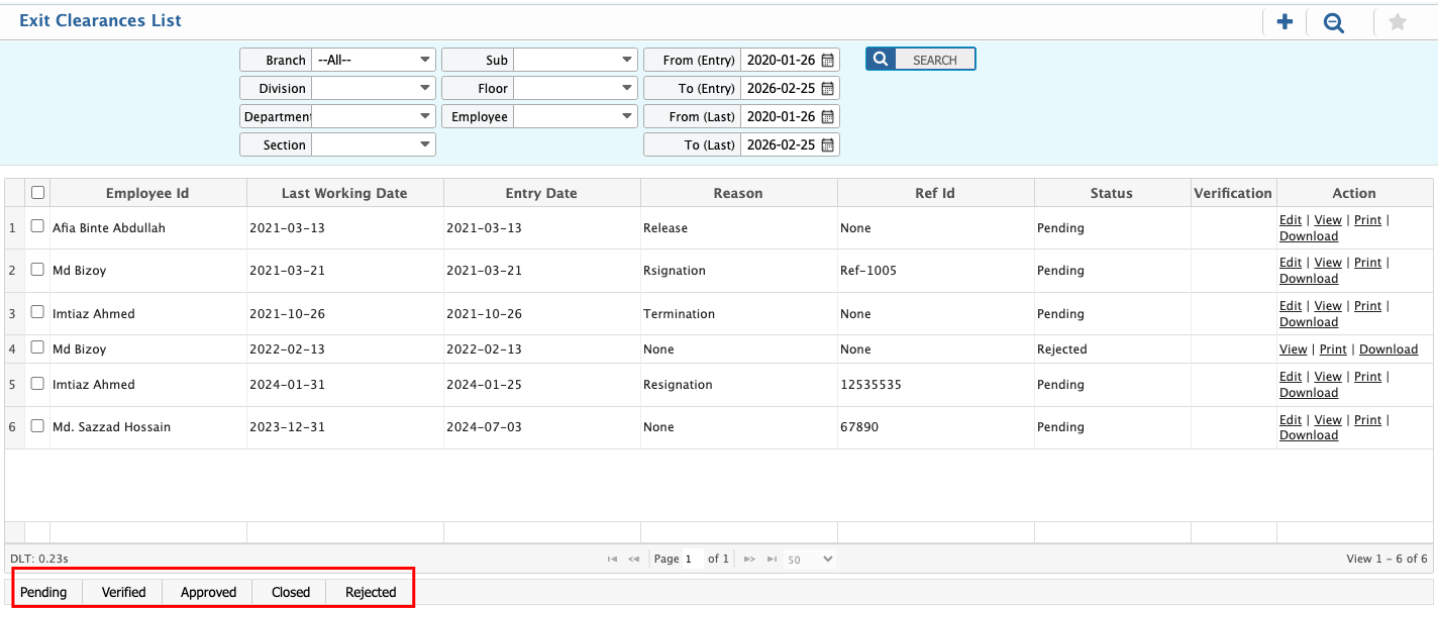
Exit Clearance allows users to manage and process all clearance requirements in PrismERP when an employee leaves the organization. Users can enter details such as branch, division, department, employee ID, reference, template, entry date, last working date, reason for exit, and complete all listed clearance items like asset return or department approvals. Users can view all exit clearance records, filter or search for specific entries, update the status to Pending, Verified, Approved, Closed, or Rejected, and also edit, view, print, or download any record.
| Field | Action |
|---|---|
| Branch | Select the branch of the employee. |
| Division | Select the division the employee belongs to. |
| Department | Select the department of the employee. |
| Section | Select the section where the employee works. |
| Sub Section | Select the sub-section of the employee. |
| Floor | Select the floor where the employee is assigned. |
| Employee ID | Select or enter the employee ID for whom the exit clearance is being processed. |
| Ref Id | Enter the reference ID related to the exit clearance. |
| Template Id | Select the clearance template to define required approval items. |
| Entry Date | Enter the date when the exit clearance is created. |
| Last Working Date | Enter the employee’s final working date. |
| Reason | Enter the reason for exit or separation. |
| Items | Review and complete the listed clearance items (e.g., asset return, department approval) before finalizing the process. |
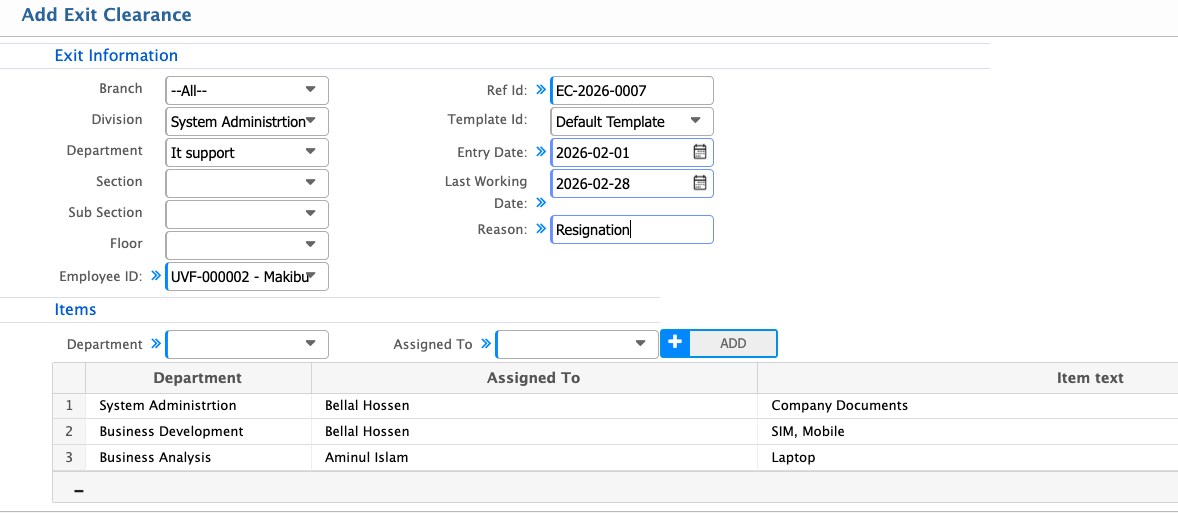
Users can view all exit clearance records from the list and use search and filter options to quickly find a specific entry. From the list, users can update the status as Pending, Verified, Approved, Closed, or Rejected based on the progress of the clearance process. Users can also edit, view, print, or download any exit clearance record as needed.