Enterprise Learning Management
In PrismERP ELM, users can create learning modules and organize them into structured topics for different learning areas. Each topic can be configured with learning resources, exam settings, marks distribution, and certification details.It also includes a question bank where users can add and manage questions for each topic. Based on the configured topics, exam links can be generated and assigned to specific employees or groups for assessments.
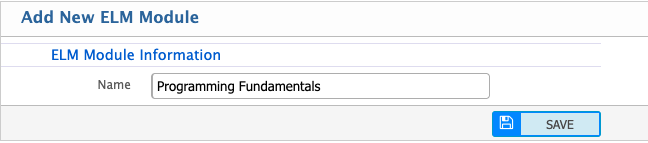
Add ELM Module
| Field | Action |
|---|---|
| Name | Enter a clear and unique name for the ELM module to identify it within the system. |
Add ELM Topic
| Field | Action |
|---|---|
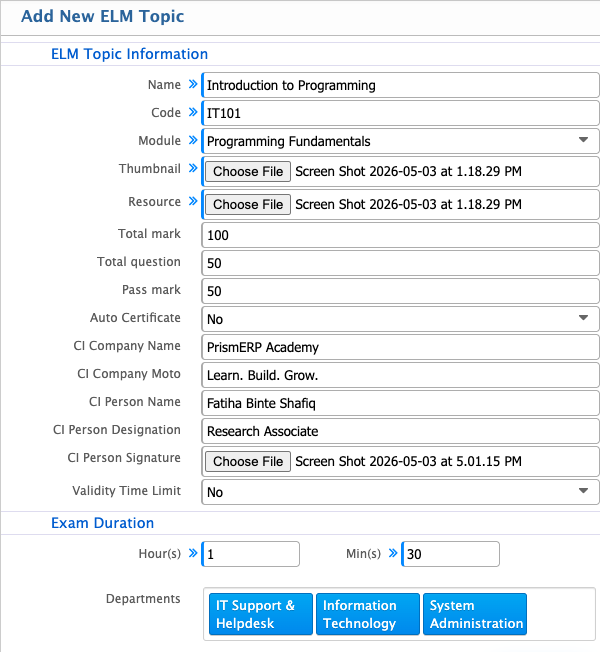
| Name | Enter a clear and unique topic name to identify the learning content within the ELM module. |
| Code | Enter a short and unique code for the topic to ensure proper system identification and tracking. |
| Module | Select the learning module under which this topic will be categorized. |
| Thumbnail | Upload an image that visually represents the topic for easy identification. |
| Resource | Upload learning materials such as documents, PDFs, or reference files related to the topic. |
| Total Mark | Define the total marks allocated for the assessment of this topic. |
| Total Question | Set the total number of questions included in the exam or assessment. |
| Pass Mark | Define the minimum marks required to pass the topic assessment. |
| Auto Certificate | Enable this option to automatically generate a certificate upon successful completion. |
| CI Company Name | Enter the company name to be displayed on the certificate. |
| CI Company Moto | Enter the company motto or tagline to be shown on the certificate. |
| CI Person Name | Enter the name of the authorized person responsible for certification. |
| CI Person Designation | Enter the designation of the certification authority person. |
| CI Person Signature | Upload the signature image of the authorized person. |
| Validity Time Limit | Define the validity period of the certification in days or months. |
| Exam Duration (Hour) | Set the exam duration in hours. |
| Exam Duration (Minute) | Set the remaining exam duration in minutes. |
| Departments | Select specific departments or choose all to assign access to the topic. |
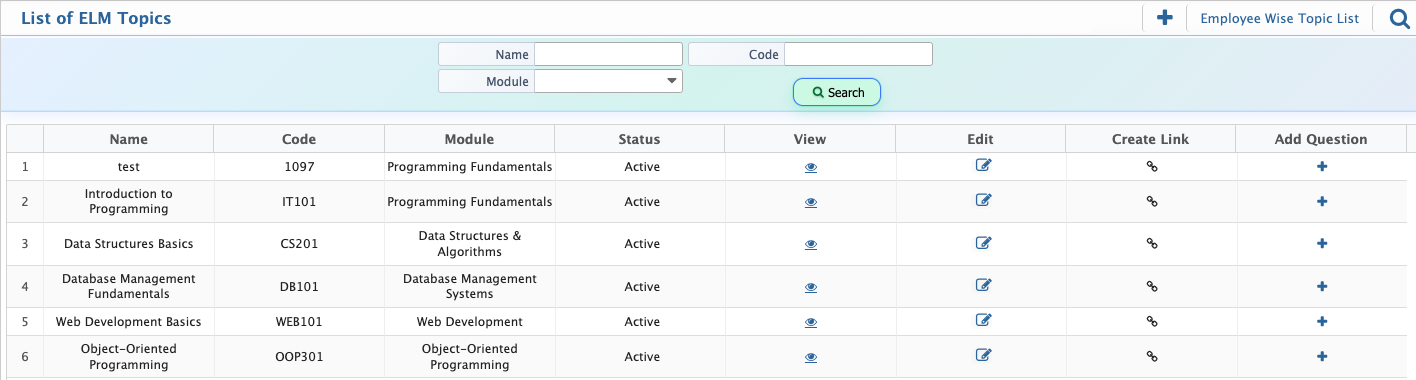
After adding an ELM topic, it appears in the topic list with all configured details for easy review. The search panel can be used to locate a specific topic based on different criteria. From the topic details view, users can add questions, create an exam link, and update any information if needed.
Add ELM Question
| Field | Action |
|---|---|
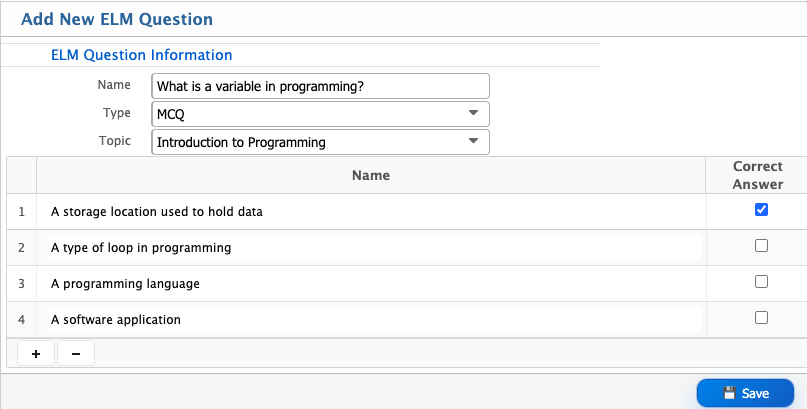
| Name | Enter a clear and descriptive question statement to be used in the exam. |
| Type | Select the question type (e.g., MCQ, True/False, Short Answer) based on the assessment format. |
| Topic | Select the ELM topic under which this question will be categorized. |
| Option | Enter the answer options for the question. |
| Correct Answer | Define the correct answer from the provided option for evaluation and scoring. |
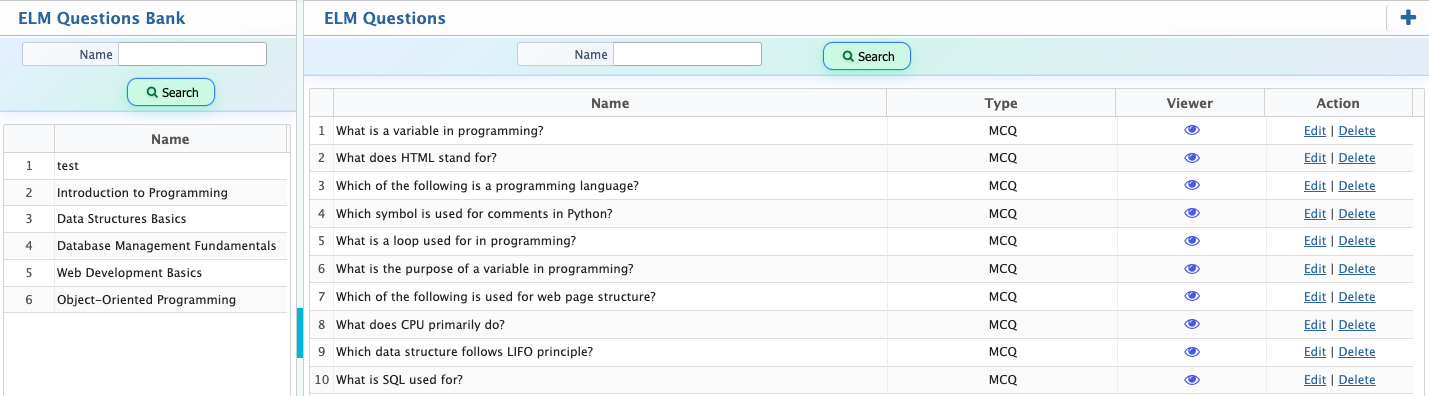
After adding a question, it appears in the Question Bank with all its details for easy review. Users can search and locate specific questions, and they can also edit or delete questions whenever updates or corrections are required.
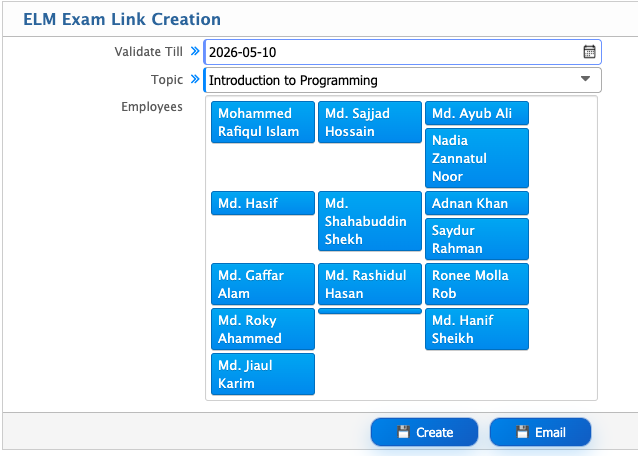
Users can create an exam link for a selected topic and assign it to specific employees or all employees. After generating the link, it can be copied and shared directly or sent via email. A validity period can also be set to control how long the exam link remains active.
Exam Link Creation
| Field | Action |
|---|---|
| Validate Till | Set the expiry date until which the exam link will remain valid for access. |
| Topic | Select the ELM topic for which the exam link is being created. |
| Employees | Select specific employees or choose all employees who will be eligible to access the exam link. |