Appointment & Assessment Processing
The Appointment & Assessment Processing section in PrismERP handles the final stages of recruitment, where selected candidates are evaluated, scheduled, and formally appointed. It manages approval appointments, assessment panels, interview scheduling, and candidate evaluations in a structured flow. Each part of this section ensures that candidate selection is properly reviewed through defined assessment stages before final employment confirmation.
Once an approval appointment, assessment panel, or schedule is created, it is stored in its respective list where all records are organized with key details such as candidate information, vacancy, dates, and status. From these lists, users can manage ongoing recruitment activities by adding candidates to schedules, updating assessment details, and modifying appointment information whenever required to match final hiring decisions.
Add Approval Appointment
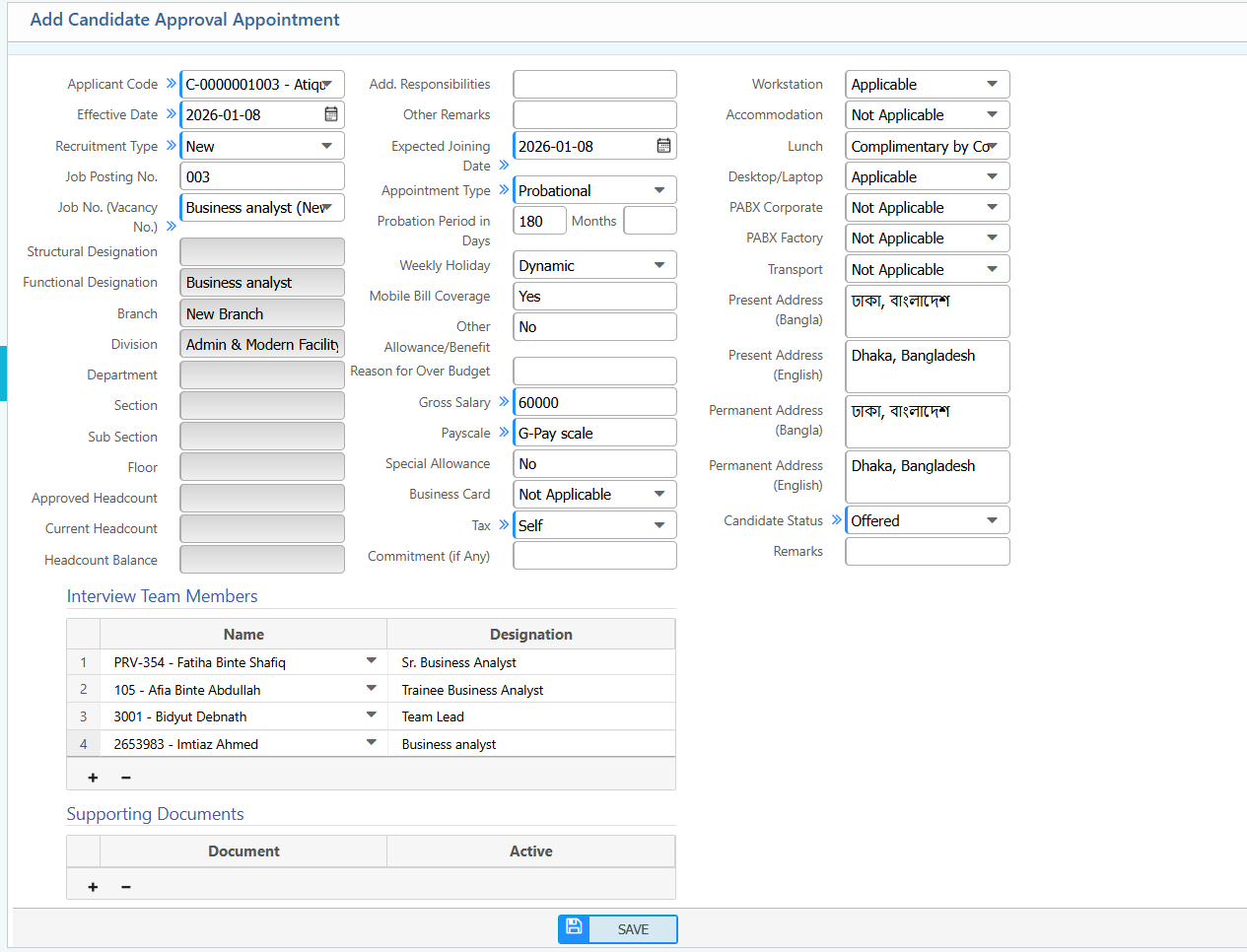
| Field | Action |
|---|---|
| Applicant Code | Select the candidate’s unique applicant code. |
| Effective Date | Select the date when the appointment becomes effective. |
| Recruitment Type | Select the recruitment type, e.g., New, Replacement. |
| Job Posting No. | Enter the associated job posting number. |
| Job No. (Vacancy No.) | Select the job or vacancy number linked to this appointment. |
| Add. Responsibilities | Enter any additional responsibilities for the candidate. |
| Other Remarks | Enter any other relevant remarks for the appointment. |
| Expected Joining Date | Select the expected date the candidate will join the organization. |
| Appointment Type | Select the type of appointment, e.g., Probational, Permanent. |
| Probation Period in Days | Enter the probation period in days, if applicable. |
| Weekly Holiday | Select the candidate’s weekly holiday schedule. |
| Mobile Bill Coverage | Specify if mobile bill is covered. |
| Other Allowance/Benefit | Enter any other allowances or benefits. |
| Reason for Over Budget | Enter a reason if the appointment is exceeding the budget. |
| Gross Salary | Enter the candidate’s gross salary. |
| Payscale | Enter the applicable pay scale for the candidate. |
| Special Allowance | Enter any special allowance applicable. |
| Business Card | Specify if a business card will be provided (e.g., Not Applicable). |
| Tax | Specify tax obligations or deductions, if any. |
| Commitment (if Any) | Enter any work commitment or agreement associated with the candidate. |
| Workstation | Specify the workstation assigned. |
| Accommodation | Specify if accommodation is provided. |
| Lunch | Specify lunch benefits, if any. |
| Desktop/Laptop | Specify if a desktop or laptop will be provided. |
| PABX Corporate | Specify corporate PABX allocation. |
| PABX Factory | Specify factory PABX allocation. |
| Transport | Specify transport facilities, if any. |
| Present Address (Bangla) | Enter the candidate’s present address in Bangla. |
| Present Address (English) | Enter the candidate’s present address in English. |
| Permanent Address (Bangla) | Enter the candidate’s permanent address in Bangla. |
| Permanent Address (English) | Enter the candidate’s permanent address in English. |
| Remarks | Enter any additional remarks about the candidate. |
| Name | Add the name of the interview panel member. |
| Document | Upload or select supporting documents for the candidate. |
| Status | Specify the status of the document. |
After creating an approval appointment, it appears in the Approval Appointment List where all appointment records are displayed along with details such as CV number, applicant name, job number, and appointment dates. Users can filter and search the list using these fields to quickly locate specific candidates or records within a defined date range. From this list, users can also edit appointment details whenever updates are required, ensuring the information stays aligned with the final hiring and onboarding process.

Add Assessment Panel
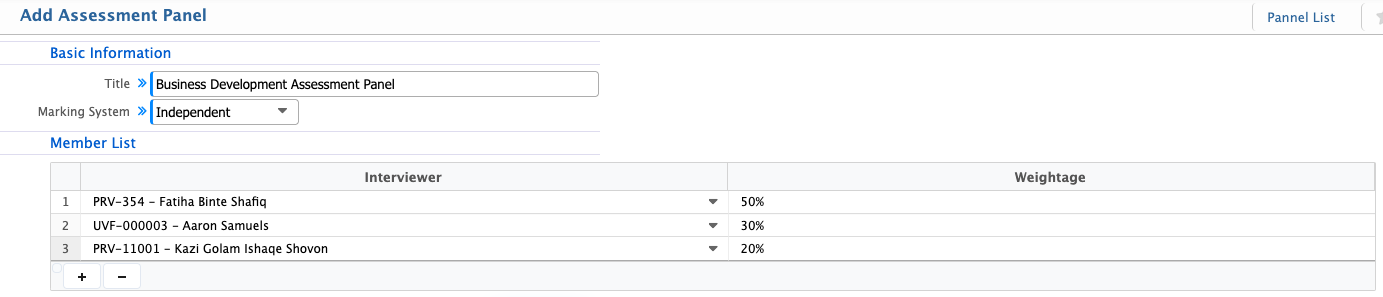
| Field | Action |
|---|---|
| Title | Enter the title or name of the assessment panel. |
| Marking System | Select the marking or scoring system to be used for the assessment panel. |
| Interviewer | Add the names of interviewers or panel members who will conduct the assessment. |
| Weightage | Assign the weightage or score contribution for each panel member. |
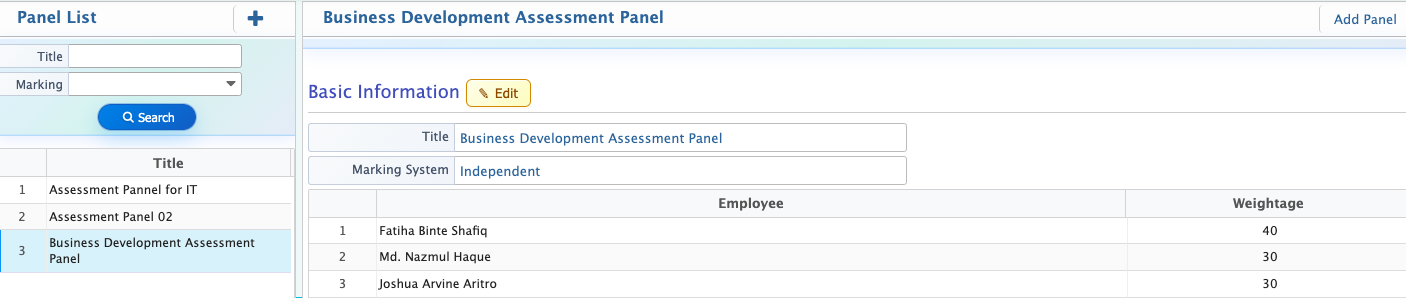
After creating an assessment panel, it appears in the Assessment Panel List where all configured panels are displayed along with their title and marking system. Users can filter and search the list using these fields to quickly locate a specific panel based on its structure or scoring method. From this list, users can also add a new assessment panel directly when needed or edit existing panels to update the title, marking system, or assigned panel members.
Add Assessment Schedule
| Field | Action |
|---|---|
| Interview Panel | Select the assessment panel to conduct the assessment. |
| Vacancy | Select the vacancy for which the assessment is being scheduled. |
| Outline Step | Select the assessment step or method. |
| Venue | Enter or select the location/venue for the assessment. |
| Start Date | Select the start date of the assessment schedule. |
| End Date | Select the end date of the assessment schedule. |
| Result Date | Enter the date on which results will be declared. |
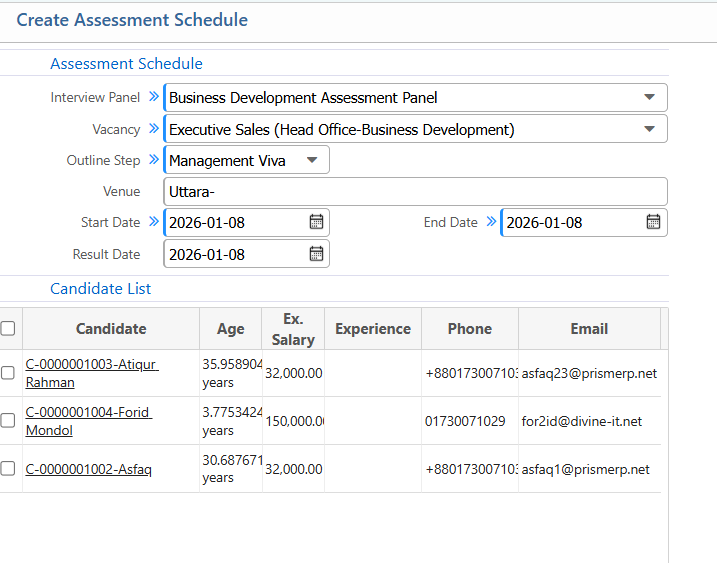
After creating an assessment schedule, it appears in the Assessment Schedule List where all schedules are displayed with details such as venue, date range, and status. Users can filter and search schedules based on venue and specific date ranges to quickly locate the required assessment sessions. From this list, candidates can be added directly to a selected schedule, and existing schedule details can be edited whenever changes are needed, including updates to venue, dates, or assigned candidates.
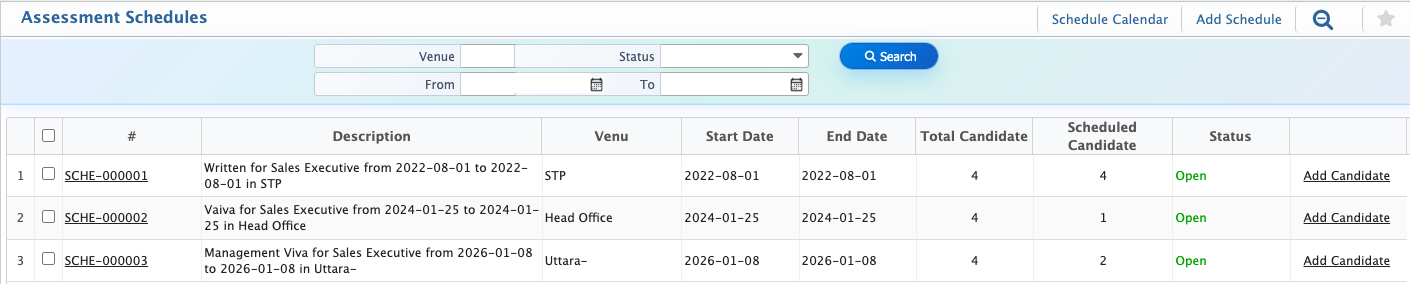
Add Candidate Assessment
| Field | Action |
|---|---|
| Vacancy | Select the vacancy for which the assessment is being conducted. |
| Written | Enter the marks obtained by the candidate in the written assessment. |
| Viva | Enter the marks obtained by the candidate in the viva/interview assessment. |
| Management Viva | Enter the marks obtained by the candidate in the management viva assessment. |
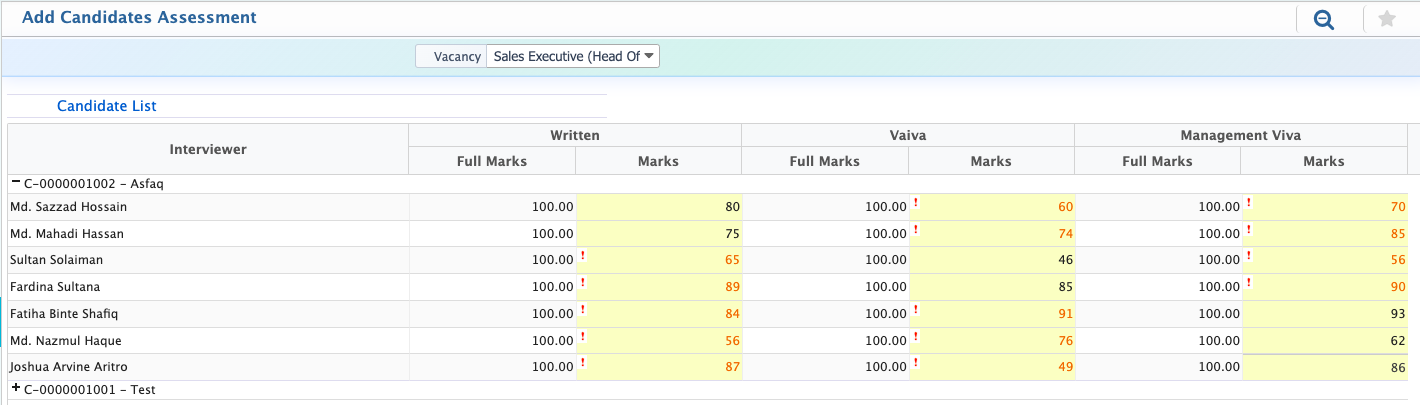
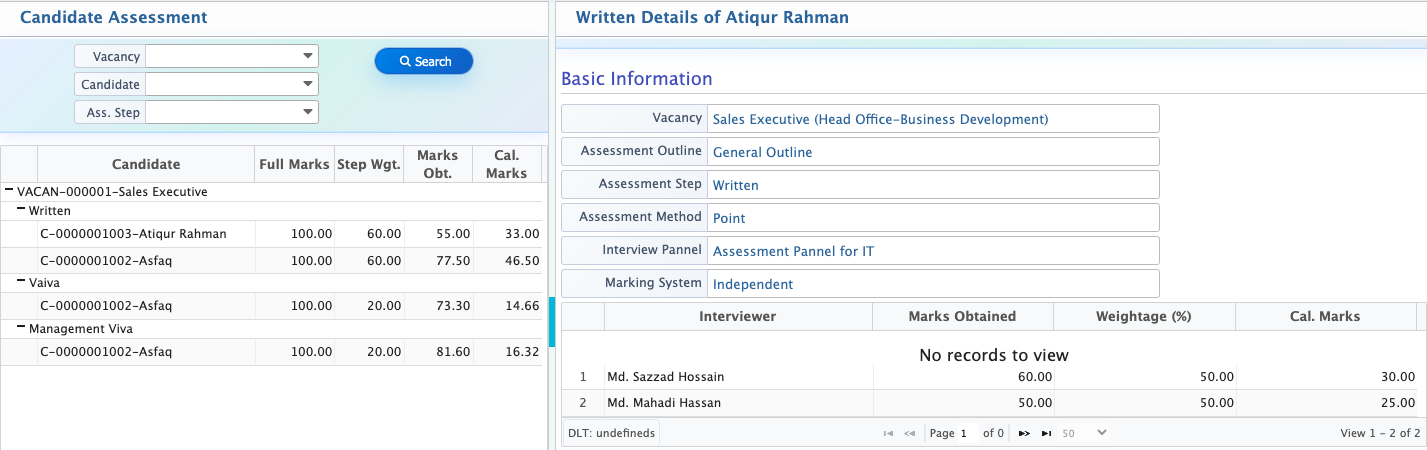
After recording candidate assessments, they appear in the Assessment List where all evaluation records are displayed with details such as vacancy, candidate, and assessment step. Users can filter and search the list based on specific vacancies or candidates using name or code to quickly locate required assessment data. The list also allows filtering by assessment step, such as Written, Viva, or Management Viva, to view results stage by stage.