Employee Transportation
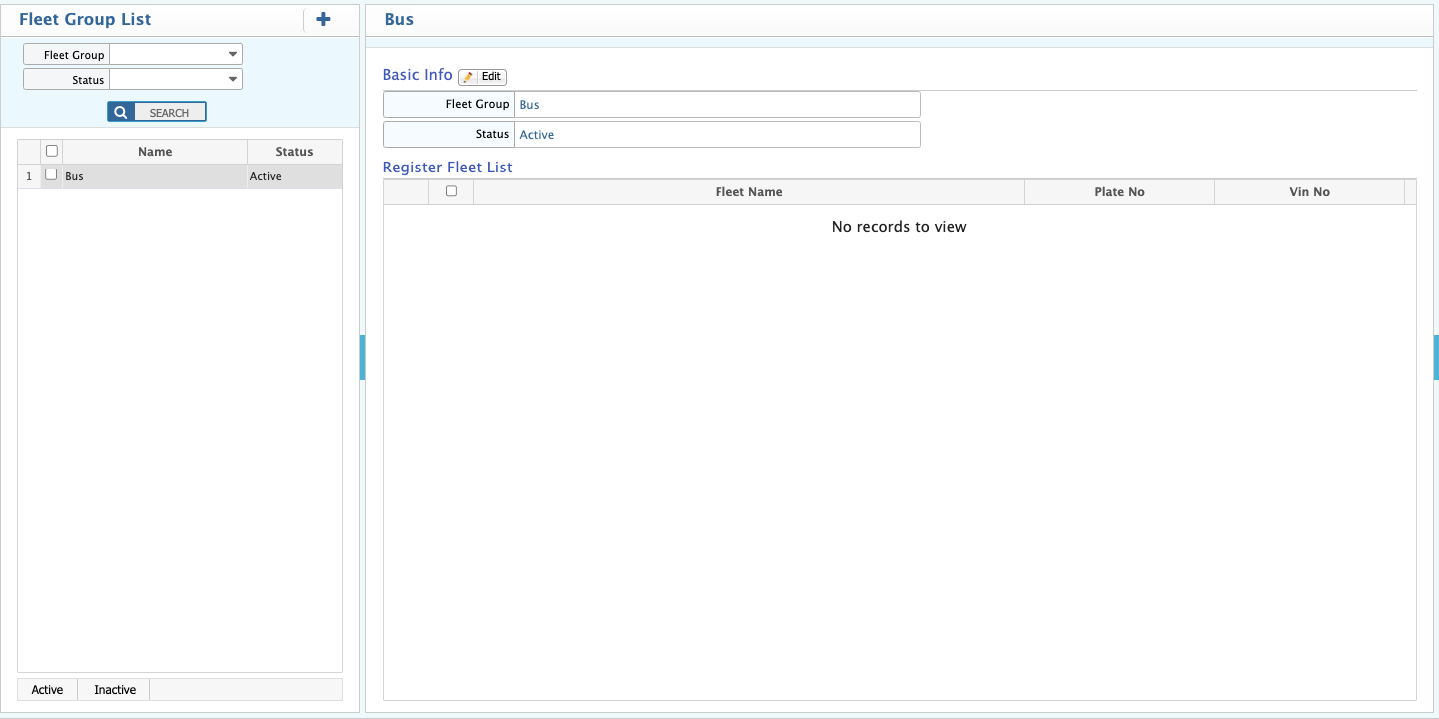
Add Fleet Group
Enables grouping and registering fleets into the system, ensuring a structured organization.

Fleet Group List
Here user can see the fleet group list
Fleet Add
User can add new fleets on this page

Fleet List
Here user can see fleet list
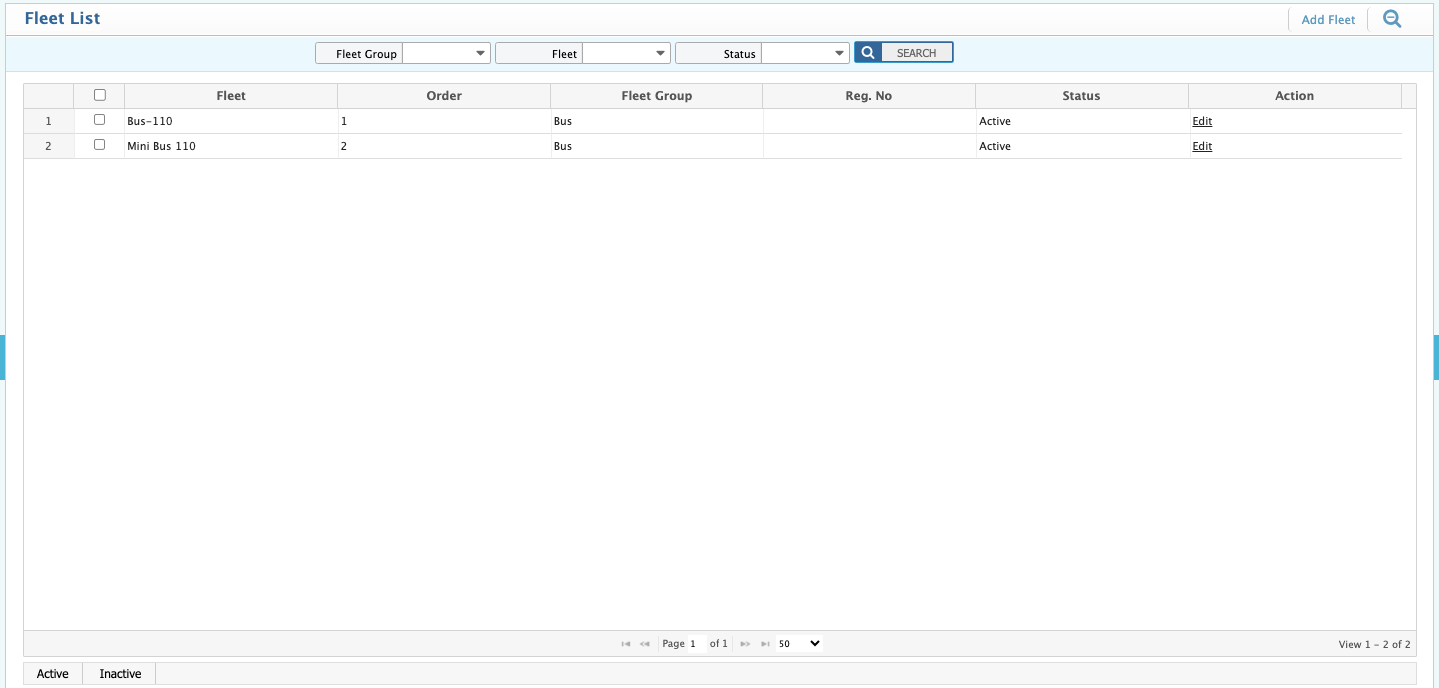
Header and Navigation:
- Fleet List Header: Indicates this section displays a list of vehicles or assets in the fleet.
- Add Fleet Button: Allows users to add new fleet items.
- Search Icon (Magnifying Glass): Allows users to search for specific fleet items.
- Filtering Options
- Fleet Group: Dropdown to filter by fleet group.
- Fleet: Dropdown to filter by fleet type or category.
- Status: Dropdown to filter by fleet status (e.g., Active, Inactive).
- Search Button: Initiates the search based on the selected filters.
Fleet List Table:
- Checkbox: Allows users to select fleet items for bulk actions.
- Fleet: Displays the name or identifier of the fleet item (e.g., Bus-110, Mini Bus 110).
- Order: Displays the order or sequence number of the fleet item.
- Fleet Group: Displays the group or category the fleet item belongs to (e.g., Bus).
- Reg. No: Displays the registration number of the fleet item (currently empty for both items).
- Status: Displays the current status of the fleet item (e.g., Active).
- Action (Edit): Allows users to edit the details of the fleet item.
Register a Fleet
Includes functionality to manage fleet lists, unregister fleets, and keep track of both active and inactive fleets.
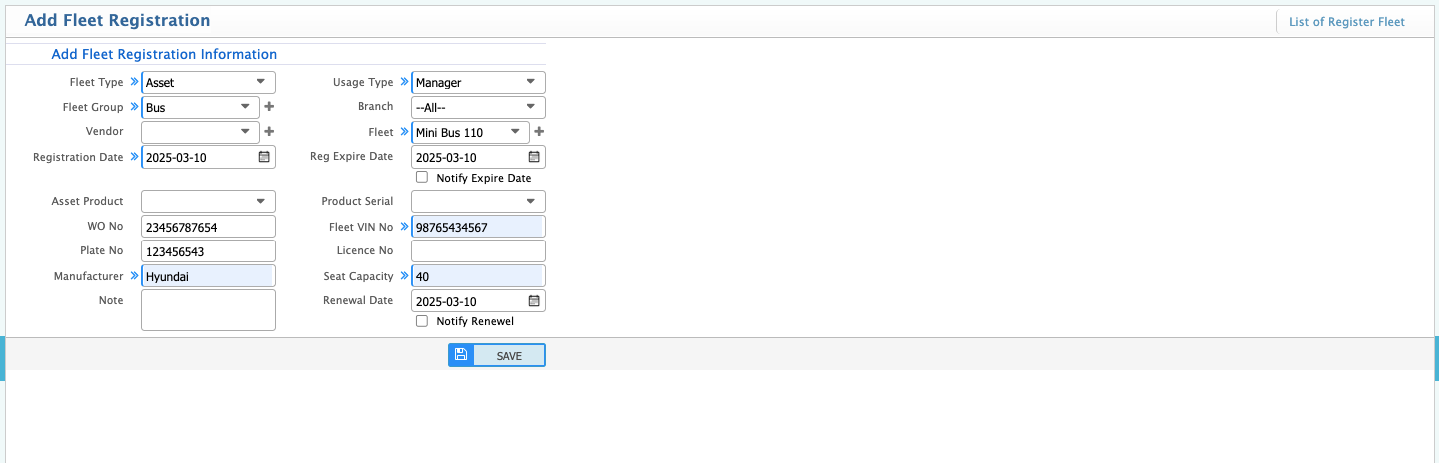
Register Fleet List
Users can see the registered fleet list.
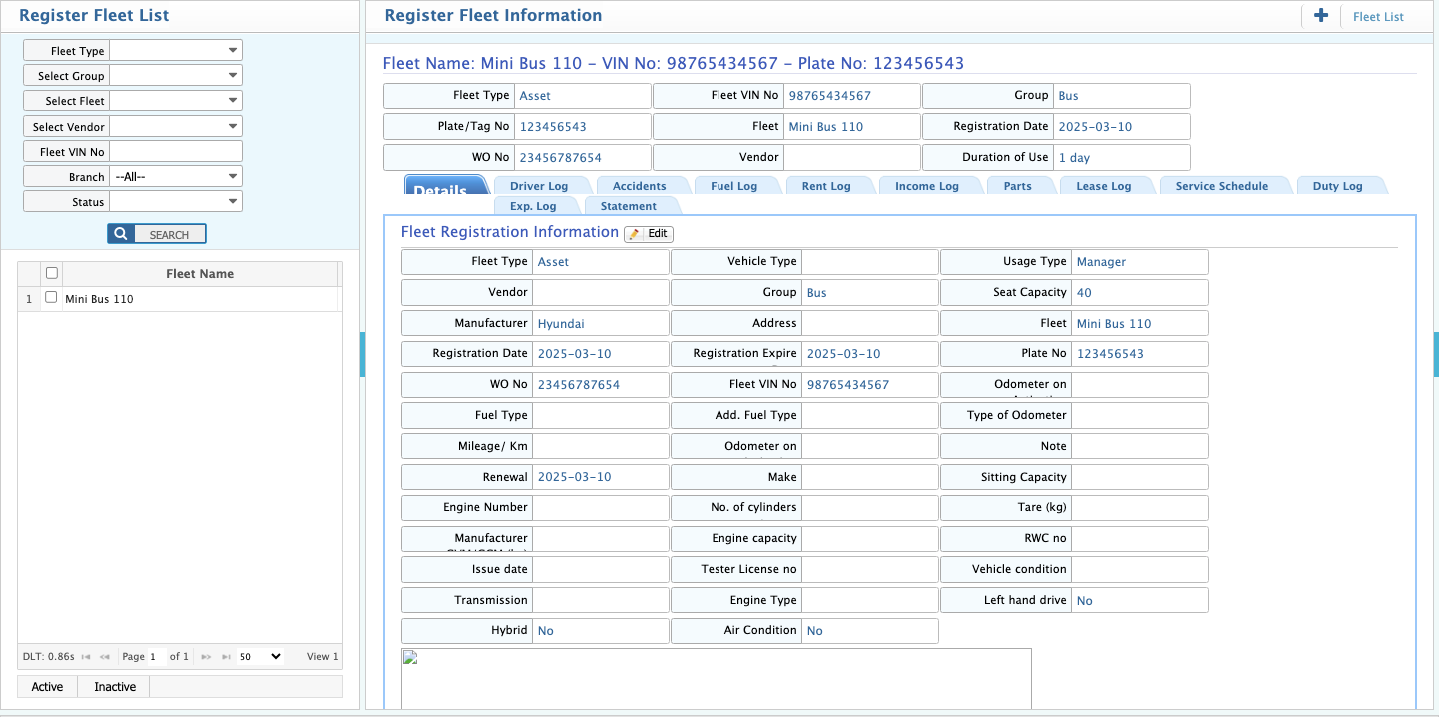
This screenshot shows the "Register Fleet List" and "Register Fleet Information" interfaces, likely part of a fleet management system used in Dhaka, Bangladesh, given the context. Let's break down the components and their functionality:
Left Panel: Register Fleet List
-
Register Fleet List Header: Indicates this section displays a list of registered fleet items.
-
Add Button (+): Allows users to add new fleet items.
-
Filtering Options:
- Fleet Type: Dropdown to filter by fleet type.
- Select Group: Dropdown to filter by fleet group.
- Select Fleet: Dropdown to filter by specific fleet item.
- Select Vendor: Dropdown to filter by vendor.
- Fleet VIN No: Text field to filter by VIN number.
- Branch -All-: Dropdown to filter by branch.
- Status: Dropdown to filter by status.
- Search Button: Initiates the search based on the selected filters.
-
Fleet List Table:
- Checkbox: Allows users to select fleet items for bulk actions.
- Fleet Name: Displays the name of the fleet item (e.g., Mini Bus 110).
-
Status Filters (Active/Inactive): Allows users to quickly filter the list by active or inactive fleet items.
Right Panel: Register Fleet Information
- Register Fleet Information Header: Indicates this section displays detailed information about a selected fleet item.
- Fleet Name, VIN, and Plate Number: Displays the fleet item's name, VIN, and plate number at the top.
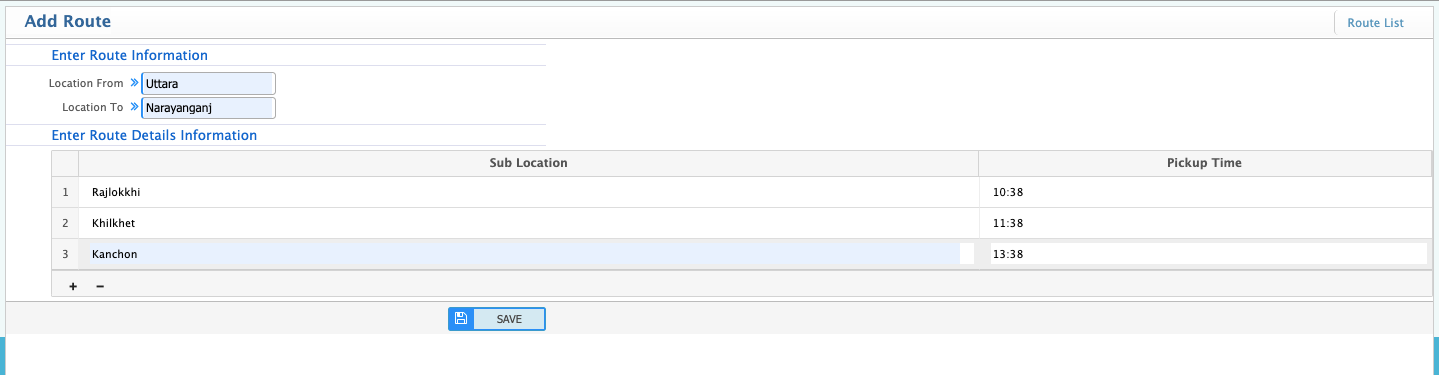
Add Route
User will add new route in this page
Fleet Route List
Users can see the fleet route list in this page.
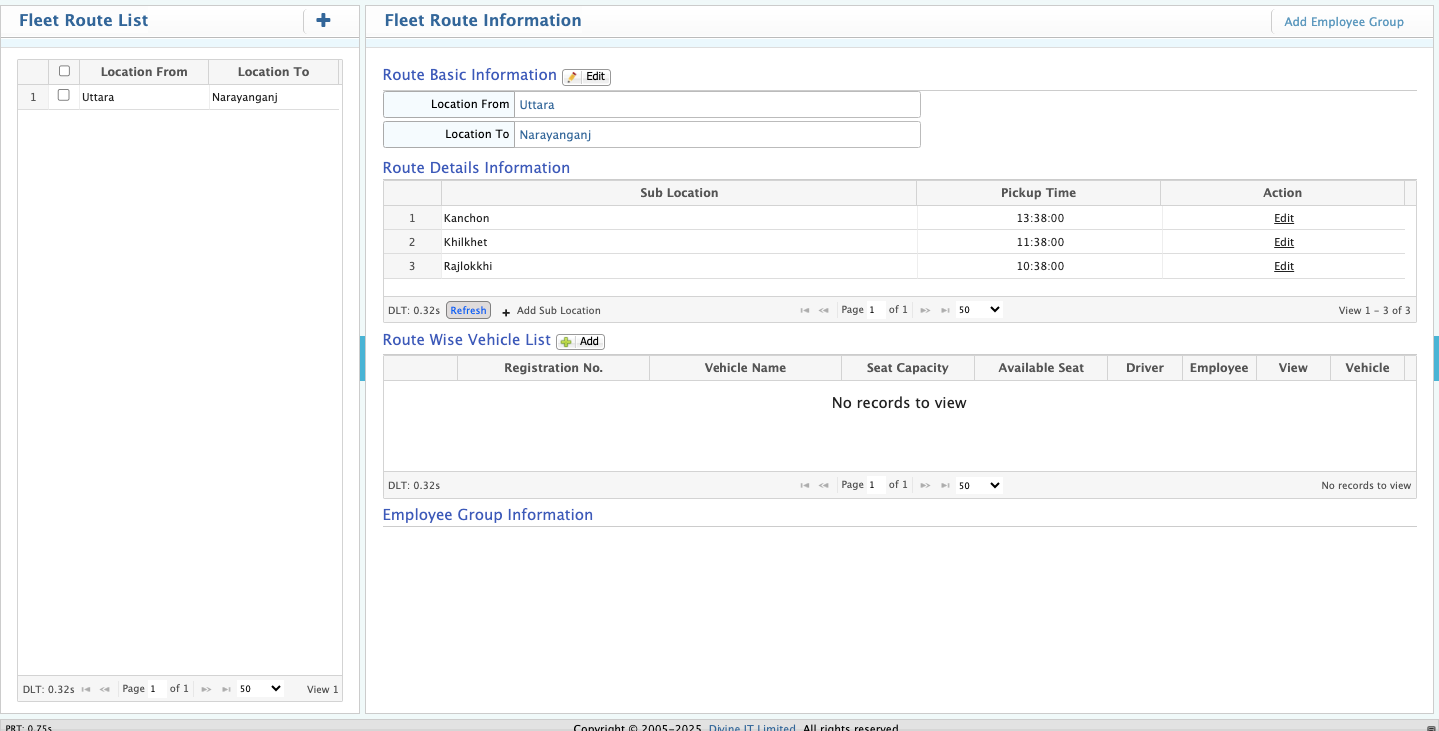
This screenshot depicts a "Fleet Route List" management interface, likely used by a transportation or logistics company in Dhaka, Bangladesh, based on the location information you provided. Let's break down the components and their functionality:
Left Panel: Fleet Route List
- Fleet Route List Header: Indicates this section displays a list of defined fleet routes.
- Add Button (+): Allows users to create new fleet routes.
- Route List Table:
- Checkbox: Allows users to select routes for bulk actions.
- Location From: Displays the starting location of the route (e.g., Uttara).
- Location To: Displays the destination location of the route (e.g., Narayanganj).
- Pagination and View Selection: Allows users to navigate through the list and change the number of items displayed.
Right Panel: Fleet Route Information
- Fleet Route Information Header: Indicates this section displays details about the selected route.
- Add Employee Group Link: Allows users to add employee groups to the route.
- Route Basic Information (Edit): Displays basic information about the route:
- Location From: The starting location (e.g., Uttara).
- Location To: The destination location (e.g., Narayanganj).
- Edit Button: Allows users to modify the basic route information.
- Route Details Information: Displays specific details about the route:
- Sub Location: Lists the sub-locations or stops along the route (e.g., Kanchon, Khilkhet, Rajlokkhi).
- Pickup Time: Shows the scheduled pickup time for each sub-location.
- Action (Edit): Allows users to edit the details of each sub-location.
- Add Sub Location Button: Allows users to add new sub-locations to the route.
Route Wise Vehicle List (Add):
- Displays the vehicles assigned to the route:
- Registration No.: Displays the vehicle's registration number (e.g., REG-000001).
- Vehicle Name: Displays the vehicle's name or type (e.g., Mini Bus 110).
- Seat Capacity: Shows the total seat capacity of the vehicle.
- Available Seat: Shows the number of available seats.
- Driver (Edit): Allows users to assign or change the driver.
- Employee (Add): Allows users to add employees to the vehicle's passenger list.
- Details: Provides more detailed information about the vehicle.
- Add Button: Allows users to add vehicles to the route. Employee Group Information: This section is currently empty, suggesting it will display information about employee groups assigned to the route.
Add Transport Card
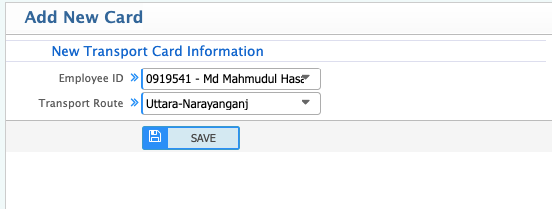
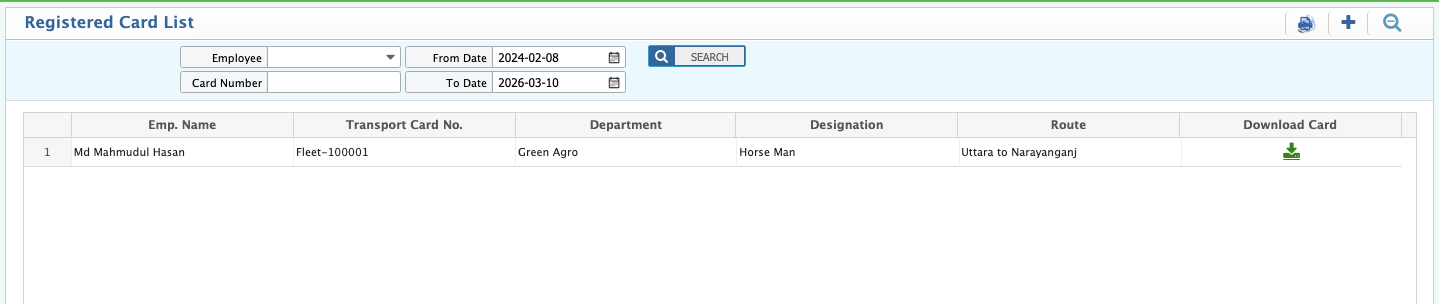
Registered Card List