Book Requisition
Book Requisition refers to the process by which students, faculty, or departments request books that are either not available in the library or need to be acquired. This module is part of a comprehensive library or academic resource management system and ensures that book needs are formally tracked, reviewed, and fulfilled as per institutional guidelines.
It serves as a bridge between resource demand and procurement, ensuring the availability of relevant academic materials in time.
Key Features
- Book Request Submission – Users can request new books by filling out basic details
- Request Tracking – Track the status (Pending, Approved, Rejected, Ordered, Received)
- User Role-Based Approval – Route requests through appropriate authority (Librarian, HoD, Dean)
- Multi-Book Requisition – Request single or multiple titles at once
- Category & Subject Tagging – Helps with organized procurement
- Request History Log – Complete audit trail of each request
- Report Generation – Track top requested books or departments with most requisitions
Steps to Utilize this Feature in PrismERP
Submit a Book Requisition
- Navigate to: Library > Book Requisition
- Click “New Requisition”
- Enter details: Title, Author, Edition, Quantity, Justification
- Submit for approval
Approve or Reject Request
- The assigned approver (e.g., Librarian/HoD) reviews pending requests
- Approve or reject with remarks
- Status updates automatically in the system
Procurement Coordination
- Approved requisitions can be forwarded to the Procurement or Purchase module
- Upon acquisition, books are updated in the Book Catalog and marked “Received”
Track Request Status
- Users can check: Approved, Ordered, Pending, or Rejected
- View history under My Requisitions
Generate Reports
- Use filters like Department, Date, or Status to track demand
- Export report for annual planning or budgeting
Requisition Management
Manage book requests.
Adding a New Requisition
- Go to Add Requisition.
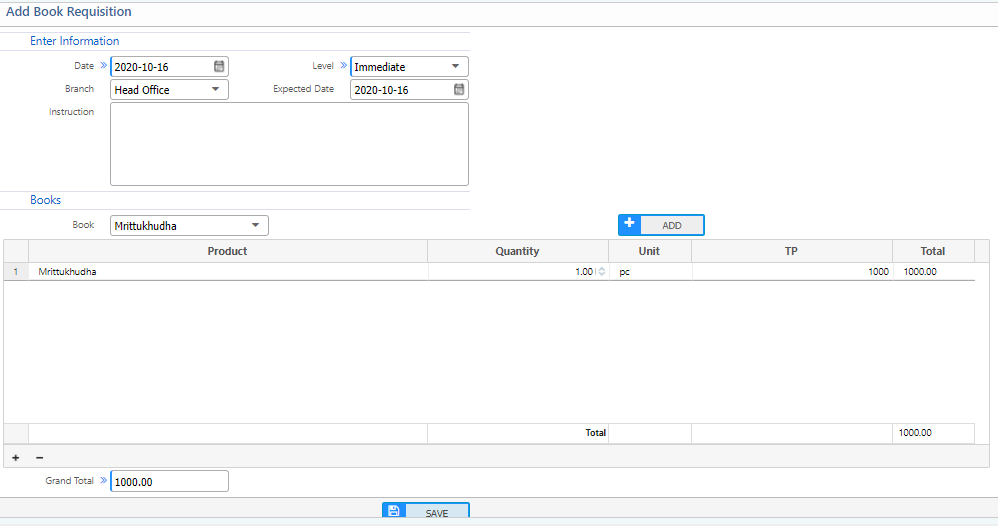
- Enter the requisition details:
- Branch – Library branch making the request.
- Level – Urgency level of the requisition.
- Date – Expected delivery date.
- Book – Select books to request.
- Click Save.
Requisition List
View and track all requisitions.
- Navigate to Requisition List
