Book Lending
Book Lending feature in the PrismERP is used to issue books to members by selecting the member, book accession number, lend date, and expected return date. All lending records appear in the Book Lending List where users can search and filter by member, book, accession number, or status. Users can also process returns by updating the record, applying fines if needed, and managing overdue or completed transactions.
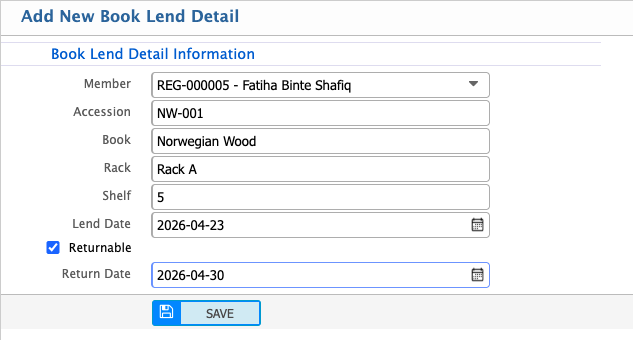
Add New Book Lending
| Field | Action |
|---|---|
| Member | Select the library member who is borrowing the book. |
| Accession | Enter the book accession number to identify the specific copy. |
| Lend Date | Select the date when the book is lent to the member. |
| Returnable | Specify whether the book is returnable. |
| Return Date | Select the expected return date for the borrowed book. |
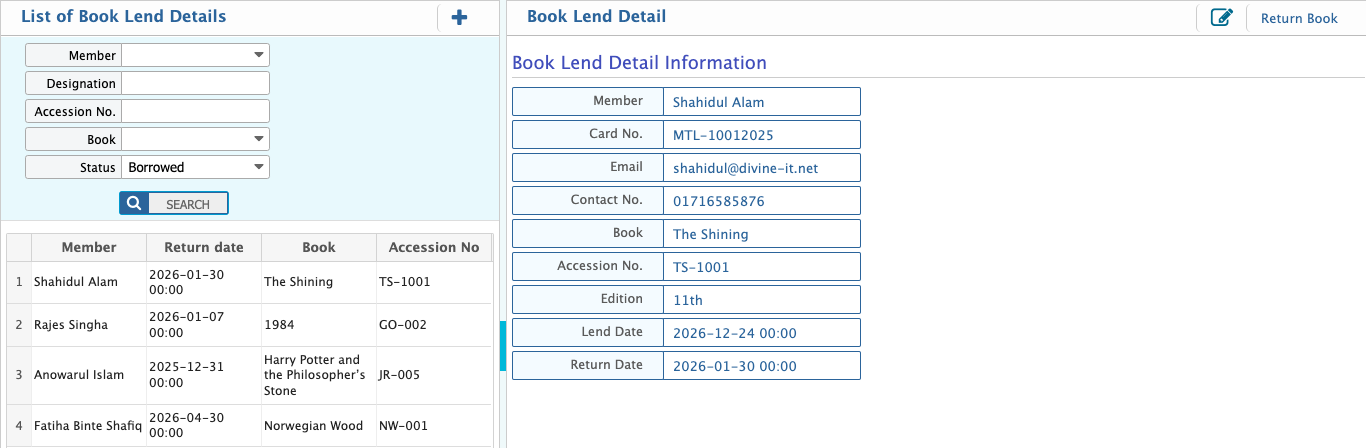
Users can manage book lending records using multiple search and filter options. Records can be filtered by Member name, Designation, Accession No., or Book title to quickly locate specific entries. Users can also filter by Status such as Borrowed, Returned, or Overdue to track book availability. The system allows viewing basic information including Member, Card Number, Email, Contact Number, Book, and Accession Number. Additionally, users can mark a book as returned using the Return Book option, which updates the record status accordingly.
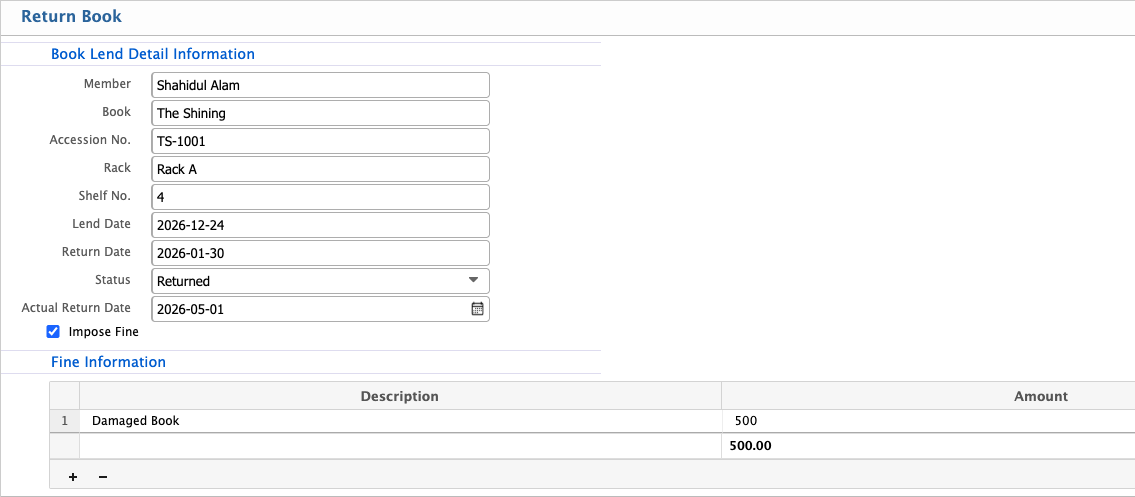
Return Book
Users can return a book directly from the book lending page by selecting the record and marking it as returned.
| Field | Action |
|---|---|
| Status | Select the condition of the book at return |
| Actual Return Date | Enter the actual date the book was returned. |
| Impose Fine | Mark to impose a fine if applicable. |
| Fine Information – Description | Enter a description of the reason for the fine |
| Fine Information – Amount | Enter the fine amount to be charged to the member. |
Upcoming Book Return
Users can view the upcoming book return list at a glance by filtering records using Member name and selecting a date range with Date From and Date To. From this list, they can easily identify pending returns and directly initiate the return process using the Action option.
