Book Management
The Book Management feature in PrismERP Library System is used to manage all book-related setup and records, including genres, categories, and book details. It allows users to create and maintain book classifications, add new books with complete bibliographic and inventory information, and manage book records through a structured list view. Users can also search, filter, and update book information, including accession and possession details as required.
Add New Genre
| Field | Action |
|---|---|
| Name | Enter the name of the genre of book.. |
| Description | Provide a brief description of the genre. |
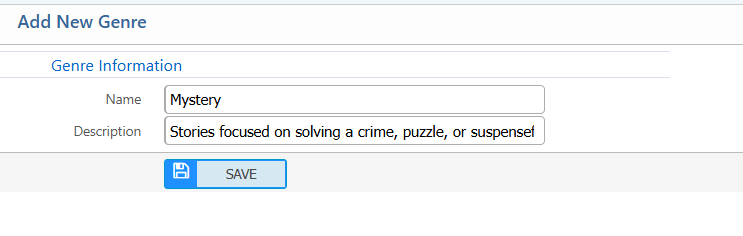
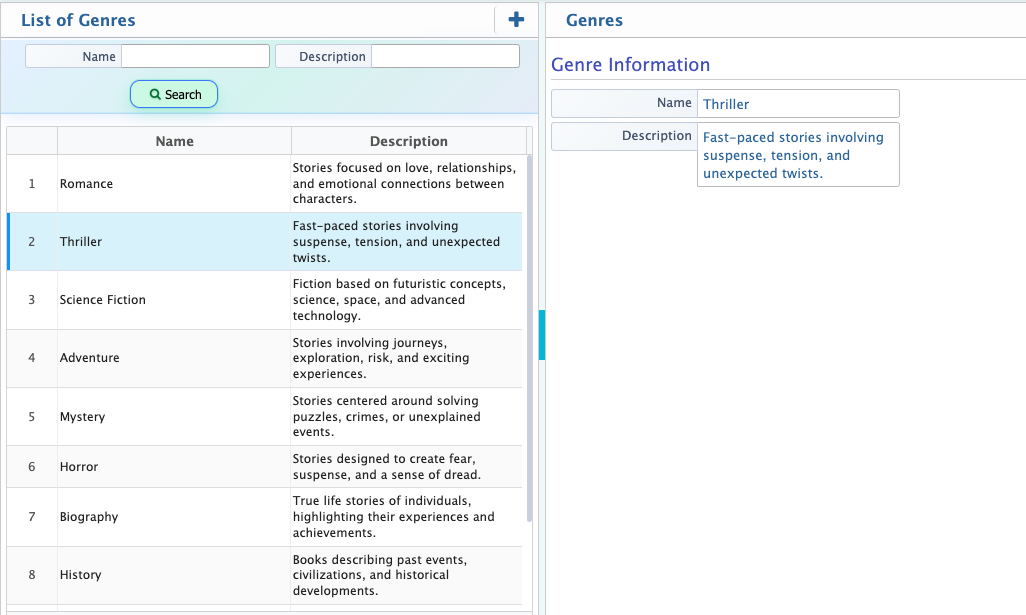
After adding a genre, it will be available in the Genre List where it can be searched, viewed, and managed accordingly. The system allows viewing basic details of each genre, including its name and description. Users can also edit genre information such as updating the name or description, and remove a genre permanently from the list when it is no longer needed.
Add Book Category
| Field | Description / Action |
|---|---|
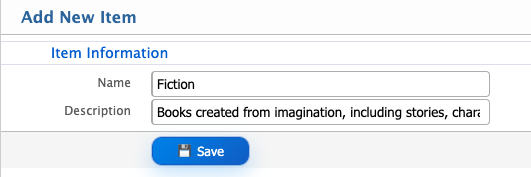
| Name | Enter the name of the book category. This helps classify books into specific groups. |
| Description | Provide a brief description of the category to explain its purpose or the type of books it includes. |
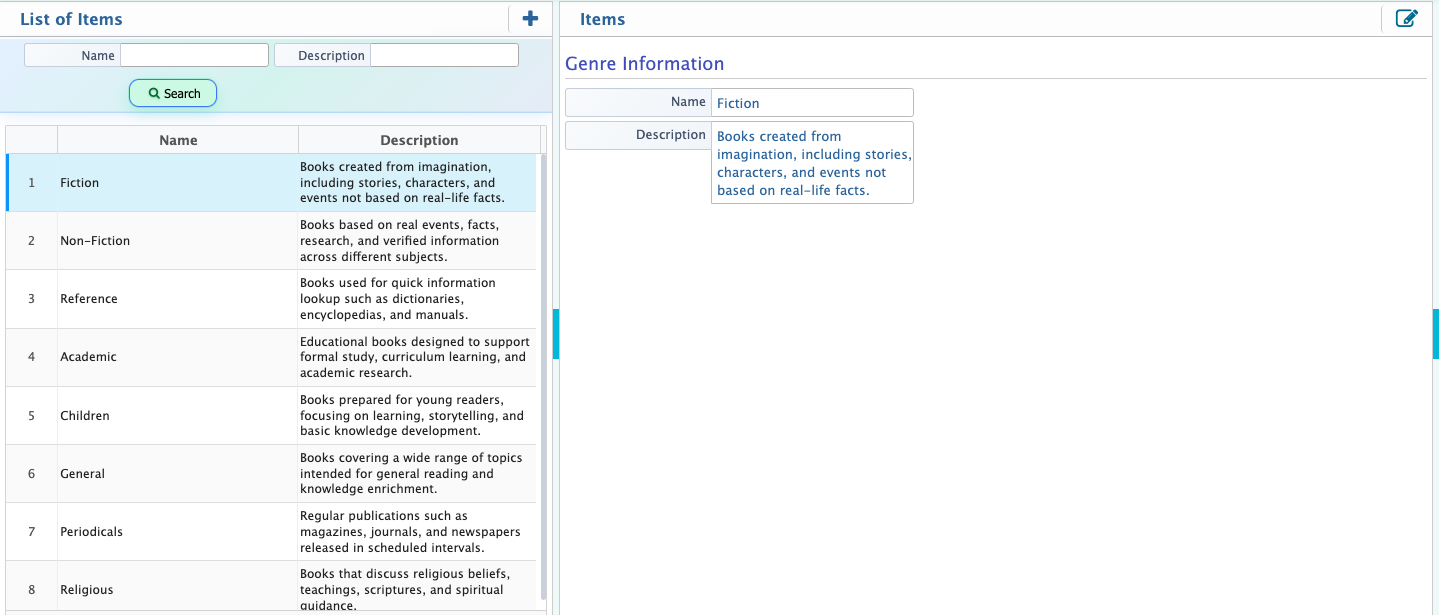
After adding a book category, it will appear in the Book Category list where users can search items by full or partial name or by keywords from the description. Users can view basic details such as the category name and description for each record. From the list, users also have the option to add new categories or edit existing category details, including updating the name or description as required.
Add New Book
| Field | Action |
|---|---|
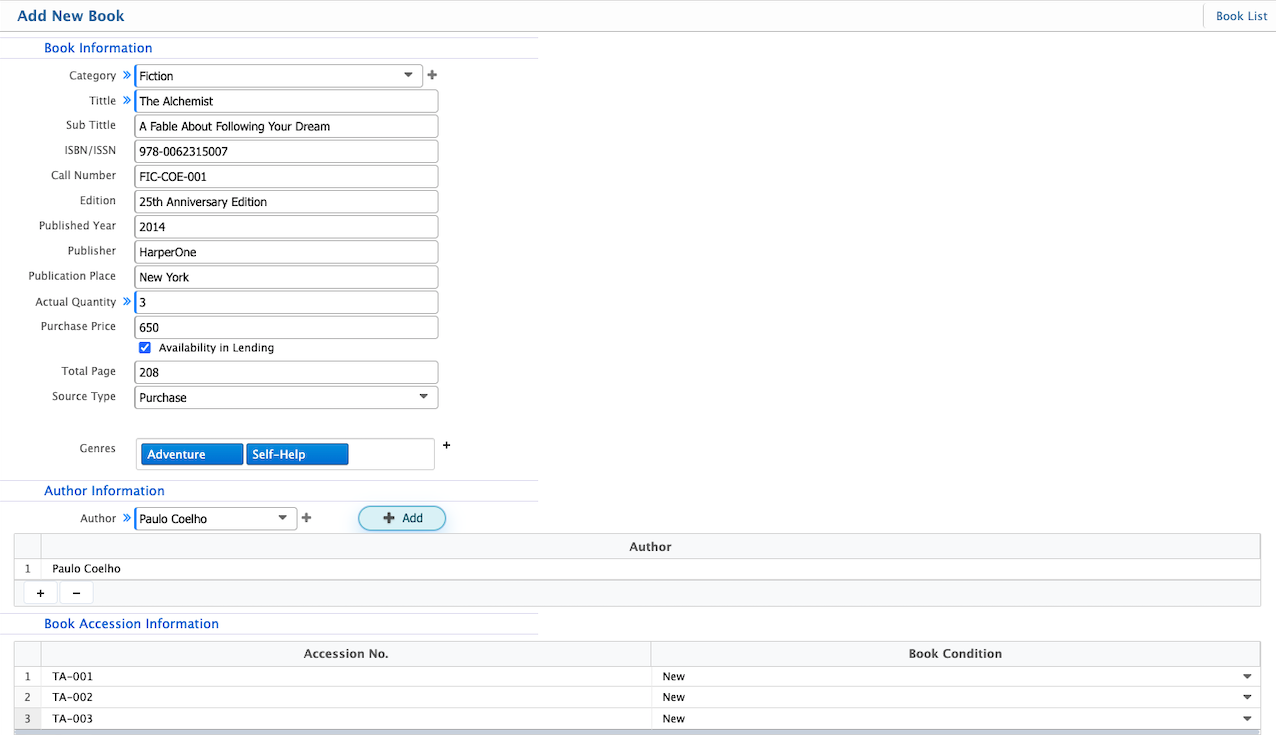
| Category | Select the book category to classify the book (e.g., Fiction, Academic, Children’s Books). |
| Title | Enter the main title of the book. |
| Sub Title | Enter the subtitle of the book, if any. |
| ISBN/ISSN | Enter the book’s ISBN or ISSN number for identification. |
| Call Number | Enter the library call number for shelving and tracking. |
| Edition | Specify the edition of the book. |
| Published Year | Enter the year the book was published. |
| Publisher | Enter the name of the publisher. |
| Publication Place | Specify the city or place where the book was published. |
| Actual Quantity | Enter the total number of copies purchased. |
| Purchase Price | Enter the price paid per copy. |
| Availability in Lending | Specify how many copies are available for lending. |
| Total Page | Enter the total number of pages in the book. |
| Source Type | Select the source type, e.g., Purchase or Donation. |
| Genres | Select the relevant genres for the book (e.g., Fiction, Mystery, Science Fiction). |
| Author | Select or add the author(s) of the book. |
| Accession No. | Enter the unique accession number for the book copy. |
| Book Condition | Specify the condition of the book (e.g., New, Good, Worn). |
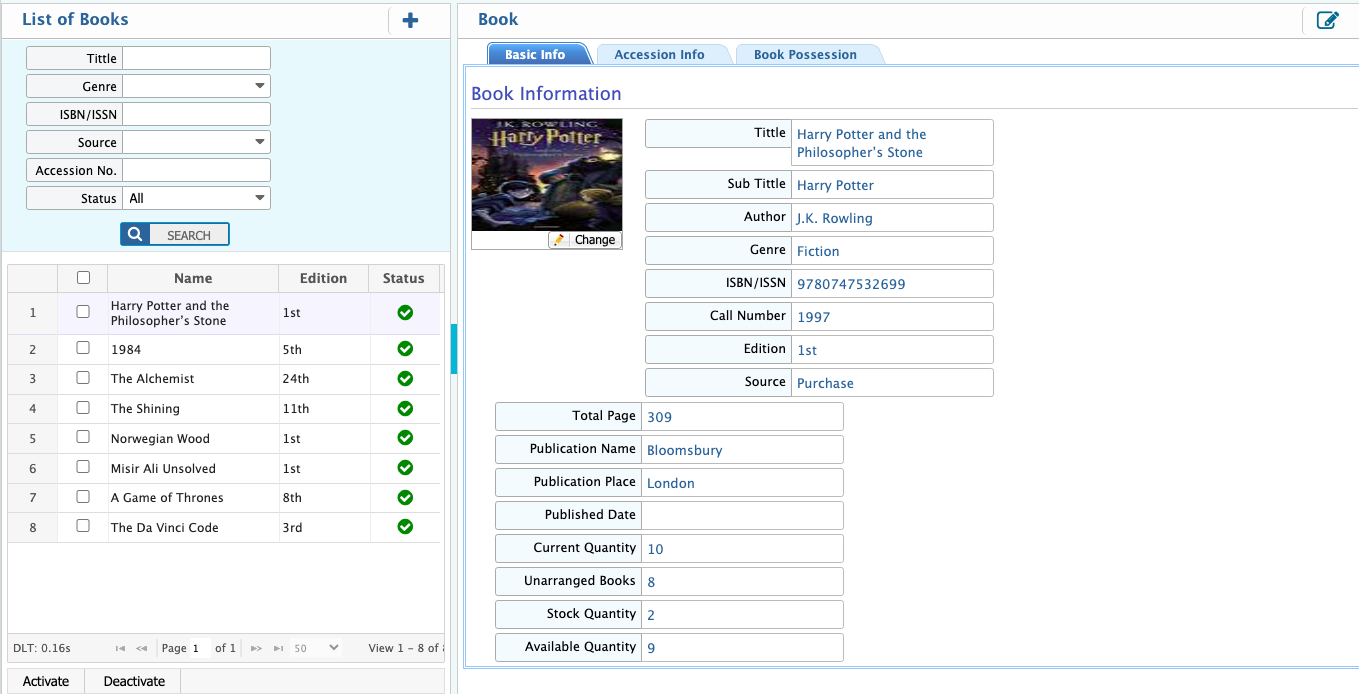
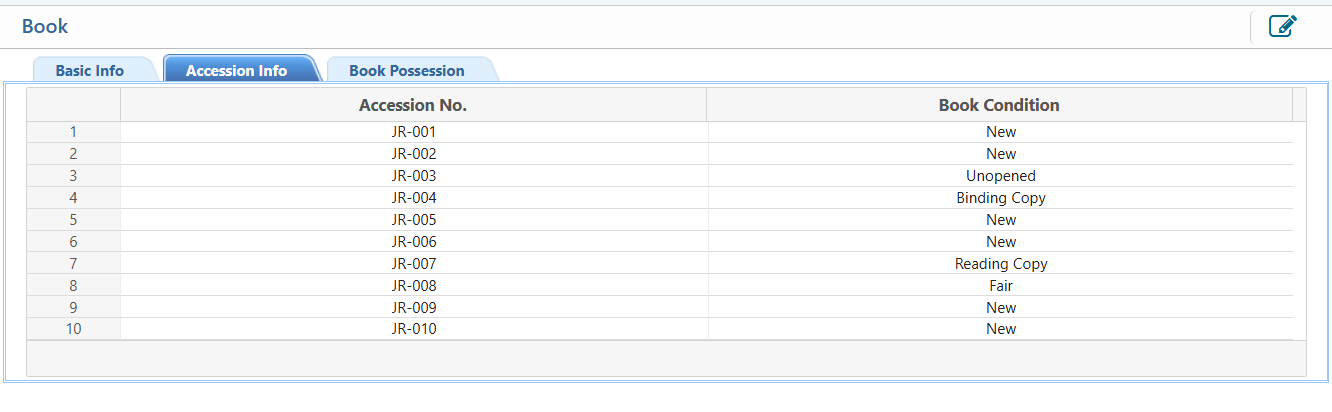
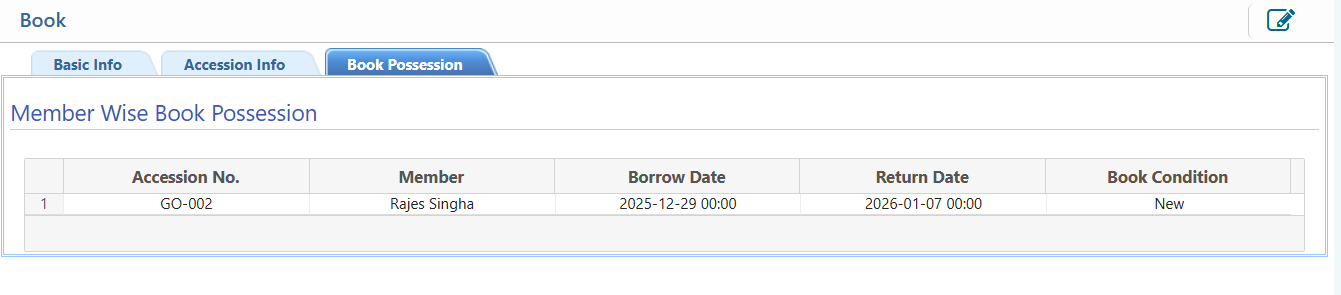
After adding a book, it will be listed in the Book List where users can easily search and filter records using different options such as full or partial title, genre, ISBN/ISSN, source type, accession number, and status. Each book record can be opened to view basic information, including title, edition, genre, and current status. Users can also access accession details such as accession number and book condition, along with book possession information to check whether the book is available or currently issued to a member. From this list, users can update book details and manage its records whenever needed.