Complaint Initiation
The Complaint Initiation section enables users to formally record employee complaints in PrismERP. Users can enter details such as Branch, Division, Department, Section, Sub Section, Floor, and the employee against whom the complaint is raised. A detailed offense description, type of misconduct, attachments, and complainant information can also be added, including cases submitted on behalf of someone else. Each complaint is recorded with a submission date for proper tracking.
After adding, complaints appear in the Complaint List, where they can be located using filters like Employee, Branch, Date Range, Status, Reference Number, or Show Cause Number. From the list, users can directly edit or delete complaints as needed. The detailed view allows reviewing complaints, adding show cause notices, replying, and managing attachments, providing a complete record for reference and follow-up.
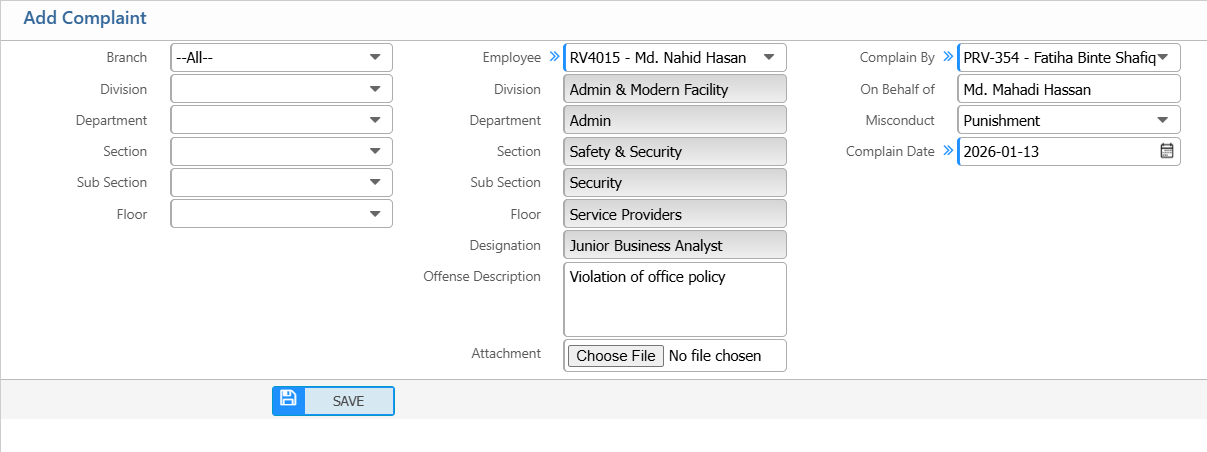
Add New Complaint
| Field | Action |
|---|---|
| Branch | Select the branch related to the complaint. |
| Division | Select the division where the issue occurred. |
| Department | Select the relevant department. |
| Section | Select the section under the department. |
| Sub Section | Select the sub-section, if applicable. |
| Floor | Select the floor or work location. |
| Employee | Select the employee against whom the complaint is being raised. |
| Offense Description | Enter detailed information about the complaint or misconduct. |
| Attachment | Upload supporting documents related to the complaint, if any. |
| Complain By | Select the person submitting the complaint. |
| On Behalf Of | Select the employee if the complaint is submitted on someone else’s behalf. |
| Misconduct | Select the type or category of misconduct. |
| Complain Date | Select the date when the complaint is submitted. |
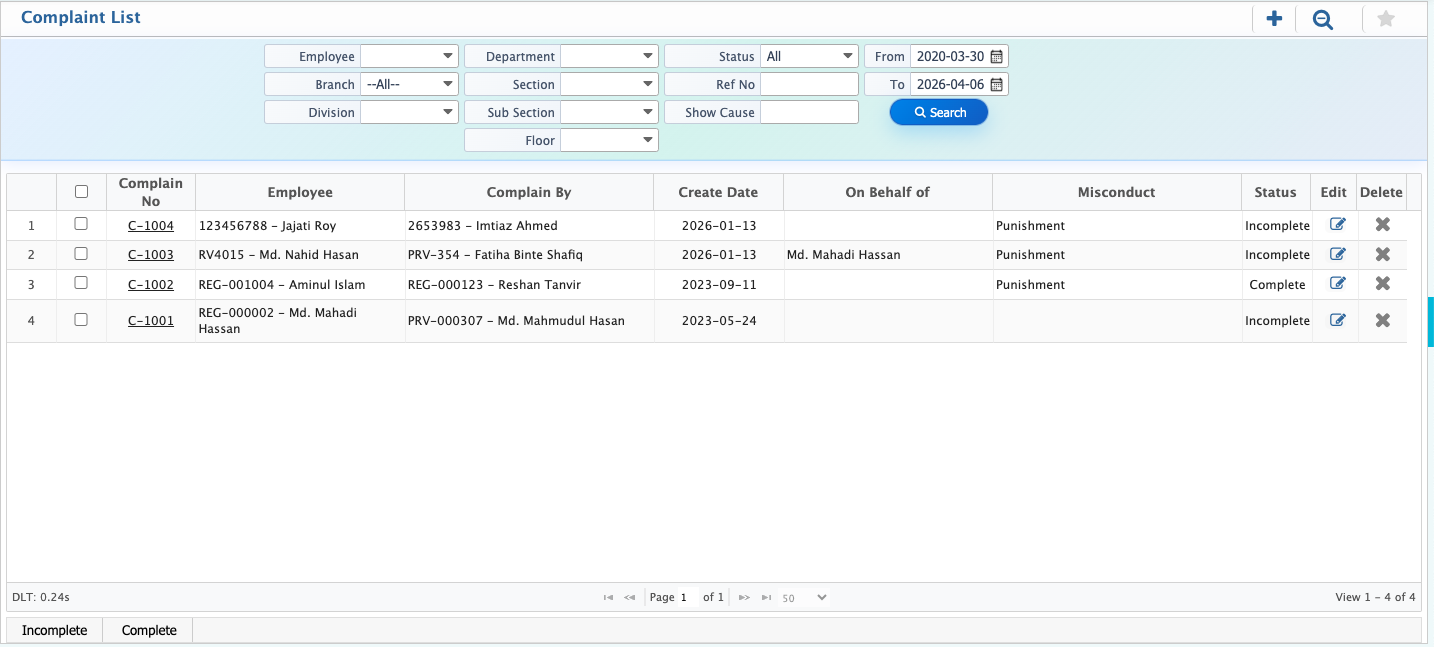
After adding a new complaint, the user can view it in the Complaint List and use the search and filter options to locate a specific entry. Filters are available for Employee, Branch, Date Range, Status, Reference Number, and Show Cause Number to quickly find the required complaint. From the list, users can also directly edit or delete any complaint as needed.
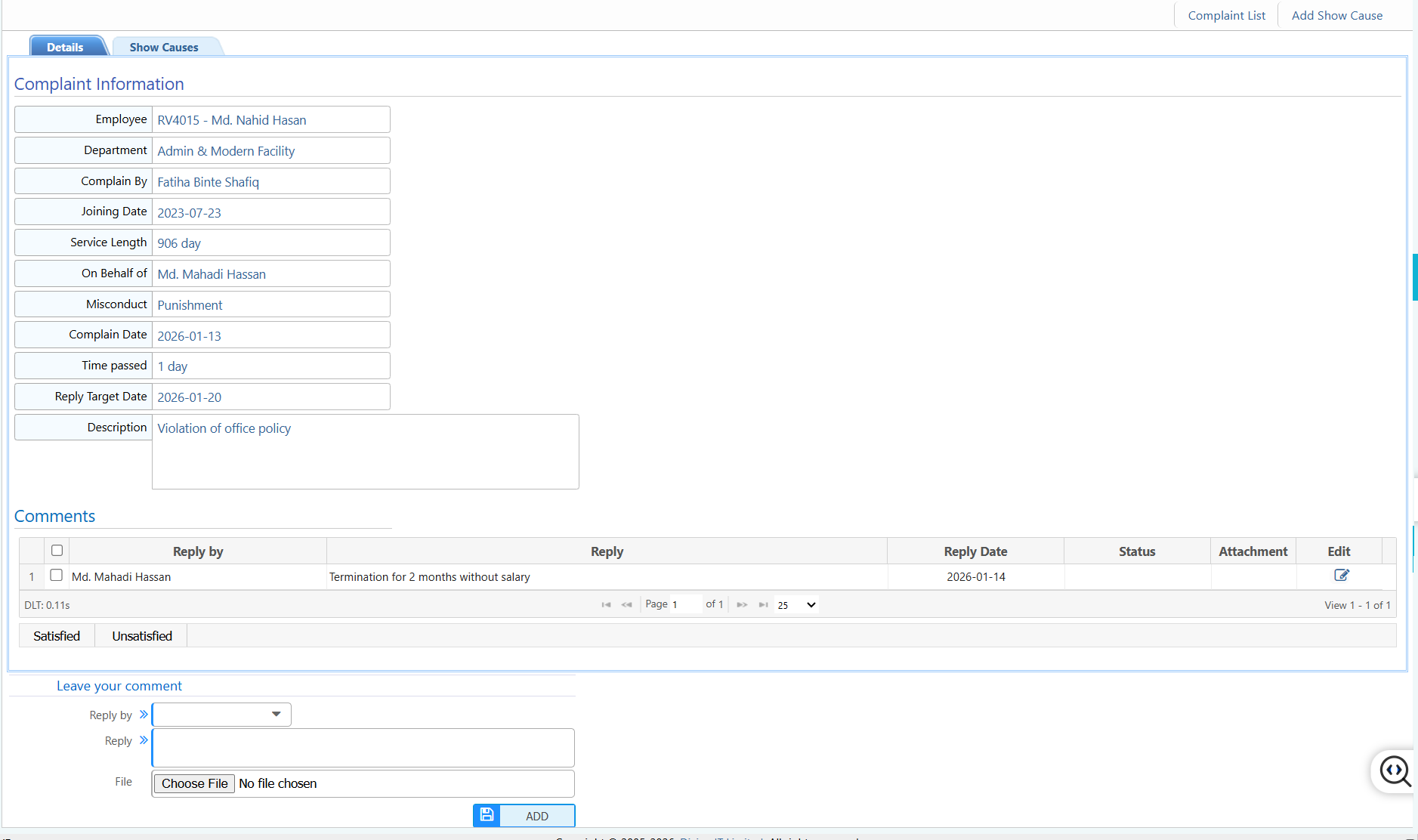
Each complaint can be viewed in detail from the Complaint List. Here, users can see all related information, respond, add show cause notices, and manage attachments for proper follow-up.
| Field | Action |
|---|---|
| Show Cause | Add a new show cause notice by entering complaint and misconduct details. |
| Details | View all complaints and show cause details for reference and action. |
| Reply by | Select the employee who will reply to the complaint. |
| Reply | Add the reply content to the complaint. |
| Attachment | Add, view, download, or delete attachments related to the complaint. |
| Edit | Edit the comment to the complaint if needed. |