Show Cause Processing
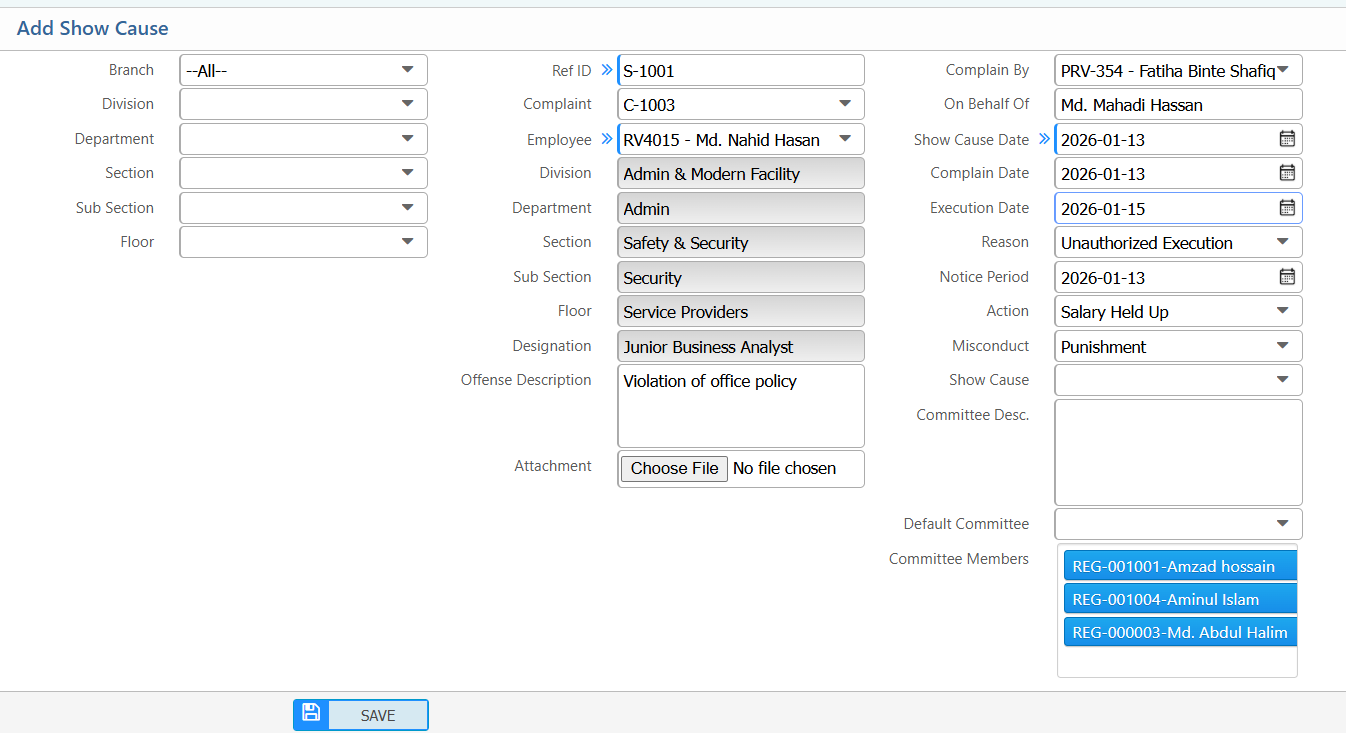
The Show Cause Processing section in PrismERP allows users to issue and track show cause notices linked to complaints. A new notice can be created by selecting the Branch, Division, Department, Section, Sub Section, Floor, the related complaint, and the employee involved. Users can add detailed offense descriptions, attachments, reasons, execution dates, notice periods, and committee information for proper accountability.
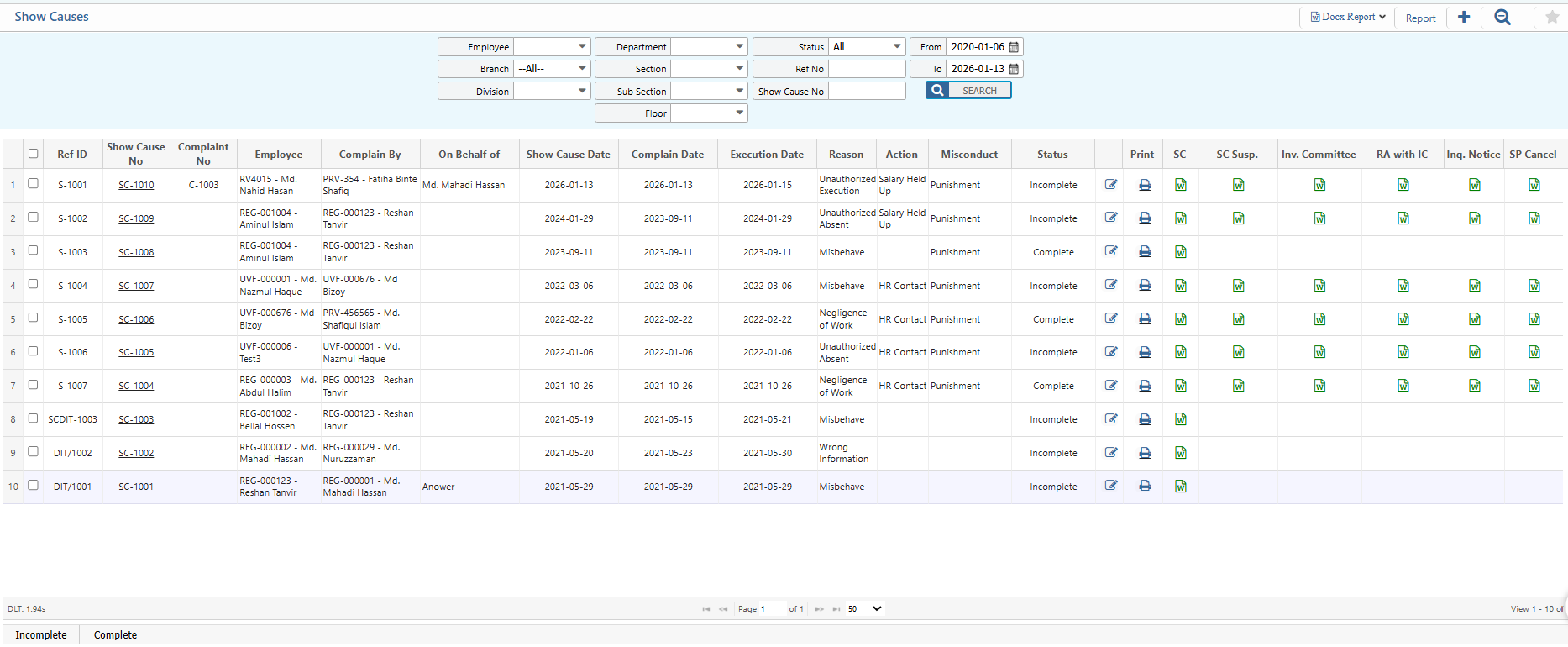
Once added, show cause notices appear in the Show Cause List in PrismERP, where users can search and filter by Employee, Branch, Division, Department, Section, Sub Section, Floor, Status, Reference Number, Show Cause Number, or Date Range. From the list, users can update the status, generate reports, and track progress. Each notice can also be viewed in detail to add replies, manage attachments, and edit comments for smooth follow-up and documentation.
Add Show Cause
| Field | Action |
|---|---|
| Branch | Select the branch related to the show cause. |
| Division | Select the division where the issue occurred. |
| Department | Select the department related to the show cause. |
| Section | Select the section under the department, if applicable. |
| Sub Section | Select the sub-section, if applicable. |
| Floor | Select the floor or work location. |
| Ref ID | Enter the reference ID of the complaint. |
| Complaint | Select the complaint associated with this show cause. |
| Employee | Select the employee for whom the show cause is being issued. |
| Offense Description | Enter the detailed offense description. |
| Attachment | Upload supporting documents, if any. |
| Complain By | Select the person who raised the complaint. |
| On Behalf Of | Select the employee if submitted on someone else’s behalf. |
| Show Cause Date | Select the date when the show cause is issued. |
| Execution Date | Select the date when the show cause is executed. |
| Notice Period | Enter the notice period, if applicable. |
| Reason | Enter the reason for issuing the show cause. |
| Action | Specify any required actions related to the show cause. |
| Misconduct | Select the type or category of misconduct. |
| Show Cause Committee Desc. | Enter description or purpose of the show cause committee. |
| Default Committee | Select if a default committee is being used. |
| Committee Members | Select members of the show cause committee. |
After adding a new show cause notice, the user can view it in the Show Cause List and use the search and filter options to locate a specific entry. Filters are available for Employee, Branch, Division, Department, Section, Sub Section, Floor, Status, Reference Number, Show Cause Number, and Date Range to quickly find the required record. From the list, users can also update the status to complete or incomplete and generate reports in multiple formats as needed.
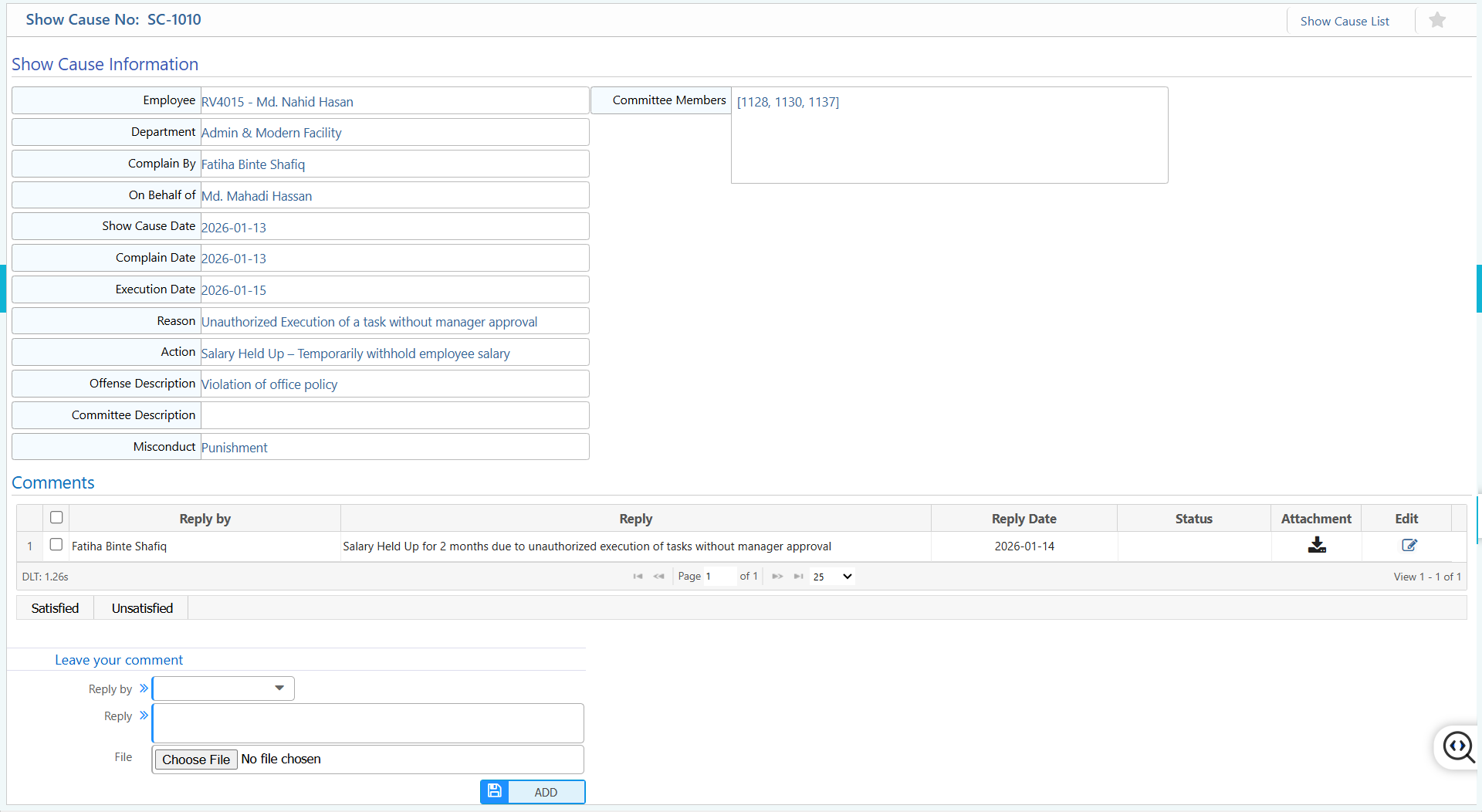
Each show cause notice can be viewed in detail from the Show Cause List. Here, users can see all related information, respond, add replies, and manage attachments to ensure proper follow-up and tracking.
| Field | Action |
|---|---|
| Show Cause Information | View all information of the show cause notice, including employee, department, complainant, on behalf of, show cause data etc. |
| Reply by | Select the employee who will reply to the show cause notice. |
| Reply | Add the reply to the show cause. |
| Attachment | Add, view, download, or delete attachments related to the show cause notice. |
| Edit | Edit the show cause comment if needed. |