Warning Letter Resolution
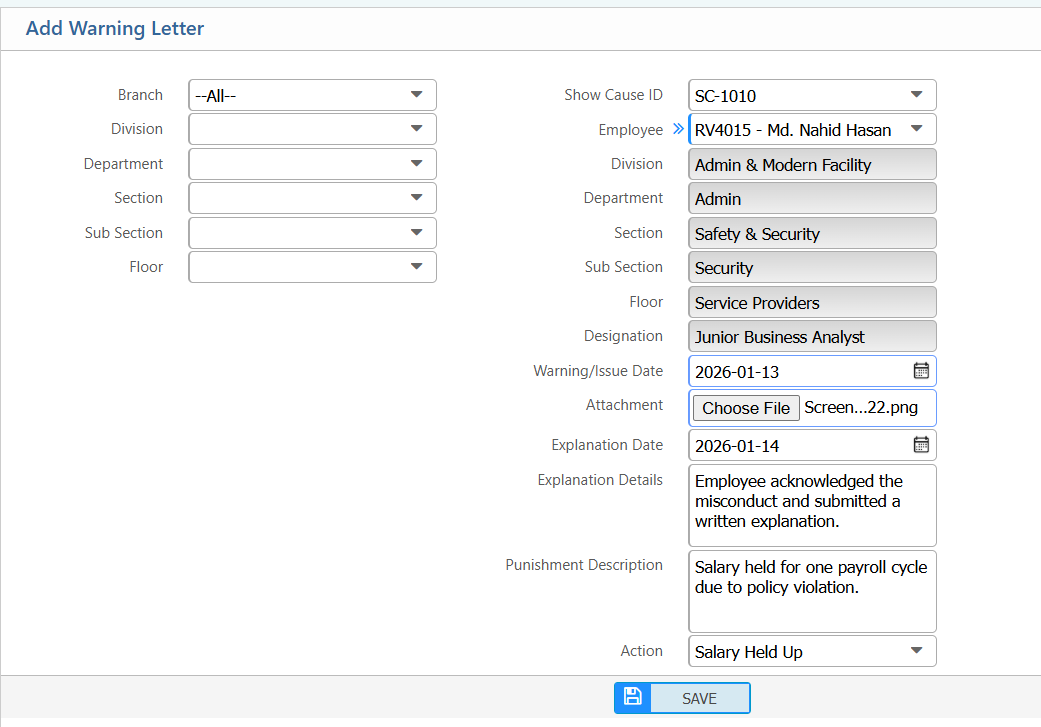
The Warning Letter Resolution section in PrismERP allows users to issue and track warning letters linked to show cause notices. A new warning letter can be created by selecting organizational details such as Branch, Division, Department, Section, Sub Section, and Floor, along with the related show cause ID and employee. Users can record the warning or issue date, upload supporting attachments, capture the employee’s explanation, and specify the punishment or corrective action, as well as the final action taken.
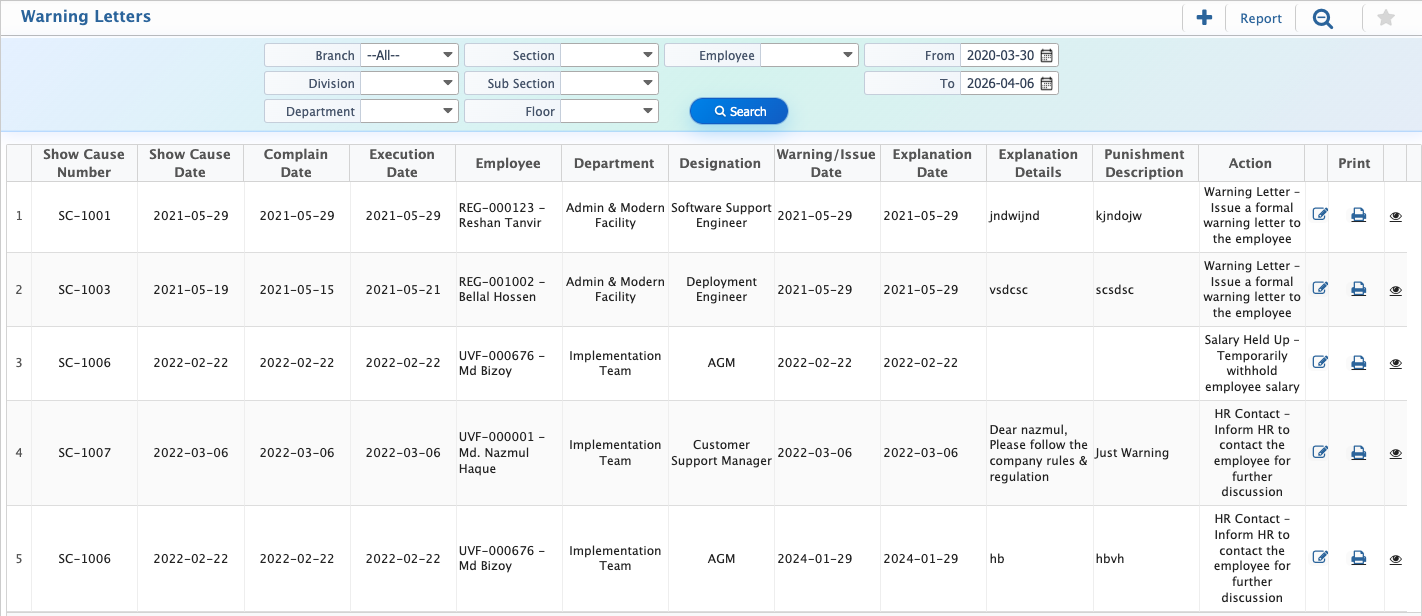
Once added, warning letters appear in the Warning Letter List in PrismERP, where users can search and filter by Employee, Branch, Division, Department, Section, Sub Section, Floor, or Date Range. From the list, users can edit existing entries, add new letters, generate reports, and view detailed information. The detailed view allows managing attachments, downloading files, and ensuring proper follow-up and documentation for each warning letter.
Add Warning Letter
| Field | Action |
|---|---|
| Branch | Select the branch related to the warning letter. |
| Division | Select the division where the issue occurred. |
| Department | Select the department related to the warning. |
| Section | Select the section under the department, if applicable. |
| Sub Section | Select the sub-section, if applicable. |
| Floor | Select the floor or work location. |
| Show Cause ID | Select the related show cause ID for issuing the warning letter. |
| Employee | Select the employee linked to the selected show cause. |
| Warning / Issue Date | Select the date when the warning letter is issued. |
| Attachment | Upload supporting documents related to the warning letter. |
| Explanation Date | Select the date when the employee explanation is received. |
| Explanation Details | Enter the employee’s explanation details. |
| Punishment Description | Enter the punishment or corrective action description. |
| Action | Select the final action taken against the employee. |
After adding a new warning letter, the user can view it in the Warning Letter List in PrismERP and use the search and filter options to locate a specific entry. Filters are available for Employee, Branch, Division, Department, Section, Sub Section, Floor, and Date Range to quickly find the required warning letter. From the list, users can also edit existing entries, add new warning letters, or generate reports in multiple formats as needed.
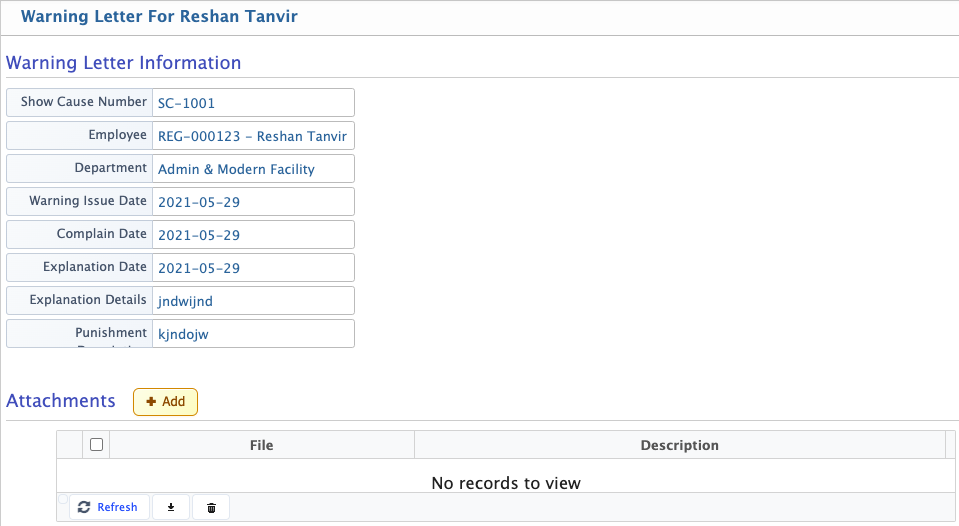
Each warning letter can be viewed in detail from the Warning Letter List in PrismERP. Here, users can see all related information, edit entries, add new letters, and manage reports and attachments to ensure proper follow-up and record-keeping.
| Field | Action |
|---|---|
| Details | View all detailed information of the warning letter, including employee, department, dates, explanation, punishment, etc. |
| Attachments | Add new attachments by providing a file along with a title and description for reference. |
| Download | Download any existing attachment to your local device for review or record-keeping. |
| Delete | Remove an attachment permanently from the system if it is no longer needed. |