Sales Incentive
This module will be managed to control the competitive market as well as motivate the customer to increase the sales to achieve his benefits against various criteria. Sales incentive programs can potentially increase sales and motivate customers by recognizing and valuing their contributions.
Incentive Slab
Add New Slab Item
To offer sales incentives to customers, you need to configure the incentive slab first. Follow the steps below to add a new incentive slab:
Steps to Add Incentive Slab
- Navigate to Incentive Slab Setup
- Fill Out the Required Fields:
- Name: Provide a name for the incentive slab.
- Type: Select the type of incentive based on your policy, such as:
- Sales Invoice
- Monthly Collection
- Sales Quantity
- Delivery Quantity
- Order Quantity
- Start: Define the starting range of the slab, e.g., 100, 200, 400, etc.
- End: Define the ending range of the slab, e.g., 1000, 2000, 5000, etc.
- Slab Type: Choose the type of benefit, such as:
- Amount
- Percentage
- Rate
- Slab Benefits: Enter the amount or percentage of benefits for this slab.
- Extra Slab Start: If there is an additional slab range, specify its start value.
- Extra Slab Benefits: Specify the benefits for the extra slab range.
- Customer Category: Select the customer category eligible for this incentive.

List of Slab Items
List page shows all the slab item list that are being created in the application.

The Incentive Slab List Page provides a streamlined interface for managing all incentive slabs. Below are the available features and functionalities:
Key Features
- Search Capability: Use the search field to locate slabs by Slab Name for quick access.
- View Details: Select a specific slab from the list to view detailed information, including its range, type, benefits, and customer category.
- Edit Functionality: Modify an existing slab by clicking the Edit Button. Make changes to any field as required and save updates seamlessly.
Sale Incentive Configuration
The Sales Incentive Configuration feature allows businesses to create structured rules and slabs for rewarding customers based on specific criteria. Here's a detailed overview:
Purpose:
To establish rules for incentivizing customers, ensuring rewards align with sales performance, collection milestones, or other measurable metrics.
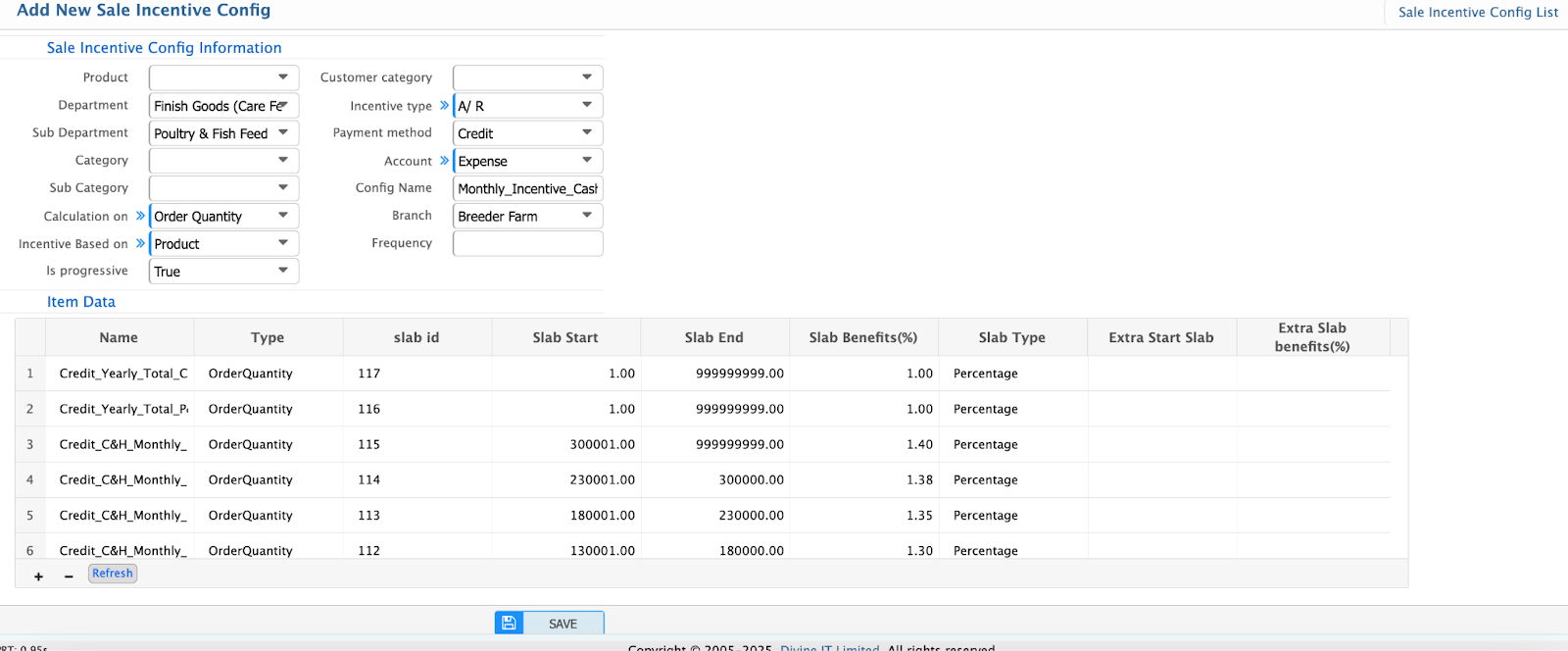
Add New Sale Incentive Config
Steps to Add Sale Incentive config
- Navigate to Sale Incentive config Setup
Key Features
- Criteria for Incentives:
- Define slabs branch-wise, for specific products, or product categories.
- Flexible rules based on metrics like:
- Sale Amount
- Collection Amount
- Quantity
- Sales Growth
- Collection Growth
- Progressive Incentives: Ensures adjustments for customers who have already received incentives within the defined time frame. The Progressive Config feature deducts previously given amounts from new incentives.
- Incentive Basis:
- Product/Product Category-Based: Incentives can be linked to specific products or categories.
- Customer-Based: If left blank, incentives will be generated solely based on customer performance.
- Incentive Type:
- Account Receivable: Discounts or credits applied to outstanding amounts.
- Gift: Tangible rewards for customers.
- Cash Back: Monetary rewards for meeting specified criteria.
- Frequency: Define how often incentives are awarded:
- Monthly
- Quarterly
- Yearly
Sale Incentive Configuration View
List page shows all the Sale Incentive config that are being created in the application.

The List Page for Sales Incentive Configuration provides a centralized view and management interface for all incentive configurations. Here's a breakdown of its features:
Search and Filter Options
You can search and filter configurations using the following criteria:
- Branch Name: Quickly locate incentive configurations specific to a particular branch.
- Calculation Type: Narrow down configurations based on calculation criteria like Sale Amount, Collection Amount, etc.
Key Features
- Details View: By selecting a specific incentive configuration, you can view all its details. This includes:
- Branch
- Calculation Type
- Slab Rules
- Frequency
- Incentive Type
- Progressive or Non-Progressive status
- Edit Options: If changes are required, you can click on the Edit button for a specific configuration. Make necessary updates to slabs, criteria, or frequency.
Sale Incentive Process
After configuring the Sales Incentive Slabs and Incentive Configuration, you can initiate the Sales Incentive Process. This process automates the calculation of incentives based on predefined rules, slabs, and customer activity.
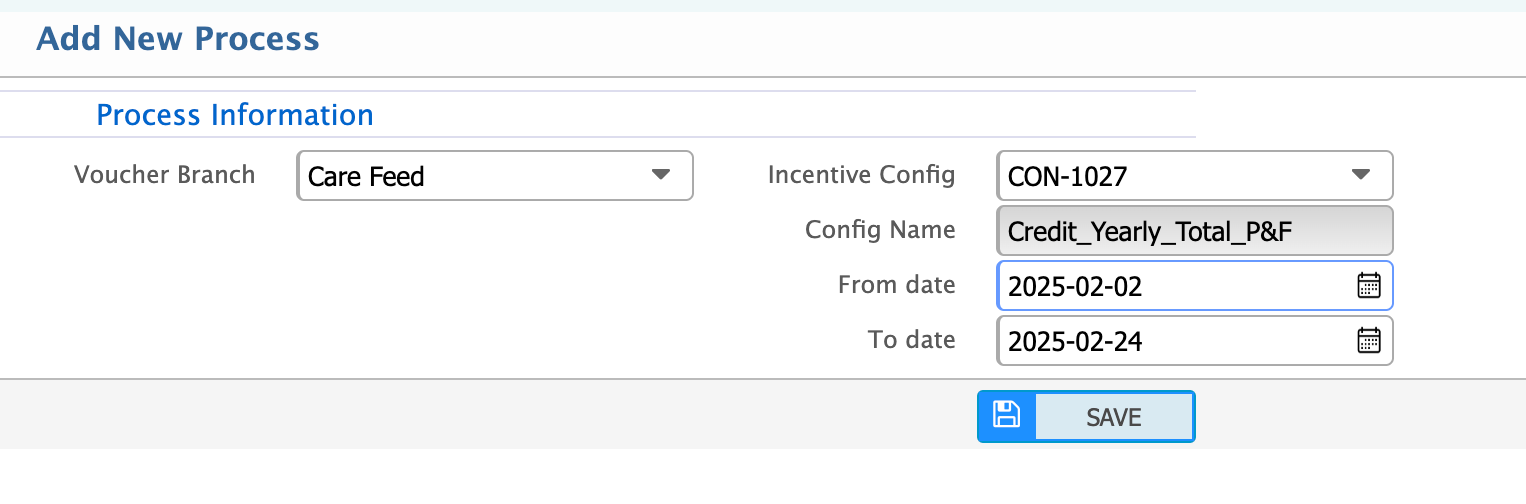
Add New Process
Navigate to Sales Incentive Process
Fields to Fill
- Voucher Branch: Select the branch for which the incentive process will be initiated.
- Incentive Config: Choose the specific incentive configuration that you want to process.
- From Date: Set the starting date for the incentive calculation period.
- To Date: Set the ending date for the incentive calculation period.
Key Notes
- Ensure that the selected Incentive Config matches the criteria you aim to process (e.g., branch, customer category, product, etc.).
- The date range should align with the frequency defined in the configuration (e.g., monthly, quarterly, or yearly).
Sale Incentive Process View
List page shows all the Sale Incentive Process lists that are being created in the application.

From the details view page you will view the following points in detail:
Incentive Calculation
For each customer, the system calculates the incentive amount based on:
- The incentive type (e.g., percentage, amount, or rate).
- The slab range (e.g., start and end limits).
- Any additional slabs or progressive adjustments.
Customer-Wise Incentive Details
Incentives are calculated and displayed customer-wise, reflecting individual performance. If a specific product or product category is defined in the configuration, the calculation focuses on those items only.
Voucher
Steps to Generate a Voucher
- Open the Incentive Process
- Navigate to the Sales Incentive Process List.
- Select the desired process from the list to open its details view.
- Locate the Create Voucher Button in the top-right corner of the process details view.
- Generate the Voucher
- Click on the Create Voucher button. The system will automatically generate a voucher based on the processed incentive data.
Key Notes
- The voucher will include all calculated incentive amounts based on the selected process and configuration.
- Once generated, the voucher can be reviewed or adjusted as needed.
- Ensure all configurations and slabs are correct before generating the voucher to avoid discrepancies.

Sale Incentive Summary
Product Wise, Product Category Wise and Product Category wise incentive summary can be viewed for a certain time period.
Customer Wise
Provides details of incentives based on customer categories.

Product Wise
Shows the breakdown of incentives calculated for each specific product.

Product Category Wise
Displays incentive calculations grouped by product categories.
