🏷️ Product Price Control
In PrismERP, product pricing is managed through a structured control process where price updates are applied in batches instead of changing prices individually. This allows pricing changes to be handled in a controlled manner so that updates are applied only to selected products and defined conditions.
The system supports batch price circulars for managing pricing updates. Two types of circulars are used: RPU (Retail Price Update) and TPU (Trade Price Update). RPU is used for managing retail selling prices, while TPU is used for handling trade-level pricing, which forms the base for final selling prices.
Pricing updates can be applied based on customer category, branch, vendor, product department, category, subcategory, and specific products. This allows price changes to be targeted to specific groups or product ranges instead of applying changes across the entire system.
Once a batch price circular is created and processed, the updated pricing is applied only within the selected scope. Other pricing setups that are not included in the circular remain unchanged.
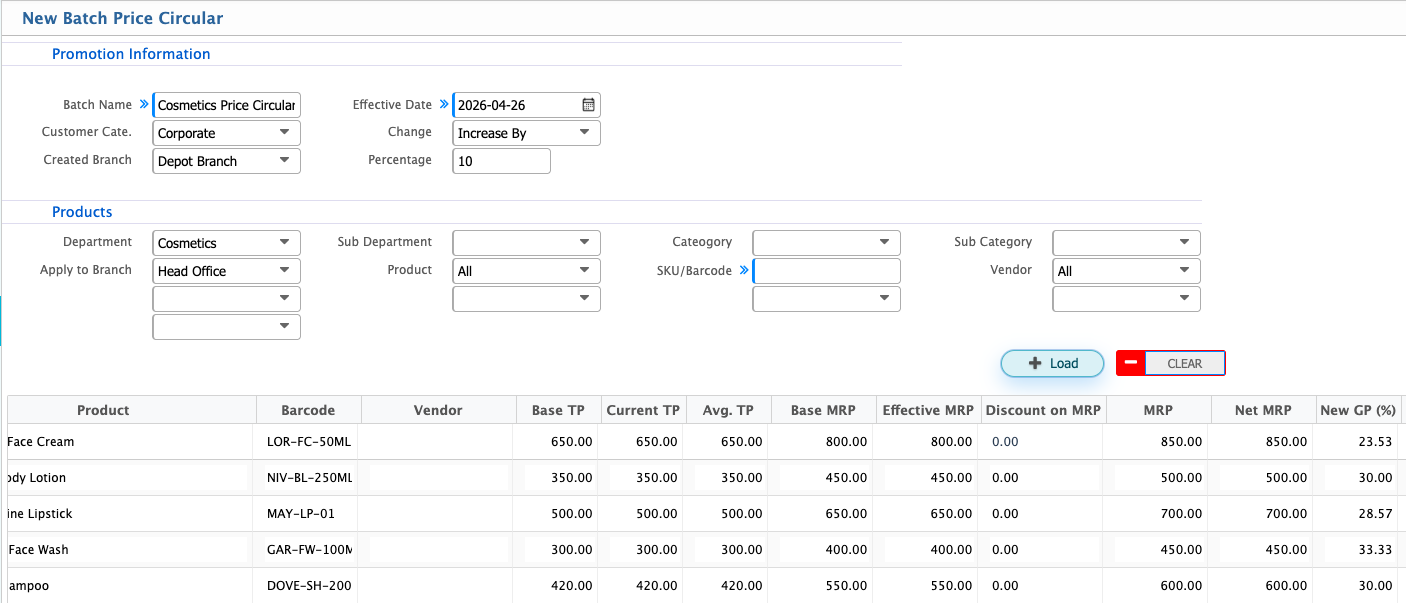
Add Batch Price Circular (RPU)
| Field | Action |
|---|---|
| Batch Name | Enter the name of the batch price circular to identify and manage the pricing update record. |
| Effective Date | Select the date from which the updated pricing or promotion will be applicable. |
| Customer Category Change | Select the customer category to apply pricing changes for specific customer groups. |
| Created Branch | Select the branch where the batch is created for pricing control and tracking. |
| Percentage | Enter the percentage for price adjustment or promotional change. |
| Products Department | Select the product department to define the applicable product group. |
| Sub Department | Select the sub department to narrow down product grouping under the department. |
| Category | Select the product category for applying the batch price update. |
| Sub Category | Select the sub category for more specific product classification. |
| Apply to Branch | Select the branch where the batch pricing will be applied. |
| Product | Select specific products or choose all products for bulk update. |
| SKU/Barcode | Enter or scan SKU or barcode for product identification. |
| Vendor | Select the vendor linked with the products for pricing reference. |
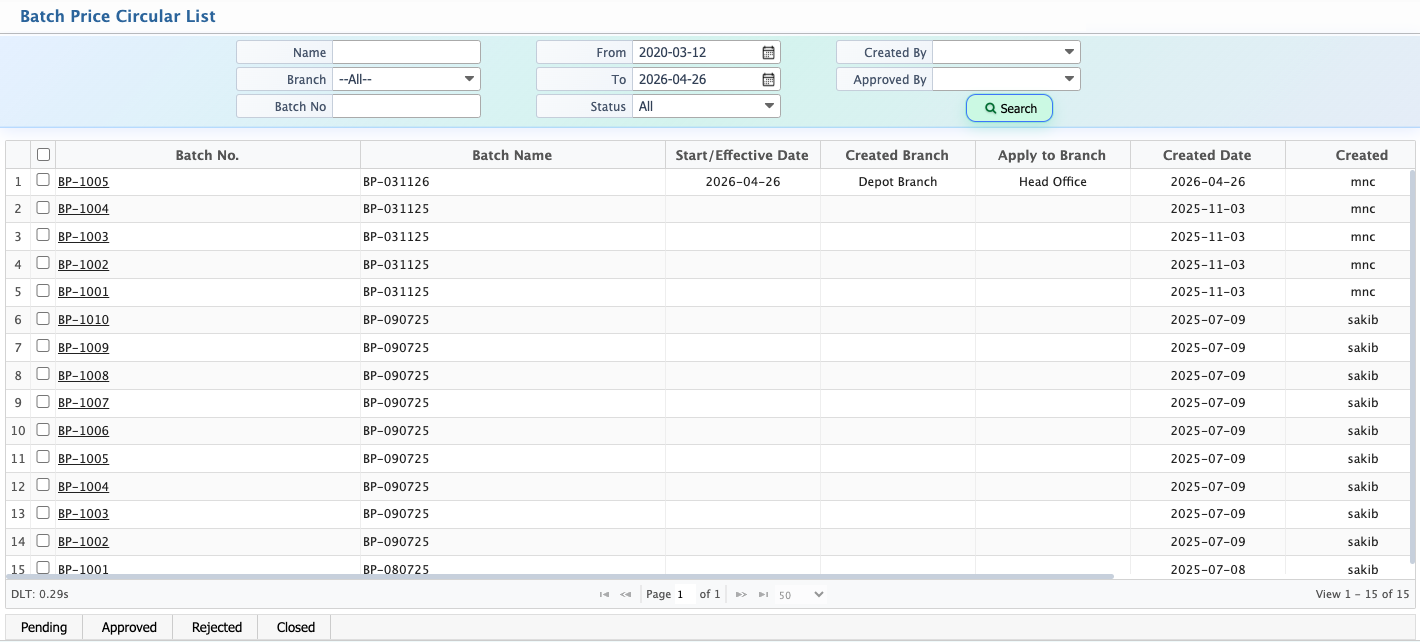
After creating a Batch Price Circular, it appears in the Price Circular List where all circulars are available for management and tracking.
Users can use search and filter options to locate circulars by batch name, effective date, product department, category, branch, or status.
Each circular follows a workflow with statuses such as Pending, Approved, Rejected, and Closed. While a circular is in Pending status, users can edit and update the information if required. Once it moves beyond Pending, editing is restricted based on system rules.
By clicking on the circular name, users can open the details view and see all basic information including batch setup, effective date, product selection, customer category, branch applicability, and percentage changes.
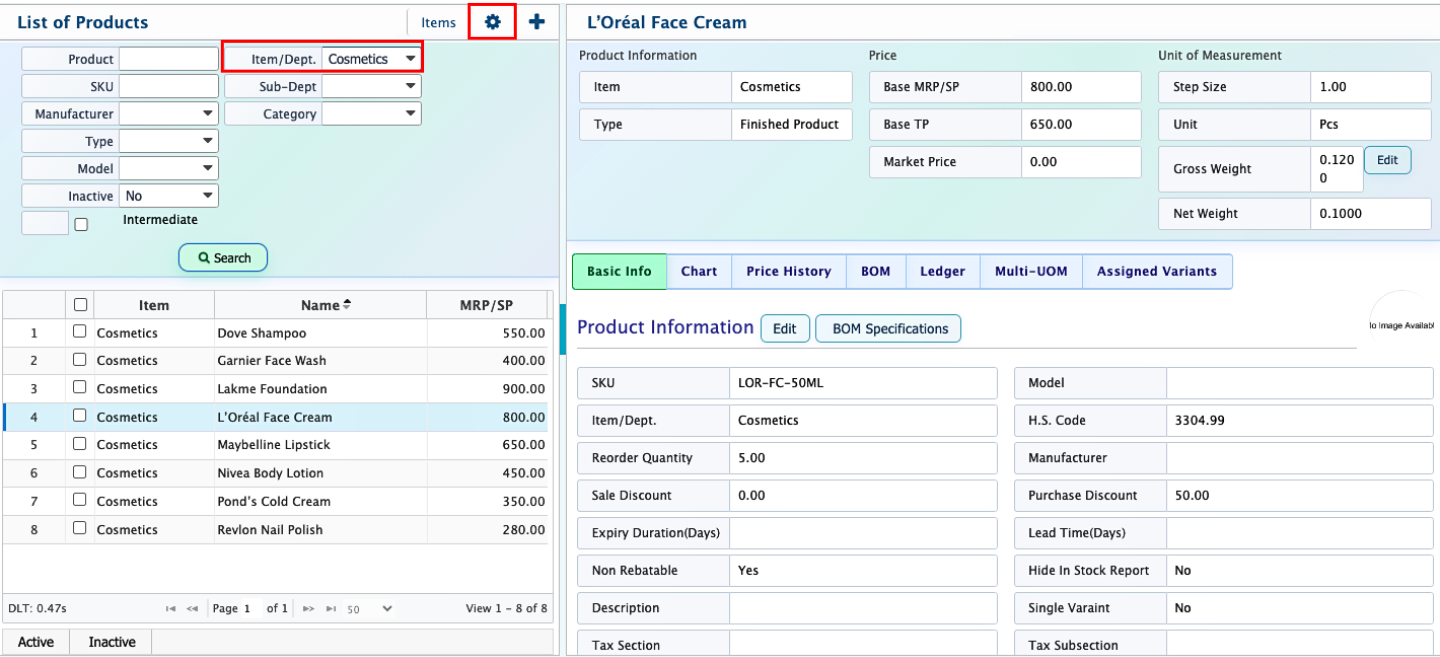
For updating the newly created Price Circular or Average TP, the user needs to go to the Product List module and filter the required items based on department, category, or SKU.
After filtering, the user clicks the settings icon for the specific product to open the update option.
From there, the user can update the Average TP or price values according to the applied price circular configuration.
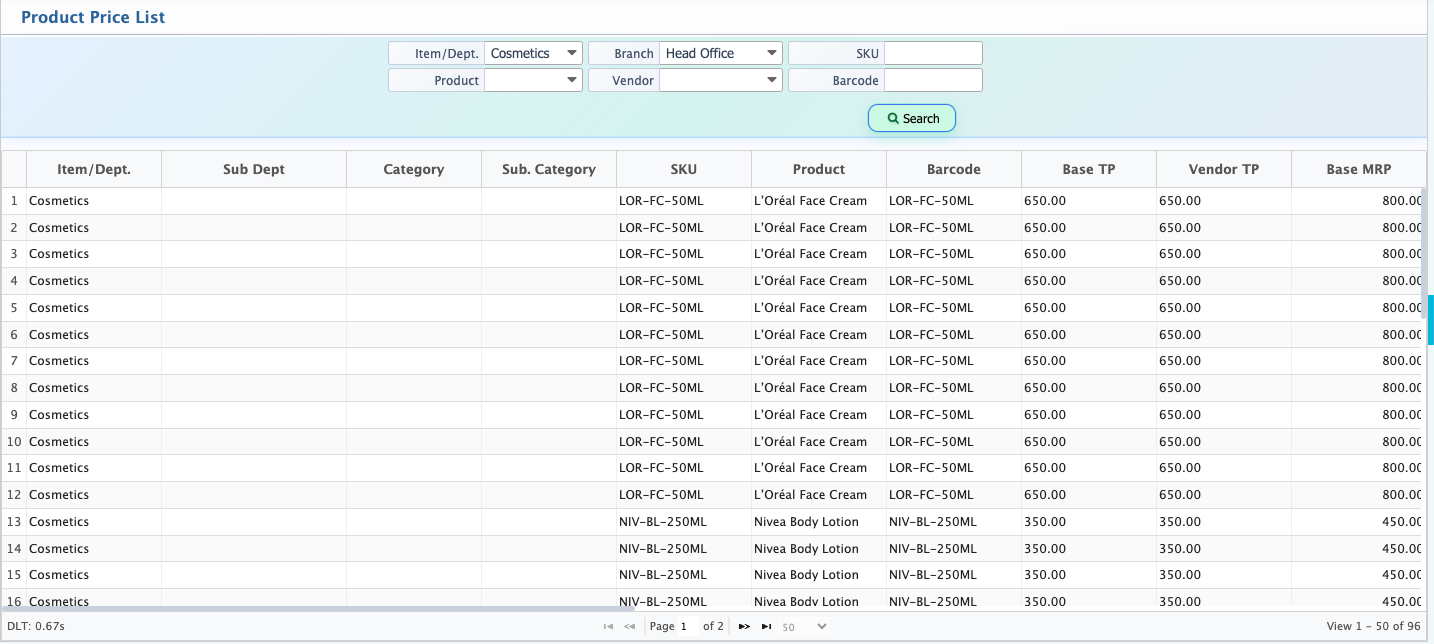
After updating the price, users can view all updated records in the Product Price List. The list includes SKU, barcode, department, category, base TP, vendor TP, MRP, discounts, and effective sale price along with price circular details such as branch, customer category, start date, and end date.