Sale Delivery
Sale Delivery in PrismERP records the movement of goods from a branch to a customer, retailer, or another branch. It captures all essential information, including delivered items, quantities, delivery date, transport details, and associated financial accounts. Once created, the delivery appears immediately in the Sale Delivery List, allowing users to filter records, track workflow approvals, update delivery status, and access detailed reports for preview or download in multiple formats.
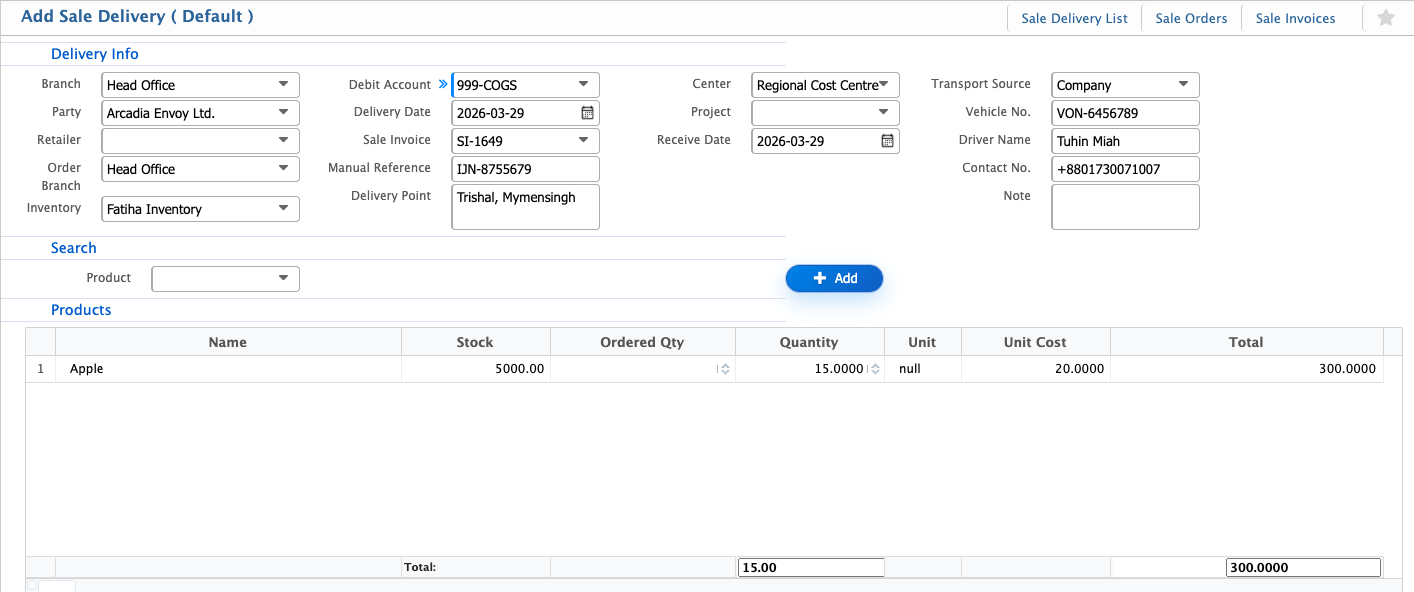
Add Sale Delivery
| Field | Action |
|---|---|
| Branch | Select the branch responsible for the delivery. |
| Party | Select the customer or party associated with the delivery. |
| Retailer | Select the retailer linked to the delivery. |
| Order Branch | Select the branch from which the order is placed. |
| Inventory | Select the inventory from which products will be issued. |
| Debit Account | Select the debit account (e.g., 999-COGS) for accounting purposes. |
| Delivery Date | Enter or select the delivery date. |
| Sale Invoice | Link the delivery to an existing sale invoice, if applicable. |
| Manual Reference | Enter any manual reference number for tracking purposes. |
| Delivery Point | Enter the delivery location where the goods will be sent. |
| Center | Select the operational center responsible for the delivery. |
| Project | Select the project associated with the delivery, if any. |
| Receive Date | Enter or select the date when the goods are received. |
| Transport Source | Select the transport provider or company. |
| Vehicle No. | Enter the vehicle number used for delivery. |
| Driver Name | Enter the name of the driver responsible for delivery. |
| Contact No. | Enter the contact number of the driver or transport provider. |
| Note | Enter any additional notes related to the delivery. |
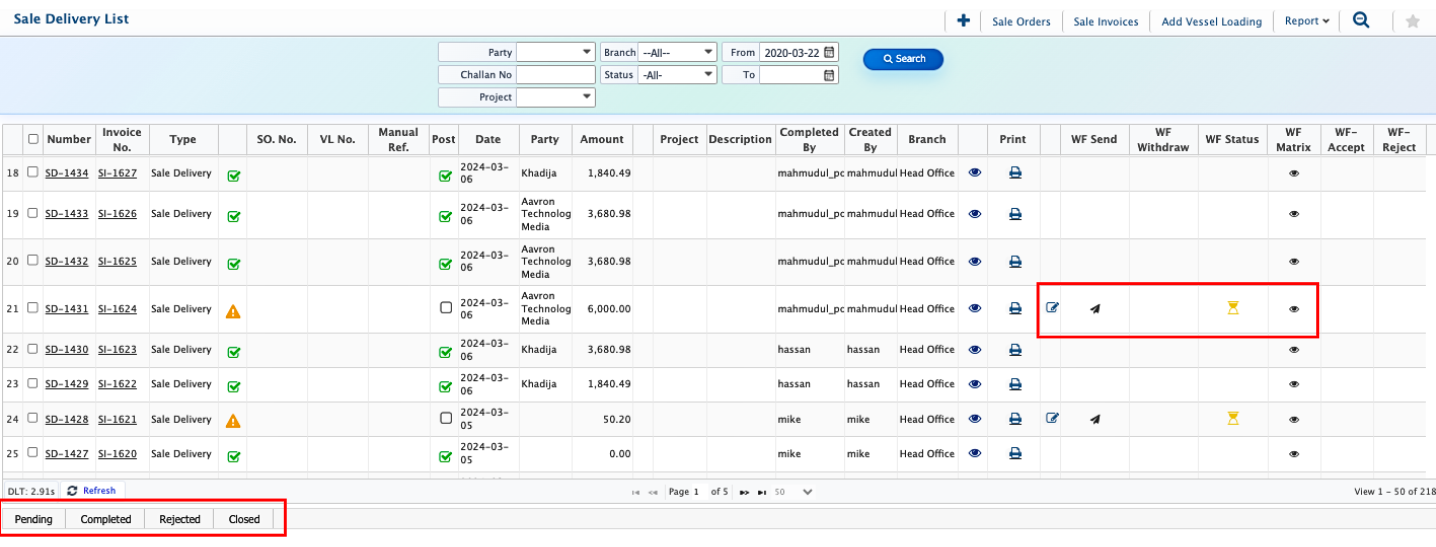
Once a Sale Delivery is added, it appears immediately in the Sale Delivery List. Users can use the search panel to filter deliveries by branch, customer, delivery date, sale order, or other criteria to quickly locate a specific record. Each delivery can go through a multi-level workflow approval, allowing users to check the approval status, view the workflow path, or withdraw the delivery if needed. The status of a delivery can also be updated from Pending to Accepted, Rejected, or Closed.
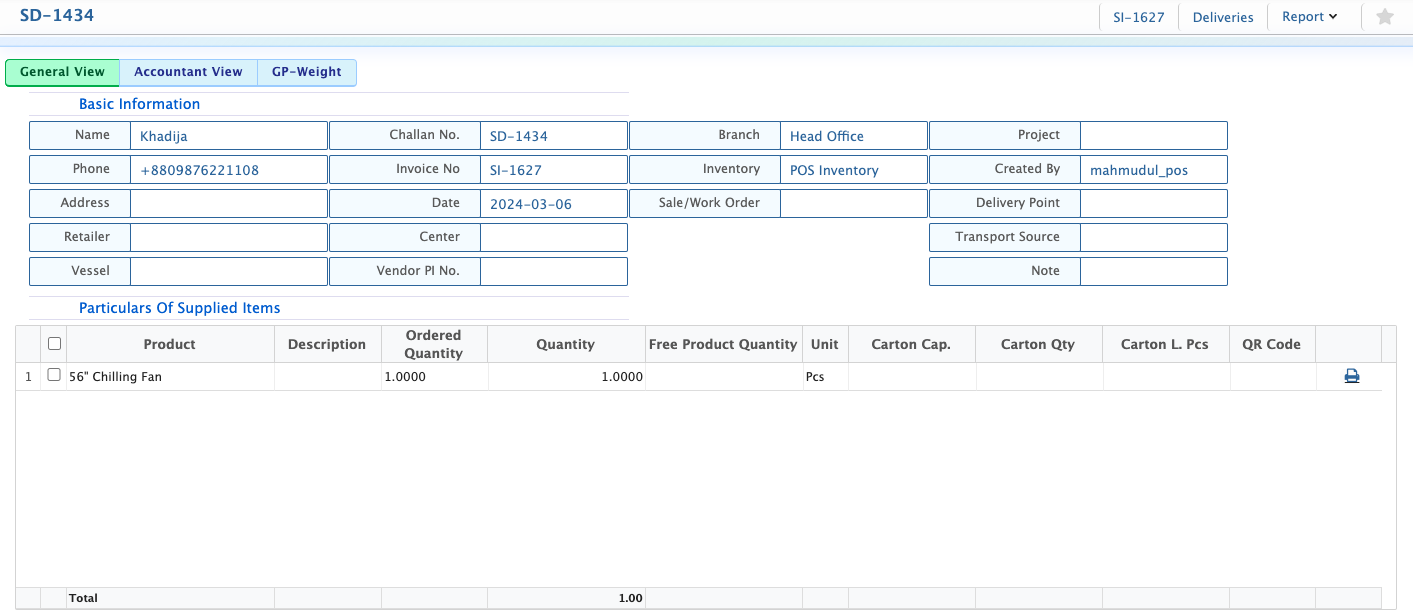
Clicking on a Sale Delivery number opens the Details View, where users can see all important information in one place. The view has two sections: Basic Information and Particulars of Delivered Items, showing the branch, customer, delivery date, products, and any notes, and Accountant View, which displays credit and debit amounts with a COGS breakdown to track financial impact and inventory costs. Users can also preview the delivery report and download it in multiple formats like PDF, DOC, or XLS for printing or sharing.