📦 Delivery Order
Delivery Order in PrismERP is used to organize and manage the shipment of products to customers or parties. It provides clear instructions to the warehouse or delivery team about which products to dispatch, in what quantities, and to which destination. Once created, delivery orders can be tracked, reviewed, and filtered easily, with all related information such as linked invoices, deliveries, returns, vouchers, amendments, and attachments accessible in one place.
Add Delivery Order
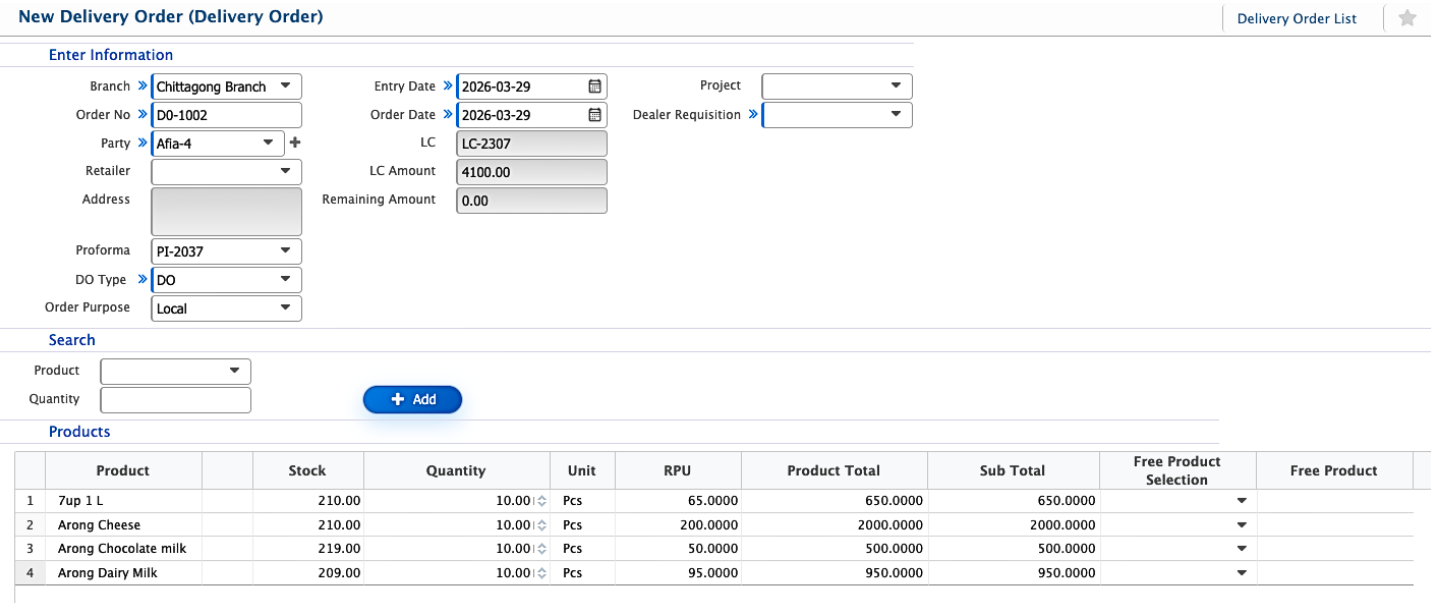
| Field | Action |
|---|---|
| Branch | Select the branch responsible for the delivery. |
| Order No | Enter or select the delivery order number. |
| Party | Select the party associated with the delivery order. |
| Retailer | Select the retailer linked to the delivery. |
| Address | Enter the delivery address of the party or retailer. |
| Proforma | Link the delivery order to a proforma invoice, if applicable. |
| DO Type | Select the type of delivery order. |
| Order Purpose | Enter the purpose of the delivery order. |
| Entry Date | Enter the date when the delivery order is being created. |
| Order Date | Enter the original order date of the products. |
| Project | Select the project associated with the delivery, if any. |
| Dealer Requisition | Link a dealer requisition, if applicable. |
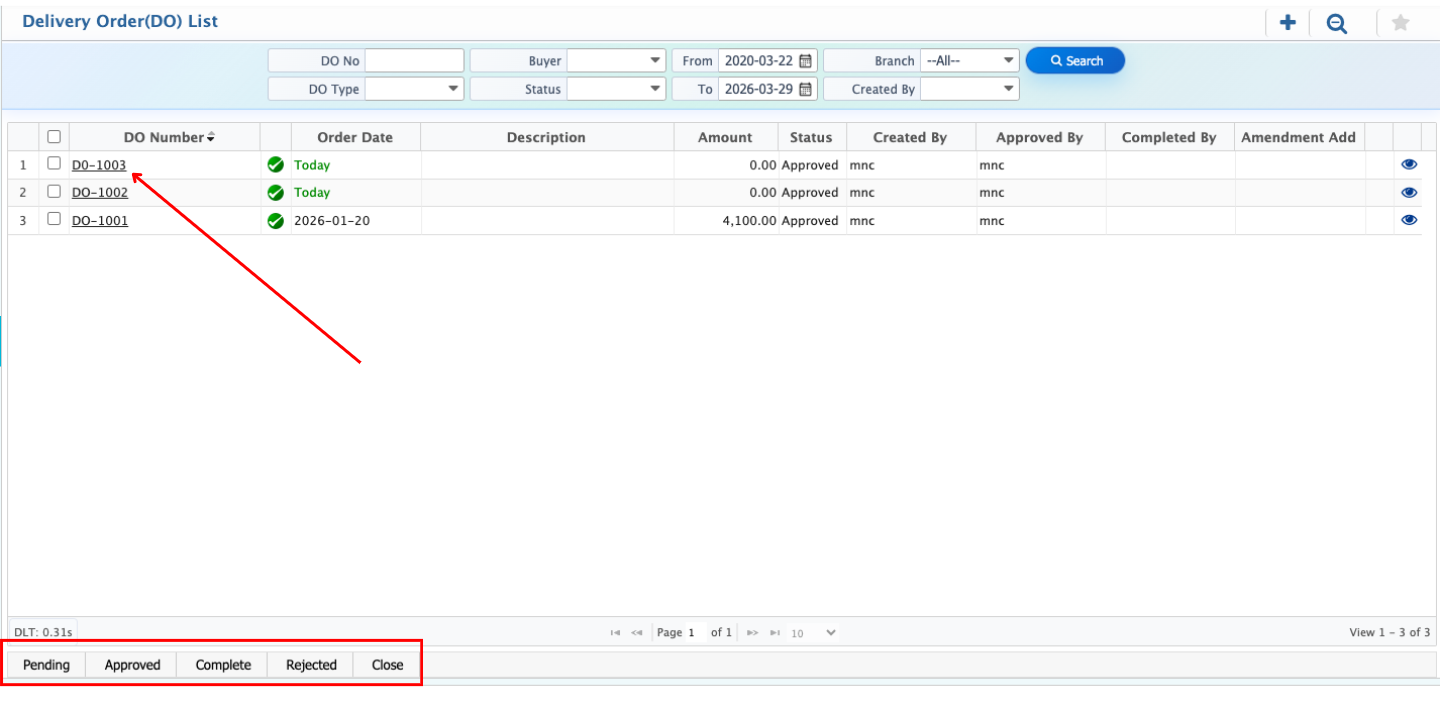
Once a Delivery Order is created in PrismERP, users can see it immediately in the Delivery Order List. They can quickly locate specific orders using the search panel by filtering through DO No, DO Type, Buyer, Status, Branch, Created By, or by specifying a date range using the From and To fields. Each delivery order can go through a multi-level approval workflow, allowing users to check the approval status, view the workflow path, or withdraw the order if needed. Users can also update the order’s status as required, for example from Pending to Approved, Completed, Rejected, or Closed.
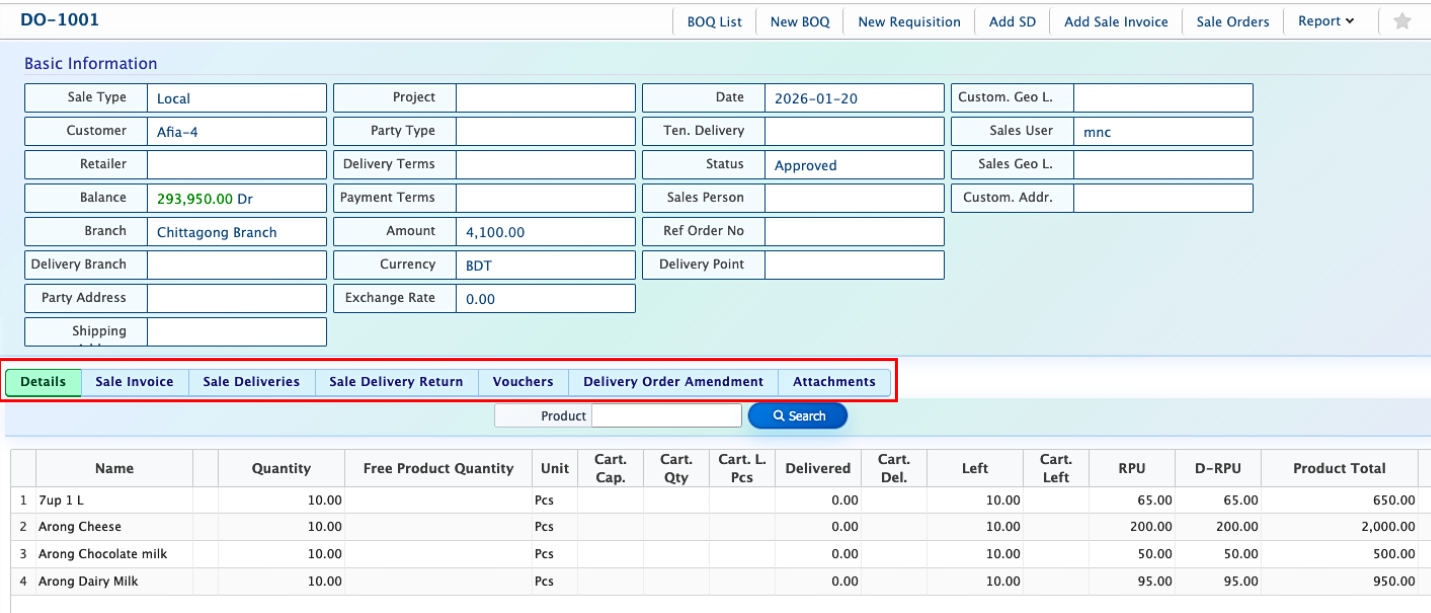
When a user clicks on a Delivery Order number, the system opens the Details View where all the important information is available in one place. Here, users can see the Basic Information and order details, along with related records like Sale Invoices, Sale Deliveries, Sale Delivery Returns, Vouchers, Delivery Order Amendments, and any attachments.