Sale Delivery Return
Add New Sale Delivery Return
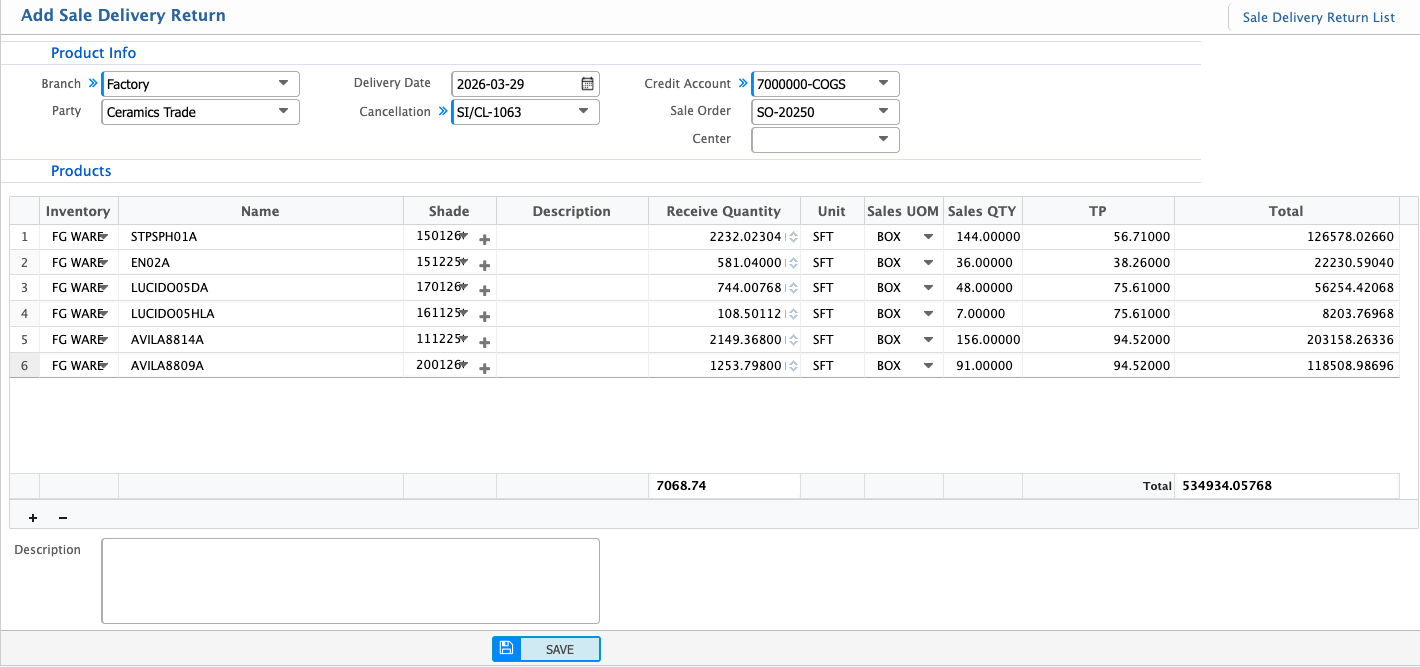
The Sale Delivery Return feature allows users to process the return of goods from a canceled sale delivery. This ensures accurate inventory adjustments and maintains transparency in the return process.

Steps to Add Sale Delivery Return
-
Navigate to Sale Delivery Return:
- Go to New Sale Delivery Return.
-
Select Sale Cancellation Number:
- Choose the relevant Sale Cancellation No from the list.
- Once selected, all associated details will automatically populate on the Sale Delivery Return page.
-
Set Inventory/Warehouse:
- Select the inventory or warehouse where the returned goods will be stored.
-
Provide Return Date:
- Input the date on which the goods are being returned.
-
Review and Save:
- Ensure all details are accurate, including product quantities and return information.
- Save the Sale Delivery Return entry to finalize the process.
Sale Delivery Return List
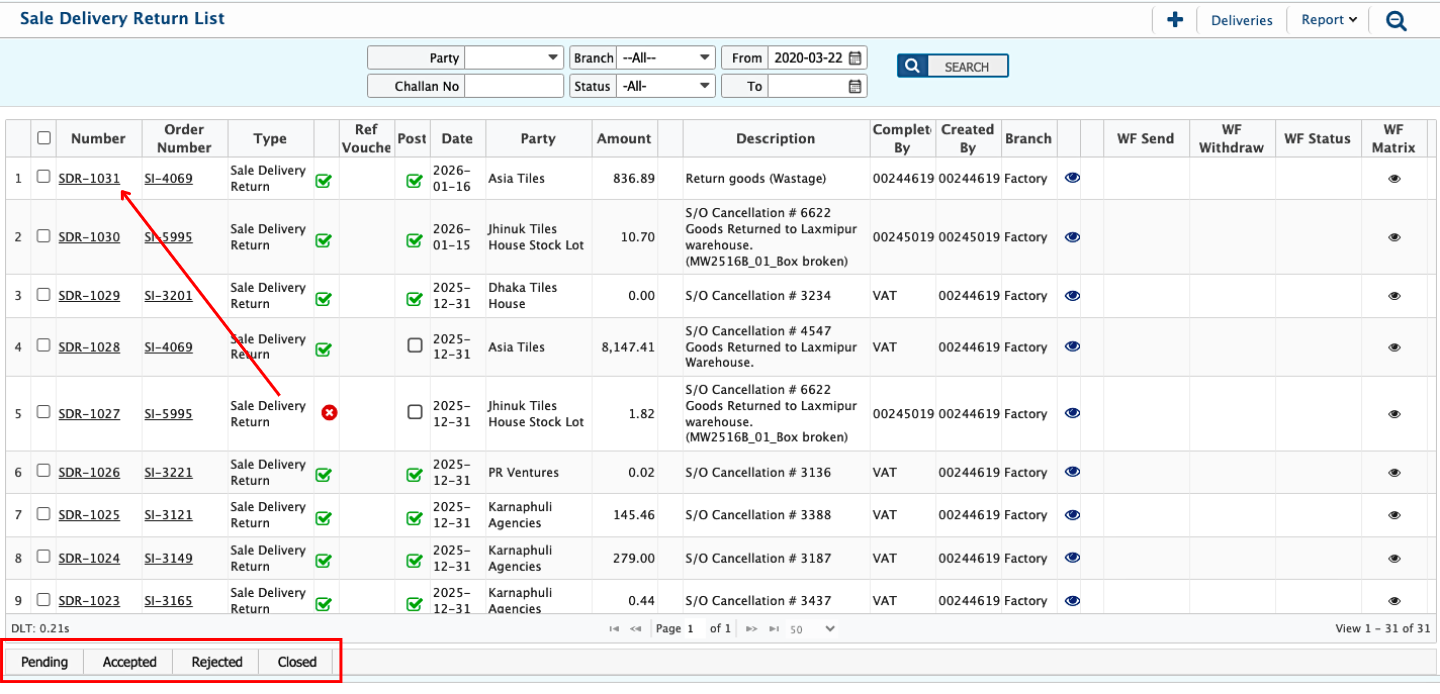
The Sale Delivery Return List Page provides an efficient way to manage and track all sale delivery returns. It allows users to search, view details, and make edits if necessary.

Search & Filter Options
From the Sale Delivery Return List Page, you can search and filter returns using the following criteria:
- Customer: Filter by the name or ID of the customer associated with the delivery return.
- Branch: Narrow down the list by selecting a specific branch where the delivery return was processed.
- Return List: Search using the unique return list number assigned to each delivery return.
- Status: Filter based on the return status (e.g., Pending, Completed, or Rejected).
- From Date / To Date: Specify a date range to view delivery returns within that period.
View & Edit Options
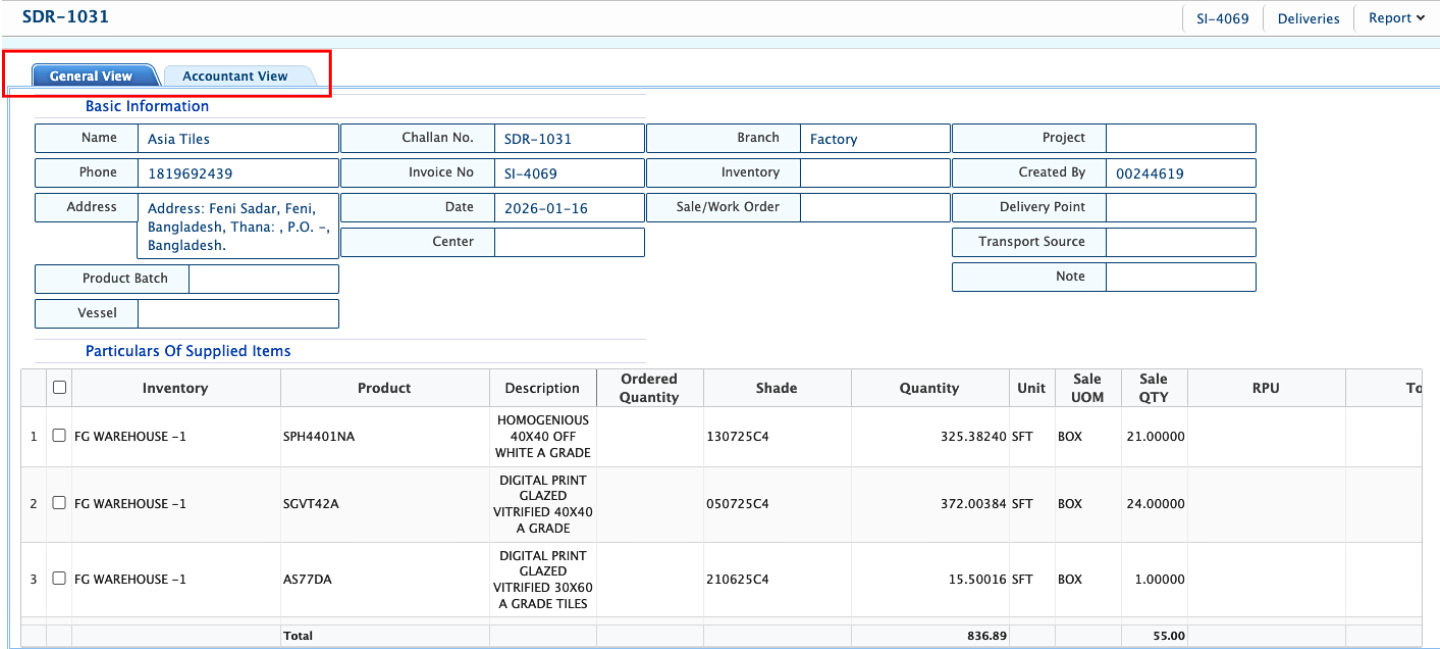
- View Details: Click the eye icon to view detailed information about a selected sale delivery return.
- Edit Return: Click the edit button to modify the return details if necessary.
Market Return
Add Market Return
The Market Return feature in PrismERP is designed for handling situations where a customer returns products without referencing a specific sale invoice or in bulk quantity. This is a unique type of return process compared to the standard Sale Cancellation feature, which is typically used when a specific sale invoice is involved.
The Market Return feature allows businesses to handle returns of products that are not tied to a specific sale invoice or bulk returns. You can easily add a market return by following these steps:
Steps to Add Market Return
-
Navigate to Market Return:
- Go to New Market Return.
-
Fill Out the Required Fields:
- Party: Select the customer returning the products.
- Return Date: Specify the date on which the return is occurring.
- Branch: Choose the branch associated with the market return.
- Return Purpose: Select the reason for the return. Common options include:
- Damage
- Date Expired
- Mortality
- Shortage
-
Product Info:
- Select the product being returned.
- Enter the quantity being returned and the unit cost of the product.
-
Adjust Return Amount:
- You can choose how to adjust the return amount:
- Adjust with Customer Ledger: Apply the return amount as a credit against the customer's account.
- Return Cash: Refund the customer in cash for the returned products.
- You can choose how to adjust the return amount:
-
Save:
- After filling in all the required information, click Save to record the market return.

Key Features of Market Return
- Flexible Return Options: Choose from multiple return purposes such as damage, expiry, or shortage.
- Inventory Adjustment: Automatically adjusts inventory when products are returned.
- Ledger or Cash Adjustment: Flexibly adjust the return amount either by updating the customer ledger or issuing a cash refund.
Market Return List
The Market Return List Page provides an easy way to manage and track all market returns. It includes search and filtering options for efficient navigation.

Search & Filter Options
From the Market Return List Page, you can search and filter returns using the following criteria:
- Customer: Search by the name or ID of the customer associated with the return.
- Market Return No: Filter by the unique return number assigned to each record.
- Branch: Narrow down the list to returns specific to a particular branch.
- Status: Search by the status of the return (e.g., Pending, Approved, or Rejected).
- From Date / To Date: Specify a date range to view returns processed within that period.
Market Return Delivery
Add Market Return Delivery
The Market Return Delivery feature allows users to process the return of goods from a Market Return. This ensures accurate inventory adjustments and maintains transparency in the return process.

Steps to Add Market Return Delivery
-
Navigate to Market Return Delivery:
- Go to New Market Return Delivery.
-
Select Market Return Number:
- Choose the relevant Market Return No from the list.
- Once selected, all associated details will automatically populate on the Market Delivery Return page.
-
Set Inventory/Warehouse:
- Select the inventory or warehouse where the returned goods will be stored.
-
Provide Return Date:
- Input the date on which the goods are being returned.
-
Review and Save:
- Ensure all details are accurate, including product quantities and return information.
- Save the Market Return Delivery entry to finalize the process.
Market Return Delivery List
The Market Return Delivery List Page provides an efficient way to manage and track all market return deliveries. It allows users to search, view details, and make edits if necessary.

Search & Filter Options
From the Market Delivery Return List Page, you can search and filter returns using the following criteria:
- Customer: Filter by the name or ID of the customer associated with the market delivery return.
- Branch: Narrow down the list by selecting a specific branch where the market delivery return was processed.
- Return List: Search using the unique return list number assigned to each market delivery return.
- Status: Filter based on the return status (e.g., Pending, Completed, or Rejected).
- From Date / To Date: Specify a date range to view delivery returns within that period.
View & Edit Options
- View Details: Click the eye icon to view detailed information about a selected market delivery return.
- Edit Return: Click the edit button to modify the return details if necessary.
Managing the Customer
Add New Customer
To create a new customer in PrismERP:
- Navigate to Add Customer:
- Go to Add Customer.

- Fill Out the Customer Information:
- This window is similar to adding a new vendor. In addition to standard information, you will enter contact person information for the customer (as shown below in the screenshot).
Customer List
To view the customer list:
- Navigate to Customer List:
- Go to Customer List.

- View Customer Details:
- From the customer list, users can see all customers. By selecting a desired customer, users can access:
- Customer Details: All information related to the customer.
- Voucher Transactions: View the transaction history with the customer.
- Sale Invoice: Access the customer's sale invoices.
- Ledger Details: Review the financial records for that customer.
- From the customer list, users can see all customers. By selecting a desired customer, users can access: