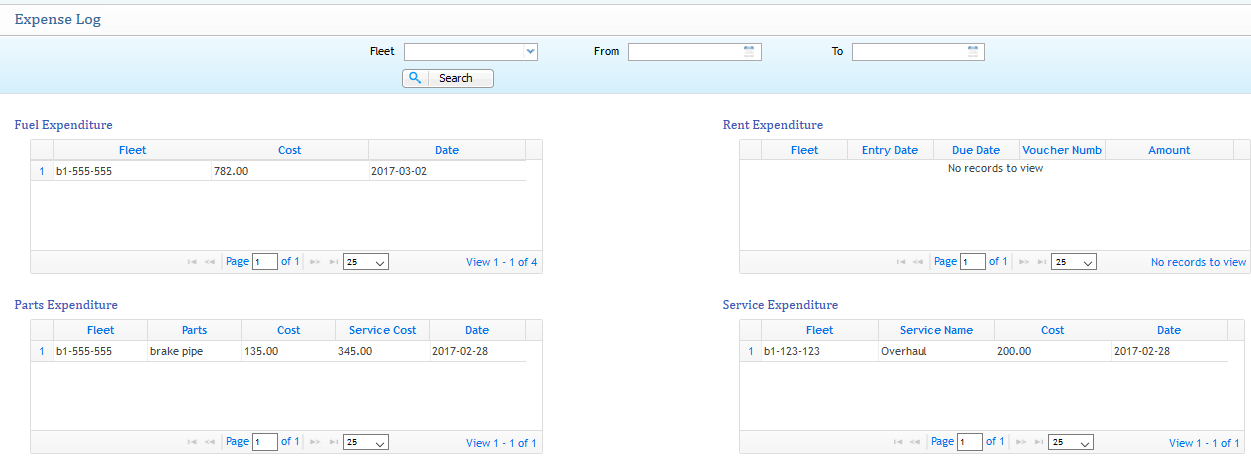
Fleet Operations
Fleet Operations in PrismERP provides comprehensive management of all activities related to vehicle fleets. This includes driver registration, accident reporting, fuel consumption tracking, parts requisition, usage logging, operational notifications, and expense management. The module ensures smooth and efficient management of fleet resources, enabling organizations to track and maintain vehicles, drivers, and associated operational costs effectively.
Key Features
- Driver Registration and Assignment
- Accident Vehicle Registration and Tracking
- Fuel Consumption Recording and Logs
- Parts and Tires Requisition and Usage Management
- Operational Notifications for Expiry and Renewals
- Detailed Fleet Expense Tracking and Summary
- Search and Filter Options for Efficient Data Management
1) Driver
a) Registering a Driver for Fleet Operation
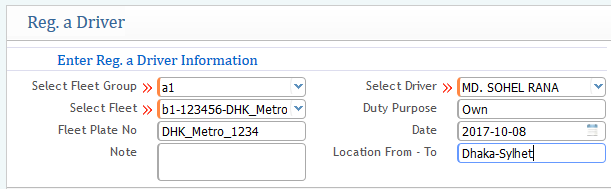
Navigate to Add Driver
Defines registering a specific driver to a fleet group and the fleet for operation.
This function involves registering a specific driver to a fleet group and assigning the fleet for operation. During the registration process, you can:
- Assign the Duty Purpose: Define the purpose of the driver’s duty, such as rental, company use, etc.
- Set the Registration Date: Specify the date when the driver is being registered for the fleet group and fleet operation.
- Specify Duty Location: Enter the starting point (location from) and destination (location to) where the driver will operate the fleet.
b) Registered Driver List for Operation

The Registered Driver List displays all drivers assigned to fleet operations, allowing for easy tracking of each driver's details. The list includes a search filter option to make the tracking process more efficient. You can filter the drivers based on:
- Fleet Group: Search by a specific fleet group to view only those drivers associated with that group.
- Fleet Number Search by a specific fleet number to track drivers assigned to a particular fleet.
- Duty Location (From & To) Filter by the starting and destination locations to find drivers operating in certain areas.
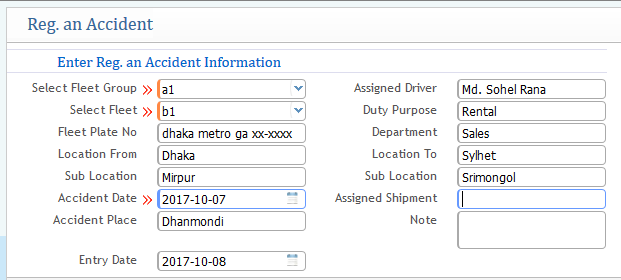
2) Registering Accident Vehicle
Accident vehicles can be registered in the application.
Required Information
- Accidental Vehicle Information: Information about the vehicle involved in the accident.
- Driver’s Name: Name of the driver involved in the accident.
- Department: The department to which the driver belongs.
- Accident Place & Location (From & To): The place where the accident occurred.
- Date of Entry: The date when the accident details are entered into the system.
- Date of Accident: The exact date the accident took place.
3) Accident List
Displays a list of all registered accidental fleets.

4) Consume Fuel Maintenance
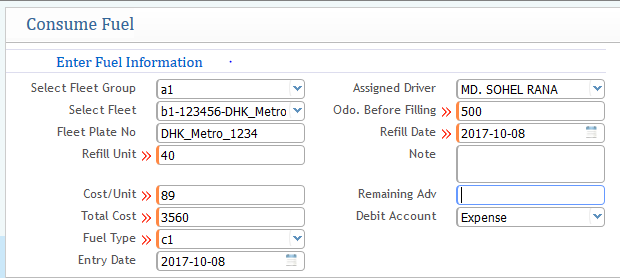
Navigate to Consume Fuel
This feature helps to record fuel consumption of specific fleet groups or fleets while performing operations.
Required Information
- Fleet Group: Select the fleet group to which the fleet belongs.
- Fleet Selection: Choose the specific fleet for which you want to record fuel consumption.
- Refill Unit: Enter the tank capacity required for fuel refilling.
- Cost/Unit: Specify the cost per unit of fuel consumed.
- Fuel Type: Choose the type of fuel used, such as petrol, octane, diesel, or CNG.
Fuel Consume Log
Displays fuel consumption entries for all fleets.

5) Add Parts/Tires Requisition
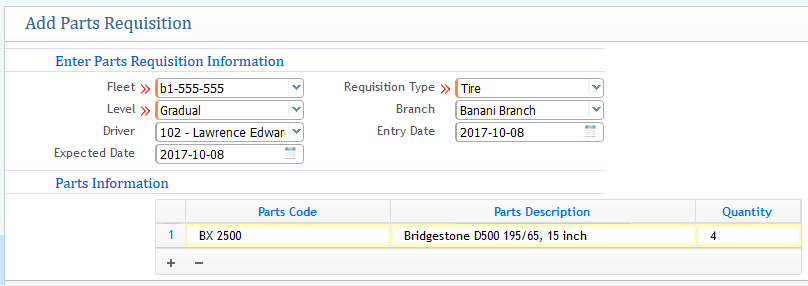
Navigate to Add Parts/Tires Requisition
Provision for generating requisitions for adding or changing parts and tires.
Required Information
- Fleet Number: Enter the fleet number associated with the requisition.
- Level:: Specify the level of urgency for the requisition, indicating whether it is immediate or gradual.
- Driver Name: The name of the driver who was operating the specific fleet at the time of the requisition request.
- Expected Date of Requisition: The date when the requisition is expected to be fulfilled.
- Requisition Type: Select the type of requisition, whether it's for tires or other parts.
- Branch:: Indicate which branch the requisition is being assigned from.
- Entry Date: The date the requisition entry is being made in the system.
- Parts Information:: Include details about the parts, such as the part code, description, and the quantity required.
6) Use Parts/Tires
Navigate to Use Parts/Tires
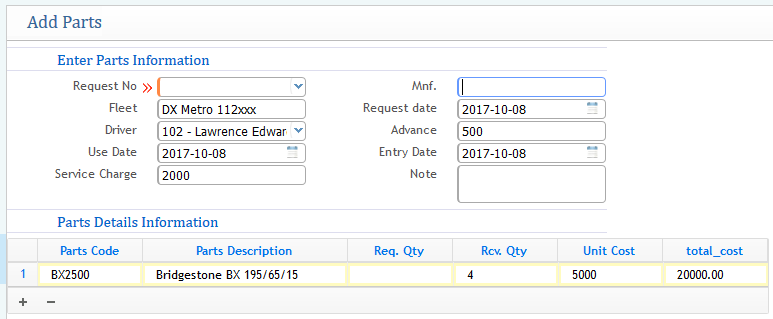
After requisitioning parts or tires, users can log usage details.
Required Information
- Request No.: The unique identification number for the request.
- Fleet Name or Number: The name or number of the fleet to which the part or tire is being applied.
- Driver Name: The name of the assigned driver for that fleet.
- Use Date: The date on which the part or tire is being used.
- Service Charge: The charge for the service related to the parts or tire usage.
- Request Date: The date when the request for using the part or tire was made.
- Advance Payment: The advance payment made for the service.
- Entry Date: The date when the usage entry is recorded in the application.
- Parts Details:
- Parts Code
- Parts Description
- Required & Received Quantity
- Unit Cost & Total Cost
7) Operational Notifications
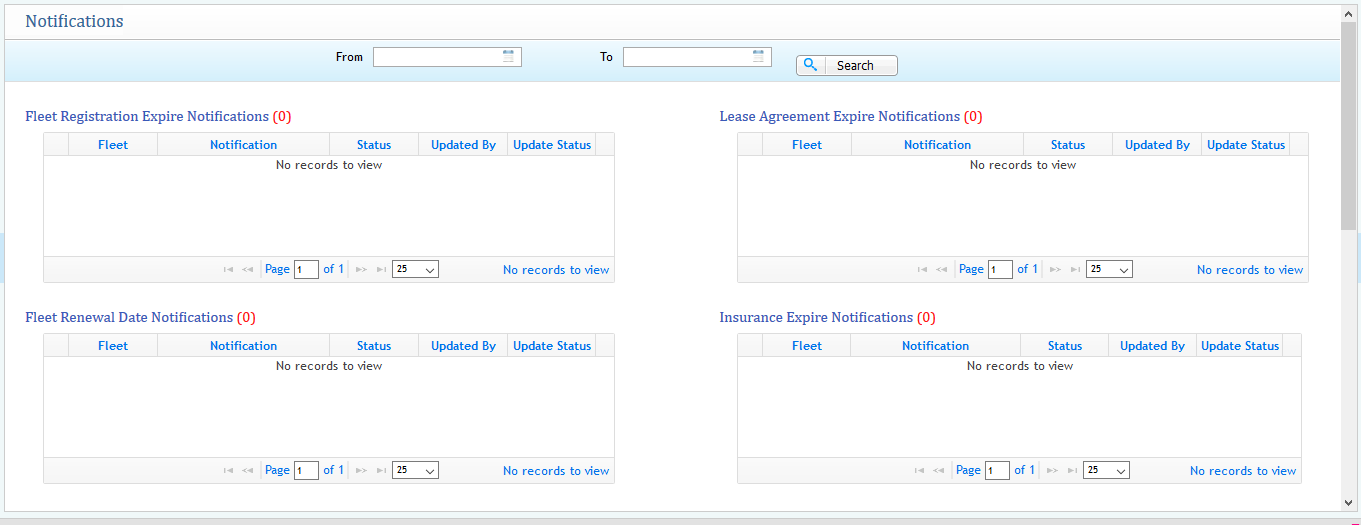
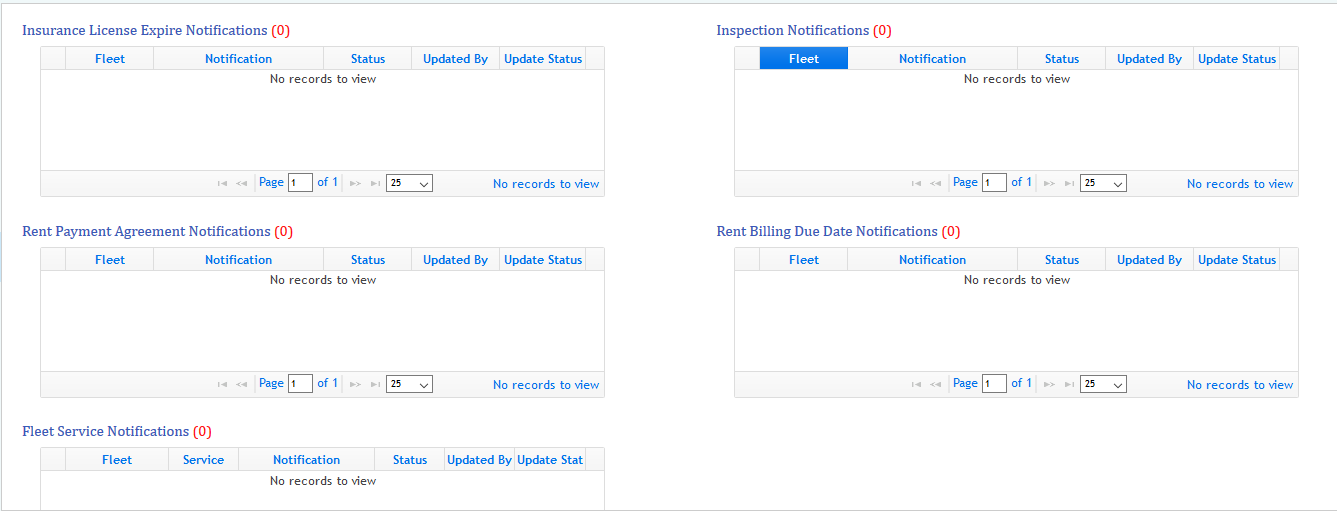
The Operational Notifications section displays all relevant notifications related to various fleet activities, such as registration expiration reminders, renewal dates, and other operational updates. These notifications help ensure that all tasks and deadlines are tracked efficiently.
A search filter is available to make it easier to find specific notifications. You can search by:
- From/To Location: Filter notifications based on the location of the fleet or activity.
8) Fleet Expenses
The Fleet Expenses feature provides a comprehensive summary of all expenses related to fleet operations. It displays a detailed analysis of all activities, including the status and breakdown of each expense incurred during fleet operations. This feature helps track and manage costs associated with the fleet, such as fuel, maintenance, service charges, and more.
- Activity Status
- Summary Analysis