Fleet Operations
Fleet Operation is used to manage the day-to-day activities and expenses related to fleet operations. Users can record accidents, manage fuel consumption, receive and pay fleet bills, and request parts or tires for vehicles. The feature also allows users to use approved parts for fleet servicing and maintain the related records.
Reg an accident
| Field | Action |
|---|---|
| Fleet Group | Select the fleet group involved in the accident. |
| Assigned Driver | Select the driver assigned to the fleet. |
| Fleet | Select the fleet involved in the accident. |
| Duty Purpose | Select the purpose for which the fleet was being used. |
| Plate No | Select or enter the vehicle plate number. |
| Department | Select the department associated with the fleet or trip. |
| Location From | Select the starting location of the trip. |
| Location To | Select the destination of the trip. |
| Sub Location | Select the relevant sub-location of the route. |
| Accident Date | Select the date of the accident. |
| Assigned Shipment | Select the shipment assigned to the trip, if applicable. |
| Accident Place | Enter the location where the accident occurred. |
| Note | Enter additional information about the accident. |
| Entry Date | Enter the date the accident record is created. |
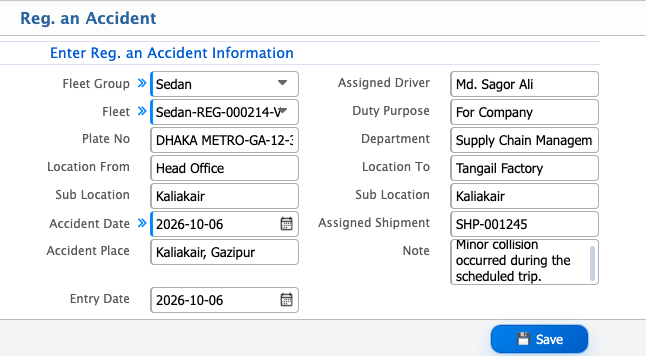
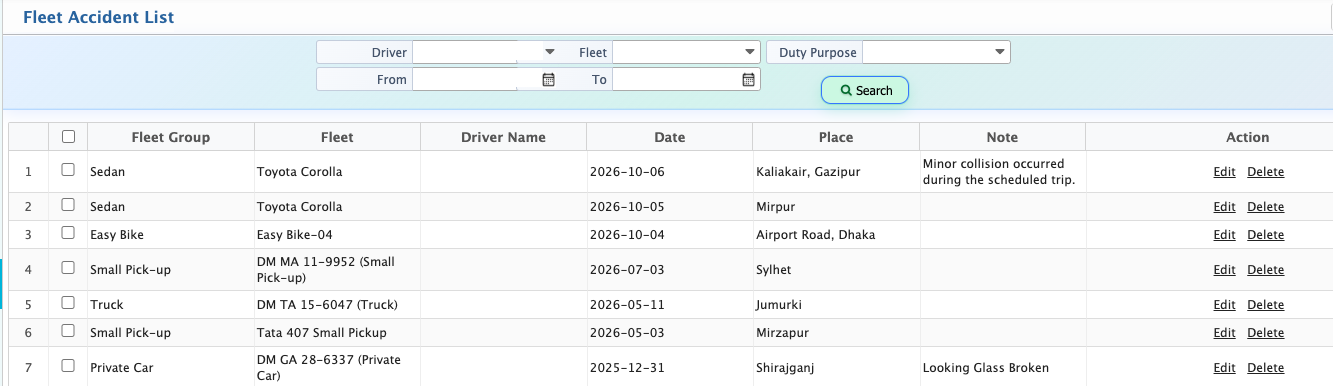
After registering an accident, it will appear in the Fleet Accident List. Users can search for accident records using the available filters and review the accident details, including the fleet, driver, date, place, and note. Users can also edit or delete an accident record when required.
Consume Fuel
| Field | Action |
|---|---|
| Schedule | Select the fleet schedule associated with the fuel consumption. |
| Serial No. | Enter the serial number of the fuel record. |
| Fleet Group | Select the fleet group. |
| Reg. Fleet | Select the registered fleet. |
| Driver | Select the driver assigned to the fleet. |
| Odo. Before Filling | Enter the odometer reading before refueling. |
| Fuel Before Filling | Enter the amount of fuel available before refueling. |
| Refill Date | Select the date of refueling. |
| Entry Date | Select the date the fuel record is entered. |
| Type | Select the fuel consumption type. |
| Inventory | Select the inventory from which the fuel is issued. |
| Fuel | Select the fuel product. |
| Refill Unit | Enter the quantity of fuel refilled. |
| Note | Enter any additional information about the fuel entry. |
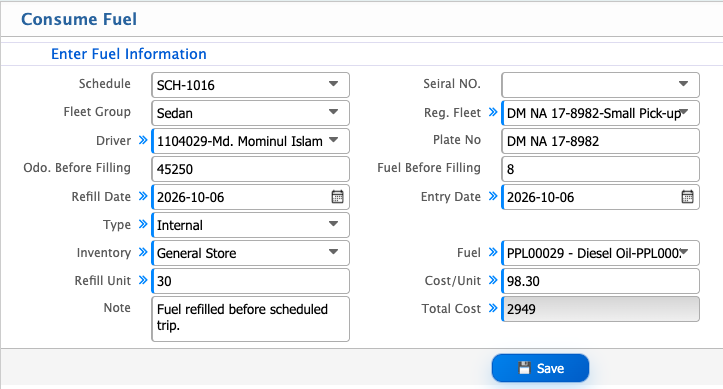
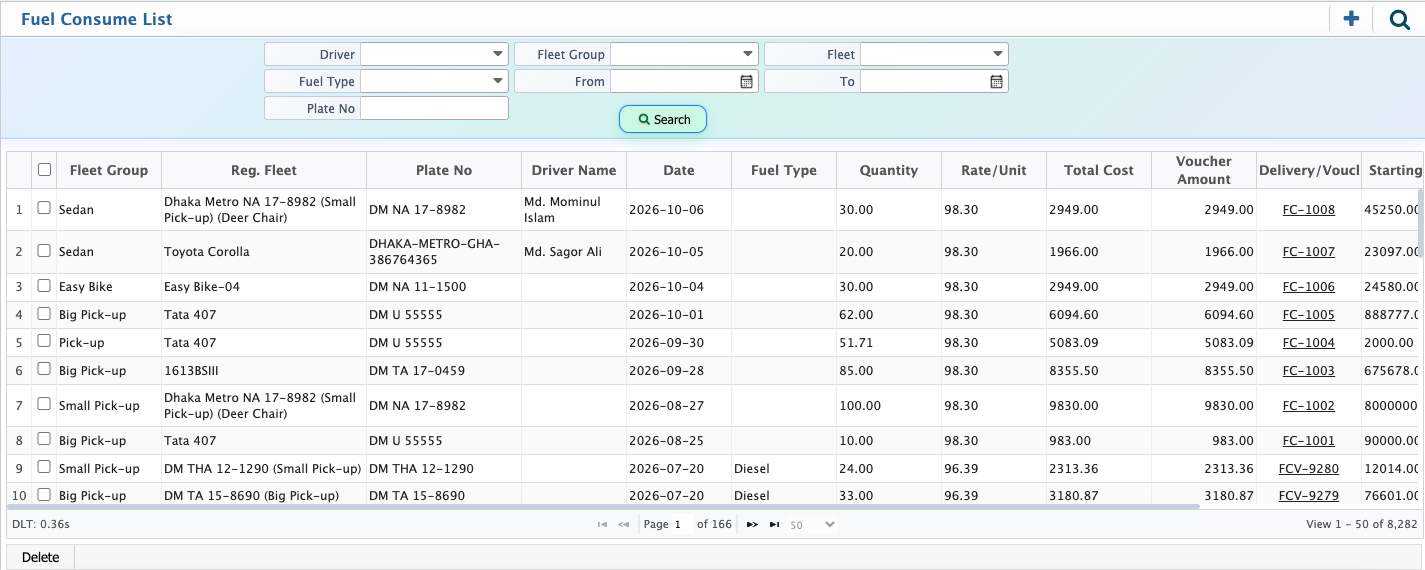
After adding a fuel consumption record, it will appear in the Fuel Consume List. Users can use the available search fields to find a specific fuel consumption record and view its details.. A voucher is automatically created after adding the fuel consumption record, and users have to accept the voucher to complete the process. Users can also edit or delete a fuel consumption record when required.
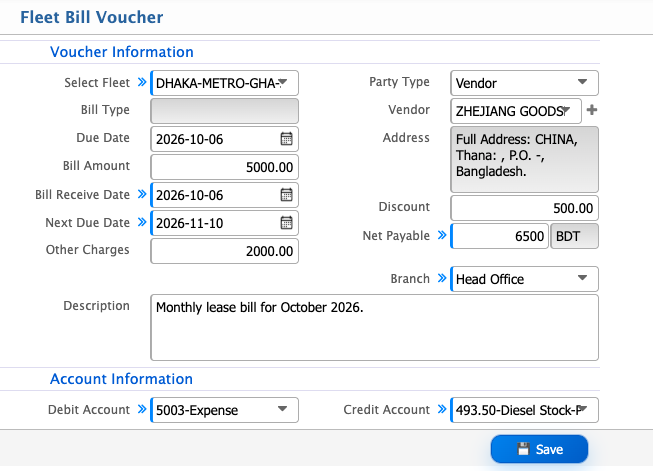
Receive Lease Bill
| Field | Action |
|---|---|
| Select Fleet | Select the fleet for which the lease bill is received. |
| Due Date | Select the payment due date. |
| Bill Amount | Enter the lease bill amount. |
| Bill Receive Date | Select the date the bill is received. |
| Next Due Date | Select the next due date for the lease bill. |
| Other Charges | Enter any additional charges. |
| Party Type | Select the party type. |
| Vendor | Select the vendor associated with the lease bill. |
| Address | Enter or select the vendor address. |
| Discount | Enter the applicable discount amount. |
| Net Payable | Displays the payable amount after applying the discount and adding other charges. |
| Branch | Select the branch associated with the lease bill. |
| Description | Enter additional information about the lease bill. |
| Debit Account | Select the account to be debited for the lease bill. |
| Credit Account | Select the account to be credited for the lease bill. |
Pay Fleet Bill
| Field | Action |
|---|---|
| Select Fleet | Select the fleet for which the bill is being paid. |
| Entry Date | Select the date of payment entry. |
| Amount | Enter the amount to be paid. |
| Party Type | Select the party type. |
| Vendor | Select the vendor receiving the payment. |
| Branch | Select the branch associated with the payment. |
| Description | Enter additional information about the payment. |
| Debit Account | Select the account to be debited for the payment. |
| Credit Account | Select the account to be credited for the payment. |
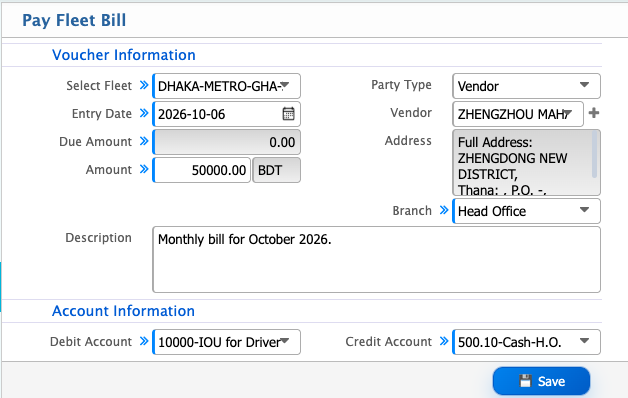
After receiving and paying a fleet bill, a voucher will be created. Users have to accept and complete the voucher to finalize the transaction.
Add Parts/Tire Requisition
| Field | Action |
|---|---|
| Reg. Fleet | Select the registered fleet for which the parts are being requested. |
| Requisition Type | Select the type of parts requisition. |
| Level | Select the requisition level. |
| Branch | Select the branch associated with the requisition. |
| Driver | Select the driver assigned to the fleet. |
| Entry Date | Select the date of the requisition entry. |
| Expected Date | Select the expected date for receiving the requested parts. |
| Parts Code | Select the required part using its parts code. |
| Parts Description | Displays the description of the selected part. |
| Quantity | Enter the required quantity of the part. |
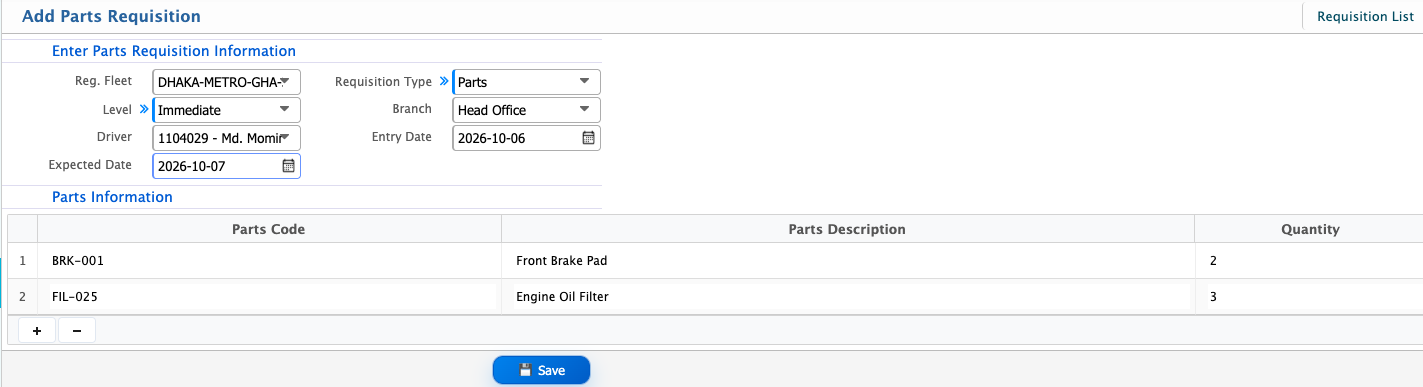
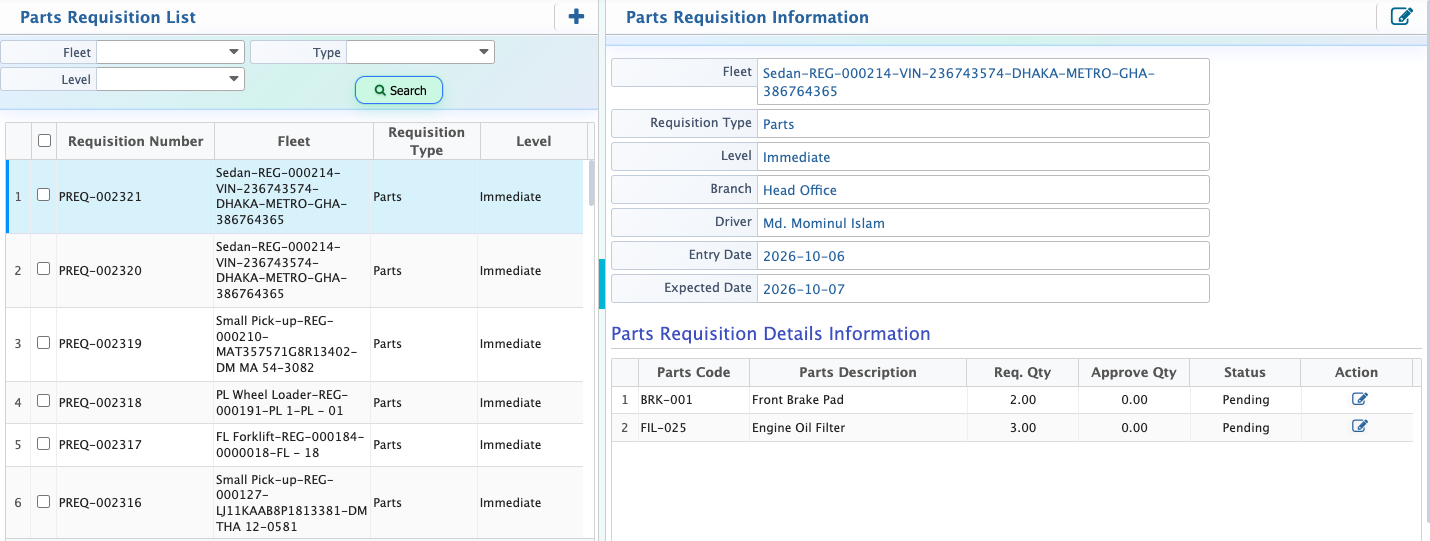
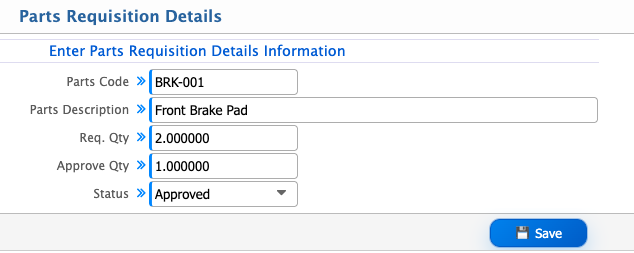
After adding a parts requisition, it will appear in the Parts Requisition List. Users can use the available search fields to find a specific requisition and open its details. From the Parts Requisition Information page, users can review the requested parts and update the Status from Pending. Users can enter the Approved Quantity for each requested part and change the requisition status to Completed after the parts have been approved.
Use Parts
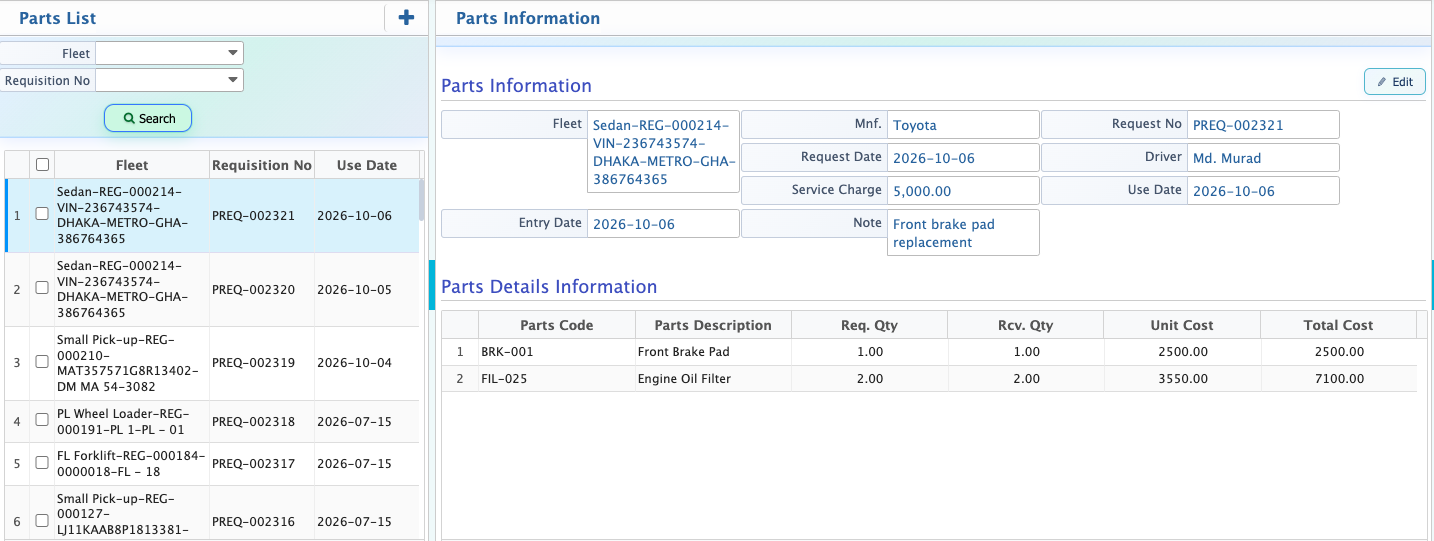
After adding a Parts Requisition and getting approval, users can use the approved parts for the selected fleet. When a user selects the Request No, most of the related information will be loaded automatically. Users can then enter the required usage and cost information and add the parts.
| Field | Action |
|---|---|
| Request No | Select the approved parts requisition. |
| Mnf. | Enter the manufacturer information based on the selected requisition. |
| Driver | Select the driver associated with the selected requisition. |
| Advance | Enter the advance amount, if applicable. |
| Use Date | Select the date the parts are used. |
| Entry Date | Select the date the parts entry is created. |
| Service Charge | Enter the applicable service charge. |
| Note | Enter additional information about the parts usage. |
| Unit Cost | Enter the cost per unit of the part. |
| Total Cost | Displays the total cost based on the quantity and unit cost. |
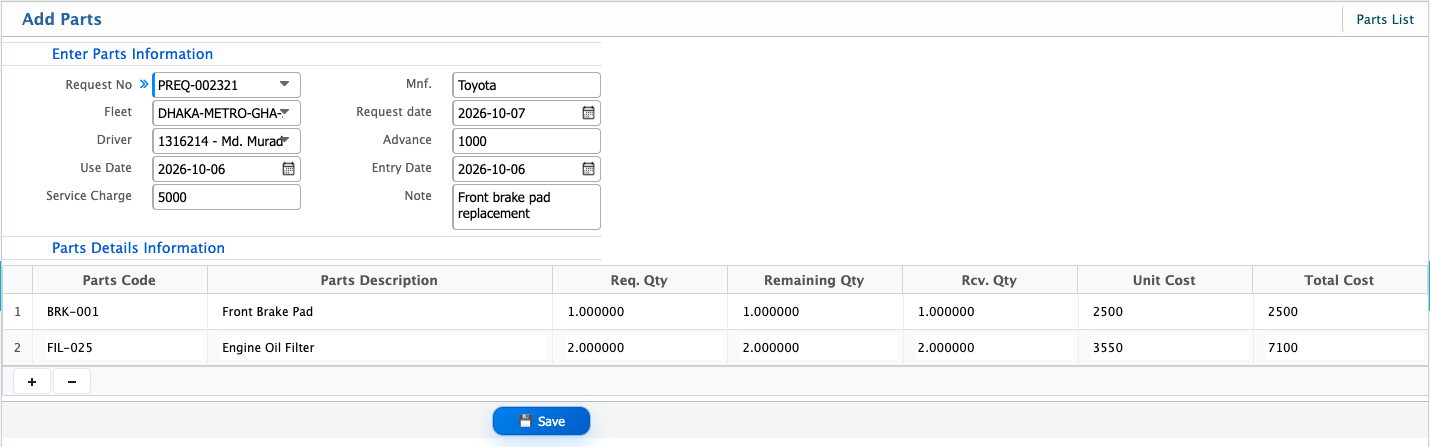
After adding parts, the record will appear in the Parts List. Users can use the available search fields to find a specific parts record and open it to view the details. From the details page, users can review the fleet, requisition, usage date, driver, service charge, and parts details.