Fleet Registration
Fleet Registration in PrismERP allows organizations to systematically register and manage their vehicle assets—whether owned, leased, or rented. It forms the foundation for effective fleet management by maintaining a centralized database of vehicle details, ownership, and documentation. This module ensures transparency, accountability, and readiness for maintenance, inspection, or utilization scheduling.
Key Features
- Fleet Type Classification (Asset, Rental, Leased)
- Grouping and Categorization of Fleets
- Complete Vehicle Detail Entry (chassis, engine, capacity, etc.)
- Optional sections for insurance, lease agreement, and security payment
- Fleet List View with tabbed information: Fuel, Accidents, Service, Logs, etc.
- Fleet Search and Filtering for quick lookup
- Ability to add, edit, and manage fleet information from a single interface
1) Register a Fleet
For registering a new vehicle for fleet, navigate to Register a Fleet
This function below shows all the screenshots of the procedure.
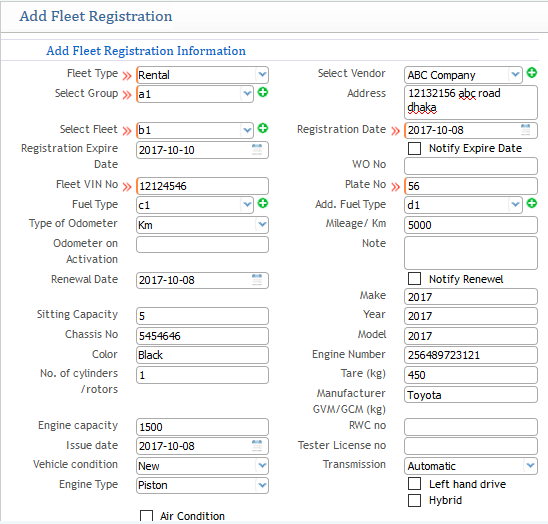
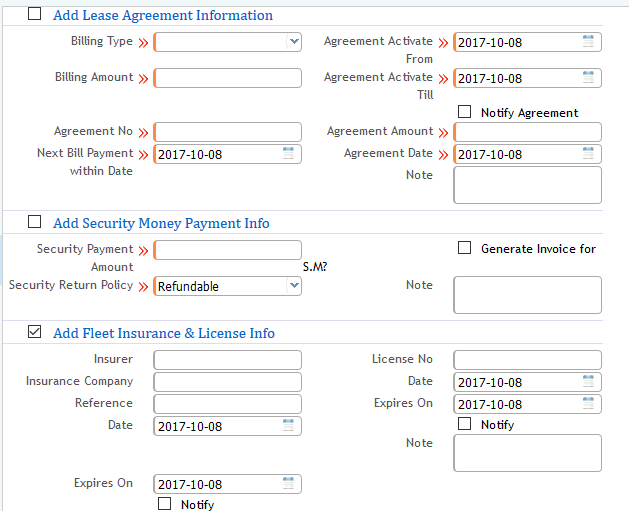
Required Information for Fleet Registration
The above picture of the application explains all the information that is required to fill up in order to register a fleet. Functions are described below:
- Fleet Type: Assigning the type of fleet whether asset, rental, or leased.
- Select Group: Defines all the fleets to be grouped if required. You can add new groups by clicking the green "+" icon.
- Select Fleet: Name of the fleet under a group (you can add that from the beside green "+" button).
- Additional Fleet Details:
- Registration expiry date
- Vehicle type
- Type of odometer
- Seating capacity
- Chassis number
- Engine capacity
- Issue date
- Vehicle condition
- Engine type
- Transmission
- Make, year, model, manufacturer
- Date of registration
Additional Options (Optional)
- Lease Agreement Information
- Security Money Payment Information
- Fleet Insurance & License Info
(Note that these are optional and provided if you want to fill up more additional detailed information.)
2) Register Fleet List Page View
Navigate to Register Fleet List
- The list page displays all the registered fleets with their detailed information.
- You can add or register a new fleet by clicking on the
"+"icon at the top right corner. - Users can also edit or modify existing fleet information using the Edit button.
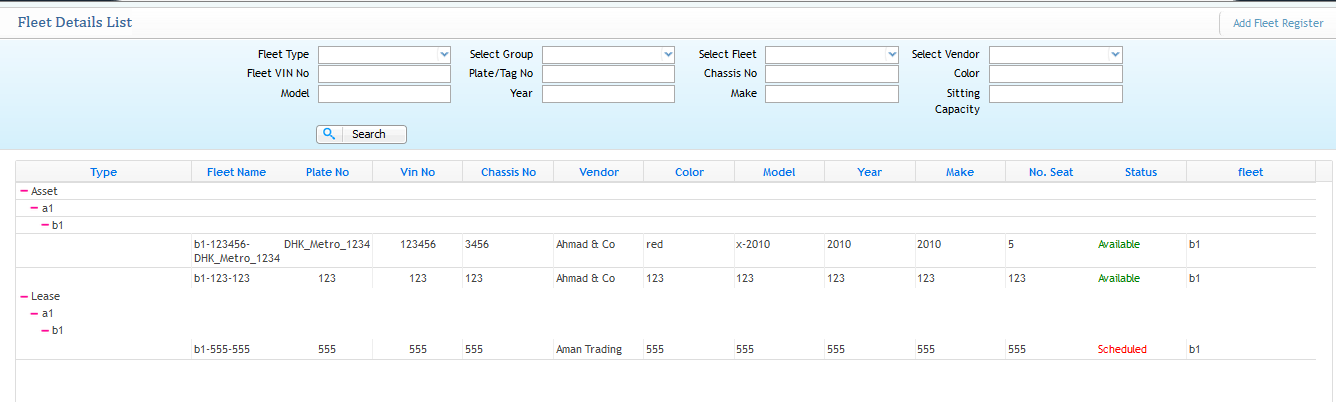
Tabs Available in Fleet List View
- Details
- Driver’s Log
- Accidents
- Fuel Log
- Rent Log
- Income Logs
- Parts
- Duty Log
- Service Schedule
3) Fleet Details List
Navigate to Fleet Details List
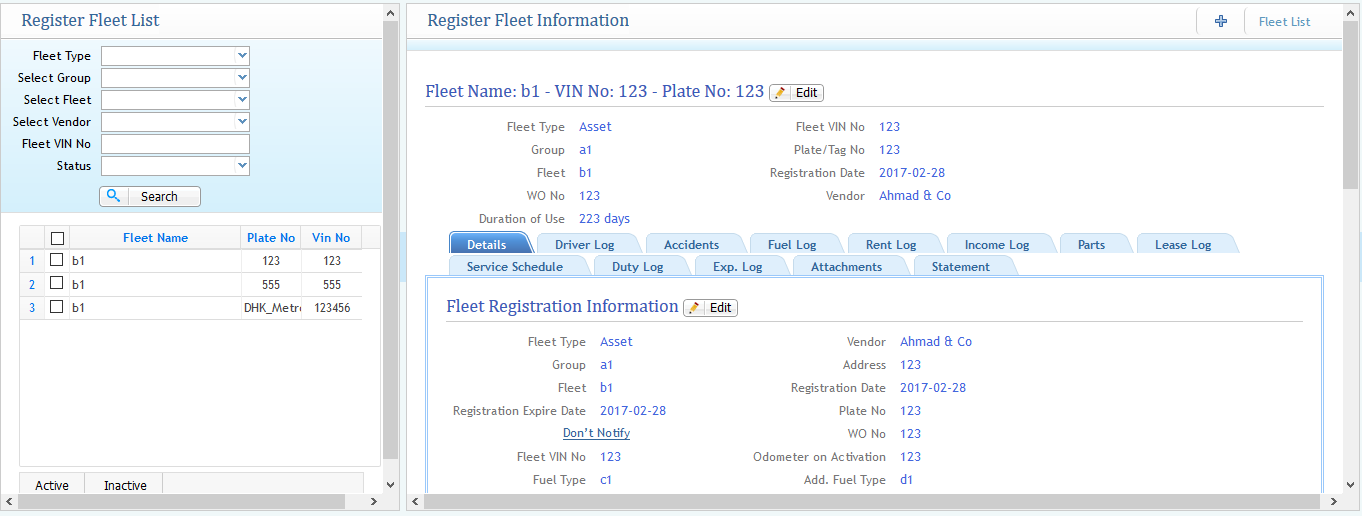
- Displays the overall fleet details list with a search filter for making the searching better for a specific fleet.
- The list shows all fleets with their category type, fleet name, and overall vehicle information.
- Helps in finding and tracking a specific fleet from the application easily.