Fleet Scheduling
Fleet Scheduling in PrismERP is a robust feature that allows organizations to efficiently plan, assign, and track vehicle usage. It ensures optimal utilization of fleets, improves coordination, and reduces scheduling conflicts. This module supports requisition-based scheduling, calendar views, package configuration, and backup fleet assignments, all within a centralized system.
Key Features
- Fleet Request submission with employee and department details
- Approvals and tracking through the Fleet Request List
- Schedule creation with origin, destination, time, and driver assignment
- Shipment tagging and duty categorization
- Backup fleet allocation for contingencies
- Package configuration with pricing, agreement, and fuel information
- Visual calendar for scheduled fleet tracking
- Unscheduled fleet list for pending assignments
1) Add Fleet Request:
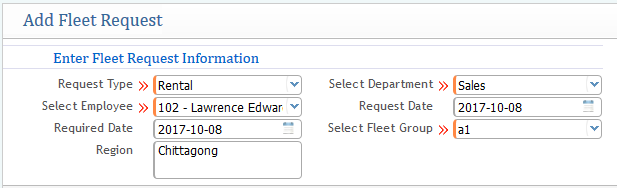
The "Request" section outlines the process of applying for fleet usage. To submit a request for a specific fleet, you need to provide all the required information, which includes: Request Type: Specify whether the request is for rental or company use. Select Employee: Choose the employee who will be using the fleet. Employee Department: Select the department of the employee. Request Date: Enter the date of the fleet request. Select Fleet Group: Choose the appropriate fleet group for the request.
Note: This request is generally submitted to the head or the relevant authority for approval before the fleet vehicle can be used. A screenshot of this window is provided below for reference.
2) Fleet Request List:
The "Request List" displays all request numbers along with their detailed information, allowing you to easily track each request. From this list, you can take specific actions related to any request, such as approving or rejecting it. You can also check the current status of each fleet request. Additionally, the list provides options to edit or cancel a request as needed. All relevant details are clearly shown in the list page view, making it simple to manage and oversee fleet usage requests.

3) Add a Schedule:
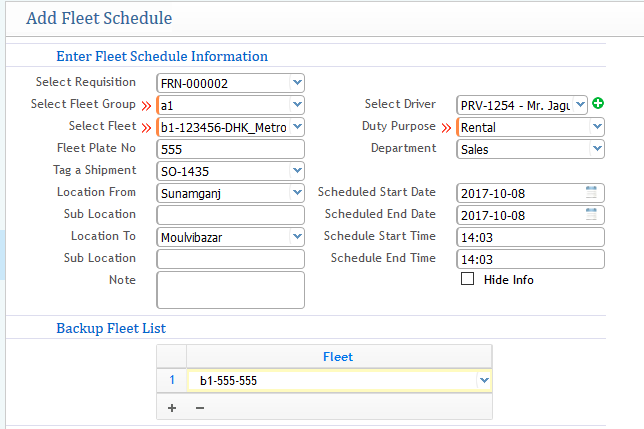
a) Addition of Schedule: This function allows you to create a schedule appointment or add a fleet schedule from the system. You need to fill in several details to proceed with the scheduling process.
b) Selecting the Requisition: Assign the appropriate fleet number to the schedule request.
c) Selecting Fleet Group: Choose the fleet group to which the fleet belongs.
d) Select Fleet: Enter the registration number of the fleet that will be scheduled.
e) Tag a Shipment: Select the shipment sales order under which the schedule addition is being requested.
f) Location From: Define the starting point of the fleet's journey.
g) Location To: Define the destination point for the fleet.
h) Select Driver: Assign a driver to the fleet for the scheduled journey.
i) Duty Purpose: Choose the duty category for the driver, such as whether it’s for rental, company use, or other purposes.
j) Schedule Start & End Date/Time: You can assign both the start and end date, along with the specific times for the schedule.
Note: An additional option for Backup Fleet is available. If the scheduled fleet faces any issues, you can assign a backup fleet to ensure continuity.
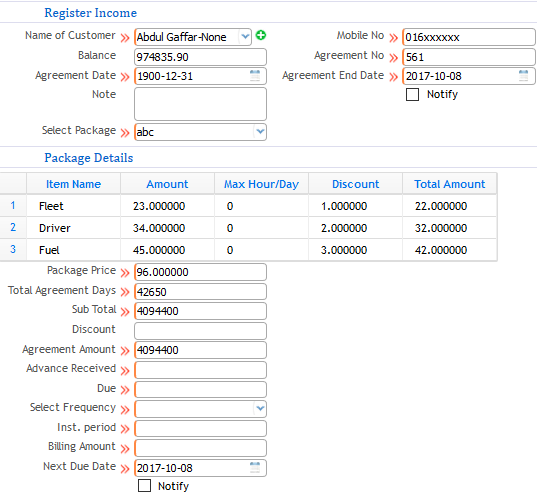
k) Register Income: This section provides brief details about the customer, including the customer’s name, balance, agreement date and number, mobile number, agreement end date, and more.
l) Package Details: This section provides a detailed breakdown of the contents of a package, including the number of fleets, drivers, and fuel required for the service. It also includes package pricing, agreement duration, and other relevant information.
4) Fleet Schedule List:
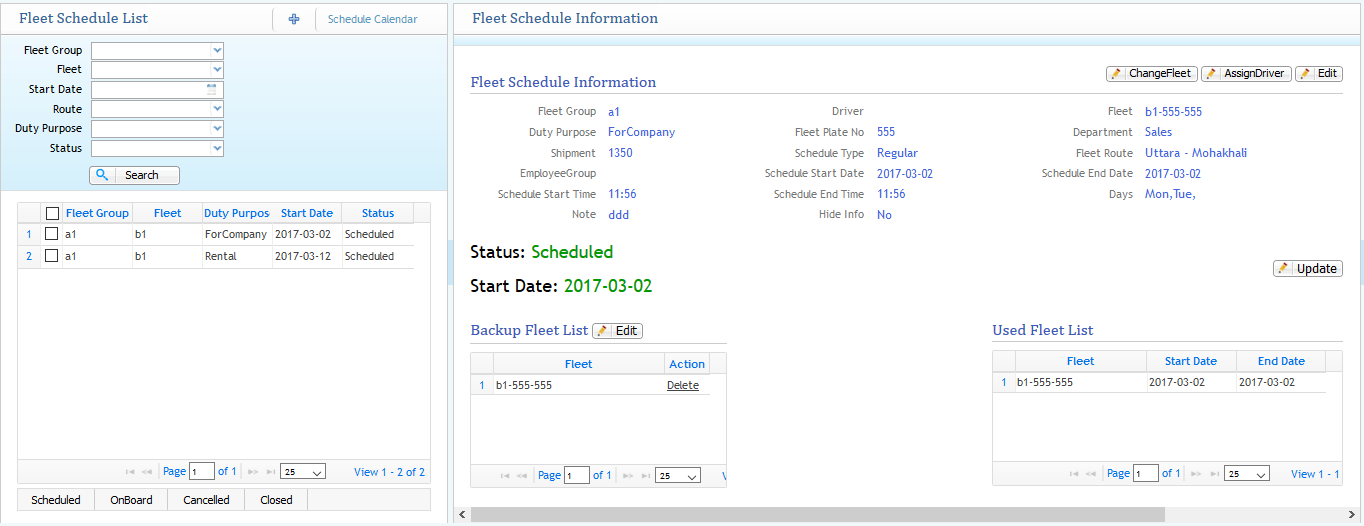
The Scheduled Fleet List displays all scheduled fleets along with their valid details. From this list, you can easily make changes, such as modifying the fleet for a particular schedule, editing information, or assigning a driver if it wasn’t previously done. All of these actions can be carried out directly from the list page view, making it convenient to manage and track all scheduled fleets. This feature ensures proper tracking and updates of the fleet schedules, providing a comprehensive view of all scheduled fleet activities.
5) Schedule Calendar:
The Fleet Schedule Calendar displays all fleet activities in a calendar format. Each scheduled activity is shown within the corresponding date on the calendar. This visual representation allows you to easily view and track fleet schedules for any given day. All schedules assigned to a specific date will be neatly displayed in a box under that date, providing an organized and efficient way to manage fleet appointments.
6) Unscheduled Fleet List:

Shows all the list of fleets that are not yet scheduled
7) Creating or Adding New Packages for Fleet Schedule:
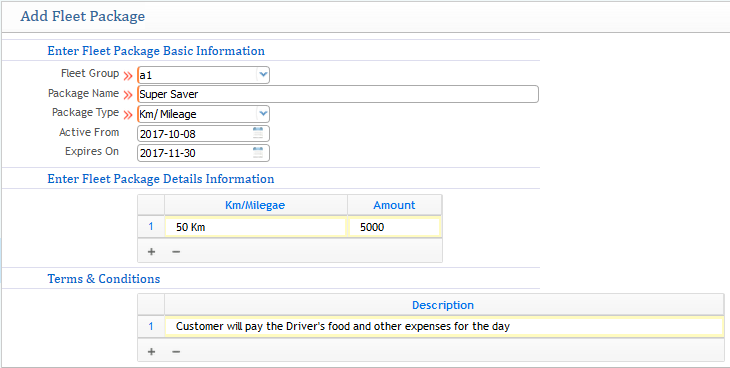
Fleet package creation includes the following details:
- Package Name: Specify the name of the package.
- Fleet Group: Select the fleet group to which the package will be applied.
- Package Type: Choose the type of package calculation, such as based on kilometers/mileage or a standard rate depending on the fleet's body type.
- Active From & Expiry Date: Define the start and expiration dates for the package.
- Fleet Information: Provide the details regarding the kilometers/mileage and the associated amount for the fleet.
- Terms & Conditions: Include any specific terms and conditions if applicable to the package.