Budget Management
The Budget module in PrismERP provides a structured way to manage financial planning and allocations across branches, departments, and operational activities. It includes the ability to create and organize budgets using budget categories, category templates, and subcategories, ensuring amounts are properly structured.
Users can view and manage budgets in detail, including breakdowns, distributions across accounts, internal transfers, and related attachments or notes. Budgets can be compared side by side using the Budget Comparison feature, and the Budgetary Financial Position report provides the planned financial position for a selected year.
The module also allows users to update budget status as Proposed, Approved, or Closed, with editing permitted only while in Proposed status.
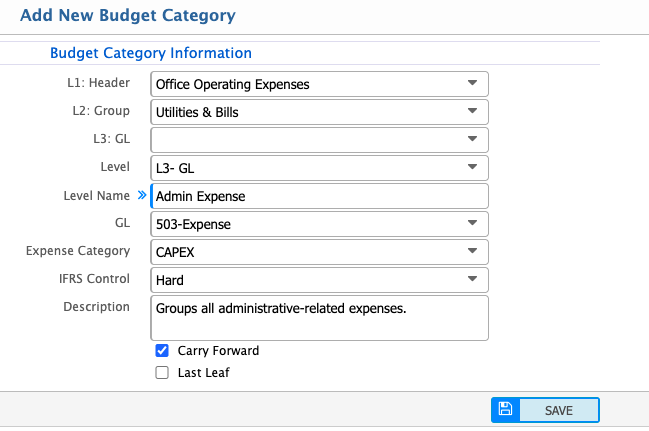
Add Budget Category
| Field | Action |
|---|---|
| L1: Header | Enter the top-level financial classification. |
| L2: Group | Enter the group under the selected header to organize related accounts. |
| L3: GL | Enter the General Ledger (GL) name used for posting transactions. |
| Level Name | Enter the name of the budget category according to the selected level. |
| GL | Select the related General Ledger. |
| Expense Category | Select the expense category for budget category. |
| IFRS Control | Select the applicable IFRS classification for compliance and financial reporting. |
| Description | Enter additional details to clarify the purpose or usage of the category. |
| Carry Forward | Select if unused budget amounts should be carried forward to the next financial period. Leave unselected if the budget resets annually. |
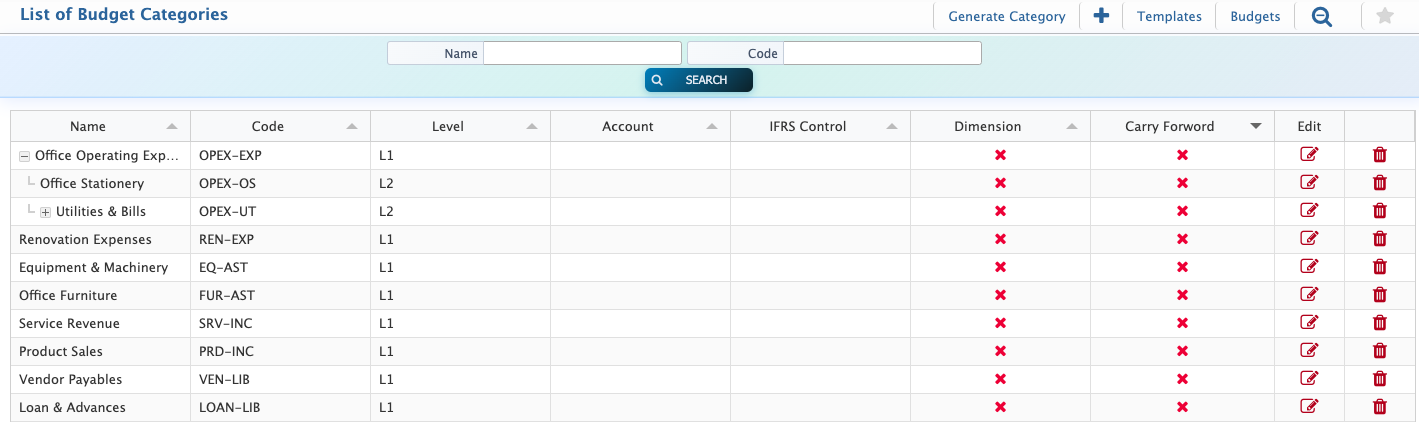
Budget Category List-Search & Actions
| Field | Action |
|---|---|
| Name | Search budget categories by entering the category name. |
| Code | Search budget categories using the unique category code. |
| Add | Add a new budget category by entering its name, code, parent category, and description. |
| Edit | Edit an existing budget category to update its name, code, parent, or description. |
| Delete | Delete a budget category if its no longer required from the list. |
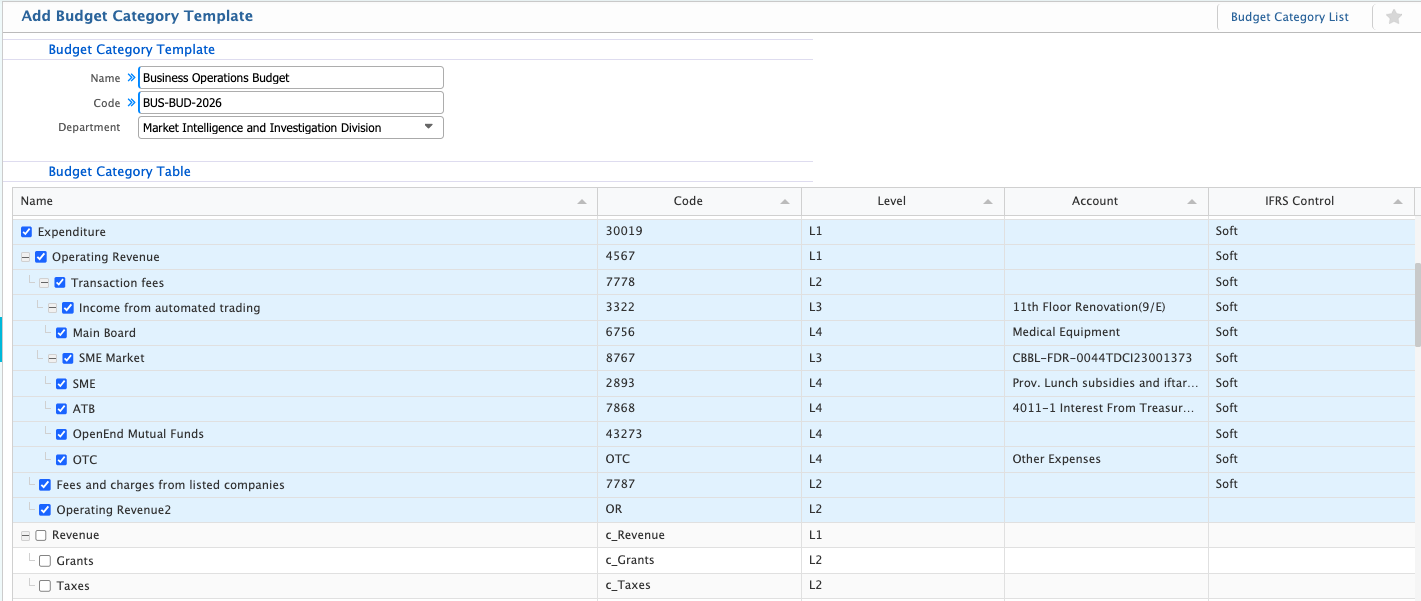
Add Budget Category Template
| Field | Action |
|---|---|
| Budget Category Template Name | Enter a clear and identifiable name for the template |
| Code | Enter a unique reference code for the template for easy tracking. |
| Department | Select the department where this template will be applied |
| Budget Category | Select the relevant budget category to add into the template. |
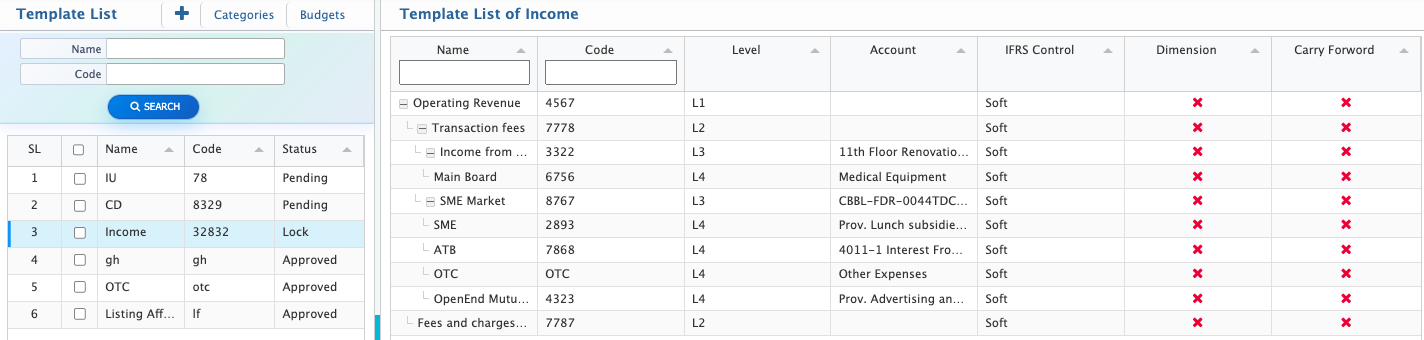
Budget Category Template List
Add New Budget
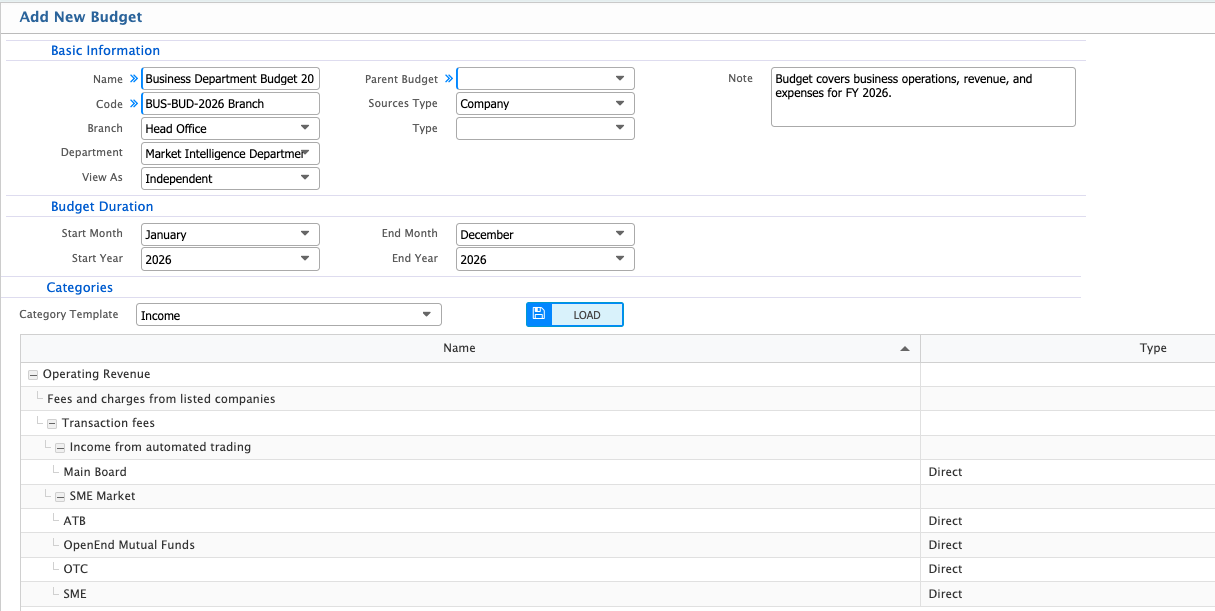
| Field | Action |
|---|---|
| Name | Enter a descriptive name for the budget. |
| Code | Enter a unique reference code for easy identification and tracking. |
| Branch | Select the branch to which this budget applies. |
| Department | Select the department responsible for this budget. |
| View As | Choose the preferred view format (e.g., independent,consolidated,tiered). |
| Parent Budget | Select a parent budget if this budget is part of a larger consolidated budget. |
| Sources Type | Select the type of budget source (e.g., Company, Department, Project). |
| Type | Select the type of budget (e.g., Operational, Capital, Revenue). |
| Note | Enter additional information or comments about this budget. |
| Start Month | Select the month when the budget period begins. |
| End Month | Select the month when the budget period ends. |
| Start Year | Enter the year when the budget starts. |
| End Year | Enter the year when the budget ends. |
| Category Template | Select a predefined budget category template to apply. This automatically structures accounts and expense categories for the budget. |
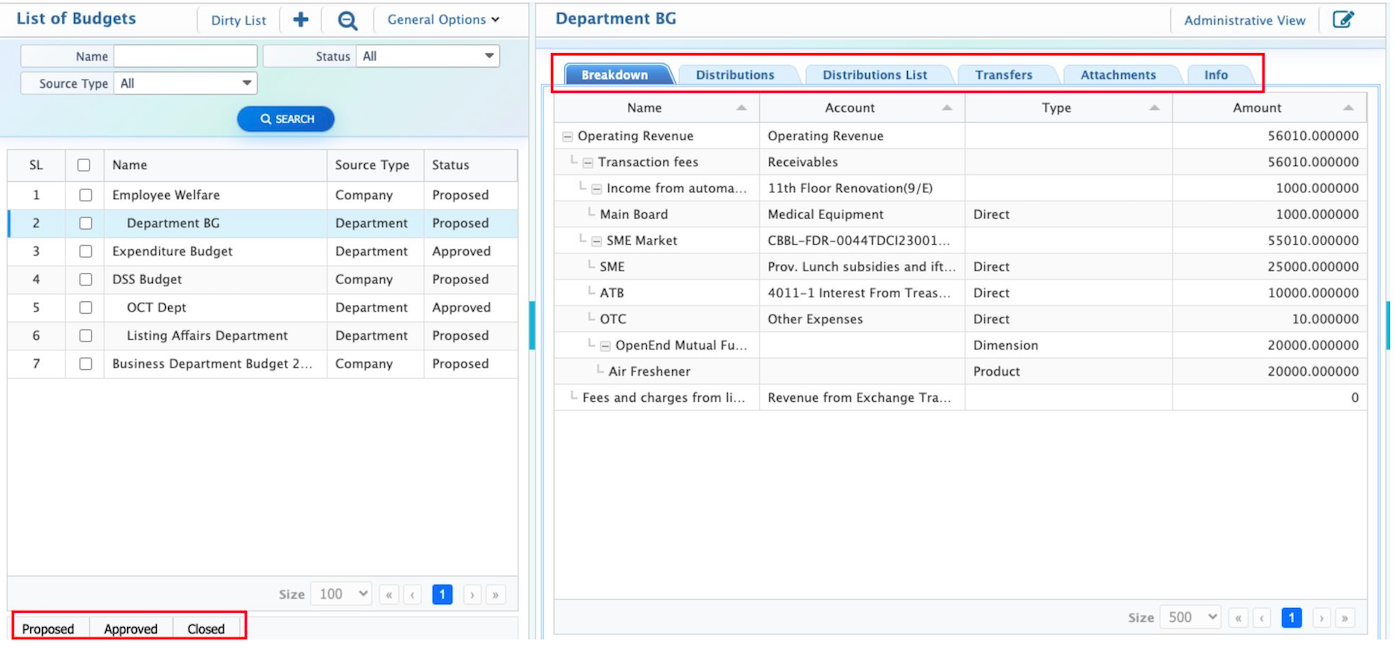
Budget List & Details View
| Section | Action |
|---|---|
| Breakdown | View all major budget categories and subcategories. |
| Distributions | See how amounts are split into individual accounts or cost centers. |
| Transfers | Review any internal transfers related to the budget. |
| Attachments | Access supporting documents like invoices or agreements. |
| Info | View notes or additional details regarding the budget item and access administrative view. |
| Budget Status | Users can update the status of the budget. Budgets can be marked as Proposed, Approved, or Closed. |
| Editing Rules | Editing of the budget is allowed only when the budget is in Proposed status. Once approved or closed, changes are restricted. |