 Card Receipt
Card receipts streamline the credit/debit card payment process through automatic calculations. Businesses can configure card receipt machines and define bank-specific policies to facilitate payments via card machines. All applicable charges are automatically calculated based on policies, ensuring that the appropriate general ledger is always updated. With automated calculations, PrismFMS helps organizations save both time and money.
Key Feature of Card Receipt
- Bank Charge Management – Automatically applies bank-specific policies and charges.
- Card Device Management – Configures and monitors card payment devices.
- Card Receive Voucher List – Maintains a structured log of all card-based transactions.
- Multiple Types of Cards – Supports various card types for payment processing.
Add Card Type
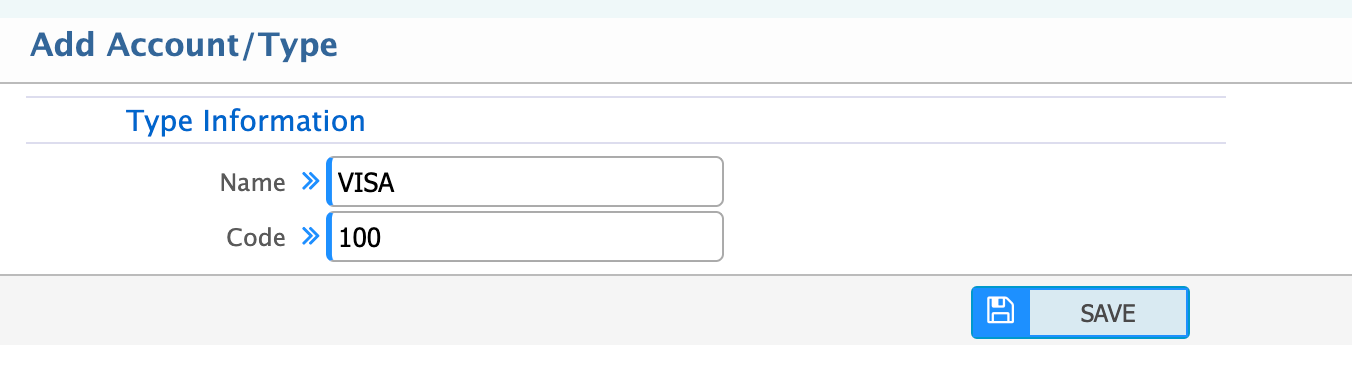
To add a new card type in the system, follow these steps:
Navigate to Card Type Addition:
Go to Card Type Add.
Fill in the Required Fields:
- Name: Enter the name of the card type (e.g., VISA, MasterCard, American Express).
- Code: Provide a unique code for the card type to ensure clear identification.
Save the Card Type:
Once the fields are filled, save the new card type to enable its use for payment processing in the system.
Card Type List
The list page shows all the Card Type lists that are being created in the application.
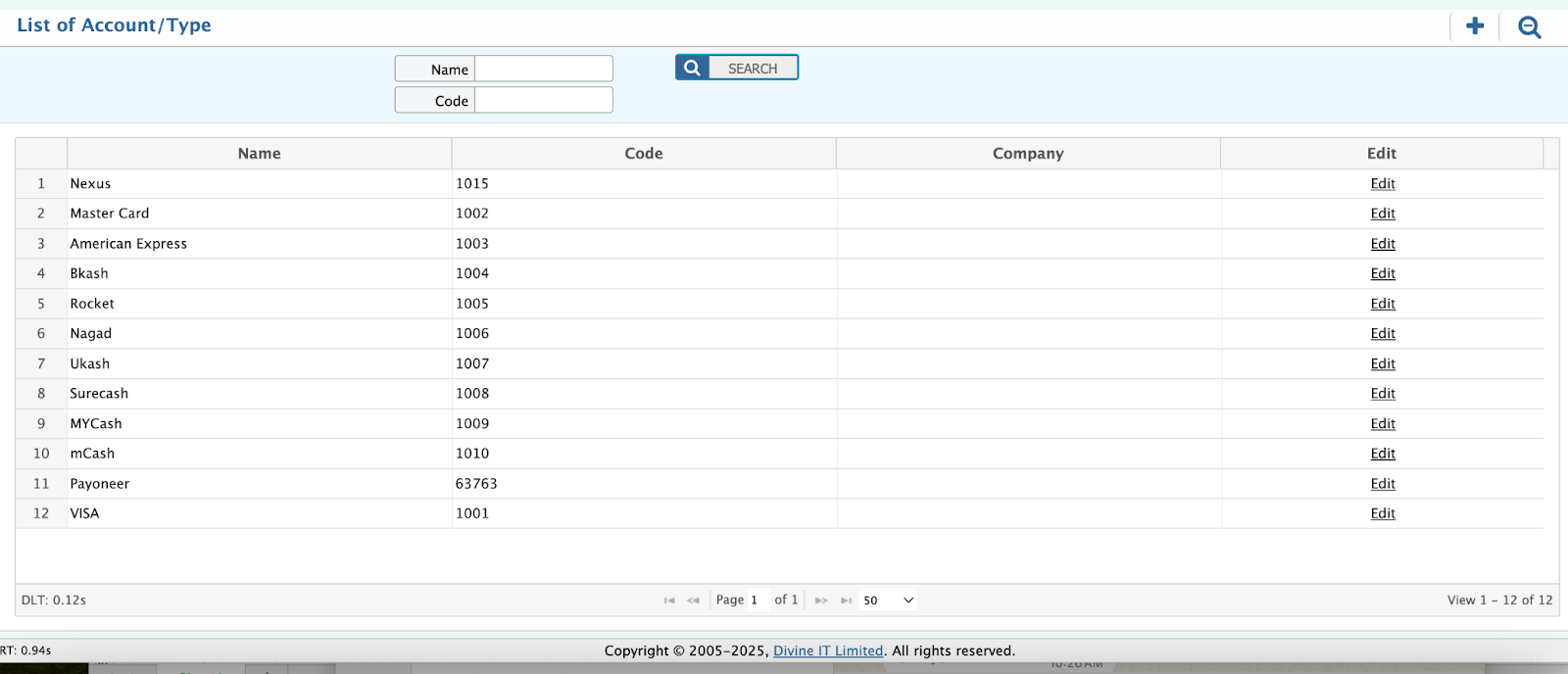
The Card Type List Page offers an intuitive interface for managing all card types within the system.
Key Features:
- Search Fields:
- Name: Quickly find card types by their names (e.g., VISA, MasterCard).
- Code: Search using the unique code associated with each card type.
- Edit Option: Easily modify specific card types by clicking on the Edit button next to each entry. Make changes to the name or code if needed for correction or updates.
Add Account/Device Information
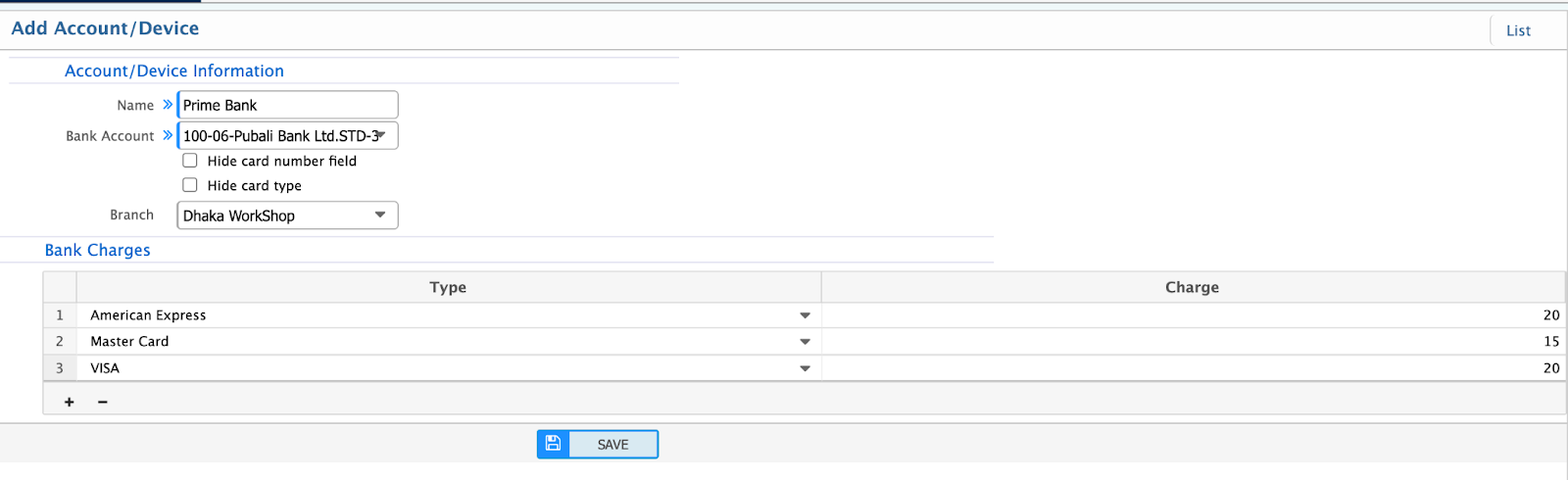
To add a new Account or Device for Payment Card Reader, follow these steps:
Navigation:
Go to Add New Device.
Fields to Fill:
- Name: Enter the name of the device or account (e.g., "POS Device 1" or "Corporate Card Account").
- Bank Account: Tag the corresponding Bank Ledger associated with this account.
- Branch: Specify the branch name for which this account is being created.
- Bank Charges: Configure bank charges for each card type individually. This ensures proper management of card-specific bank charges.
This feature enables streamlined device and account management for payment processing, including tracking associated bank charges for transactions.
Account/Device List

The account/device List Page offers an intuitive interface for managing all account/device lists within the system.
Key Features:
- Search Fields:
- Name: Quickly find account/device by their names.
- Edit Option: Easily modify specific account/device by clicking on the Edit button next to each entry. Make changes to the name or code if needed for correction or updates.
Add Receive Voucher
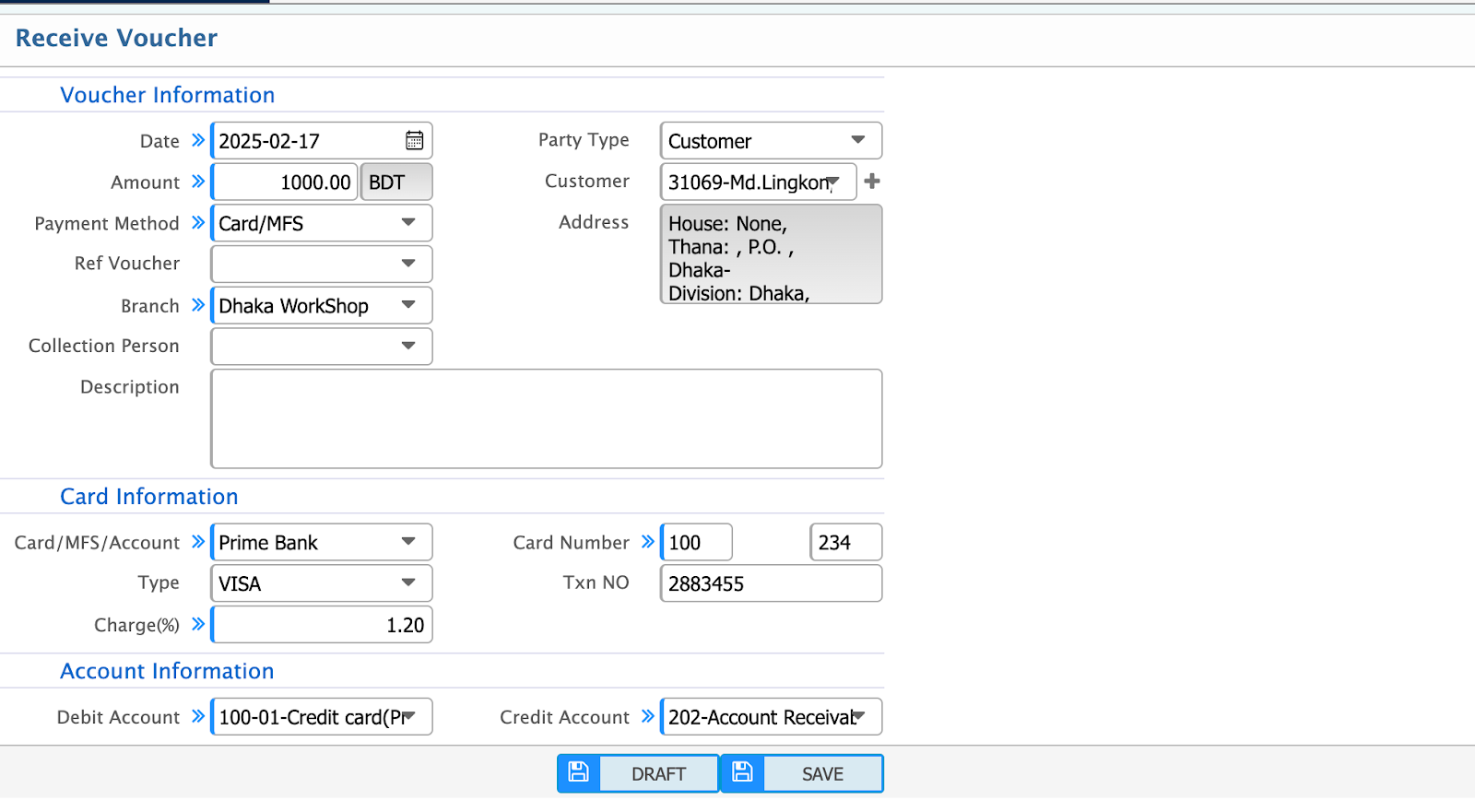
To create a receive voucher, follow these steps:
Navigation:
Go to Receipt.
Fields to Fill:
- Date: Enter the voucher entry date.
- Amount: Input the amount received.
- Payment Method: Select the payment method (e.g., Card or MFS) for card receipt.
- Party Type: Choose the party type (Customer).
- Customer: Select the customer's name from whom you are receiving the payment.
- Branch: Specify the branch of operation.
- Ref Voucher: If needed, select the relevant reference voucher.
Card Information Section:
- Card/MFS/Account: Select the desired Card, MFS, or Account name associated with the transaction.
- Card Number: Input the card number used for the payment.
- Txn No: Enter the transaction number for record-keeping.
- Type: Choose the card type (e.g., VISA, MasterCard, American Express).
- Charge%: The applicable bank charge percentage will be automatically populated based on the pre-configured settings for the selected card type.
Card Receipt Voucher
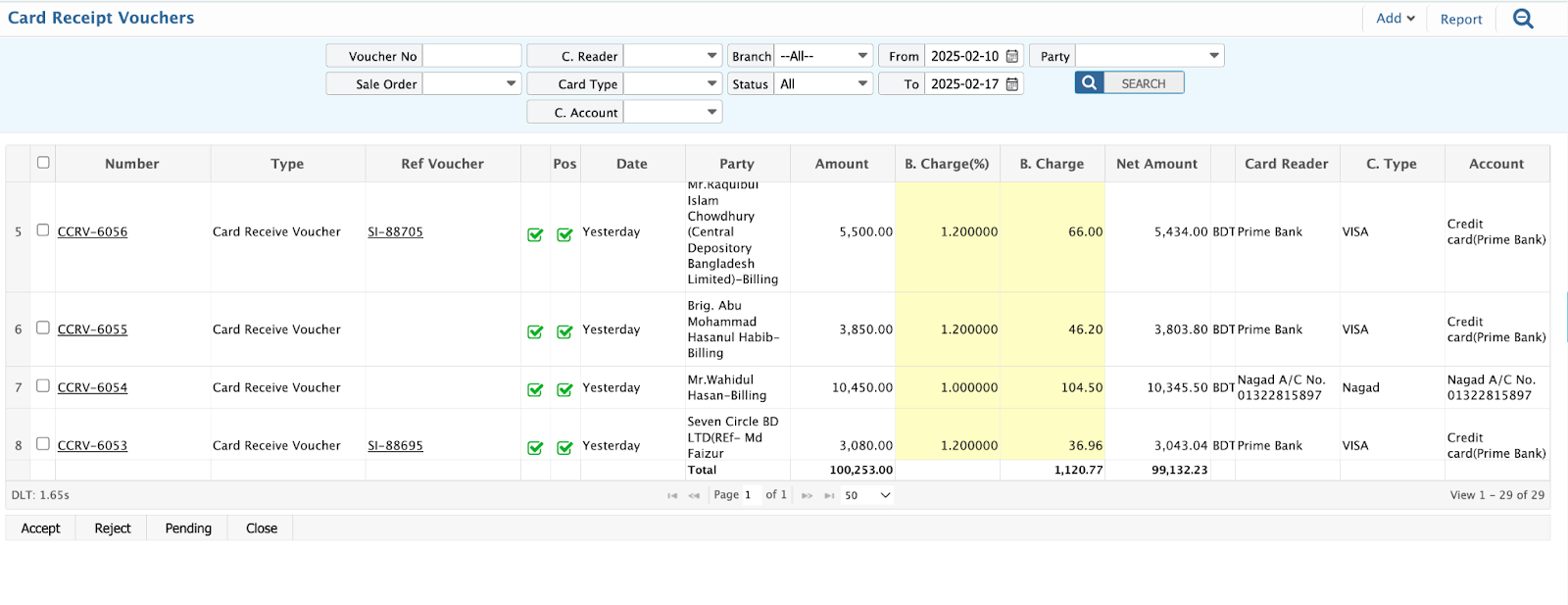
The Receive Voucher List Page in PrismERP provides a streamlined interface for managing all receive vouchers created using card payments.
Key Features:
- Search Fields:
- Voucher No: Search by the specific voucher number.
- Card Type: Filter vouchers by card type (e.g., VISA, MasterCard).
- Card Reader: Search by the associated card reader or account.
- Party: Filter by customer or party name.
- From Date / To Date: Search vouchers within a specific date range.
List Page Information:
The list displays the following details at a glance:
- Receive Amount: Shows the total amount received in each voucher.
- Bank Charge%: Displays the applicable bank charge percentage for the transaction.
- Bank Charge Amount: Calculates and shows the bank charge amount based on the charge percentage and receive amount.
- Card Reader: Identifies the account or card reader used for the transaction.
- Card Type: Displays the type of card used for payment (e.g., VISA, MasterCard).
Detail View:
View more details about a specific voucher by clicking on it.
Accounting Transactions:
After accepting the voucher, the associated accounting transactions will occur automatically. The corresponding ledgers will also be updated, ensuring real-time financial accuracy.